
Imagine visiting a website where you instantly find everything you need without fumbling through endless pages. That’s the magic of a well-organized menu!
As a WordPress user, you have the power to create this seamless experience for your visitors with a custom menu. But what exactly is a WordPress custom menu, and how can it enhance your site? You’ll uncover the secrets behind custom menus and learn how they can transform your website into a user-friendly hub.
You’ll discover why these menus are not just about aesthetics—they’re about guiding your visitors, improving navigation, and boosting engagement. Whether you’re a seasoned WordPress user or a beginner, understanding custom menus will give you the control you need to make your website shine. Stay with us as we dive into the world of WordPress custom menus and unlock strategies that will captivate your audience and make your site stand out.
WordPress Custom Menu Basics
A WordPress Custom Menu lets you create special links. You choose where the links go. It helps users find things easily. Custom menus can have pages, posts, or categories. They look neat and organized.
Custom menus make websites easy to use. They help visitors find what they need fast. Easy navigation keeps users happy. Menus can also show important information. This makes sure users see what they should. It improves user experience.
Credit: themezee.com
Creating A Custom Menu
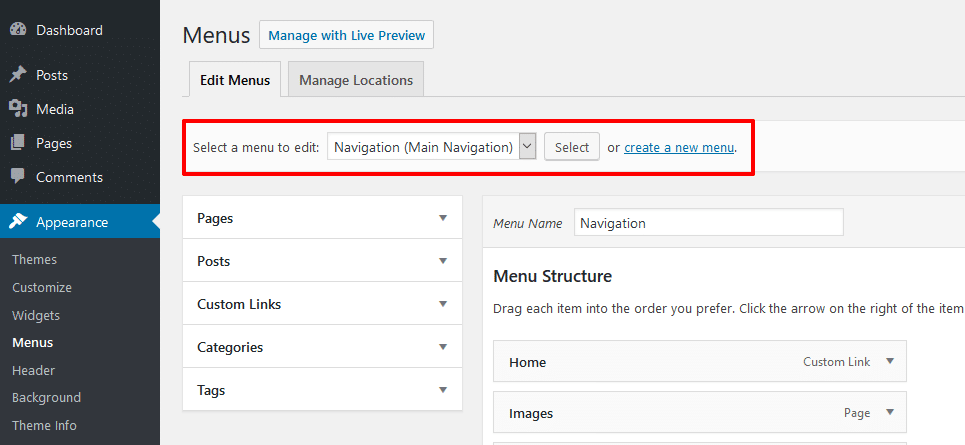
First, log into your WordPress dashboard. Look for the Appearance menu on the left. Click on it. Then, find Menus and select it. You will see the menu settings screen. Here, you can create and edit menus. It’s simple to use. Just follow the steps. You can also manage menu locations from here.
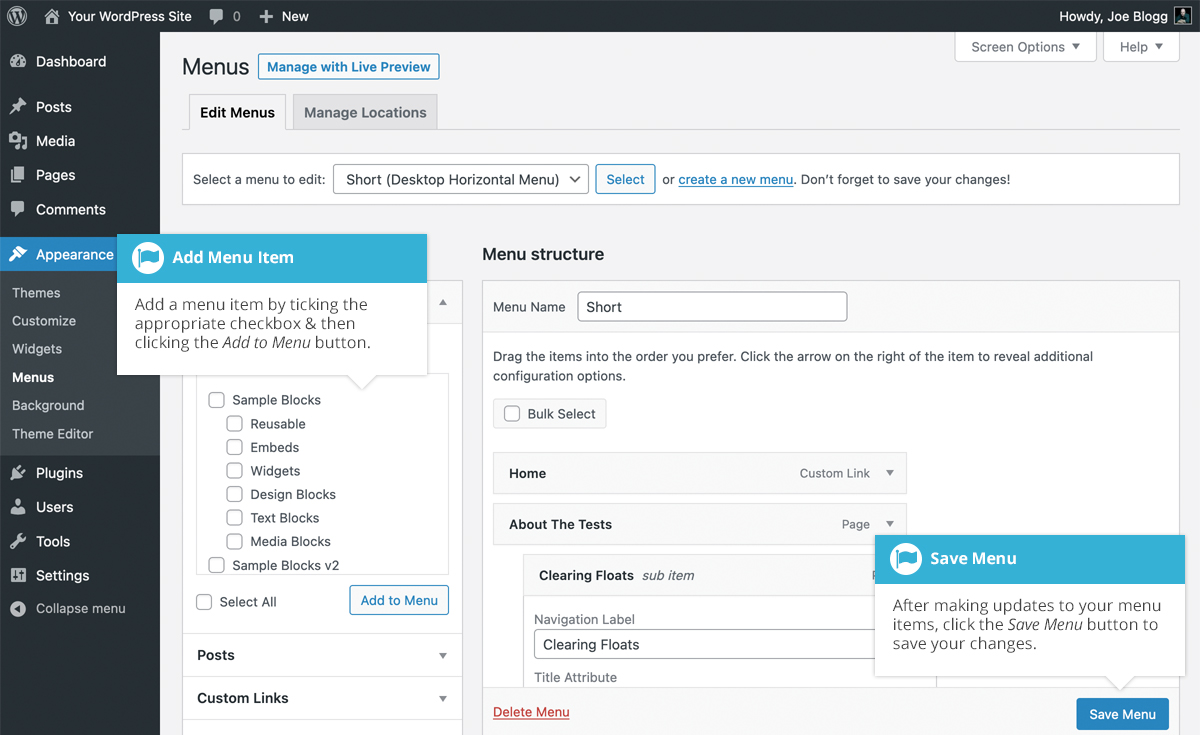
To add a menu item, click on the pages you want. Use the checkboxes to select them. Then click Add to Menu. Your selected items appear on the right. Drag them to arrange the order. Place important items at the top. You can also create sub-menus. Just drag an item under another and to the right. This makes it a sub-item. Save your changes when done. Your custom menu is now ready.
Customizing Menu Appearance
CSS makes your menu look good. Change colors and fonts easily. Adjust sizes and spacing with simple code. Add hover effects for interactive menus. Make items bold for emphasis. Use classes to group similar items. Create a unique style that fits your website. CSS is simple and powerful.
Icons help users find menu items fast. Images add visual appeal to menus. Use small icons for a clean look. Place images beside text for clarity. Choose icons that match the menu purpose. Keep images clear and not cluttered. Use simple and meaningful icons. Enhance user experience with visuals.
Advanced Menu Features
WordPress custom menus offer flexibility in website navigation. They help organize pages, posts, and categories efficiently. Users can easily create and modify menus to enhance site usability.
Dropdown And Mega Menus
Dropdown menus open when you hover or click. They show more choices. These menus keep your site tidy. Users find what they need easily. Mega menus offer many links in one place. They are useful for sites with lots of pages. Users see all options at once. Mega menus often use images or icons. This makes them look nice and clear. Both menu types help users explore your site better.
Conditional Menus
Conditional menus change based on user actions. They show different items for logged-in users. Or, they display specific links for certain pages. These menus adapt to each visitor. This makes the browsing experience personal. Users feel more engaged with your site. Conditional menus improve navigation. They ensure users see what they need quickly.
Plugins For Enhanced Menus
Plugins can make your WordPress menus better. They add cool features and styles. Some plugins make menus look modern. Others help with mobile views. You can find free and paid options. Always pick plugins that fit your needs.
- Max Mega Menu: Great for making big menus.
- WP Mega Menu: Adds tabs and icons.
- UberMenu: Offers many layout choices.
Plugins must match your theme for best results. Test plugins to see how they look. Some themes may need extra settings. Always check if updates are needed. This ensures everything works smoothly.
Troubleshooting Common Issues
WordPress custom menus allow users to organize and display links in a website’s navigation. Creating menus helps visitors find important pages easily. Troubleshooting common issues involves checking menu settings and ensuring theme compatibility for smooth navigation.
Menu Not Displaying
Sometimes, the menu might not show up on your site. This can be due to a theme issue. Some themes do not support custom menus. You should check your theme settings. Ensure the menu is set to the correct location. Go to the theme customizer and look for menu settings. This might help your menu appear on the site.
Issues With Menu Order
Menu items might not be in the order you want. This can happen if the menu settings are not saved properly. Ensure you drag menu items to the right spot. After arranging, click the save button. If it still doesn’t work, check for a plugin conflict. Deactivate plugins one by one. See if the menu order changes. This can help find the problem.
Best Practices For Menu Design
A simple menu helps users find what they need. Too many items can confuse people. Choose only the most important links. This makes it easier to use. Group similar items together. This helps with understanding. Simple menus make websites friendly and easy to navigate.
Many people use phones to browse websites. A menu should work well on small screens. Use a menu that changes size. Hamburger menus are a good choice. They save space and are easy to use. Test your menu on different devices. Make sure it looks good everywhere.
Credit: pressidium.com
Credit: easywpguide.com
Frequently Asked Questions
What Is A Custom Menu In WordPress?
A custom menu in WordPress is a user-defined navigation tool. It allows you to organize site links in a preferred order. You can include pages, categories, and custom links. This feature enhances site navigation and user experience. It is customizable and can be managed from the WordPress admin dashboard.
How Do You Create A Custom Menu?
To create a custom menu, go to the WordPress dashboard. Click on “Appearance” and then “Menus. ” Select “Create a new menu. ” Add items like pages and categories. Arrange them using drag-and-drop. Save changes to display the menu on your site.
Ensure the menu is assigned to a theme location.
Can Custom Menus Improve Seo?
Yes, custom menus can enhance SEO by improving site navigation. Well-structured menus help search engines crawl your site effectively. They offer users a better experience, reducing bounce rates. Organizing content logically aids in search indexing. Use descriptive labels for menu items to optimize for relevant keywords.
Are Custom Menus Mobile-friendly?
Custom menus can be mobile-friendly if designed properly. Use responsive themes or plugins to ensure menus adapt to various screen sizes. Test your menu on different devices to confirm usability. Mobile-friendly menus improve user experience and can positively impact SEO.
Prioritize simplicity and accessibility for mobile users.
Conclusion
A WordPress custom menu simplifies site navigation. It enhances user experience. Visitors find what they need quickly. Organizing content becomes easy. Creating menus is straightforward. You tailor the look to your brand. No coding skills needed. Just drag and drop.
Adjust menu items anytime. Keep your site updated with fresh links. Custom menus boost engagement. They make sites user-friendly. A necessary tool for any WordPress site owner. Improve your site today. Start using custom menus. Your audience will appreciate the effort.
Better navigation leads to more visits. Explore WordPress options now. Make your website stand out.


