
Thinking about taking a break from your WordPress site? Or maybe you’re ready to close the chapter on your digital presence altogether?
You’re not alone. Whether it’s a temporary pause or a permanent goodbye, deciding to stop your WordPress site can feel overwhelming. Questions like “What happens to my content? ” Or “Will my SEO efforts go to waste? ” Might flood your mind.
This guide is here to ease those worries and give you clear insights. Imagine the peace of mind that comes with knowing exactly what steps to take. By the end of this article, you’ll understand the implications, what to expect, and how to make the best choice for your online presence. Dive in and discover how to transition smoothly, without losing the hard work you’ve put into your site.
Credit: rankmath.com
Reasons To Stop Your WordPress Site
Many people stop their WordPress site for various reasons. Sometimes, they want to try something new. Other times, they might need a break. Running a website takes time. It can be hard to manage. Lack of ideas can also be a reason. When creativity stops, the site suffers. Some people face financial issues. Website costs can be high. If money is tight, stopping the site makes sense. Technical problems can be a headache. Not everyone can fix them. Lastly, some want to focus on other projects. Life changes, and priorities shift. Stopping the site might be best.

Credit: leadershipfreak.blog
Preparing For Site Shutdown
Thinking about shutting down your WordPress site requires careful planning. Backup your data to prevent losing valuable information. Inform your users about the shutdown and redirect them to new content or sites.
Backing Up Data
Before stopping your WordPress site, it’s crucial to backup all data. This keeps your content safe. Plugins like UpdraftPlus or BackWPup can help. They save files and database data. Save these backups in a secure place. Use cloud storage or an external drive. This way, your data won’t get lost.
Informing Your Audience
Tell your audience about the site shutdown. This shows respect and keeps them informed. Use emails or a banner on your site. Let them know why the site is closing. Share any new plans or sites you have. Always thank them for their support. Your audience will appreciate your honesty and care.
Deactivating Plugins And Themes
Turning off plugins is simple. Go to the plugins page. Click on deactivate. The plugin will stop working. Your site might change. Some features might disappear. Check each plugin before deactivating.
Themes can be deactivated too. Visit the appearance section. Choose a different theme. The old theme becomes inactive. Your site will look different. Always preview the new theme first.
Some plugins need extra steps. They might need to be uninstalled. Check the plugin details. Follow the instructions. Themes usually don’t need extra steps.
Keep your site secure. Deactivate unused plugins. They can be risky. Old themes might not be safe. Regular updates help security. Always keep your site updated. It protects your site.
Disabling WordPress Site Temporarily
Maintenance mode is very useful. It tells visitors your site is under work. This mode is easy to activate. You can use a plugin to start it. Popular plugins include WP Maintenance Mode and SeedProd. These plugins are free and simple to use. They give you a friendly message for users. This keeps your site safe from errors. Remember, plugins need updates often.
Restricting access keeps your site safe. You can do this with a plugin. A common choice is Password Protected. With this, only people with a password can view your site. This is good when working on changes. Make sure to keep the password safe and easy to remember. This way, your site stays secure from unwanted visitors.
Permanently Deleting Your Site
Considering stopping your WordPress site? Permanently deleting it removes all content and data. It’s irreversible, so back up first.
Removing From Hosting
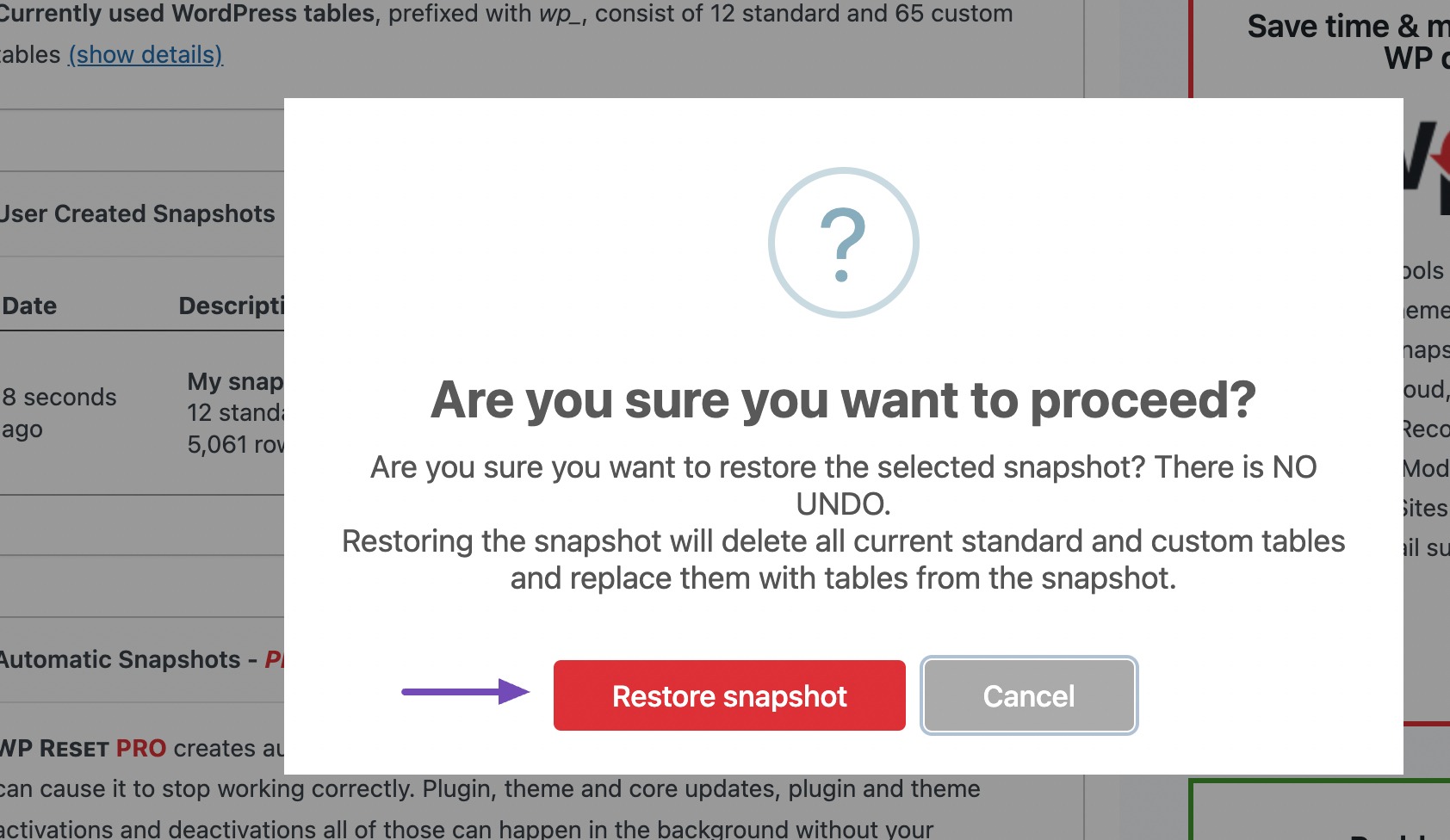
To remove your site from hosting, log into your hosting account. Navigate to the control panel. Find the section labeled “Websites” or “Domains”. Click to manage your site. Choose the option to delete your website. Confirm your decision when prompted. This action will remove your site’s files from the server. It’s like erasing a drawing from a board. Be sure you have saved any important content elsewhere. Once deleted, recovery is not possible.
Deleting From WordPress.com
Visit the WordPress.com dashboard. Select the site you want to delete. Go to Settings in the menu. Scroll to the bottom. Find the option labeled “Delete Site Permanently”. Click and follow the steps. Confirm your choice carefully. This action will erase your site from WordPress.com. Make sure to download any data you need first. Once gone, it cannot be undone. It’s like tearing a page from a book forever.
Handling Domain And Hosting
Stopping your WordPress site involves a few steps. First, focus on your domain registration. Visit your domain provider’s website. Find the option to cancel or let it expire. This step is crucial. If you don’t cancel, you might still get billed. Always check the terms before proceeding.
Next, manage your hosting services. Log into your hosting provider account. Look for the plan details. There, you’ll see options to cancel or discontinue. Confirm your cancellation to stop further charges. Remember, some hosts might offer a refund. Check their refund policy to see if you are eligible.
Seo And Search Engine Considerations
Your website is like a book. Each page is important. When you stop your WordPress site, some pages may be lost. This can confuse visitors. Redirects help solve this problem. They guide visitors to a new page. This keeps them happy. It also helps search engines. They understand where to go next.
Setting up redirects is easy. WordPress has many plugins. Use them to create 301 redirects. This shows a page is moved forever. Visitors and search engines follow these redirects. Your site stays organized. You keep your visitors.
Search engines need updates. They help people find your site. Stopping your site means changes. Tell search engines about this. Use tools like Google Search Console. This helps them understand. They can update their results. Your site will not show broken links. Visitors find what they need. Everyone stays happy.
Credit: translatepress.com
Legal And Ethical Implications
Stopping a WordPress site involves important steps. User data needs careful handling. Data protection laws may require you to delete or secure data. This includes personal information like names and emails. Failing to do this can lead to legal troubles. Always check your local laws.
Informed stakeholders are key. Let them know what’s happening. Explain why the site is closing. Offer a timeline. This builds trust and transparency. Emailing them is a good method. Keep the message clear and simple.
Exploring Alternatives
Preserving your content is important. Backup all your posts and pages. Save them on a secure drive. This keeps your work safe. Use tools like Google Drive or Dropbox. These offer online storage. It’s easy and reliable. Don’t forget to save images too. They are part of your site’s story. Consider exporting your site’s data. WordPress has a built-in export tool. It’s simple to use. Just follow the steps provided.
Changing platforms is a big step. Choose the right one for you. Squarespace and Wix are popular options. They are user-friendly. Simple drag-and-drop features help design new pages. Test them with free trials. This helps find the best fit. Transfer your content carefully. Most platforms offer import options. Follow their guides for smooth transitions. Always check your content after moving. Ensure everything is in place.
Frequently Asked Questions
How Do I Temporarily Disable My WordPress Site?
To temporarily disable your WordPress site, use a maintenance mode plugin. This will display a maintenance message to visitors. Ensure you backup your site before making any changes. Alternatively, you can set your site to private, restricting access to logged-in users only.
This way, your content remains safe and hidden.
What Are The Steps To Delete A WordPress Site?
To delete a WordPress site, first backup all your data. Then, go to your hosting account, locate the WordPress installation, and delete it. Remove associated databases and files as well. Remember, this action is irreversible, and your site will be permanently gone, so ensure you have saved everything important.
Can I Stop A WordPress Site Without Deleting It?
Yes, you can stop a WordPress site without deleting it. Use a maintenance mode plugin to inform visitors. Alternatively, change the site visibility to private, restricting access to logged-in users. This method keeps your data intact, allowing you to resume operations whenever you are ready.
What Happens To My Seo If I Stop My Site?
Pausing your site can negatively impact SEO. Search engines might de-rank your site if it’s inaccessible for long. Use a maintenance mode plugin to minimize effects. Ensure to communicate with your audience about the downtime. Regular updates on social media can help maintain engagement and interest.
Conclusion
Stopping your WordPress site involves careful planning. Backup your data first. Consider saving important files. Deactivate plugins to prevent issues. Inform your audience about changes. Ensure your site is secure during downtime. Explore options for temporary page redirects. Evaluate future steps for your online presence.
Decide if you want to return later. A clear strategy can prevent potential problems. Keep your goals in mind while pausing. It’s a chance to reassess your digital direction. Ending your site doesn’t mean losing everything. Stay organized and focused for smooth transitions.


