
Are you diving into the world of WordPress and feeling a bit overwhelmed by all the editing options? You’re not alone.
With a myriad of editing pages at your fingertips, it can be challenging to know where to start or which features best suit your needs. Whether you’re crafting a blog post, updating your site’s layout, or tweaking your theme, understanding these editing pages is crucial.
In this guide, we’ll unravel the mysteries of WordPress editing pages, helping you to navigate them with ease and confidence. Get ready to transform your WordPress experience from confusing to intuitive. Stick with us, and you’ll soon be editing like a pro!
Post Editing
In WordPress, you can easily create new posts. Click on the “Add New” button. Start typing your post title and content. Use the simple editor to format your text. You can make text bold, italic, or underline. You can also add bullet points for lists. The toolbar helps you find formatting options. It’s easy to use!
WordPress offers many formatting choices. Change text size or color with a click. Add headings to structure your post. Use paragraphs to separate ideas. You can also add links to other pages. This helps readers find more info. All tools are in the toolbar. Explore them to make your post look great!
Enhance your post with images and videos. Click “Add Media” to upload files. Drag and drop to place them in your post. Adjust the size and alignment easily. Use media to make posts more interesting. Pictures can explain ideas better. Videos can show actions or stories. Add them to keep readers engaged.
Page Editing
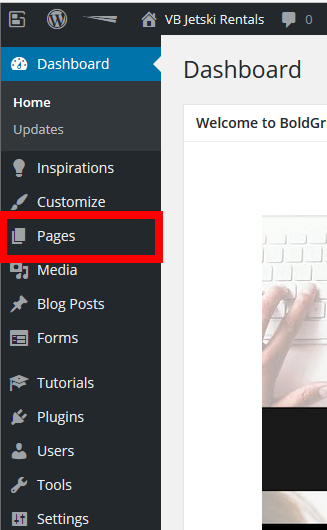
Static pages help your site look great. They do not change often. Home, About, and Contact are examples. You can make them from the WordPress dashboard. Click on Pages and then Add New. Name your page and add content. Use the Block Editor to add text and images. Click Publish to make it live. Static pages keep your site neat and tidy.
Custom page templates make pages look different. They help design pages your way. Choose a template in the Page Attributes. Find this on the right side. Some themes have many templates. Others have just a few. Pick one that fits your need. Change the look without coding. Custom templates are fun and easy to use.
SEO helps people find your site. Set it up in WordPress with a plugin. Yoast SEO is a popular choice. It helps you write better content. Use keywords in your text. Add a meta description. This tells what your page is about. Check the SEO score to improve it. Good SEO brings more visitors to your site.
Custom Post Types
Custom post types allow users to create different content types. These types can be articles, products, or events. Each type can have its own layout and design. This helps to organize content better. Creating custom types is easy with WordPress. It requires some code or a plugin.
Editing custom types is like editing regular posts. Users can add text, images, and videos. They can also change the layout and style. WordPress makes editing simple. The interface is user-friendly. This helps beginners edit with ease.
Plugins make creating custom types easy. Popular plugins include Custom Post Type UI and Pods. These plugins help users define new types. They offer settings and templates. Plugins are useful for users with less coding knowledge.

Credit: www.reddit.com
Theme Customization
WordPress offers various editing pages for theme customization. Users can modify the appearance through the Customizer, Widget, and Menu pages. These tools make it easy to update the site’s look without coding.
Using The Theme Editor
The Theme Editor is a tool in WordPress. It helps you change your theme’s code. You can edit files like style.css or functions.php. Always back up your site before editing. Mistakes can break your website. Use the editor carefully. It is for users who know coding.
Managing Widgets
Widgets add features to your site. You can find them in the Appearance menu. Drag and drop widgets to your sidebar or footer. Popular widgets include search boxes and social media links. They make your site user-friendly. Widgets are easy to manage. Anyone can do it.
Custom Css Options
Custom CSS changes your site’s look. You can add your own styles. This feature is in the WordPress Customizer. Write CSS in the box provided. See changes instantly. It is safe and easy to use. No need for FTP or file edits. Perfect for small tweaks.
Menu Editing
Menus help users find things. They make websites easy to use. To create a menu, go to the dashboard. Click on Appearance. Then click on Menus. Type a name for your menu. Click Create Menu. Now, your menu is ready to add items. You can add pages or posts. This helps organize your site.
Organize menus for easy navigation. Drag items to rearrange them. Click and hold an item. Move it up or down. You can also make submenus. Place an item under another. This creates a dropdown menu. Dropdowns keep things neat. They save space. Users find information faster.
Custom links take users to special places. Type a URL for the link. Write a name for the link. Click Add to Menu. Custom links can lead anywhere. External websites, social media pages, or special content. Make sure links work. Broken links confuse users.
Credit: www.boldgrid.com
Media Library Management
Adding images and videos is easy in WordPress. Click the “Add New” button in the Media Library. Choose files from your computer to upload. You can see them in the library once uploaded.
Organizing media helps find files fast. Use categories or tags to sort them. This keeps your library neat. Search for files using the search bar too.
Edit images directly in WordPress. Click on an image in the library. Use tools to crop or rotate it. You can also change the size of the image. Always save changes before closing.
User Profile Editing
Users can edit their name, email, and password. This is simple and quick. Just click and type in the new info. Always save changes after editing.
To update a profile picture, click the current photo. Choose a new image from your device. This makes profiles more personal. Remember to save after uploading.
Each user has a specific role. Roles determine what they can do. Admins can change these roles. Be careful with permissions. It’s important for site safety.
Comments Management
Comments help connect with the audience. Moderation keeps the comments clean and safe. You can approve, delete, or edit comments easily. Some comments may need extra attention. Spam or rude comments should be removed. A clean comment section invites more users.
Spam comments can be annoying. They can fill your site with unwanted links. Use plugins to stop spam. Anti-spam plugins are helpful. They filter out bad comments. This keeps your site neat and tidy.
User feedback is valuable. It helps improve your site. Encourage users to leave comments. Respond to their feedback kindly. This builds a strong community. Feedback forms can be added. They collect user thoughts in an organized way.
Credit: y-designs.com
Frequently Asked Questions
What Is The WordPress Editor?
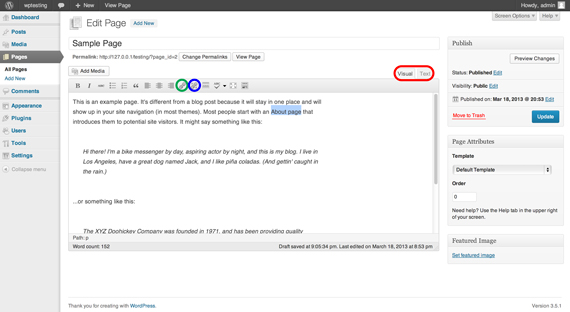
The WordPress editor is a tool for creating and editing content. It allows users to add text, images, and media. The most popular editors are the Classic Editor and the Gutenberg Block Editor. They provide various features for customizing page layouts and designs.
How Do I Use The Gutenberg Editor?
The Gutenberg Editor uses blocks for content creation. Users can add, move, and customize blocks like text, images, and videos. It offers a flexible and visual way to design pages. The editor enhances creativity and improves the user experience.
What Is The Classic Editor In WordPress?
The Classic Editor is a traditional text editor in WordPress. It provides a simple interface for writing and formatting content. Users can add media, links, and shortcodes. The editor is preferred by those who enjoy a straightforward editing experience.
Can I Switch Between WordPress Editors?
Yes, you can switch between editors in WordPress. The Classic Editor and Gutenberg Editor can be enabled or disabled. Users can install plugins to choose their preferred editor. Switching allows flexibility in content creation and management.
Conclusion
Exploring WordPress editing pages makes your website management easier. You gain control over content changes. Editing tools help your pages look professional. Customize your site with unique designs. User-friendly interfaces make navigation simple. Choose from various editing options to fit your needs.
You create engaging experiences for visitors. Increase your site’s potential with effective use of editing pages. Understanding these features boosts your website’s appeal. Your website becomes more interactive. Editing pages are key to maintaining a dynamic online presence. Use these tools to shape your site’s future.
Focus on creativity and efficiency in your edits.


