
Have you ever wondered which version of WordPress your website is running? Knowing this can be crucial for several reasons, including security, compatibility, and accessing new features.
If you’ve ever felt uncertain about checking your WordPress version, you’re not alone. Many users find themselves puzzled by the process, but don’t worry—it’s simpler than you might think. By understanding how to identify your WordPress version, you empower yourself to make informed decisions about updates and improvements.
This knowledge can help you maintain a secure and efficient website, allowing you to focus on what truly matters: engaging your audience and growing your online presence. Stick around, and you’ll discover just how easy it is to determine your WordPress version, ensuring you’re always in control.

Credit: matomo.org
Checking Admin Dashboard
Log in to your WordPress admin area. Click on the Dashboard menu. Find the Updates section. You will see the current WordPress version there. It’s easy to find.
Look at the At a Glance widget. This widget is on the Dashboard page. It shows the WordPress version you are using. Check it often. It helps keep your site safe.

Credit: stackoverflow.com
Viewing Page Source
Open your web browser. Visit your WordPress site. Right-click anywhere on the page. Choose “View Page Source.” A new tab will open. Look for the meta tag. Press Ctrl + F to search quickly. Type “generator” in the search box. This will highlight the meta tag. The version number is in this tag. It usually looks like . The number after “WordPress” shows your version.
Using Ftp Or File Manager
To find the WordPress version, navigate to the version file. Open your FTP client or File Manager. Look for the folder named wp-includes. Inside, you will find a file called version.php.
Reading Version.php File is simple. Open the version.php file using a text editor. Look for the line that starts with $wp_version. The number next to it is your WordPress version.
Employing Command Line
WP-CLI is a useful tool for WordPress. It helps manage WordPress from the command line. You can find your WordPress version with WP-CLI. First, open your terminal. Then, type wp core version command. Press enter to execute the command.
Your screen will show the version number. It’s easy and quick. Knowing your version helps in updates. It also aids in troubleshooting. Always ensure you have WP-CLI installed first. Most servers have it available.
Utilizing WordPress Plugins
Plugins help find your WordPress version easily. Search for plugins in the WordPress plugin directory. Look for plugins that offer version details. Some plugins are free, others may charge. Install the plugin you pick. Make sure to activate it. This allows the plugin to work.
After installation, go to your WordPress dashboard. Check the plugin section. Find the version-check plugin. Open it to see your WordPress version. The version is often shown clearly. Some plugins also show other details. This helps you understand your website better. Make sure your WordPress is updated to the latest version.
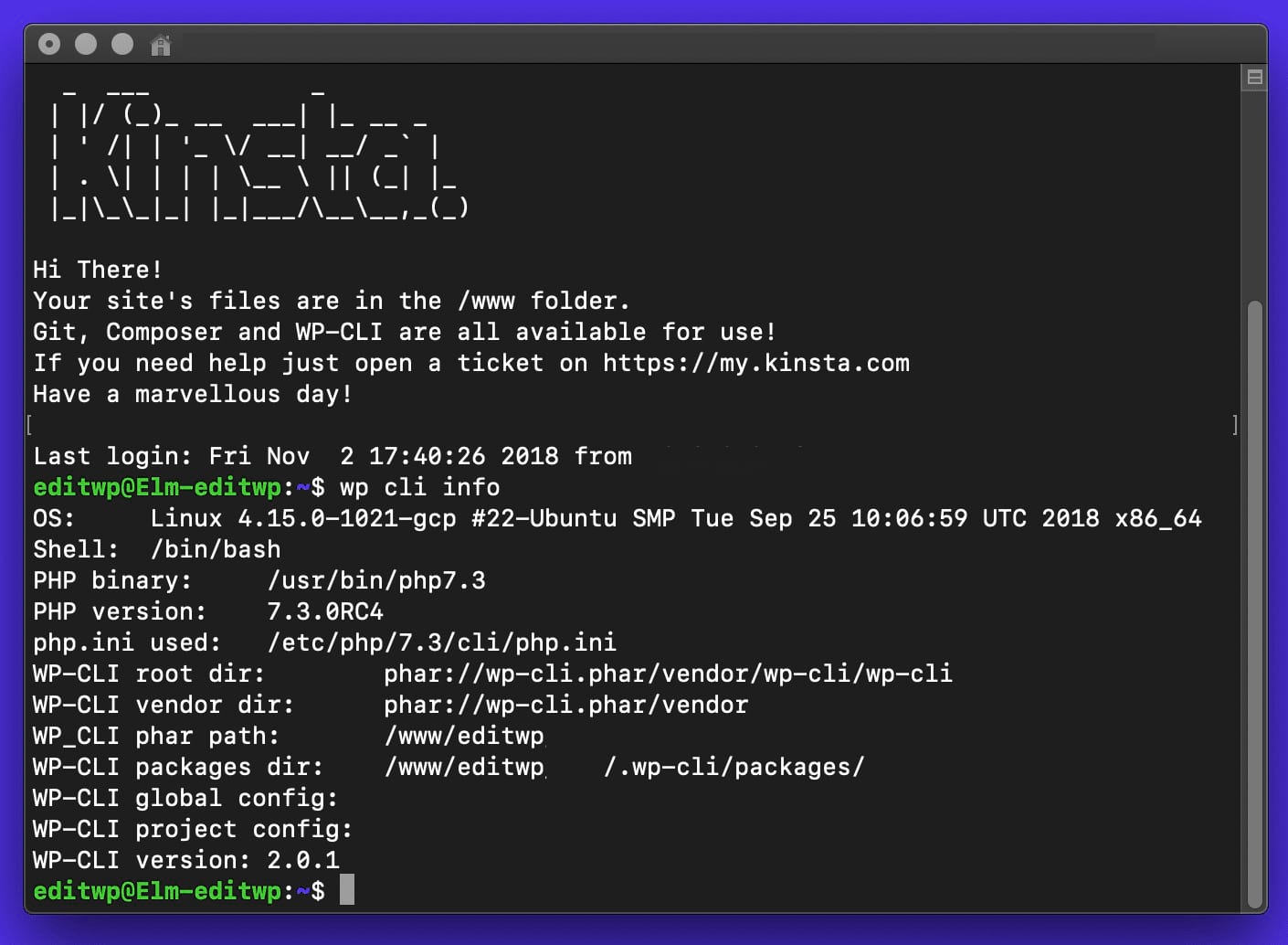
Credit: kinsta.com
Security Considerations
Discovering your WordPress version is crucial for maintaining security. Check the admin dashboard or view the page source code. Staying updated helps protect against vulnerabilities.
Risks Of Displaying Version
Displaying your WordPress version can be risky. Hackers look for old versions. They find weaknesses in them. Your site can be attacked easily. Older versions have known bugs. These bugs help hackers break in. Keeping your version hidden helps protect your site. It’s like hiding your house key from strangers. Always stay alert to these risks.
Best Practices For Version Management
Always update WordPress to the latest version. Updates fix bugs and improve security. Use a backup before updating. This keeps your data safe. Check plugins and themes for updates too. They also need to be secure. Regularly review your settings. Keep your site as safe as possible. Avoid sharing your version number. It reduces risk. Remember, safety first.
Frequently Asked Questions
How Do I Find My WordPress Version?
You can find your WordPress version in the admin dashboard. Navigate to the “Updates” section. The version number is displayed at the top. Alternatively, check the version. php file in the wp-includes directory.
Can Plugins Show My WordPress Version?
Some plugins display your WordPress version directly in the admin area. Security plugins often provide this information. They help monitor updates and compatibility issues.
Is My WordPress Version In The Footer?
Yes, you can find the WordPress version in the site’s footer. This depends on the theme you are using. It might not always be visible due to customizations.
Does My Hosting Panel Show WordPress Version?
Many hosting panels display your WordPress version. You can find it in your hosting dashboard. Check the application’s section for details.
Conclusion
Understanding your WordPress version is essential for site maintenance. This knowledge helps in managing updates and plugins effectively. Regularly checking your version ensures security and smooth operation. Follow the steps outlined to find your WordPress version quickly. Use this information to keep your site secure and functional.
Stay informed to avoid potential issues and improve your site’s performance. With practice, checking your version becomes easy. Make this a routine part of your website management. Stay proactive and enjoy a seamless WordPress experience. Your site will thank you!


