
Ever wondered why your WordPress site loads slowly or why your images look blurry? The culprit might be the size of the images you’re using.
Knowing the right image sizes for your WordPress site can not only enhance your site’s appearance but also improve its performance. Imagine your visitors enjoying a seamless browsing experience, with crisp images that load quickly. Sounds great, right? You’ll discover simple techniques to identify what size images your WordPress site should use.
You’ll gain insights that empower you to optimize your site like a pro, making it both visually appealing and efficient. Get ready to unlock the secrets to a faster and more beautiful WordPress site. Your journey to mastering image sizes begins here!
Credit: pressidium.com
Importance Of Image Sizes In WordPress
Images make websites look nice. They help tell stories. Choosing the right size is important. Large images can slow a site. Slow sites lose visitors. People don’t like waiting. Small images may look blurry. They can be hard to see. Always choose the right size.
WordPress has default sizes. Thumbnail, medium, and large. Each size has a purpose. Thumbnails are for small spaces. Medium is for blog posts. Large is for big headers. Know which size to use. It makes a difference.
Credit: qodeinteractive.com
Default WordPress Image Sizes
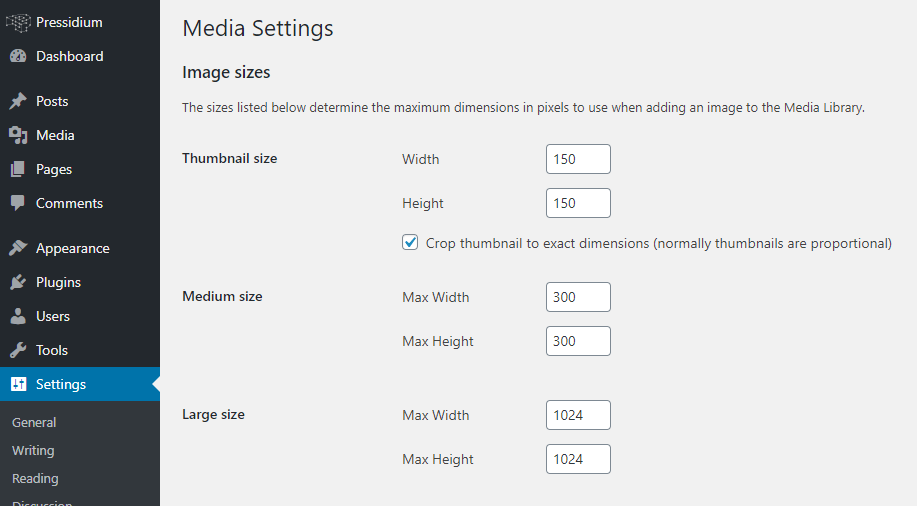
WordPress uses different image sizes. Thumbnail is one of them. It is small, usually 150×150 pixels. Thumbnails are great for galleries. They help keep the page fast. Thumbnails are easy to manage.
The Medium size is bigger than a thumbnail. It is often 300×300 pixels. Medium images work well for blogs. They show more detail. Medium size keeps load time quick.
Large images are bigger. They can be 1024×1024 pixels. Large images are perfect for headers or full-width content. They show more information. Large images may slow down the site.
Full Size means the original image size. It is not resized. Full size is useful for detailed images. It can be any dimension. Full size is best for high-quality needs.
Finding Image Size Requirements
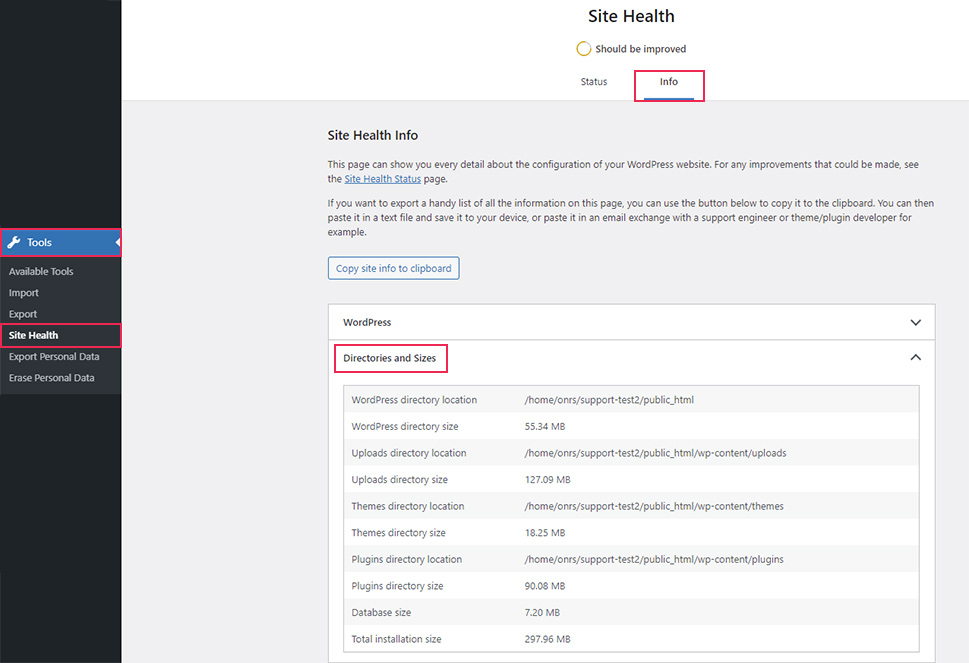
Theme documentation often lists image size requirements. Check the theme’s official site. Download the documentation file if available. Look for sections related to media or images. These sections often contain size details. Reading this can save you a lot of time.
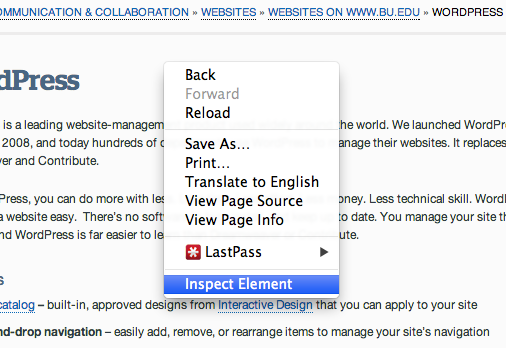
Open your browser and visit your site. Right-click on an image and select “Inspect”. A panel will appear showing image dimensions. Look for numbers like 800×600. These are your image sizes. This tool is very helpful.
Take a good look at your page layout. Measure the space an image takes. Use a ruler tool online if needed. Write down the size for future use. This helps in keeping images consistent. It also improves the site’s look.
Custom Image Sizes
WordPress can use many image sizes. Custom sizes are helpful for unique needs. You might want a special size for a homepage. Adding custom sizes needs a few steps.
Registering New Sizes in Code is the first step. Open the functions.php file in your theme. Add the following line of code: add_image_size('custom-size-name', 800, 600); This line registers a new image size. The numbers are width and height in pixels.
Remember to use a unique name for each size. This keeps images organized. After adding, use this size in posts or pages.
Tools For Managing Image Sizes
Plugins help manage image sizes on WordPress. They offer easy ways to adjust images. Some plugins can resize images automatically. Others let you set custom sizes for each image. They save time and help your site load faster. Faster sites are better for visitors. Good plugins include Smush and Regenerate Thumbnails. These plugins are easy to use. They help keep images neat and tidy.
Online resizers change your image size quickly. They are simple to use. Upload your image, choose a new size, and download. Some websites offer different formats to save images. Common sites include ResizePixel and PicResize. These tools are free. They help keep images the right size. Always check before uploading to your site. This makes sure your site looks great.
Credit: www.bu.edu
Optimizing Images For Performance
Image size affects site speed. Large images make websites slow. Compressing images helps. This means making images smaller without losing quality. There are tools for this. Use TinyPNG or ImageOptim. They work well. A smaller image loads faster. So, your site runs better.
Use the best image format. JPEG is good for photos. PNG works for graphics. WebP offers high quality and small size. This format is great for all types. Choose wisely. It affects load time. Faster load time means happier users. And your site ranks better.
Troubleshooting Image Size Issues
Images might not fit well on your website. They can appear too large or small. This makes your site look messy. Loading time may increase if images are large. Slow websites are not fun to visit.
Check the image settings in WordPress. Look under ‘Media Settings’. Adjust the size options there. Use tools to see actual image dimensions. Plugins can help too. They resize images automatically. Optimizing images can solve many issues.
Frequently Asked Questions
How Can I Find The Image Sizes In WordPress?
To find image sizes in WordPress, navigate to your theme’s functions. php file. Look for the add_image_size() function. This function defines custom image sizes. You can also check your WordPress media settings for default image sizes like thumbnail, medium, and large.
What Tools Help Identify WordPress Image Sizes?
Use browser developer tools like Chrome’s Inspect Element to check image sizes. Right-click the image, select ‘Inspect’, and view the image dimensions. Additionally, plugins like Regenerate Thumbnails can help manage and identify image sizes in WordPress.
Why Are Image Sizes Important For WordPress?
Proper image sizes ensure fast loading times and better website performance. Large images can slow down your site, negatively affecting user experience and SEO. Optimized image sizes improve site speed, enhance user engagement, and boost search engine rankings.
How Do I Change Image Sizes In WordPress?
To change image sizes, go to ‘Settings’ and then ‘Media’ in your WordPress dashboard. Adjust the dimensions for thumbnail, medium, and large sizes. Save changes and regenerate thumbnails using a plugin to apply new sizes to existing images.
Conclusion
Knowing the right image size helps your WordPress site. Images that fit improve website speed. They also enhance user experience. Bigger images might slow down loading times. Smaller images might appear pixelated. Check your site settings for image dimensions. Use tools to measure and adjust image sizes.
This ensures content looks good and loads fast. Regularly updating images keeps your site fresh. A well-sized image boosts visual appeal. Happy visitors likely stay longer. They may explore more pages. Optimize images for better results. Your site will benefit from this effort.


