
Are you tired of the same old look of hot links on your WordPress site? Do you wish to spice things up and make your links more eye-catching and engaging for your visitors?
You’re in the right place! Changing the appearance of hot links can transform the way users interact with your content, making them more likely to click and explore further. Imagine capturing your audience’s attention with a visually appealing design that stands out and enhances your site’s aesthetics.
In this guide, you’ll discover simple and effective ways to customize your WordPress hot links, giving your website a fresh and dynamic feel. Keep reading to unlock the secrets to making your links irresistible and watch your engagement soar.
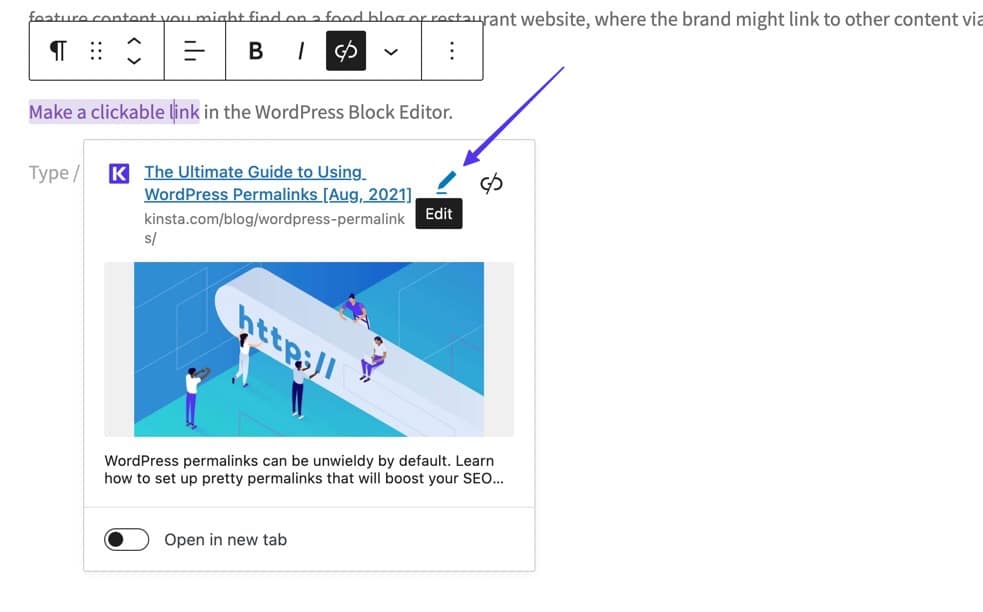
Credit: kinsta.com
Understanding Hot Links
Hot links are clickable text or images on a webpage. They connect to other pages or sites. Hot links are usually blue and underlined. When you click, they take you somewhere else.
Hot links help users move through your site. They make it easy to find info. Good links can make your site user-friendly. Users like sites that are easy to use. This can help keep people on your site longer.
Designers must choose link colors carefully. Colors must be easy to see. This helps users know where links are.
Default Link Appearance In WordPress
Links in WordPress have a default style. They are often blue and underlined. These styles help users know they can click. Colors may change when clicked. Blue turns to purple. This shows the link is visited.
Link appearance affects user experience. Clear links help users find information. Confusing links can frustrate visitors. Good design keeps people on the site. They find what they need quickly.
Customizing Link Appearance
WordPress themes help change how links look. Themes have built-in styles. These styles make links bold or colorful. You can choose a theme that you like. Each theme has its own style. Some have blue links. Others have underlined links. Change the theme to get a new look.
CSS plays a big role in link styling. You can use CSS to style links. Add a custom CSS rule to your site. Make links bold or change colors. You can also remove underlines. CSS lets you control how links look. It’s simple and effective.
Changing Link Colors
Find the CSS selectors for links. Look for a tags in the code. They control link styles. .page-link or #nav-link are examples. These selectors are easy to spot. They start with a period or a hash.
Change color properties to update link appearance. Use color followed by a color name or code. Example: color: blue; changes the link to blue. color: #FF5733; gives a fiery orange. Save changes to see results. Always preview changes before finalizing.
Altering Link Fonts
Choose the right font style for your links. This can change the look a lot. Think about bold, italic, or underline. Each style gives a different feel. Bold makes links stand out. Italic adds a unique touch. Underlined links look classic. Test different styles to see what fits best. Remember, simple is often better. Too many styles can be confusing. Keep it easy to read.
Use the WordPress Customizer for font changes. Go to Appearance, then Customize. Find the Typography option. Here, you can change your link fonts. Adjust the size, style, and color. Make sure the links are easy to see. Check on both desktop and mobile views. Save your changes when you’re happy. Always preview before making it live. This ensures everything looks good.
Enhancing Link Hover Effects
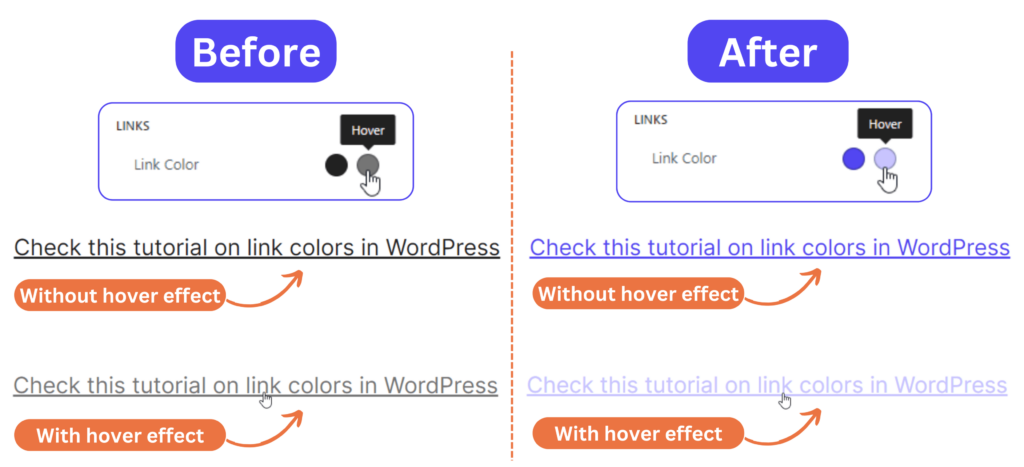
Change link hover effects on WordPress to make your site more engaging. Customize colors and styles easily in the settings. Enhance user experience by making links stand out.
Creating Dynamic Hover Effects
Links can look more fun with dynamic hover effects. They move or change when you put the mouse over them. CSS transitions help in making these effects. They make the change happen smoothly. You can make a link change color or get bigger. It’s like magic for your webpage!
CSS animations add extra fun. They can make links bounce or shake. They bring links to life. Just a few lines of code can do this. It makes your site more interesting for visitors. They will enjoy looking around more.
Testing Changes On Different Devices
Ensure links look good on all screens. Big or small, they should be clear. Use CSS media queries to adjust styles. Test on phones, tablets, and computers. Make sure links are easy to tap. This helps users have a better time on your site. Remember, easy-to-read links keep visitors happy.
Browsers show links differently. Check how your changes look everywhere. Use tools to test major browsers like Chrome, Firefox, and Safari. Make sure links are the same in each one. Fix issues with specific CSS styles. This ensures everyone sees your links the right way.
Credit: kubiobuilder.com
Utilizing WordPress Plugins
Plugins make it easy to change how links look. They offer many styles. Choose colors, fonts, and more with just a few clicks. Some plugins are free. Others need payment. Find the one that fits your needs.
Plugins offer easy customization. You don’t need coding skills. They save time. But, plugins can slow your site. Some might not work well together. Always check reviews before adding a plugin. Updates are important too. They keep plugins working well. Ensure they are compatible with your WordPress version.
Best Practices For Link Design
Always make links easy to see and use. Use underlines for links. This helps people find them. Choose colors that stand out. Make sure links have contrast with text. This helps people with vision problems.
Links should be clear and simple. Use short words or phrases. Avoid long sentences in links. This makes them easy to read. Use a consistent style for all links. This helps users know what to expect.
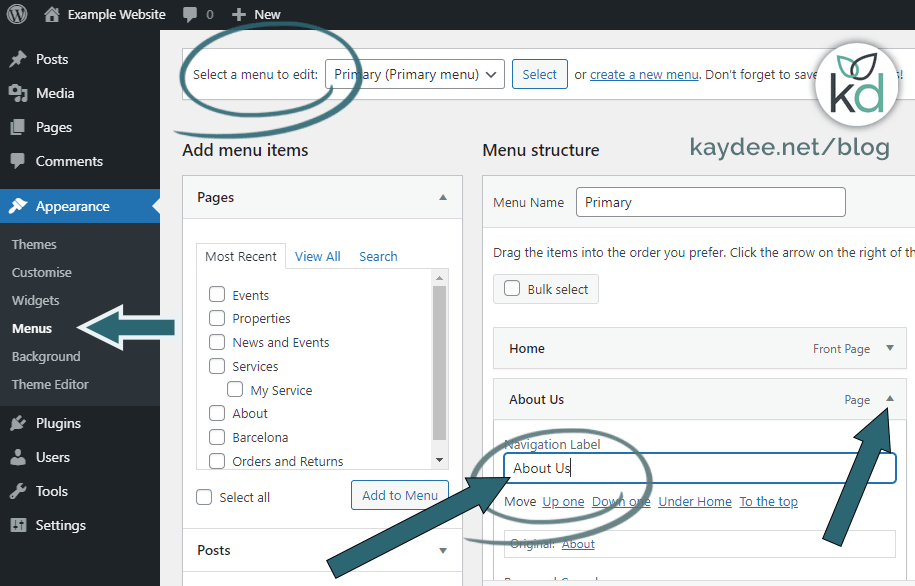
Credit: kaydee.net
Troubleshooting Common Issues
Bold and underlined links might clash with other styles. This can make links look messy. Check your theme’s CSS for any conflicting rules. Use the !important tag carefully. It can override other styles. But overusing it can cause problems. Try to adjust only the specific rules you need. This helps keep your design neat.
CSS errors can break your link styles. First, inspect your page using a browser tool. Look for red error messages. These show where the problem is. Also, make sure your CSS code is clean. Missing brackets or semicolons can cause trouble. Correct errors to make your links look right.
Frequently Asked Questions
How Do I Customize Hot Link Appearance In WordPress?
To customize hot link appearance, use the WordPress customizer or a plugin. Navigate to the ‘Additional CSS’ section in the customizer. Add CSS code to change color, font, or style of links. Plugins like ‘Simple Custom CSS’ offer more options for link customization.
Ensure changes are saved and tested.
Can I Change Link Colors Without Coding?
Yes, you can use plugins to change link colors without coding. Install a plugin like ‘WP Customizer’ or ‘CSS Hero’. These tools provide user-friendly interfaces for customizing link colors. Simply select the desired color and apply changes. Always preview before saving to ensure the appearance is as expected.
What Plugins Help Modify Hot Link Styles?
Several plugins help modify hot link styles in WordPress. Popular options include ‘CSS Hero’, ‘Yellow Pencil’, and ‘Simple Custom CSS’. These plugins offer intuitive interfaces for style customization. You can change color, font, hover effects, and more. Always check plugin compatibility with your theme before installation.
How Do I Preview Changes To Hot Links?
To preview changes, use the WordPress customizer. Navigate to ‘Appearance’ and select ‘Customize’. Make adjustments to hot links using CSS or plugins. The live preview feature shows changes instantly. Ensure all modifications are correct before publishing. This helps maintain consistent website design and user experience.
Conclusion
Changing the look of hot links in WordPress is simple. Start by accessing your site’s settings. Explore available themes and plugins for customization options. Play with colors and styles to suit your brand. Make sure links stand out to grab attention.
Test changes on different devices for consistency. Keep the design user-friendly and easy to navigate. Regularly update and tweak as needed. Enhancing link appearance improves user experience. A small change can make a big impact. Now, go ahead and give your WordPress links a fresh look.


