
Ever wonder what PHP version your WordPress site is running on? Knowing this can be crucial for maintaining a fast, secure, and efficient website.
Imagine you’ve invested time and resources into your WordPress site, yet it’s not performing as it should. This could be due to outdated PHP versions that might be slowing things down or even posing security risks. By the end of this article, you’ll have a clear understanding of how to check your PHP version in WordPress, empowering you to make informed decisions for optimal site performance.
Dive in to ensure your website is running smoothly and securely!
Importance Of Php Version In WordPress
PHP is like the engine for your WordPress site. The right PHP version makes your site run fast. Old versions can slow things down. New versions have better security. This keeps your site safe. It’s important to keep the PHP updated.
Many plugins need the latest PHP. Without it, they may not work. This can break parts of your site. Also, using the right PHP helps your site handle more visitors. This is good for growing sites. So, check your PHP version often. It helps keep your site strong and fast.
Credit: kinsta.com
Checking Php Version Via WordPress Dashboard
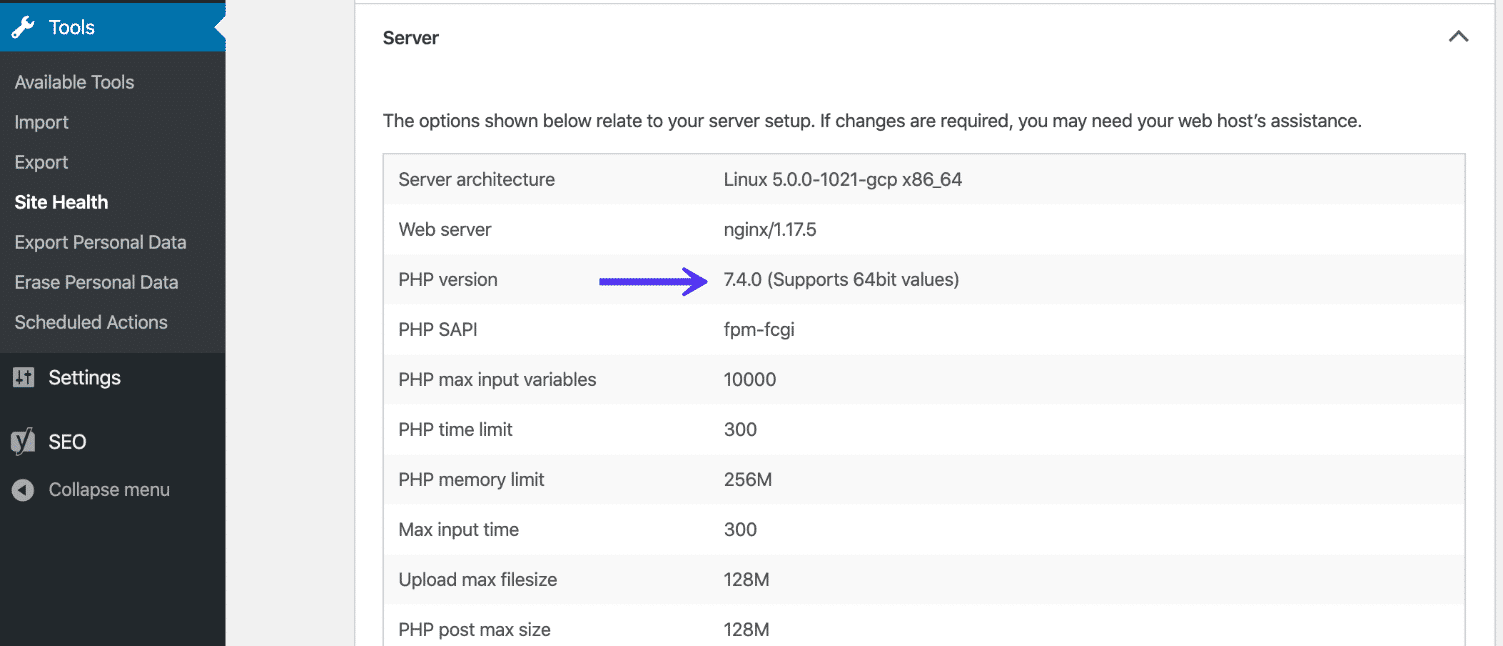
First, log into your WordPress dashboard. Look for the Tools menu. Click on Site Health. This opens the Site Health page. Here, find the Info tab. Click on it to see more details.
On the Site Health Info tab, scroll down. You will see Server section. Under this section, find the PHP version row. Here, you can check the exact PHP version your WordPress is using. This information is crucial for updates and compatibility.
Using Cpanel To Find Php Version
Log into your cPanel account first. Look for the section called Software. You can find it on the main page. Click on PHP Configuration. This is where you’ll find the PHP version.
After entering the PHP Configuration, check the current version. It’s usually displayed at the top. You might see something like PHP 7.4. If you need to change it, there’s often an option. You can select a different version from a dropdown menu. Make sure to save changes.

Credit: make.wordpress.org
Checking Php Version With Ftp
Use an FTP client to connect to your server. Enter your server details like hostname, username, and password. Click connect. You will see your website files. Look for the WordPress directory where you installed WordPress.
Create a new file named phpinfo.php. Open it in a text editor. Add the line: php phpinfo(); ?. Save the file and upload it to your server’s root folder.
Open your browser. Type your website URL followed by /phpinfo.php. The page will load showing your PHP version. Look for the PHP Version section. It displays the version number your WordPress uses.
Utilizing Command Line For Php Version
Begin by connecting to your server using SSH. SSH stands for Secure Shell. It helps you access your server safely. You need a terminal application for this. Most computers have one. Type your server’s IP address and login details in the terminal. Press enter. Now, you are inside your server.
Now, you can check the PHP version. Type the command: php -v. This command shows the PHP version on the screen. The number will tell you which version is running. For example, it might say PHP 7.4 or PHP 8.0. Now, you know the version.
Updating Php Version Safely
Backing up your WordPress site is very important. It keeps your data safe. Use plugins like UpdraftPlus or BackupBuddy. These tools help you store your site’s files. Choose a secure place like cloud storage. This ensures you can restore your site if something breaks.
Check if your theme and plugins work with the new PHP version. Use a staging site for testing. This is a copy of your real site. It helps you see problems without affecting visitors. Look for any errors or issues. Fix them before updating PHP.
Updating PHP is simple. Go to your hosting control panel. Find the PHP settings. Select the latest version available. Click update. Your site will now use the new PHP version. Test your site again. Ensure everything works smoothly.
Troubleshooting Php Version Issues
PHP errors can make your site act up. They are often caused by outdated PHP versions. Some errors show as warnings or notices. Others might break your site. Syntax errors happen if there is a typo in the code. Fatal errors stop scripts completely. These need fixing quickly. Parse errors occur when the code has a mistake. They are common in themes or plugins.
Check your PHP version in your hosting panel. Most hosts show it in the control panel. Update your PHP version if it is old. Make sure your themes and plugins are updated. Backup your site before making changes. Test your site after updating. If errors persist, contact your host. They might help with server settings.
Credit: wedevs.com
Frequently Asked Questions
How Do I Check Php Version In WordPress?
To check the PHP version in WordPress, access your site’s dashboard. Go to Tools > Site Health. Click on the Info tab, and under the Server section, you’ll find the PHP version. Alternatively, use a plugin like “Display PHP Version” for convenience.
Can I Change WordPress Php Version Easily?
Yes, you can change the PHP version through your hosting provider’s control panel. Look for PHP settings or PHP version management. Select the desired PHP version from the list and apply changes. Always ensure compatibility with your WordPress theme and plugins before upgrading.
Why Is Php Version Important For WordPress?
PHP version is crucial for WordPress performance and security. Newer PHP versions offer speed improvements and enhanced security features. Using an outdated PHP version can lead to vulnerabilities and slower site performance. Regularly update PHP to ensure optimal functionality and protection.
What Happens If Php Version Is Outdated?
If your PHP version is outdated, your WordPress site may face security risks and performance issues. Plugins and themes might not function properly, leading to site errors. Updating to a supported PHP version ensures enhanced security and improved site performance.
Conclusion
Understanding your WordPress PHP version is crucial. It affects your site’s performance. Ensures compatibility with themes and plugins. Checking PHP version is simple. Use the WordPress admin dashboard. Navigate to the Site Health section. Alternatively, use a plugin. Provides detailed information quickly.
Regularly update your PHP version. Keeps your site secure. Enhances speed and functionality. Avoid potential errors. Maintain your site’s efficiency and reliability. Stay informed. Protect your website’s health. Follow these steps. Keep your WordPress site running smoothly. Your online presence depends on it.


