
Have you ever stumbled upon an image on your WordPress site and wondered where else it might be lurking? Whether you’re optimizing your site for speed, updating outdated graphics, or just curious about your image usage, knowing which pages feature specific images can be incredibly helpful.
Imagine having the power to streamline your website’s performance and enhance user experience by efficiently managing your media files. You can unlock this potential by discovering exactly where your images are used across your site. Dive into this article to uncover the simple steps to gain full control over your WordPress images, ensuring your site is not only visually appealing but also running smoothly.

Credit: wpmudev.com
Importance Of Tracking Image Usage
Tracking image usage is vital for many reasons. It helps in understanding the impact of visuals on your website. Images attract visitors and keep them engaged. Knowing where images are used can improve your site’s layout and design. It also helps in optimizing performance. Large images can slow down page load times. Identify pages with heavy images and make necessary adjustments. This will enhance user experience.
Search engines consider image optimization. Properly tagged images can boost SEO. Knowing image usage helps ensure that all images are properly tagged. This can improve search rankings. Regular monitoring ensures images are used effectively. It helps in maintaining a clean and organized website.
Manual Methods
Images live in the WordPress media library. To find where an image is used, start by opening the media library. Click on any image you want to check. Look for the “Attachment Details” on the right. If the image is attached to posts or pages, the information will show here. This method is simple but may not show all uses.
Inspecting the page source can help. Open the web page you want to check. Right-click anywhere and select “View Page Source”. A new tab will open with lots of code. Press Ctrl + F to search. Type the image file name. This shows where the image is used on the page.
Using WordPress Plugins
WordPress offers plugins to track images. These plugins are very helpful. They provide easy ways to find image usage. Media Deduper is a popular choice. It helps find duplicates. Another option is Image Source Control. It helps manage image sources. WP All Export can also be used. It exports images and data. These plugins are easy to install. They make tracking images a breeze.
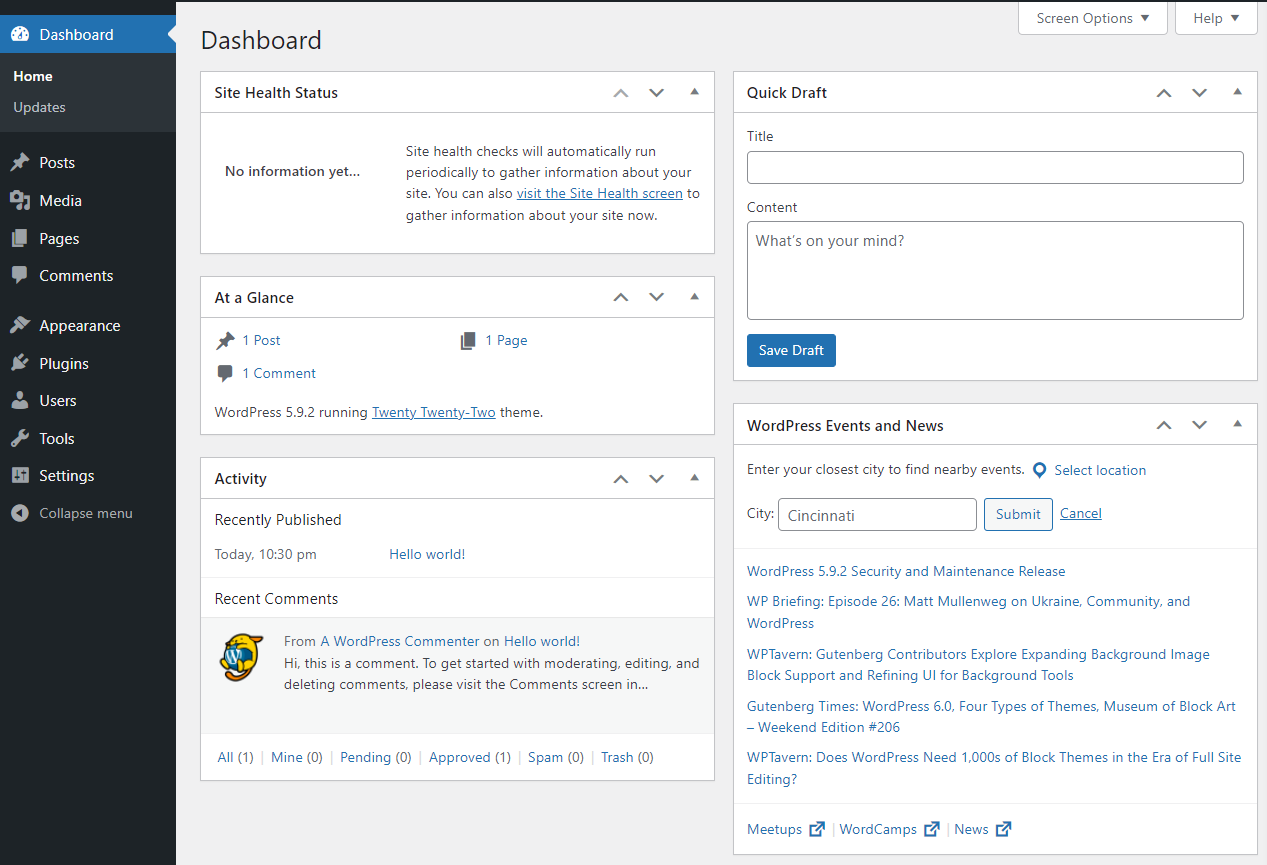
Plugins need installation first. Go to your WordPress dashboard. Click on “Plugins” and then “Add New”. Use the search bar to find the plugin. Click “Install Now” to add it. After installation, click “Activate”. Some plugins need settings. Go to the plugin settings page. Follow the steps to configure. Each plugin will have different options. Read instructions carefully. This ensures proper setup.

Credit: simplystatic.com
Database Queries
WordPress uses a complex database structure. It stores data in different tables. Each table serves a unique purpose. Images are stored in the wp_posts table. This table holds media files and other content.
To find images, you must understand these tables. Look for tables with post_type as ‘attachment’. This helps identify image data. Knowing these tables makes queries easier.
SQL queries are useful for finding image pages. Use simple SQL commands. Focus on the wp_postmeta table. This table stores metadata. Metadata includes image usage details. Run SQL queries to locate images.
Use SELECT statements. They retrieve specific data. Combine SELECT with WHERE clauses. This helps filter image data. Execute queries in a safe environment. Always back up your database first.
Utilizing Google Search Console
Start by accessing Google Search Console. Login with your Google account. Connect your WordPress site. Verify ownership through DNS or HTML file upload. Once verified, your site is ready for inspection. Google Search Console helps track website performance.
Use the URL Inspection Tool within Google Search Console. Type the page URL. Click on the images tab. View which pages use a specific image. This tool provides details about image usage. Helps in optimizing your site’s images. Ensure your images have proper alt text for better SEO.
Best Practices For Image Management
Organize images in the media library. Use folders or categories. Helps in finding images easily. Saves time and effort. Use clear names for images. Avoid long names. Use tags for quick search. Keep library clean and tidy. Delete unused images. Prevents clutter and confusion.
Check where images are used. Update their usage regularly. Helps in managing website content. Keeps pages fresh and relevant. Avoids outdated images. Replace old images with new ones. Maintains a modern look. Regular updates improve user experience. Keeps visitors engaged and happy.
Troubleshooting Common Issues
Discover which pages use a specific image in WordPress to streamline your content management. This process helps identify image usage, making updates more efficient and organized. Enhance your WordPress experience by knowing where your images are utilized.
Handling Missing Images
Sometimes images might not show on your website. This can be frustrating. First, check if the image file is uploaded correctly. Ensure the file name is correct. Look for any spelling errors. Next, check the image URL. It should be correct and complete. Also, check your file permissions. These should allow the image to display. If not, you may need to adjust them. If you’re using a content delivery network, ensure it’s working properly. A broken link can cause images to disappear. Lastly, clear your browser cache. Sometimes old files can cause display issues. These simple steps can solve most missing image problems.
Resolving Plugin Conflicts
Plugins can sometimes cause image issues. Disable all plugins first. Then, check if the images appear. If they do, a plugin is causing the problem. Enable each plugin one by one. Check the images after each activation. This helps find the conflicting plugin. Once found, you can look for an update. Sometimes, developers release fixes for such issues. If not, consider finding an alternative plugin. Keeping plugins up-to-date is important. It helps prevent many conflicts and issues.
Credit: jetpack.com
Frequently Asked Questions
How To Find Image Usage On WordPress?
To find image usage on WordPress, use a plugin like “Media Deduper”. It scans your media library and shows which pages use each image. Alternatively, you can manually check image URLs in your page content. These methods help you manage and optimize your site’s media effectively.
Can Plugins Help Identify Image Usage?
Yes, plugins can help identify image usage on WordPress. Plugins like “Media Deduper” or “Media Cleaner” are specifically designed for this task. They scan your media library and identify which pages utilize specific images. This makes managing and optimizing your site’s media much simpler and more efficient.
Why Track Image Usage In WordPress?
Tracking image usage in WordPress is essential for effective media management. It helps you identify unused images, saving storage space and improving site speed. By understanding which images are utilized, you can optimize them for better SEO performance. This ultimately enhances user experience and improves search engine rankings.
What Are The Benefits Of Image Optimization?
Image optimization offers numerous benefits for your WordPress site. It improves page load speed, enhancing user experience and reducing bounce rates. Optimized images also boost SEO by improving your site’s ranking in search engine results. Additionally, they save server storage space, making site management more efficient.
Conclusion
Discovering which pages use an image in WordPress is crucial. It helps improve website organization and efficiency. By knowing this, you can update images effectively. This ensures a consistent look across your site. Use plugins or tools to ease the process.
They make tracking image usage simple. Keep your site running smoothly. Regularly check for image updates and changes. This practice enhances user experience and site performance. Stay organized, and your website will thrive. Always aim for a clean and efficient WordPress site.


