
Are you looking to customize your Divi WordPress site by changing the page header menu links? You’re in the right place.
Whether you’re a seasoned web designer or a curious DIY enthusiast, mastering this skill can significantly enhance your website’s user experience. Imagine giving your visitors a seamless navigation path that guides them exactly where you want them to go. By tweaking these menu links, you can highlight your most valuable content, promote specific pages, and ultimately drive more engagement.
We’ll walk you through a simple, step-by-step process to update your header menu links in Divi, without any technical headaches. You’ll discover how small changes can make a big impact on your site’s performance and visitor satisfaction. So, let’s dive in and unlock the potential of your website’s menu!
Divi Theme Overview
The Divi Theme is a popular choice for websites. It offers a lot of customization options. Users can easily create beautiful sites. The theme is user-friendly. You don’t need to know coding. The drag-and-drop builder makes design simple. You can change colors, fonts, and layouts. Everything is customizable. Many people love its flexibility.
Divi is also responsive. This means it looks good on phones and computers. The theme is regularly updated. So, it stays current with new features. With Divi, you can create unique and professional websites. It is perfect for beginners and experts alike.
Credit: kaydee.net
Understanding WordPress Menus
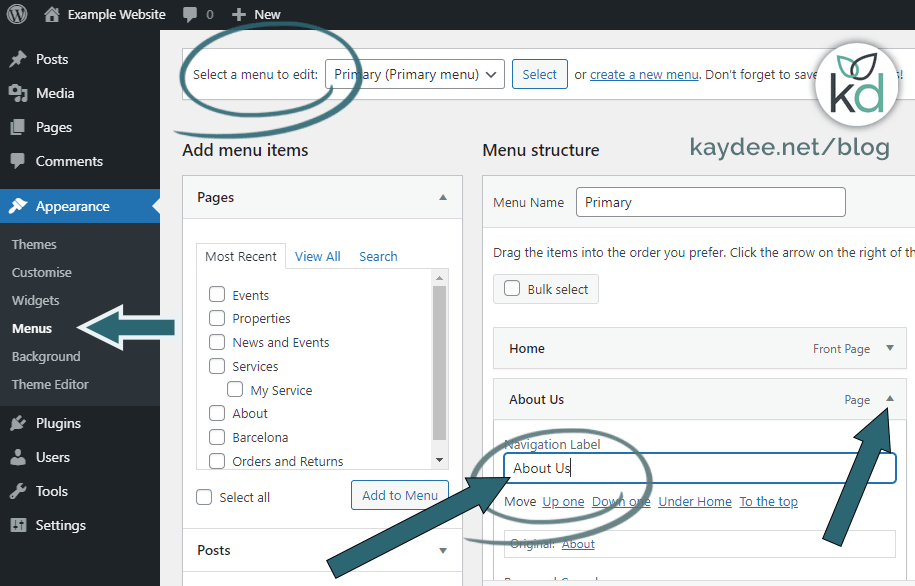
WordPress menus help users navigate your site easily. They are usually found at the top of the page. These menus contain links to important pages. You can change these links in Divi WordPress. First, go to your WordPress dashboard. Next, find the “Appearance” tab. Click on “Menus” under this tab. Here you can see the list of menus. You can add, remove, or edit links.
To add a new link, select a page from the left. Then, click “Add to Menu”. To remove a link, click the small arrow next to it. Press “Remove” and the link will disappear. You can also reorder links. Just drag them up or down. Remember to save your changes. This keeps your menu updated.
Menus are very important. They help visitors find what they need. Keep them simple and clear. This makes your site user-friendly.
Accessing The Divi Theme Customizer
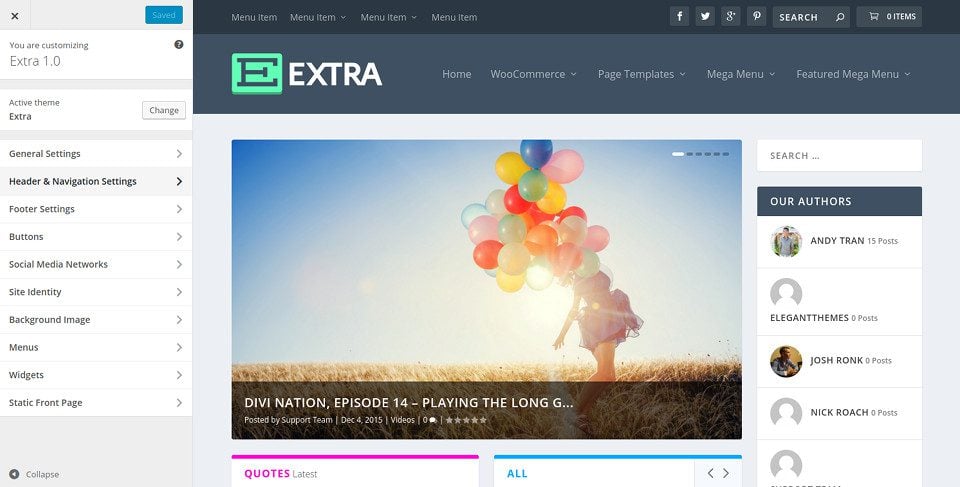
Access the Divi theme by logging into your WordPress dashboard. Look for the “Appearance” tab on the left side. Click it. You will see the “Customize” option. Click on “Customize”. This opens the Divi Theme Customizer. Here, you can change many settings. The Customizer lets you change your site’s look. You can change colors, fonts, and more. It is easy to use. Follow the instructions on the screen.
The menu settings are in the Customizer too. You can change menu links here. Find the “Menus” option in the Customizer. Click it. You can add, remove, or change links. This helps organize your site. Make sure to save your changes. Saving keeps your new settings.
Navigating To The Menu Settings
Start by logging into your WordPress dashboard. Look for the Appearance option on the left side. Click on it to reveal more settings. Select Menus from the dropdown. This will open the menu page.
Here, you can see all your menu items. Choose the menu you want to edit. Click on the menu name to start editing. Look for Add Menu Items. This section lets you add new links.
Drag items to rearrange them. Delete items you no longer need. Remember to save changes before leaving. Your new menu will appear on the header.
Editing Menu Links
To add new links, go to the WordPress Dashboard. Click on Appearance and then Menus. You will see a list of pages and links. Choose the ones you want to add. Drag them to the menu area. Click Save to apply changes. Your new links are now visible on the header.
Removing links is simple. Go to the Menus section in the dashboard. Find the link you want to remove. Click the arrow next to it. Press the Remove button. Save the changes. The link will disappear from the header menu.
Reordering items is fun. In the Menus section, drag the items to new positions. Arrange them as you like. Click Save Menu. The new order appears on your site. This lets visitors find things easily.
Customizing Header Appearance
The header font shows your site’s style. You can change it easily. Use the Divi theme options. Pick a font that fits your brand. Bold fonts stand out. Change the size for better readability. Test different styles. Find what works best for your site. Simple styles are easy to read. Make sure your text is clear. This helps visitors enjoy your site.
Colors make your header lively. Pick colors that match your site theme. Use the Divi builder. Choose background colors that stand out. Colors should not clash. This makes your header neat. Background images can add style. Use subtle images. They should not distract. Keep the focus on the menu links. This keeps your site attractive and easy to use.
Saving And Previewing Changes
First, make sure to save your changes. This step is important. Click the Save button in the top corner. This will keep all your edits. After saving, it’s good to check your work. Click the Preview button. This will show how your site looks now. You can see if everything works right. If something doesn’t look right, go back and fix it. Then save and preview again. Keep doing this until you are happy. Your site should look nice and be easy to use.
Credit: www.elegantthemes.com
Troubleshooting Common Issues
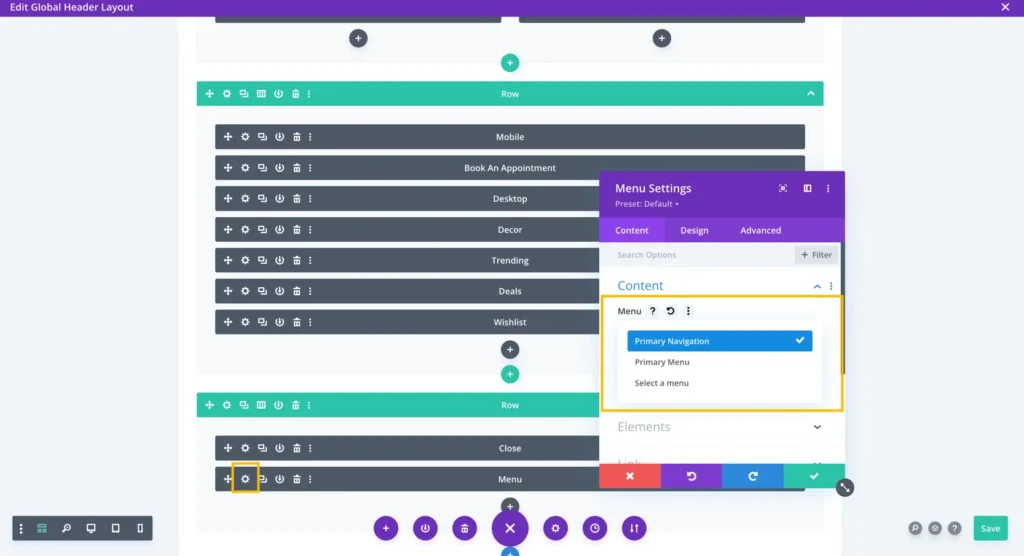
Updating page header menu links in Divi WordPress can seem tricky. Begin by navigating to the ‘Menus’ option under ‘Appearance’. Adjust links to direct visitors to the right page, ensuring a smoother browsing experience. This simple change can enhance user interaction on your website.
Handling Menu Not Displaying
Sometimes the menu might not show up. Check if it’s enabled in the settings. Make sure the menu is assigned to the correct location. Sometimes, themes hide the menu on certain pages. Look for any CSS code that might hide it. Ensure your theme is up-to-date. Outdated themes can cause issues. Refresh the page after making changes. This often solves many problems.
Fixing Broken Links
Broken links can be frustrating. Check if the link URL is correct. Sometimes, a small typo causes errors. Test the link in a new tab. If it doesn’t work, try updating the URL. Make sure the page or post exists. Sometimes, pages get deleted or moved. A plugin might also cause issues. Deactivate plugins one by one to find the culprit. Fixing links helps users and improves site health.
Advanced Customization Techniques
CSS lets you create unique styles for your Divi WordPress site. Change colors to make links stand out. Use padding and margins for better space. Add hover effects for a cool look. You can also change fonts to match your theme. CSS is powerful and easy to learn. Little changes can make a big difference.
Plugins enhance your site with extra features. Many plugins are easy to install and use. Some plugins can help with SEO or improve site speed. Others can add social media buttons or forms. Always check plugin ratings before installing. A good plugin makes your site better. Make sure plugins are compatible with Divi.
Credit: diviextended.com
Frequently Asked Questions
How To Change Menu Links In Divi?
To change menu links in Divi, go to the WordPress dashboard. Navigate to Appearance > Menus. Select the menu you want to edit. Click on the menu item you wish to change and update the URL. Save your changes to apply them to your Divi header menu.
Can Divi Header Menu Be Customized Easily?
Yes, Divi header menu customization is straightforward. Use the WordPress dashboard to access Appearance > Menus. From there, you can add, remove, or reorder menu items. Divi’s intuitive interface makes it easy to personalize your website’s navigation to suit your needs.
What Are The Steps To Edit Divi Menu?
To edit the Divi menu, first, visit WordPress dashboard. Go to Appearance > Menus and select your desired menu. Modify the menu items by clicking on them. Change URLs, titles, or add new links. Save changes to update your header menu in Divi.
Can Divi Menu Links Point To Sections?
Yes, Divi menu links can point to specific sections. Use anchor links to achieve this. Add an ID to the section you want to link. In the menu settings, use “#section-id” as the URL. This lets users navigate directly to specific page sections.
Conclusion
Changing header menu links in Divi is simple and effective. Follow the steps outlined to customize your WordPress site with ease. It enhances user experience and navigation. Tailor your website to fit your needs. Keep exploring Divi’s features for more customization options.
Remember, practice makes perfect. The more you tweak, the better your site becomes. Enjoy the process and improve your skills. Your website will thank you for it. Happy designing!


