
Ever wondered how some WordPress sites look incredibly polished and professional while others seem plain and uninviting? The secret often lies in the “Appearance” settings of WordPress.
If you’re diving into the world of WordPress, understanding the Appearance section is crucial. It’s the powerhouse that allows you to customize the look and feel of your website, making sure it aligns perfectly with your vision. Imagine having the ability to tweak colors, change fonts, and arrange widgets, all with a few simple clicks.
This not only enhances user experience but also keeps your visitors engaged, encouraging them to stay longer and explore more. By mastering the Appearance options, you’re on the path to creating a site that’s not only visually appealing but also effective in conveying your brand message. Ready to unlock the full potential of your WordPress site? Let’s dive deeper into the world of WordPress Appearance settings, where creativity meets functionality.
Appearance Basics
The Appearance section in WordPress helps make your site look nice. It’s where you can change themes, which are like the clothes for your website. You can pick different colors and styles. This is fun and easy. With a few clicks, your website can look new.
You can also add widgets. Widgets are small tools. They show things like a calendar or recent posts. Drag and drop them where you want. They make your site more useful. Always remember to save your changes. That way, your site stays updated.
Themes Overview
Themes make your WordPress site look good. They control the design and layout. Each theme has its own style. Some are colorful, others are simple. Choosing a theme is important. It helps show your brand or idea. You can change the theme anytime. WordPress has many free themes. There are paid themes too. Paid themes often have extra features. They might offer better support. Always pick a theme that fits your needs. Make sure it’s mobile-friendly. Many people use phones to browse. A good theme helps your site load fast. This keeps visitors happy.
Customizing Themes
The Customizer lets you change the look of your site. You can adjust colors, fonts, and layouts. It is simple and fun to use. Just click and see changes live. You can even make your site unique by adding a logo.
CSS helps you style your site. It changes how things look. You can tweak it for a better design. Add your own CSS rules to make changes. Bold text or change background colors. Make your site look just right.
Credit: codex.wordpress.org
Widgets And Their Use
Widgets help make your website look better. They add fun features. You can use them to show the weather or your latest tweets. Widgets are easy to add. Drag and drop them into your page. They save time and make your site unique. Some widgets show videos or pictures. Others let people sign up for emails. There are many kinds of widgets to choose from. They help make your site interactive and fun. Your site will be more colorful and lively with widgets. Try them out today. See what fits best for your site.
Menus And Navigation
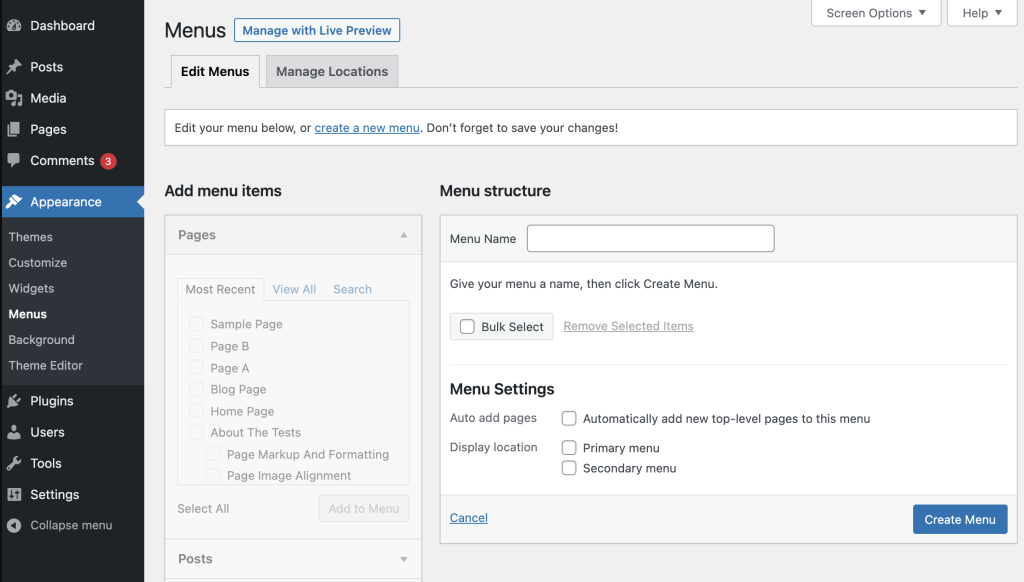
Menus help people find things on your website. WordPress lets you create menus easily. Go to the Appearance section. Click on Menus. You can add pages, posts, and links. Drag and drop items to arrange them. Save changes. Your menu is ready!
Menus can be placed in different spots. Menu locations are found in the Menu Settings. Choose where your menu will appear. Top, bottom, or side. Select the location that fits your website. Save your choice. Your menu will show in the chosen spot.

Credit: wordpress.org
Background And Header
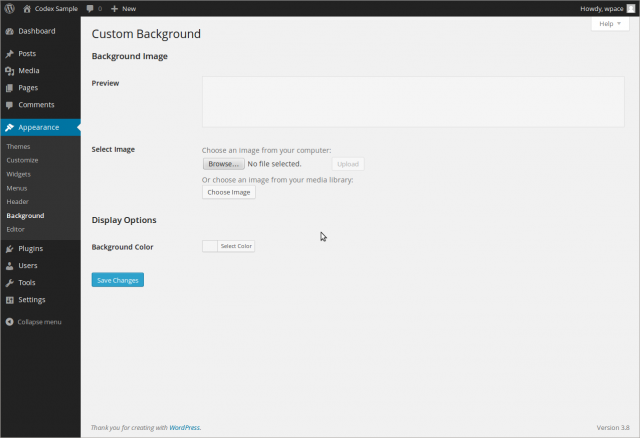
WordPress makes changing backgrounds easy. Go to the Appearance section in your dashboard. Click on Background. Choose a color or image you like. You can upload your own images. Make sure the image is the right size. This keeps your site looking nice. Try different styles. See what fits best. Experiment with colors and patterns. Create a unique look for your site.
Headers are important for your site. They are at the top of each page. WordPress lets you use custom header images. Find this option in the Appearance section. Choose an image that represents your brand. Upload it easily. The image should be clear and high-quality. It helps visitors remember your site. Change headers anytime. Keep your site fresh and engaging. Explore different designs. Make your site stand out.
Theme Editor Insights
The Theme Editor is a tool in WordPress. It lets you edit theme files directly. These files control how your website looks. Use caution. Changes can affect your site’s appearance. Always make a backup first. You don’t want to lose important data. The editor is found under the “Appearance” tab. It shows all theme files. Some files are for design. Others are for functions. Editing requires basic coding skills. HTML and CSS are important. Mistakes can break your website. So, double-check your work.
The Theme Editor is powerful. It gives you control. But be careful. It’s best for those with coding knowledge. Beginners should read guides first. Practice makes perfect. You can learn new skills. It’s a good way to improve your site. Just remember, changes are permanent.
Credit: github.com
Installing New Themes
The WordPress repository offers many free themes. Navigate to the Appearance section. Click on Themes. Find the Add New button. Use the search bar to find themes. Browse the featured, popular, or latest themes. Click on a theme for more details. Review ratings and description. Click Install and then Activate. Your site now has a new look.
Custom themes can be added easily. First, download the theme file. Go to the Appearance section. Click on Themes. Find the Add New button. Click on Upload Theme. Choose the file from your computer. Click Install Now. After installation, click Activate. Your custom theme is now live.
Best Practices For Appearance Settings
Appearance settings in WordPress are important. They help create a good website look. Always choose a simple theme. Simple themes load faster. Fast websites keep visitors happy. Use easy-to-read fonts. Arial and Verdana are popular choices. These fonts are clear and simple. Color choice is important too. Pick colors that are easy on the eyes. Blue and green are calming colors. Avoid bright colors like red or yellow. They can be distracting. Organize your content well. Use lists and headings. They make the text easy to read. Add images to make the site interesting. Images should be clear and relevant. Ensure your site works on all devices. This is called responsive design. Mobile phones and tablets are popular. Make sure your site looks good on them. Test your site often. Fix any issues quickly. A well-maintained site attracts more visitors.
Frequently Asked Questions
What Is The Appearance Menu In WordPress?
The Appearance menu in WordPress allows users to customize their website’s look. It includes options for themes, widgets, menus, and more. This section helps users design their site’s visual aspects without coding. It’s essential for personalizing layouts, colors, and fonts to match branding.
How Do I Change Themes In WordPress?
To change themes, go to the Appearance menu and select Themes. Browse available themes or upload a new one. Click on “Activate” to apply a new theme. This process is simple and allows users to instantly modify their site’s design.
What Are WordPress Widgets Used For?
Widgets in WordPress add functionality to sidebars and other widget-ready areas. They can display recent posts, calendars, search bars, and more. Widgets help enhance user experience by providing additional features. Users can easily add, remove, or rearrange them via the Appearance menu.
How Do I Customize Menus In WordPress?
To customize menus, navigate to Appearance > Menus. Here, you can create new menus or edit existing ones. Add pages, links, and categories to your menu structure. This feature allows easy navigation setup, improving user experience on your website.
Conclusion
Exploring the appearance settings in WordPress enhances your site’s look. Easy-to-use features allow customization. Colors, fonts, and layouts can be adjusted. Your site reflects your brand and style. Making these changes is simple. Familiarize yourself with tools. Experiment and find the perfect design.
Engage visitors with a professional look. Appearance settings offer flexibility. No technical expertise needed. Just creativity and vision. User-friendly options make design fun and accessible. WordPress empowers personal and business sites. Transform your online presence with thoughtful design choices. Start today and see your site come to life.


