
Have you ever been working on a WordPress post and noticed the option to “Switch to Draft”? If you’re like most WordPress users, you might be wondering what this mysterious button actually does.
Understanding this feature can be a game-changer for your content management strategy. Imagine having the power to pause, perfect, and polish your posts without the pressure of immediate publication. Intrigued? You should be! This little button holds the key to greater control over your content, allowing you to refine your posts until they’re just right.
Dive into this article to uncover how mastering the “Switch to Draft” option can revolutionize the way you manage your WordPress content, ensuring that every post you publish captivates your audience and enhances your digital presence. Curious to learn more? Keep reading to unlock the full potential of your WordPress experience.

Credit: www.malcare.com
Switch To Draft In WordPress
The Switch to Draft option in WordPress is simple. It allows you to change a published post back to draft mode. This is useful when you want to make changes. Maybe you spotted a mistake. Or perhaps you want to add more information. By switching to draft, your post will not be public anymore. Only you can see it. This gives you time to edit and improve your content. Once you are happy, you can publish it again. Remember, drafts are safe and private.
Purpose Of Draft Mode
Draft mode in WordPress helps writers make changes. It’s like a safe space. Here, you can revise and edit freely. No one will see the changes until you are ready. Writers can focus on their words. They can take time to make content perfect. Draft mode keeps the content private. Only the writer can see it.
Sometimes, you want to keep changes hidden. Draft mode allows this. You can save work without sharing. This is good for unfinished work. It helps keep things organized. You can come back later to finish. This way, changes stay unpublished until you decide.
How To Switch To Draft
First, open your WordPress dashboard. Find the post you want to edit. Click on the post title. This opens the editor. Now, you can change the post.
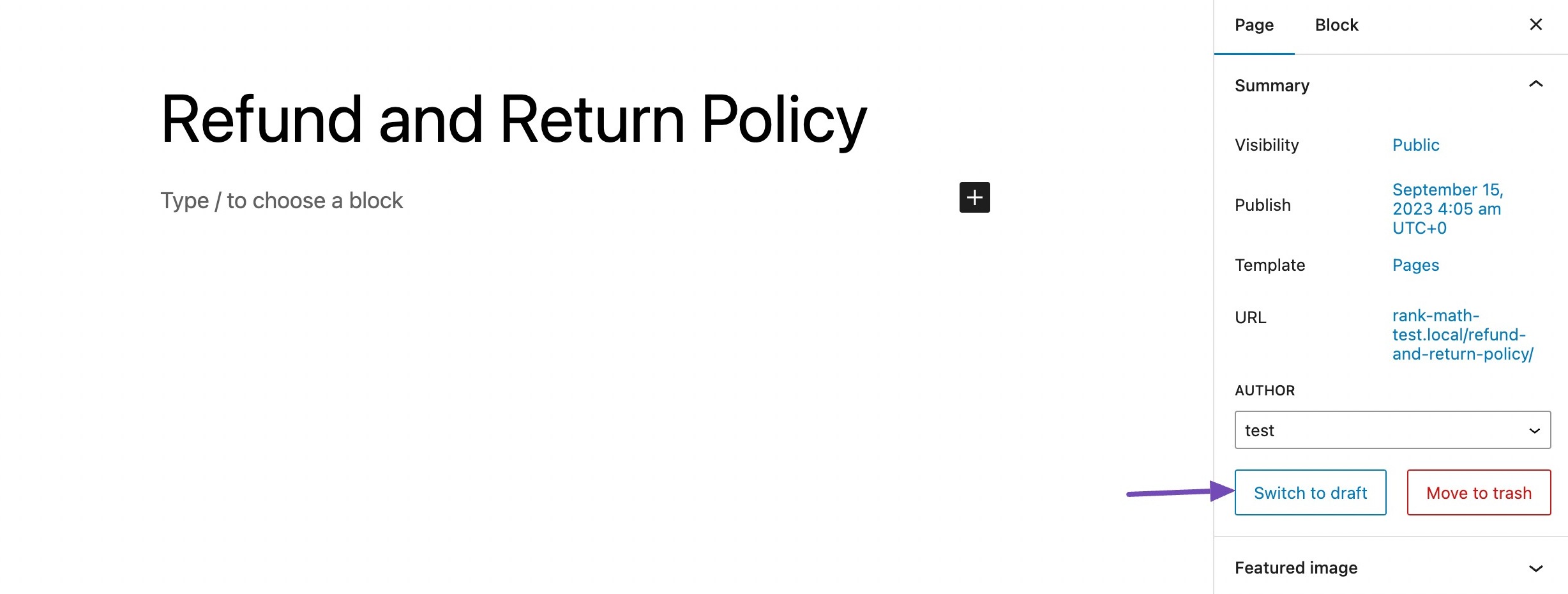
In the editor, look for the Status option. It’s on the right side. Click it to see more choices. There, find the Draft option. Click it to switch your post to draft. This saves your changes. Now, your post is not live. You can edit it later.
Benefits Of Using Draft Mode
Draft mode in WordPress gives you more control over your writing. You can edit and refine your content before publishing. Mistakes can be fixed without anyone seeing. This ensures better quality posts. There is no rush to make it perfect in one go.
Working with others on a blog? Draft mode is great for teamwork. Everyone on your team can see changes. They can add comments and suggestions. Feedback helps make the blog better. This makes it easy to work together.
Common Scenarios For Draft Use
Switching to draft helps when updating old posts. It allows making changes without showing them immediately. You can edit content in peace. No rush. No stress. This way, errors get fixed before publishing. Drafts help keep posts accurate and fresh. It’s simple and safe.
Drafts are useful for planning future posts. Write today, publish tomorrow. Or next week. You choose the time. Prepare content ahead, then schedule it. This way, your blog stays active. Posts appear on time. Scheduled drafts keep your blog organized. No need to worry about forgetting to post.
Potential Pitfalls
Switching to draft in WordPress can lead to lost visibility. Once published, content is indexed by search engines. Changing it to draft removes it temporarily, affecting traffic and engagement.
Unintentional Publishing
Switching to draft can cause accidental publication. A post might appear live without notice. This can be embarrassing. Your audience might see incomplete content. This could lead to confusion. Always check your status. Ensure your content is truly a draft. This step prevents mistakes.
Loss Of Recent Changes
Draft mode might erase new edits. Changes made after switching can vanish. This is frustrating. Important updates can be lost. Always save your work. Double-check before switching. Regular backups help too. They keep your content safe. Avoid losing your hard work.
Best Practices
Always keep a backup of your content. It saves you from losing data. Backups help when things go wrong. You can restore the old version. Use plugins to automate backups. Schedule backups regularly. Keep several copies. Store them safely. Use cloud storage if possible. Test your backups often. Make sure they work. This gives peace of mind.
Track changes with version control. It’s important to know what changed. Use tools to see edits. WordPress has built-in features. They show revision history. Review changes easily. Restore old versions if needed. Keep notes on changes. Understand why edits were made. This helps in managing content well.
Credit: rankmath.com

Credit: publishpress.com
Frequently Asked Questions
What Does “switch To Draft” Mean In WordPress?
“Switch to Draft” in WordPress allows users to unpublish a post. It moves the post back to draft status. This is useful for making edits or updates. It prevents the post from being publicly visible. This ensures changes are made before republishing.
How Do I Use “switch To Draft”?
To use “Switch to Draft,” navigate to the post editor. Click on “Switch to Draft” in the Publish box. This will unpublish the post. It saves it as a draft for future editing. You can republish it anytime.
Why Switch A Post To Draft Mode?
Switching to draft mode is helpful for editing purposes. It hides the post from the public. This allows for changes and updates without public visibility. It’s a way to ensure quality content. You can publish it when ready.
Can I Edit A Post In Draft Mode?
Yes, you can edit a post in draft mode. Simply open the draft from the post list. Make your desired changes. Save the draft again after editing. This keeps the post unpublished. It allows for further modifications if needed.
Conclusion
Switching to draft mode in WordPress is simple and useful. It helps manage your content efficiently. You can edit posts without publishing immediately. This feature ensures your work is polished before it goes live. Draft mode also offers flexibility in content planning.
You can organize and prioritize posts easily. It’s a great way to work at your own pace. Your content quality improves as you refine ideas. Remember, using draft mode can enhance your blogging experience. So, take advantage of it. Keep creating and sharing your best work confidently.


