
Are you scratching your head, wondering, “What is my current WordPress version?” You’re not alone.
Knowing your WordPress version is crucial for maintaining your website’s security and functionality. It affects everything from theme compatibility to the latest plugin features. But don’t worry, finding this information is simpler than you might think. By the end of this article, you’ll be equipped with easy methods to identify your WordPress version in no time.
Stick around, and you’ll discover why keeping this information up-to-date can make a world of difference for your website’s performance and security.
Credit: wp-rocket.me
Checking WordPress Version In Dashboard
Finding your WordPress version is easy. Log into the WordPress dashboard. Look at the bottom right corner. You will see the version number. It’s right there. Easy to find.
This version number helps you. It tells if your site is up-to-date. An updated site is safe. Always check for new updates. Updates bring new features. They also fix security issues. Keep your site safe and secure.
Credit: www.hostinger.com
Finding Version In Source Code
Right-click on any webpage. Choose “View Page Source” from the menu. A new tab will open. You will see a lot of code. The code shows how the page works.
Search for the Meta Generator Tag. Use “CTRL+F” to find it quickly. Type “generator” in the search box. The tag tells which WordPress version you have. It looks like this: . The numbers show the version. Easy to find and check.
Using WordPress Updates Section
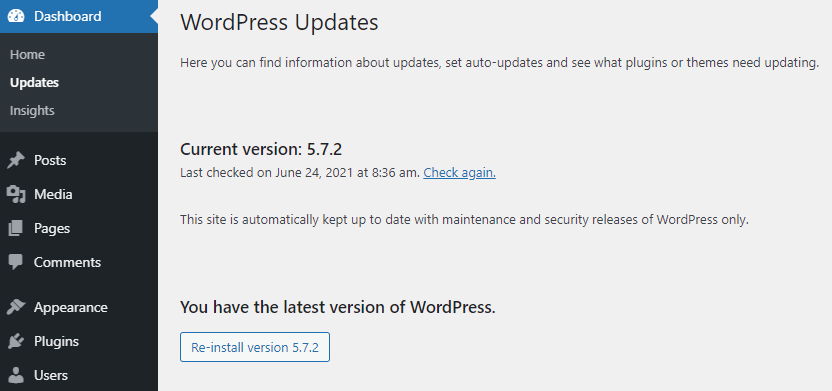
To find your current WordPress version, visit the WordPress dashboard. Look for the Updates section. It is usually located under the dashboard menu. Click on it to open the page. The page will show your current version. You will also see if updates are available. Keeping WordPress updated is important. It helps maintain security. It also adds new features. Always check this section regularly. This ensures your site runs smoothly. WordPress updates are usually easy to install. Just follow the instructions provided. Make sure your site is backed up first. This keeps your data safe.
Checking Version Via Ftp
Begin by opening your FTP client. Connect to your website’s server. Look for the folder named wp-includes. This folder is important. It holds many WordPress files. Make sure you know where it is.
Inside the wp-includes folder, find the file named version.php. Right-click on it. Choose the option to open or view. This file shows the WordPress version. Look for the line that says $wp_version. The number next to it is your WordPress version. Remember, this process is simple. Anyone can do it with a little patience.
Utilizing Command Line Tools
Discovering your current WordPress version is simple with command line tools. By accessing your WordPress directory, you can run a quick command to reveal the version number. This method is efficient and saves time when managing your website.
Using Wp-cli
WP-CLI helps manage WordPress from the command line. It’s a tool for easy tasks. Install WP-CLI first. Open your computer’s terminal. Make sure WordPress is in your system path. WP-CLI can show the WordPress version quickly.
Executing Version Command
Type the command wp core version in the terminal. This command checks the WordPress version. It’s fast and efficient. Results appear immediately. Ensure you have the right permissions. Sometimes, admin access is needed. The output shows the exact version number. Keep your WordPress updated. Updates bring new features. They also fix bugs. Always check your version regularly.
Verifying With WordPress Mobile App
Checking your WordPress version with the mobile app is simple. First, open the app on your device. Go to your site dashboard. Look for the settings icon. Tap the icon to open settings. Here, you will find site information. The version number is displayed. It is important to keep your version updated. Updates help keep your site secure. They also add new features. Regular checks ensure you have the latest version. Always back up your site before updating. This helps avoid data loss.
Third-party Plugins For Version Check
Discovering the current WordPress version is simple with third-party plugins. These tools provide quick access to detailed information. Effortlessly ensure your site stays updated and secure.
Recommended Plugins
Many plugins help check your WordPress version. WP Version Checker is easy to use. It shows the current version fast. Version Info plugin is also popular. It gives detailed information. WP Dashboard Version plugin displays version details in the dashboard. These plugins are safe and reliable. They make version checking simple.
Installing And Using Plugins
First, open your WordPress dashboard. Go to the Plugins section. Click Add New. Search for the plugin name. Click Install when you find it. After installation, click Activate. The plugin is now ready to use. Follow instructions given by the plugin. Some plugins show results in the dashboard. Others may need extra settings.

Credit: www.interserver.net
Importance Of Keeping WordPress Updated
Hackers can find old WordPress versions easy to attack. Updates fix these security holes. This keeps your site safe. Bad people look for weak spots. New updates close these weak spots. Always update to keep your site protected.
Updates bring cool new features. These features make your site better. Old versions miss out on these improvements. Updates also fix bugs. Bugs can make sites slow or not work. Updates make sure your site is fast and works well.
Frequently Asked Questions
How Do I Find My WordPress Version?
To find your WordPress version, log into your WordPress dashboard. Scroll down to the bottom of the page. The version number is typically displayed there. Alternatively, you can navigate to Dashboard > Updates. Here, you will also find your current WordPress version listed.
Why Is Knowing My WordPress Version Important?
Knowing your WordPress version helps ensure your site is up-to-date. Updates improve security, fix bugs, and enhance features. Keeping your WordPress version current protects your website from vulnerabilities. It also ensures compatibility with themes and plugins, maintaining optimal performance.
Can I Update WordPress Automatically?
Yes, WordPress can update automatically. By default, minor updates are automatic. For major updates, you need to initiate them manually. You can enable automatic updates for major versions. Go to Dashboard > Updates and select “Enable automatic updates for all new versions.
“
What Happens If I Don’t Update WordPress?
Not updating WordPress can lead to security risks. Vulnerabilities in outdated versions can be exploited by hackers. You may also face compatibility issues with themes and plugins. This can affect website performance and functionality. Always keep WordPress updated to ensure security and efficiency.
Conclusion
Finding your current WordPress version is quite simple. Check your dashboard for quick info. Look at the footer or update section. These spots often display the version. Keeping your version updated is vital. It ensures better security and features. Updates fix bugs and improve performance.
Always back up before updating. It’s a good habit for safety. Regular updates keep your site running smoothly. Stay informed and protect your site well. With this guide, checking your WordPress version is easy. Now you know how to do it yourself.
Happy blogging!


