
Have you ever wondered what a post on WordPress really is? Imagine having a tool at your fingertips that allows you to share your thoughts, ideas, and expertise with the world effortlessly.
Whether you’re a budding blogger, a business owner, or someone who simply wants to make their voice heard, understanding how to create and manage a post on WordPress is your gateway to impactful communication. We’re diving deep into the world of WordPress posts.
You’ll discover how to craft engaging content that resonates with your audience and learn the secrets to optimizing your posts for maximum visibility. By the end, you’ll not only know what a WordPress post is but also how it can become a powerful tool in your digital arsenal. Ready to unlock the potential of your online presence? Let’s get started!

Credit: afthemes.com
Definition Of A Post
A post is like a news article. It shares new thoughts or updates. Posts appear in order of time. The newest one is first. Blogs use posts to talk about topics. They often have a date and an author name. This helps readers know who wrote it and when. Posts can include text, pictures, and links. They help connect with readers. People can leave comments on posts. This makes blogs interactive. Posts are part of a blog’s main content. They keep changing with new information. Posts help share ideas with many people. They are important for keeping a blog fresh.
Difference Between Posts And Pages
Posts and pages are not the same. Posts are timely. They show up in order, from newest to oldest. People use posts for news or updates. Pages are different. They stay static. They do not change often. Pages are for important information. Like a contact page or an about page. Posts can have categories and tags. This helps to sort them. Pages do not have tags. They do not need sorting.
Posts have comments. Readers can talk about the post. Pages usually do not have comments. They give basic info. Posts are part of a blog. They are dynamic. Pages are part of a site. They are steady. Posts can be shared. Pages are harder to share. Each has a special role. Use posts for updates. Use pages for info.
Creating A New Post
First, log in to your WordPress account. You will see the WordPress Dashboard. This is your control center. It helps you manage your site. Find the sidebar on the left. It has many options for you.
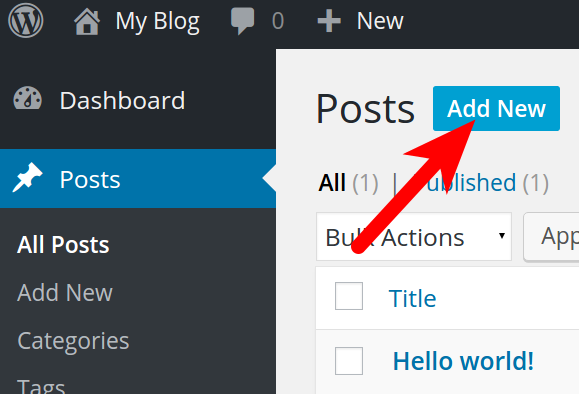
Look for the Posts section in the sidebar. Click on it to open. You will see all your posts listed. To make a new post, click “Add New.” It’s easy and quick. Now you can start writing.
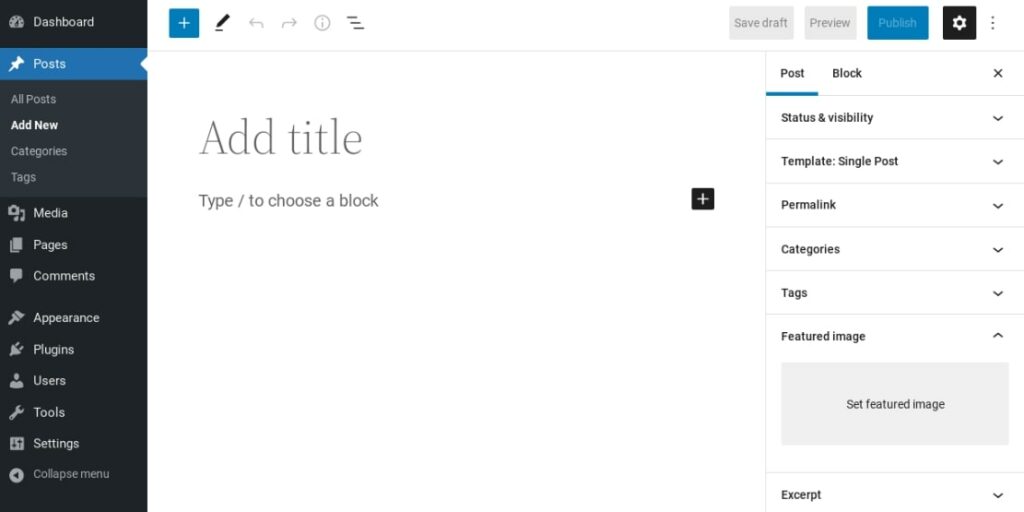
The Gutenberg Editor is a block-based editor. It helps you add text, images, and more. Use blocks to build your post. Each block is for a different type of content. Try adding a text block first. Then, add an image block if you like.
Post Components
The title is the first thing people see. It should be clear. Make it catchy. The permalink is the web address of your post. It helps users find your post online. Keep it short and relevant. Choose words that match your content.
This is where the main text goes. It includes words, pictures, and videos. Use this space to share information. Keep your audience interested. Break text into smaller parts. Make it easy to read. Use simple words and short sentences.
Categories help organize posts. They group similar topics together. Tags are like labels. They add more details about the post. Use both to help people find your post. Choose words that fit your content.
The featured image is the main picture of your post. It catches the reader’s eye. Pick a picture that matches your topic. It should be clear and good quality. This image helps make your post look nice. It also helps with sharing on social media.
Publishing Options
Click the Save Draft button to keep your work safe. This option stores your post without making it live. You can return later to edit or add more details. It’s useful for unfinished posts. Save often to avoid losing changes.
Use Preview to see how your post looks. This shows the layout and design. Check for errors before publishing. Make sure everything looks right. Preview helps you spot mistakes early.
Choose Publish Now to make your post live instantly. Or, Schedule for later. Pick a date and time to suit your audience. Scheduling allows planning ahead. This is great for regular posts.
Credit: www.dreamhost.com
Post Formats
The Standard format is the most common type of post. It includes text, images, and links. People use it for regular updates or articles. Easy for everyone to read. Great for sharing information.
A Gallery post showcases photos. Displays them in a nice layout. Perfect for photographers or anyone sharing pictures. Users can click through the images. Fun way to share visual stories.
The Video format is for sharing videos. Ideal for tutorials or vlogs. Users can watch right from the post. Engages viewers more than text. Makes content lively and dynamic.
A Quote post highlights quotes. Useful for famous sayings or personal thoughts. Inspires and captivates readers. Short but powerful. Perfect for sharing wisdom or humor.
Optimizing Posts For Seo
Keywords are very important. They help people find your post. Use them in the title and first paragraph. Also, sprinkle them throughout the text. But don’t use too many. This could confuse readers. Make sure the keywords feel natural.
Meta descriptions tell what the post is about. They should be short and clear. Use important words in them. This helps with search engines. Good descriptions make people click on your post. Keep them around 150 characters.
Many people use phones to read posts. Make sure your post looks good on small screens. Use simple designs and large text. Test your site on different devices. This keeps your readers happy. They will stay longer if they can read easily.
Credit: www.inmotionhosting.com
Managing Posts
To edit a post, go to your WordPress dashboard. Find the post you want to change. Click on the “Edit” option under the post title. Make your changes in the editor. Always save your changes by clicking on the “Update” button. This will keep your post current and correct.
Deleting a post is easy. First, find the post you want to remove. Click on the “Trash” link below the post title. This moves the post to the trash. The post is not gone forever yet.
Sometimes you may delete by mistake. Go to the trash section to restore. Find the post you want back. Click on “Restore”. The post will return to your list of posts. It is safe and sound now.
Best Practices For WordPress Posts
A regular posting schedule is very important. It helps your readers know when to visit. Consistency builds trust with your audience. Plan your posts in advance. Use a calendar to stay on track. It helps you stay organized. Your readers will appreciate it.
Engaging with readers is key to a successful blog. Reply to comments and ask questions. Show you care about their thoughts. Encourage them to share their ideas. This makes them feel valued. Create a friendly community. It keeps readers coming back.
Multimedia makes posts more interesting. Pictures and videos catch the eye. They explain ideas better than words alone. Use infographics for complex topics. Readers love colorful charts. Keep media files small. Large files can slow down your site. Balance is important.
Frequently Asked Questions
What Is A Post In WordPress?
A post in WordPress is a content type used for blog entries. Posts are displayed in reverse chronological order on your site. They can be categorized, tagged, and archived. Posts are dynamic and often updated regularly, making them ideal for news, updates, and other timely content.
How Do I Create A Post On WordPress?
To create a post, log in to your WordPress dashboard. Go to “Posts” and click on “Add New. ” Enter your content in the editor, add categories and tags, then publish. You can also save drafts or schedule posts for future publication.
What Is The Difference Between Post And Page?
Posts are time-sensitive and appear in reverse chronological order. Pages are static and used for timeless content like “About” or “Contact” pages. Pages are hierarchical, meaning they can have parent-child relationships. Posts are meant for dynamic content and are often updated.
How Can I Categorize My WordPress Posts?
You can categorize posts by assigning them to one or more categories during creation. Categories help organize your content and improve site navigation. You can add, edit, or delete categories from the “Categories” section under “Posts” in your WordPress dashboard.
Conclusion
Understanding WordPress posts is key to creating great content. They are the building blocks of your blog. Posts keep your site active and engaging. Readers find new information in each update. Use clear titles and keywords for SEO success. Remember, fresh content attracts visitors.
Keep your posts simple and easy to read. Share your thoughts and ideas regularly. This keeps your audience interested. WordPress makes publishing straightforward and user-friendly. Anyone can start a blog with ease. Practice writing consistently. You will improve over time.
Happy blogging!


