
Have you ever felt overwhelmed by the endless options and confusing interfaces when trying to create content on WordPress? You’re not alone.
Many users struggle to find an efficient way to design and organize their content. But what if I told you there’s a tool that simplifies this process, allowing you to create beautiful pages with ease? Enter the Block Editor in WordPress, a game-changer in the world of website creation.
This intuitive tool is designed to make your life easier, helping you to build stunning, responsive layouts without needing to know a single line of code. Curious to learn how it can transform your WordPress experience? Stick around, because understanding the Block Editor might just be the key to unlocking your site’s true potential.
Block Editor Basics
The Block Editor is a tool in WordPress. It helps to create and edit content. Each piece of content is a block. These blocks can be text, images, or videos. You can move them around easily. This makes building pages simple and fun. It’s like playing with building blocks.
Before blocks, WordPress used a classic editor. It was like a big text box. Users typed everything in one place. Editing was hard and not flexible. The Block Editor changed this. Now, content is organized and easy to manage. This new way started in 2018. It helps users make better web pages. Even beginners find it easy to use.

Credit: jetpack.com
Features Of Block Editor
WordPress Block Editor transforms the way you build posts with movable blocks for text, images, and multimedia. Easily customize layouts, ensuring a user-friendly and engaging website design. Simplify content creation with intuitive drag-and-drop functionality.
Block-based Editing
The block editor lets users create content using blocks. Each block holds a piece of content like text, images, or video. Blocks make it easy to rearrange parts of your page. You can add new blocks with one click. Each block has its own settings, making customization simple.
Customization Options
The editor offers many ways to customize content. Change colors, fonts, and layouts with ease. Users can adjust sizes and add backgrounds. Drag and drop lets you move blocks around. You can also duplicate blocks to save time. Each block can have unique styles and settings. This makes personalizing your site easy and fun.
Integration With Themes And Plugins
The block editor works well with themes and plugins. Many plugins offer special blocks for added features. Themes can have custom blocks that match their style. Blocks help ensure that themes look good with your content. Plugins can add blocks for forms, galleries, and more. This makes it easy to expand your site’s functionality.
Benefits Of Using Block Editor
Block Editor makes WordPress easy to use. Each content piece is a block. Drag and drop blocks to rearrange them. No coding is needed. It feels like playing with blocks. This makes writing fun and simple.
Create unique layouts with Block Editor. Use different block types like text, image, or video. Change block settings with a few clicks. Try new styles with ease. Your page becomes special and attractive.
Managing content is easy. Organize blocks in sections. Reuse blocks on other pages. Save your favorite blocks. Update content quickly. Your site stays fresh and updated.

Credit: wordpress.org
Common Blocks Explained
WordPress Block Editor allows users to create content using blocks. These blocks can be text, images, or videos. This editor helps in organizing content easily, making website design simpler.
Text And Media Blocks
Text blocks help you write words in your posts. Use them for paragraphs, headings, and lists. Media blocks let you add pictures, videos, or audio. These blocks make your content look nice. You can move them around easily. Choose a block from the menu to start. Add a picture with the image block. Insert a video with the video block. It’s that simple!
Layout Blocks
Layout blocks help organize your page. Use columns to split content. Add a spacer for extra room. Use a separator to divide sections. These blocks make your page neat. Drag and drop to arrange them. Use layout blocks for a clean look.
Widget Blocks
Widget blocks add special features to your page. Use them for calendars, latest posts, or search bars. They make your site interactive. You can find them in the block menu. Add a widget block to your sidebar or footer. Widgets make your site useful.
Advanced Tips And Tricks
The Block Editor in WordPress simplifies webpage creation with its intuitive drag-and-drop feature. Users can easily arrange text, images, and multimedia elements. This tool enhances creativity by allowing customization without needing technical expertise.
Using Custom Blocks
Custom blocks can make your site unique. They help you add special features. You can create custom blocks with code. Many plugins offer ready-made custom blocks. Experiment with different styles. Choose what suits your site. Custom blocks enhance user experience. They can improve your site’s look. Keep them simple for easy use. Avoid too many custom blocks. They might slow down your site.
Optimizing For Seo
SEO is important for your site. Use keywords in block editor. Bold them in headings and text. This helps search engines find your site. Add alt text to images. Make sure your site loads fast. Use blocks that are light. Heavy blocks can slow your site. Good SEO brings more visitors. Keep your content fresh and updated. This helps with rankings.
Troubleshooting Common Issues
Sometimes blocks don’t work right. Refresh your page to fix small issues. Check for plugin conflicts. Disable plugins one by one. This helps find the problem. Clear your browser cache. It can solve display errors. Update WordPress regularly. Updates fix many bugs. Ask for help in forums. Other users can share solutions. Keep your blocks organized. It prevents many errors.
Transitioning From Classic Editor
The Classic Editor uses a simple text box. You write and format text easily. The Block Editor offers more features. You can add blocks for text, images, and videos. This editor is like building with blocks. It helps you to design pages with ease. Blocks allow more control over layout. You can drag and drop blocks. This makes editing fun and flexible.
Start by learning about blocks. Practice using different block types. Experiment with text and image blocks. Gradually shift from classic to block editor. Back up your site before changes. Use tutorials and guides for help. Many resources are available. Step-by-step videos can be useful. Take small steps for smooth transition.
Explore each block type. Try adding headers and lists. Play with formatting options. Practice often to get better. Ask for help if needed. Join forums and groups. Other users can share their tips. Read articles for extra guidance. Familiarize yourself with shortcuts. They save time in editing. Patience and practice are key.
Future Of Block Editor
Block Editor in WordPress allows users to design web pages using individual blocks for text, images, and multimedia. Its future promises more customization options, making website creation simpler and more flexible for everyone.
Upcoming Features
The Block Editor in WordPress is getting new tools. These tools will help users make better websites. One new feature is more block patterns. Block patterns make it easy to design pages. Another feature is better customizations. Users can change colors and fonts easily. These changes make websites look unique. New updates will come often. This keeps the Block Editor fresh.
Community Feedback
The WordPress community gives feedback on the Block Editor. Feedback helps improve the editor. Users share what they like and dislike. Developers listen to this feedback. They make changes based on user needs. Community feedback is important. It helps make the Block Editor better for everyone.
Impact On WordPress Development
The Block Editor affects WordPress development. Developers focus on making it user-friendly. They add features that users want. The Block Editor helps make WordPress popular. It makes building websites easier. Developers work to improve it. This helps WordPress grow and stay modern.
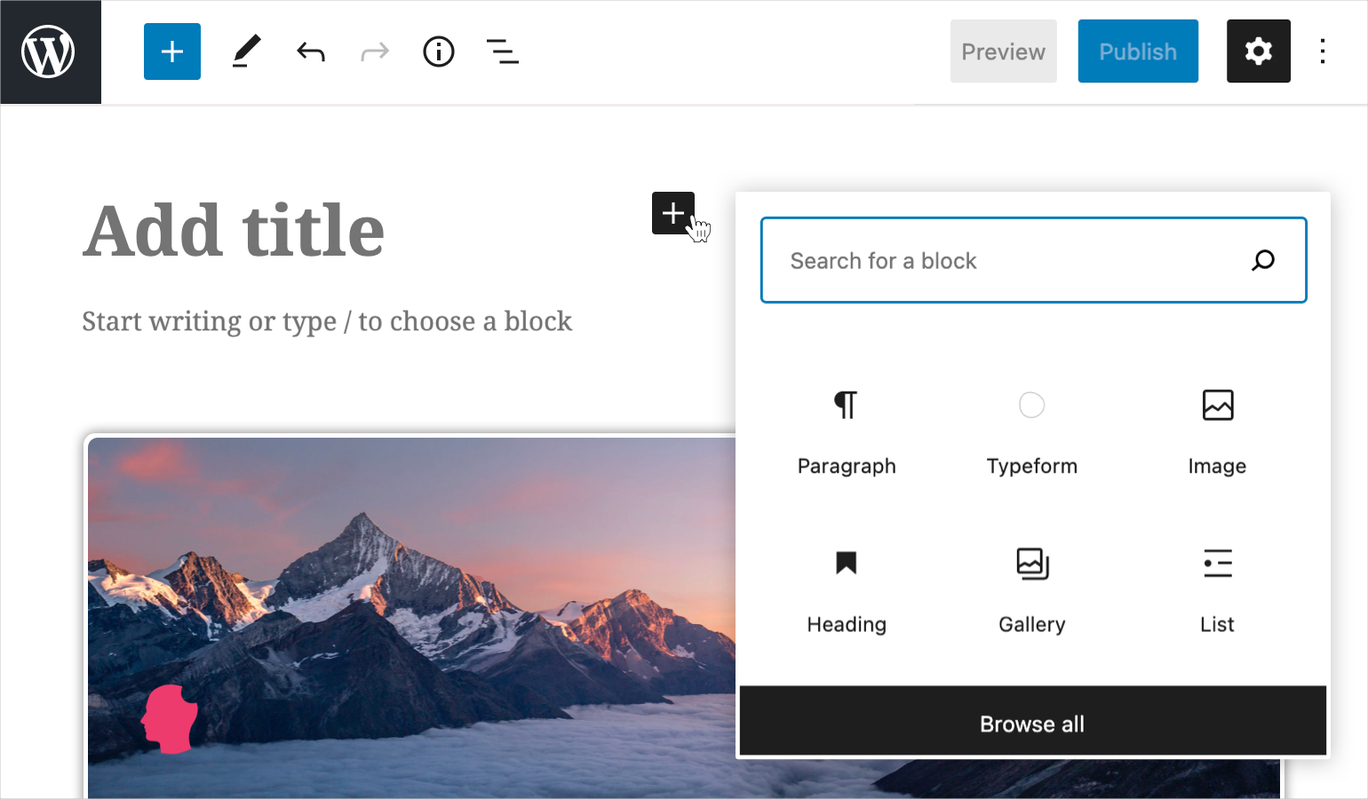
Credit: deliciousbrains.com
Frequently Asked Questions
What Is The Block Editor In WordPress?
The Block Editor, also known as Gutenberg, is WordPress’s default editor. It allows users to create content using blocks for different elements like text, images, and videos. This provides more flexibility and control over the layout and design of your posts and pages.
It’s designed to make content creation easy and intuitive.
How Do I Use WordPress Block Editor?
Using the Block Editor in WordPress is straightforward. Start by adding a new post or page, then click the “+” icon to add blocks. Choose from various blocks like paragraphs, images, or headings. Each block can be customized for styling and layout, making it easy to build complex content structures.
Can I Switch From Block Editor To Classic Editor?
Yes, you can switch back to the Classic Editor if preferred. Install the Classic Editor plugin from the WordPress plugin directory. Once activated, you can choose to use it instead of the Block Editor. This allows you to revert to the old interface while retaining content created with blocks.
What Are The Benefits Of Using Block Editor?
The Block Editor offers several benefits. It provides a more visual and flexible way to create content. You can easily rearrange blocks to customize layouts. It supports multimedia elements and embeds, enhancing content interactivity. It’s user-friendly and helps streamline the content creation process without coding skills.
Conclusion
Block Editor in WordPress offers simplicity and flexibility for content creation. Users can easily design webpages with blocks. This tool helps make editing more intuitive. You can mix text, images, and videos with ease. Beginners find it user-friendly and straightforward.
Experienced users appreciate the customization options. It supports creativity without complex coding. Overall, Block Editor enhances the WordPress experience. It caters to diverse needs, making web building accessible. Consider exploring its features for your next project. Embrace the ease and versatility it brings to your WordPress journey.


