
Have you ever wondered which PHP version your WordPress site is running on? Knowing this can be crucial for maintaining your website’s performance and security.
Using the right PHP version ensures compatibility with plugins and themes, while boosting your site’s speed and reliability. But how do you find this information without feeling overwhelmed? Don’t worry; you’re not alone, and we’re here to help! This article will guide you step-by-step, making it simple for you to identify your WordPress PHP version.
You’ll gain the confidence to optimize your site, ensuring it runs smoothly and efficiently. Let’s dive in and discover how easy it is to keep your website in top shape!

Credit: wpbuffs.com
Identifying Php Version Via WordPress Dashboard
Open your WordPress dashboard. Click on the “Tools” menu. Choose “Site Health” from the options. This tool shows important site details. You can find server information here.
Server information is under the “Info” tab. Click on “Info” to see more details. Look for the “Server” section. The PHP version is listed here. It’s easy to find and understand.

Credit: www.hostarmada.com
Using Php Info File For Version Check
Create a new file in your website folder. Name it phpinfo.php.
Open this file in a text editor. Add the code: php phpinfo(); ?.
Save the file. Upload it to your website using FTP. Visit the file in your browser.
For example, type yourwebsite.com/phpinfo.php in the address bar.
The page shows many details. Look for the line that says PHP Version. This line tells you the version of PHP your WordPress uses. The number next to it is your PHP version. It might look like 7.4.3 or another number.
Checking Php Version Via Hosting Panel
Start by logging into your hosting account. Look for the control panel section. It might be called cPanel or Plesk. This is where you manage your website.
Inside the control panel, find the section labeled PHP settings. It is usually under the software or server section. Click on it to see more options.
Once you are in the PHP settings, look for a section that shows the PHP version. This will tell you what version your WordPress site is using. It is usually displayed in a simple number format like 7.4 or 8.0.
If you need to change the version, most hosting panels offer a dropdown menu. Select the desired version and save the changes. Always ensure your site is compatible with the new PHP version to avoid issues.
Utilizing Command Line For Php Version
Accessing the command line interface is easy. First, open your computer. Next, find the terminal program. Click to open it. This is the command line interface. Here, you can type commands.
Type the command php -v into the terminal. Press enter. The screen shows the PHP version. This tells you what version of PHP is running. Remember to check carefully. Make sure the command is correct. If wrong, the result won’t be right.
Using WordPress Plugins For Php Version Information
Finding the right plugin is important. Some plugins show the PHP version used by WordPress. Choose plugins with high ratings and many users. Read user reviews to understand their experience. Check if the plugin updates regularly. This ensures it works with newer versions of WordPress. Avoid plugins with few downloads or bad reviews.
Once installed, plugins will show the PHP version. Look at this information in the plugin settings. Some plugins display this on the dashboard. Others have a separate settings page. Make sure the plugin shows clear and easy-to-understand data. If the information is confusing, find another plugin. Double-check data with other plugins for accuracy.
Troubleshooting Common Issues
Checking the PHP version used by WordPress can solve many issues. Navigate to the WordPress admin dashboard. Click on “Site Health” under “Tools. ” Find the PHP version information in the “Info” tab.
Version Mismatch Problems
Finding the right PHP version is crucial for WordPress. Sometimes, there are mismatch issues. They can make your site slow or cause errors. Always check the PHP version in your hosting panel. Look at the PHP version displayed in WordPress settings. They should match. If not, update or contact support.
Updating Php Safely
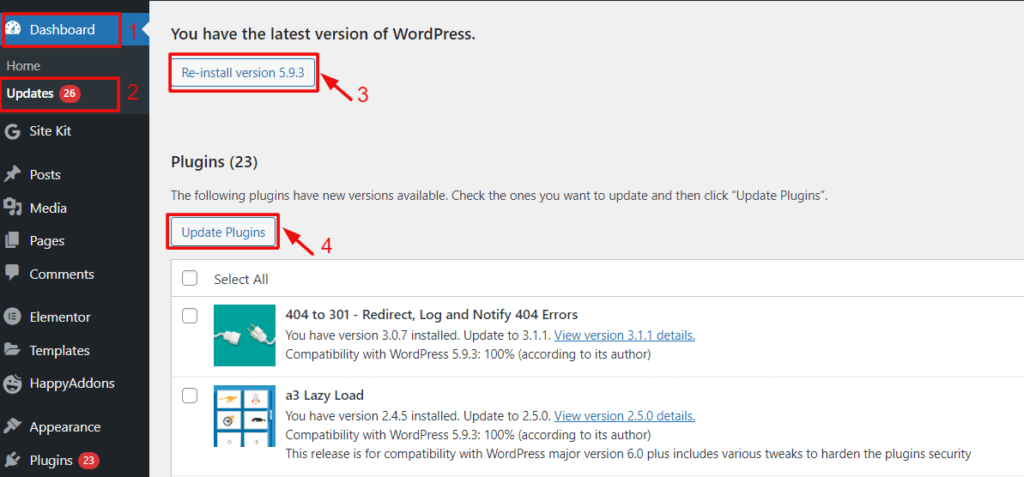
Updating PHP is important for security and performance. It can be tricky. Back up your site first. This keeps your data safe. Use your hosting panel to update PHP. Check if your WordPress theme supports the new version. After updating, test your site. Make sure everything works fine. If problems occur, revert back to the previous version.
Credit: wedevs.com
Frequently Asked Questions
How Can I Find The Php Version In WordPress?
To find the PHP version, access your WordPress dashboard. Navigate to “Tools” and select “Site Health. ” Click on the “Info” tab. Under “Server,” you’ll see the PHP version. Knowing your PHP version helps ensure compatibility with plugins and themes, enhancing your site’s performance and security.
Why Is Knowing The Php Version Important?
Knowing your PHP version is crucial for maintaining WordPress site compatibility. It ensures your themes and plugins function correctly. Updated PHP versions offer better performance and security features. Regularly checking and updating PHP helps prevent vulnerabilities and improves your site’s speed and reliability, offering a better user experience.
Can I Check Php Version Without Dashboard Access?
Yes, you can check the PHP version via the hosting control panel. Log into your hosting account and find the “PHP Manager” or similar tool. It displays the current PHP version. Alternatively, contact your hosting provider’s support team for assistance in determining the PHP version used by your WordPress site.
Does WordPress Automatically Update Php Versions?
No, WordPress does not automatically update PHP versions. Updating PHP requires manual intervention, usually through your hosting provider’s control panel. Always back up your site before updating to avoid potential issues. Regular updates ensure compatibility and security, protecting your site from vulnerabilities and improving performance.
Conclusion
Checking your WordPress PHP version is crucial. It ensures compatibility and security. Follow the steps mentioned for a smooth process. Knowing your PHP version helps in troubleshooting issues. Regular updates keep your site running efficiently. Always prioritize your website’s health and performance.
This knowledge empowers you to manage your site better. Stay informed and keep your WordPress site optimized. Your website visitors will thank you for it. Happy managing!


