
Imagine having the power to share information within your own local network, effortlessly connecting multiple devices and users without relying on external servers. Hosting a local network web page offers you this capability, turning your computer into a mini-server that broadcasts your content to anyone within your network.
You might think this sounds complicated, but it’s simpler than you imagine. Whether you’re a small business owner wanting to share files internally, or a tech-savvy individual eager to experiment with web hosting, mastering this skill can open up a world of possibilities.
You’ll discover the straightforward steps to hosting your very own local network web page, unlocking new ways to communicate and share information seamlessly. Dive in and find out how you can leverage this technique to enhance your digital world.
Credit: www.aapanel.com
Setting Up A Local Server
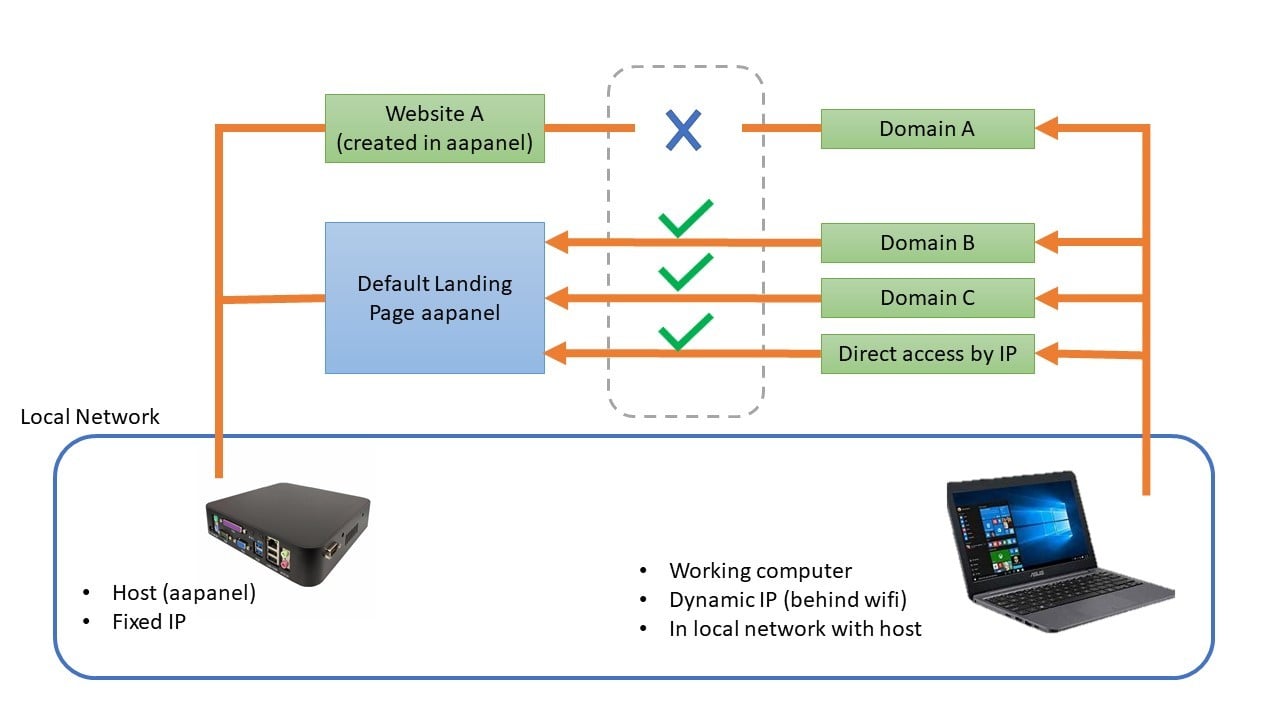
Hosting a local network web page is simple. First, install server software like XAMPP or WAMP on your computer. Then, place your web files in the server’s root directory. Finally, access your site using your computer’s IP address.
Choosing The Right Software
Select software that fits your needs. Apache and Nginx are popular choices. Both are free and have a large community. XAMPP is also great for beginners. It includes Apache, MySQL, and PHP. Each software has unique features. Choose based on your project needs.
Installing The Server Software
Download the installer from the official website. Follow the setup instructions step-by-step. Most installations are easy. You may need to choose settings during setup. Keep default settings if unsure. After installation, check the server status. Make sure it is running without errors. Troubleshoot if necessary.
Creating Your Web Page
Start with a simple HTML document. Use the html to declare the document type. Add the tag to wrap your content. Inside, use for meta information. The
CSS makes your page look nice. Create a style.css file. Link it in the section. Use . In CSS, select elements by tags or classes. Change colors, fonts, and layout.
JavaScript adds fun to your page. Create a script.js file. Link it before the tag. Use . With JavaScript, make buttons work. Show alerts or change content.
Configuring The Network
First, find your computer’s IP address. Go to your computer’s network settings. Choose your network. You will see the current IP address. You must make it static. This means the address will not change. Look for a setting called “IP settings”. Change it to manual. Enter the current IP address. Save the changes.
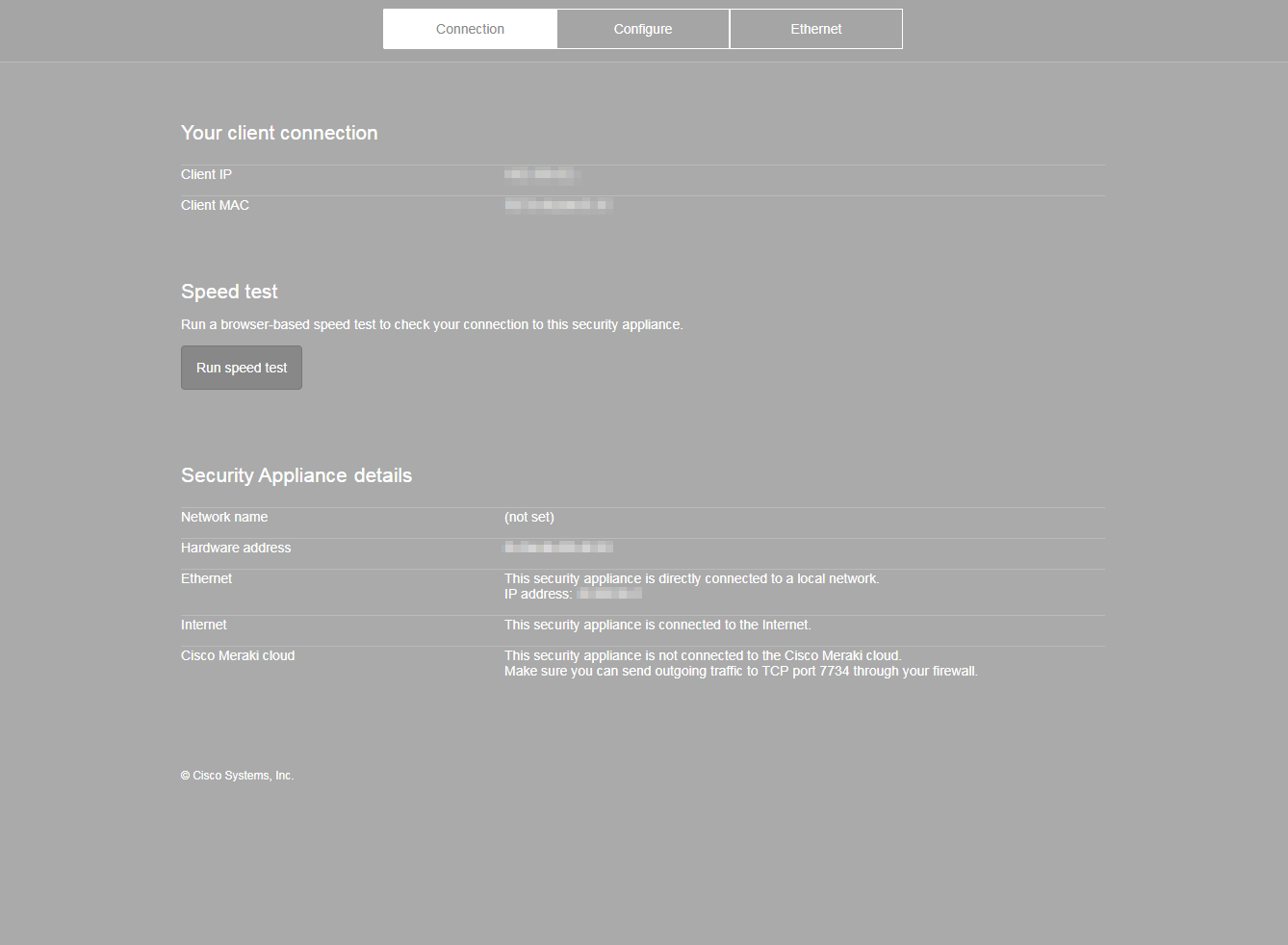
Ports allow data to flow in and out. You must open them for your web page. Open your router settings. Find the port forwarding section. Enter the port number you want to open. Common ports are 80 and 443. Enter your static IP address. Save the settings. Now, your network is ready. Your web page can now be accessed locally.
Credit: documentation.meraki.com
Testing The Local Web Page
Setting up a local network web page involves using a server software on your computer. This allows you to test web pages offline before going live. It’s an essential step for developers wanting to preview their site in a controlled environment.
Accessing The Page On Local Devices
Check the IP address of your computer. Open a browser on another device. Type the IP address in the address bar. Add the port number if needed. Press enter to load the page. Ensure all devices are on the same network. This allows them to see the page.
Troubleshooting Common Issues
Sometimes the page doesn’t load. Check the network connection first. Ensure the server is running. Verify the IP address is correct. Disable the firewall temporarily. This might block the page. Restart the server if needed. Check the URL for typos. Ensure all cables are secure.
Enhancing Security
Firewalls protect your network from bad guys. They stop unwanted traffic. Install a firewall on your server. Adjust settings to block harmful connections. Use rules to allow good traffic only. Always update firewall software. Regular updates are crucial. Check logs often. Logs show what is happening. They help in spotting problems. Firewalls are like guards. They keep your network safe.
HTTPS makes web pages secure. It encrypts data. Encryption means scrambled information. Only the receiver can read it. HTTPS uses SSL certificates. Get a certificate for your website. It proves your site is safe. Users trust HTTPS more. Browsers show a lock sign for HTTPS sites. This means the site is secure. Always use HTTPS for important pages.

Credit: www.reddit.com
Maintaining The Local Server
Keeping the server software updated ensures better security. New updates fix security holes. Always download and install updates from trusted sources. This keeps your data safe. Regular updates also enhance performance. They introduce new features and improve existing ones.
Set reminders for checking updates. Make it a habit. This will help in avoiding any unwanted surprises. An updated server is a healthy server.
Watch the server’s performance closely. Use tools to track speed and uptime. These tools show if the server is working well. If the server is slow, visitors may leave. This can hurt your site’s success.
Listen to any unusual sounds or alerts. These can be warning signs. Quick action is needed if issues arise. Regular checks help catch problems early. It ensures a smooth-running server for everyone.
Frequently Asked Questions
Can I Host A Website On My Local Network?
Yes, you can host a website on your local network. Use a web server software like Apache or Nginx. Ensure your network settings allow access. For external access, configure port forwarding on your router. Remember, local hosting might limit accessibility and performance compared to professional hosting services.
How To Make A Website For A Local Network?
Create a local network website using a server computer. Install XAMPP or similar software for hosting. Design pages using HTML, CSS, and JavaScript. Configure network settings to access the website from connected devices. Ensure security measures are in place for safe access.
How To Run A Web Page On Localhost?
Install a local server like XAMPP or WAMP. Place your web files in the server’s root directory. Start the server and open your browser. Enter “localhost” in the address bar to view your webpage. Ensure all necessary services are running for proper functionality.
How To Host A Website From A Local Pc?
Install a web server software like XAMPP or WAMP on your PC. Configure your router for port forwarding. Obtain a static IP address or use a dynamic DNS service. Place your website files in the server’s root directory. Test the setup by accessing your IP in a browser.
Conclusion
Setting up a local network web page isn’t complex. Start with simple tools. Use basic software and hardware. Follow the steps carefully. Test your page regularly. Ensure smooth operation. Secure your network. Protect user data. Troubleshoot issues promptly. Keep learning and adapting.
Practice makes perfect. Share your knowledge with others. Encourage local collaboration. Build and grow your local community. Enjoy the benefits of a personal web page. Personalize it to suit your needs. Keep it updated. Stay connected. Make technology work for you.
Explore new possibilities. Keep your web page running smoothly. Happy hosting!


