
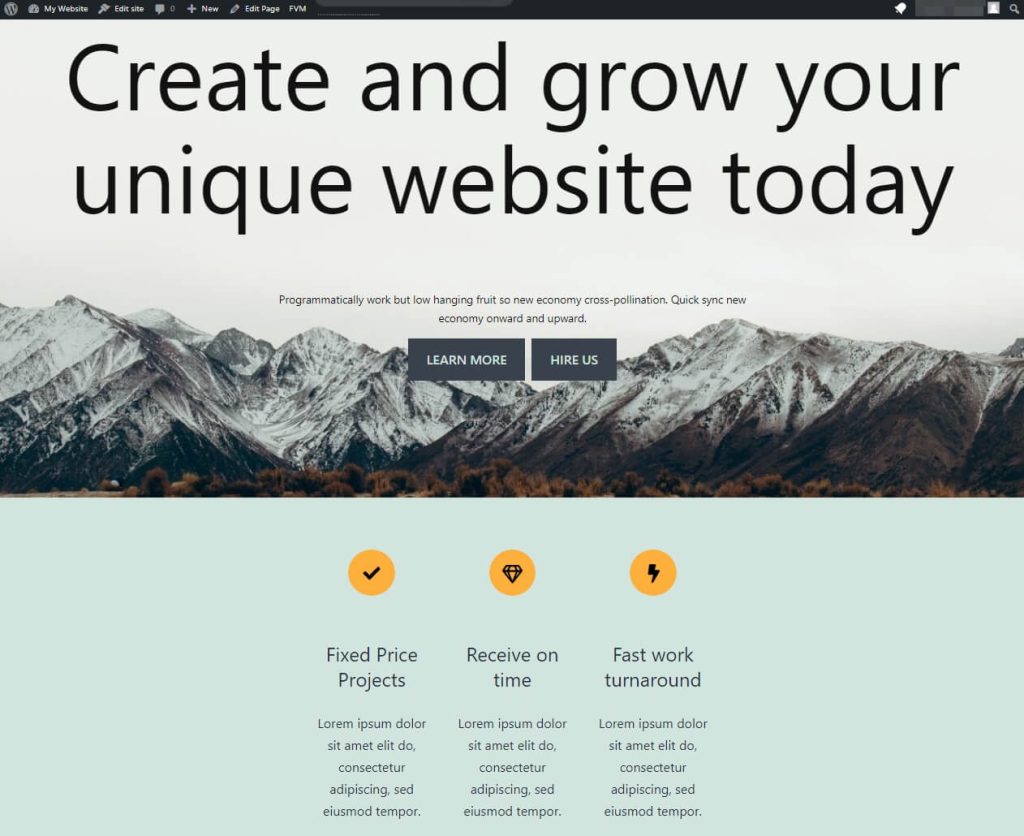
Are you tired of your WordPress site looking like everyone else’s? Imagine having a website that not only stands out but also reflects your unique style and brand.
Editing your WordPress theme can transform your site from ordinary to extraordinary, and guess what? It’s easier than you think. In this guide, you’ll discover how to tweak your WordPress theme without feeling overwhelmed. Whether you’re looking to change colors, fonts, or layouts, we’ll walk you through the process step by step.
By the end of this article, you’ll feel empowered to make your website truly your own. Keep reading to unlock the secrets to customizing your WordPress theme effortlessly.
Credit: freshysites.com
Choosing The Right Theme
Picking a theme is an important step. Themes change the whole look of a site. A good theme should be easy to use. It should also be responsive on all devices. Check if the theme has good ratings. Ratings tell if others like the theme.
Look for themes with regular updates. Updates keep your site safe. Try to choose a theme that matches your brand. Colors and fonts should fit your style. Make sure the theme has support. You might need help someday.
Free themes can be a good start. Some free themes offer nice features. Paid themes often have more options. Think about what you really need.
Setting Up A Child Theme
Creating a child theme is smart. It keeps your changes safe. A child theme copies the parent theme. It allows you to edit without losing updates. First, make a new folder for the child theme. Name it wisely. Next, create a style.css file. This file should link to the parent theme. Use correct code for linking. Add a functions.php file too. This helps in adding features. Always test the child theme. Testing prevents errors. Check if the child theme works. Look for any missing styles. Fix them if needed.
Exploring Theme Files
PHP files help your WordPress theme work. These files control how data shows on your site. They decide how pages look and act. Each file has a different job. The index.php file is the most important. It shows the main page. Other files might control posts, pages, or archives. Be careful when editing. One wrong change can break your site. Always back up your files first.
CSS files make your site look nice. They change colors, fonts, and styles. CSS files are like clothes for your website. They decide how things appear to visitors. You can make headings red or text bigger. Changing CSS is safe. It won’t break your site. But always save your changes. You can always go back if needed.
JavaScript files add fun to your site. They make things move. Buttons can change color when clicked. Forms can show messages. JavaScript helps users interact with your site. Editing these files can be tricky. Changes can affect your site’s speed. Test your changes on a small area first. Make sure everything works well.

Credit: www.wpexplorer.com
Using The WordPress Customizer
The WordPress Customizer is a tool for easy theme changes. Find it in your dashboard. Click on ‘Customize’ to open it. You can change many things here. Colors, fonts, and layouts are all editable. Each change updates in real-time. You see it right away. No guessing needed.
To change colors, go to ‘Colors’ option. Choose your favorite shades. Fonts are under ‘Typography’. Pick styles you like. Layout options are also available. Move things around to fit your taste. Make your site unique. Changes are saved once you click ‘Publish’. Your site will look fresh and new.
Editing With Page Builders
Gutenberg is a block-based editor in WordPress. It helps you build pages easily. You can add blocks for text, images, and videos. Each block has settings you can change. This makes your page unique. It’s simple and fun to use. You can drag blocks to rearrange them. This makes designing your page easy.
Elementor is a popular page builder. It offers a drag-and-drop feature. You can build pages without coding. There are many ready-made templates. These templates help to design quickly. You can change colors and fonts easily. Elementor is great for beginners. It makes designing simple and fast.
Beaver Builder is an easy-to-use tool. It lets you edit your page in real-time. You see changes as you make them. This builder works with any theme. It offers a live editing experience. You can create beautiful pages with it. It’s simple and intuitive. Perfect for those new to WordPress.
Css Customization Tips
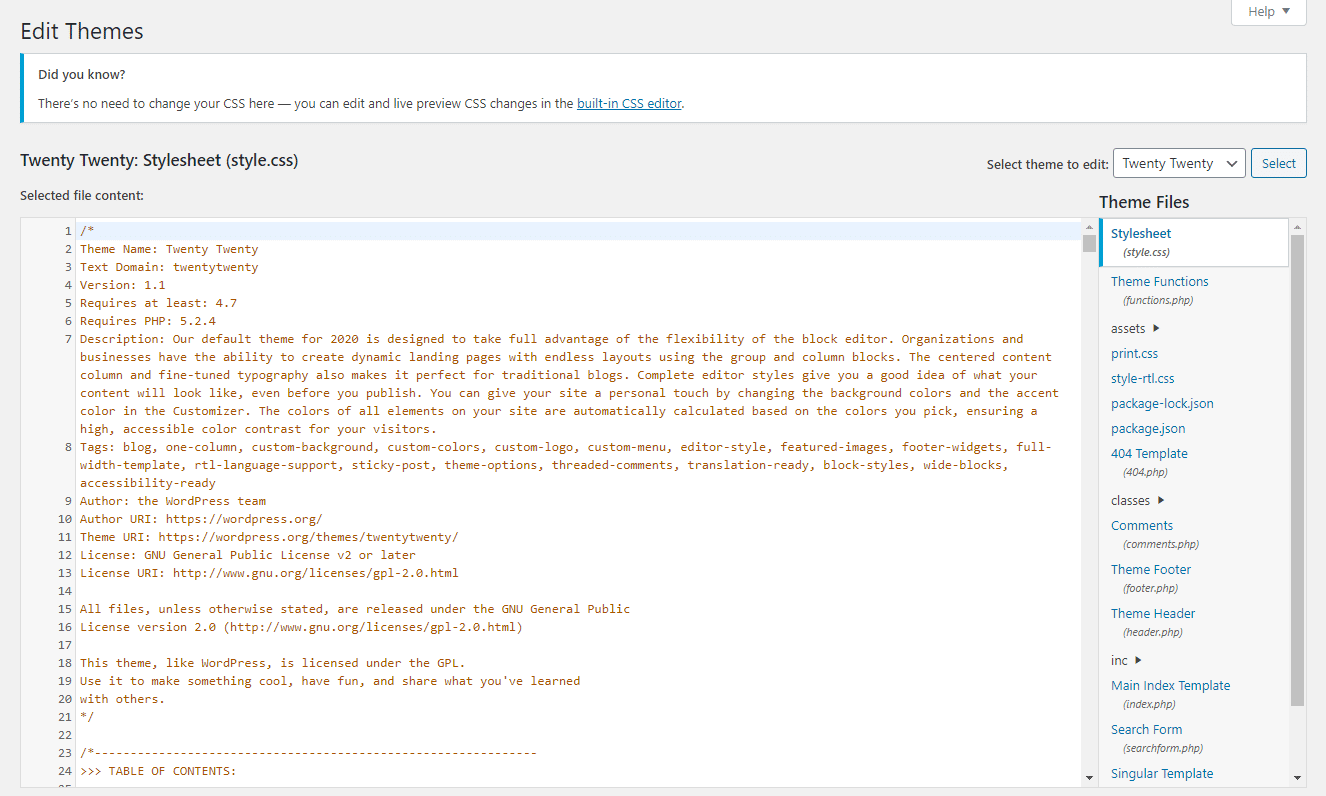
CSS helps change how your website looks. Use it to make text bold or change colors. Start by finding the style.css file in your theme. This file has all the rules for how things look.
Want to change a font? Look for the font rule and swap it with a different one. To change a color, find the color code and use a new one. Experiment with small changes to learn.
Use the Inspect tool in your browser. This tool helps you see what each CSS rule does. Try editing a few lines and see the results live. Remember, small steps are key to big changes.
Adding Custom Widgets
Widgets make your website unique. They add extra features. Custom widgets are easy to create in WordPress. Access the WordPress dashboard. Navigate to the Appearance section. Click on Widgets. Here, you can see available widgets. Drag and drop to add them. You can add widgets to sidebars or footers. Choose where you want them.
Some widgets need settings. Click on the widget to adjust them. Save your changes. View your site to see updates. Widgets can display text, images, or links. They can show recent posts or a calendar. Experiment with different widgets. Make your site look great. Keep it simple and user-friendly.
Incorporating Custom Code
Adding HTML snippets can change how your site looks. You can add these snippets to your WordPress theme. Go to your theme editor to start. This is usually found in the WordPress dashboard. Once there, find the section you want to change. Copy and paste your HTML code. Be careful not to delete any important code. Always save your changes after editing. This will ensure your changes show on the site.
JavaScript makes your site interactive. It adds features that move or change. You can add JavaScript to your WordPress theme too. Open the theme editor like before. Find the right file to add your code. Often, this will be a header or footer file. Paste your JavaScript code here. Again, save changes to see them live. Adding JavaScript can make your site fun and lively.
Testing Theme Changes
Always test changes before making them live. This helps you avoid mistakes. Use a staging site. It is like a practice area for your theme. It won’t affect your main site. Use this area to try new things. Check how your site looks and works. Make sure everything is okay.
Pay attention to colors and fonts. They should be clear. Check how pictures look. They should be bright and neat. Test your site on different devices. Try a phone, a tablet, and a computer. This ensures that everyone sees your site correctly.
After testing, you can make changes live. But always back up your site first. This keeps your content safe.
Backups And Restorations
Creating a backup is very important. It keeps your site safe. Mistakes happen. Always have a recent backup of your WordPress theme. There are many tools to help. These tools make backups easy and quick.
Restoration is the process of bringing back your site. It is used after errors or issues. Restoring from a backup saves time. It also avoids headaches. Without a backup, you risk losing your hard work.
Choose a backup plugin that fits your needs. Some plugins offer automatic backups. Others need to be run manually. Check your backup files regularly. Make sure they are safe and complete. Storing backups in the cloud is a smart choice. It protects your data from local computer issues.
Credit: kinsta.com
Frequently Asked Questions
How Do I Access WordPress Theme Editor?
To access the WordPress theme editor, go to your WordPress dashboard. Navigate to Appearance, then click on Theme Editor. This section allows you to modify theme files. Ensure you back up your files before making changes, as incorrect edits can cause issues with your site.
Can I Edit WordPress Theme Without Coding?
Yes, you can edit a WordPress theme without coding. Use the built-in Customizer under Appearance in your dashboard. It offers options to change colors, fonts, and layouts. Page builders like Elementor also provide drag-and-drop editing capabilities for more advanced design changes.
What Are Child Themes In WordPress?
Child themes in WordPress are sub-themes that inherit the functionality of a parent theme. They allow you to make changes without altering the parent theme’s code. This ensures updates to the parent theme don’t overwrite your customizations. It’s a recommended practice for maintaining site integrity.
How To Safely Edit WordPress Theme Files?
To safely edit WordPress theme files, use a child theme. Always back up your site before making changes. Use a code editor like Sublime Text for editing. Test changes on a staging site first to prevent issues on your live site.
Conclusion
Editing your WordPress theme can be simple and rewarding. Start small. Tweak colors or fonts. Learn as you go. Each change boosts your skills. Themes reflect your style and vision. Enjoy the creative process. Remember, practice makes perfect. Experiment with different ideas.
Don’t hesitate to try new things. Online tutorials are helpful. Seek guidance if needed. Editing themes enhances your site’s appeal. Engage visitors with a unique look. Stand out in the digital world. Keep learning and exploring. Your site can grow with you.
Happy editing!


