
Are you ready to take your WordPress theme development skills to the next level? Imagine having the power to manage your code efficiently, collaborate seamlessly with others, and track changes with ease.
This is where Git comes in—a powerful version control system that can revolutionize the way you build WordPress themes. Whether you’re a seasoned developer or just starting out, understanding how to use Git will streamline your workflow and boost your productivity.
In this guide, you’ll discover simple, actionable steps to harness Git’s capabilities. Get ready to unlock a new level of control and creativity in your WordPress theme development journey. Keep reading, and let’s dive into a world where your coding process becomes smoother and more efficient than ever before.
Credit: pages.github.com
Setting Up Git
Start by downloading Git from the official website. Choose the version for your computer. Install it by following the instructions. Once installed, open your terminal or command prompt. Type git --version to check if Git is ready. This command shows the installed version. If you see a number, Git is set up. If not, check your installation steps.
After installing, set your username and email. This helps identify who makes changes. In the terminal, type git config --global user.name "Your Name". Replace “Your Name” with your real name. Next, set your email with git config --global user.email "your.email@example.com". Replace with your actual email. These details are important for tracking changes.
Credit: pressidium.com
Creating A New Repository
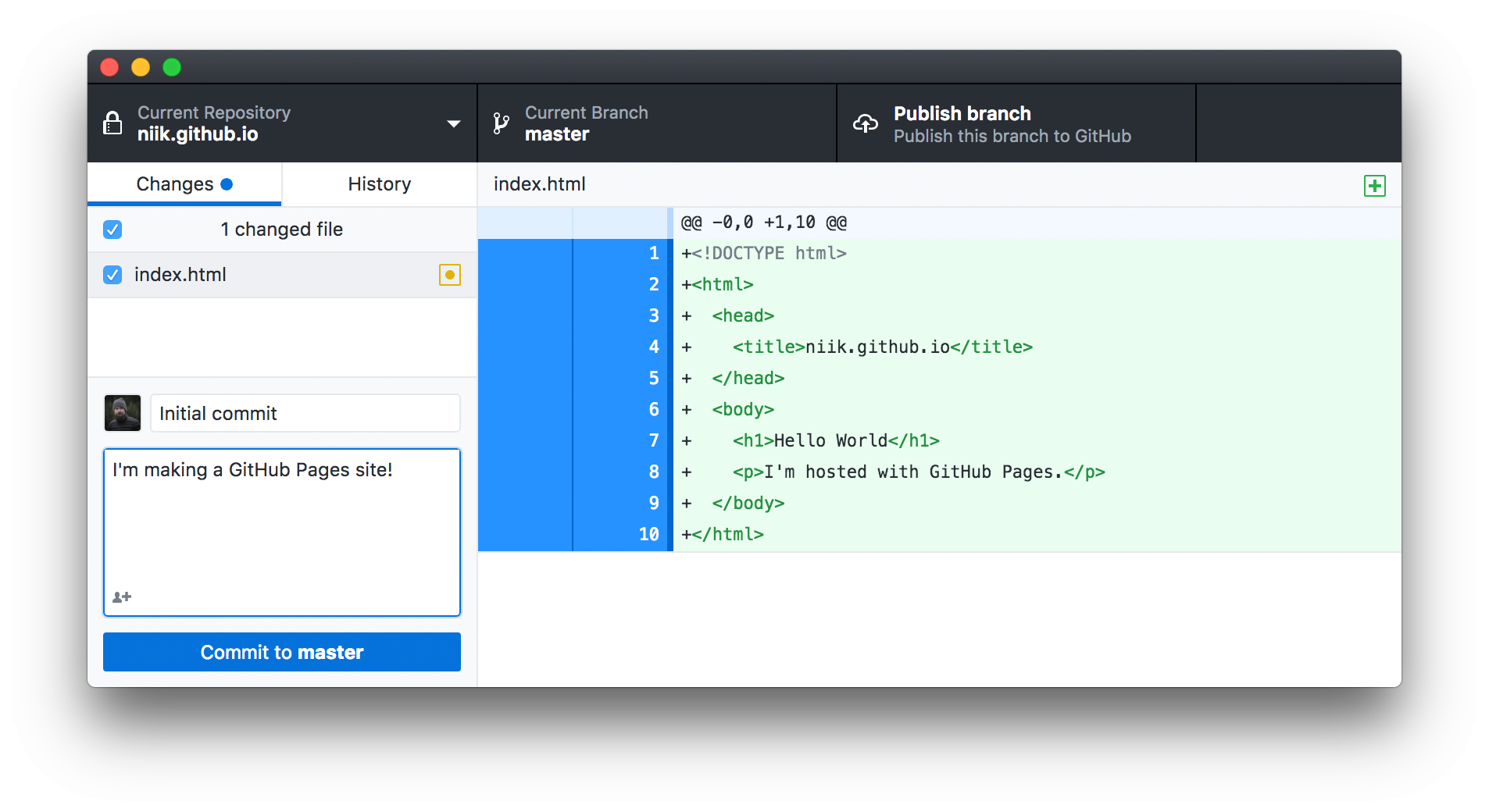
Begin by opening your terminal. Navigate to your project folder. Type git init to start a new Git repository. This command will create a hidden .git folder. This folder tracks all your changes. It’s important to keep it safe. Next, add your files with git add .. This command stages all files for commit. Finally, save your changes with git commit -m "Initial commit". This step records the current state of your project.
To clone a repository, you need its URL. Copy the URL from the repository page. Now, open your terminal. Use the command git clone [repository URL]. Replace [repository URL] with the actual URL. This command will create a local copy of the repository. All files and history will be downloaded to your computer. You can now start working on your project.
Organizing Theme Files
A clean theme directory helps in finding files fast. Use separate folders for different types of files. For example, put all CSS files in a CSS folder. Place JavaScript files in a JS folder. Create a folder for images too. This keeps everything in order.
Organize template files in a templates folder. Keep them away from other files. Also, use a functions.php file for theme functions. This file is like a toolbox for your theme.
Use Git to save your theme files. Start by creating a Git repository. Add your theme files to this repository. Use the command git add to add files. Then, save changes with git commit.
Check your changes with git status. This command shows which files are saved. Use git push to send files to a remote server. Now, your files are safe. You can always go back to an earlier version.
Tracking Changes
Staging is like a waiting room for changes. You add files to the stage. It helps keep track of what you want to save. Committing locks in your changes. A commit is a snapshot of your work. It has a message to explain what you did. This helps others understand your changes.
Staging And Committing Changes
Use “git add” to stage files. This marks them for the next commit. After staging, use “git commit”. This saves your changes. Each commit needs a message. The message should be clear. It explains what changes you made. This helps you remember later.
Viewing Commit History
See past commits with “git log”. It shows a list of commits. Each commit has an ID and message. You can see who made changes. You can see when changes happened. This helps track progress.
Collaborating With Others
Git simplifies teamwork while creating a WordPress theme. Share changes easily and track progress with version control. Collaborate seamlessly with Git’s branching and merging features.
Branching Strategies
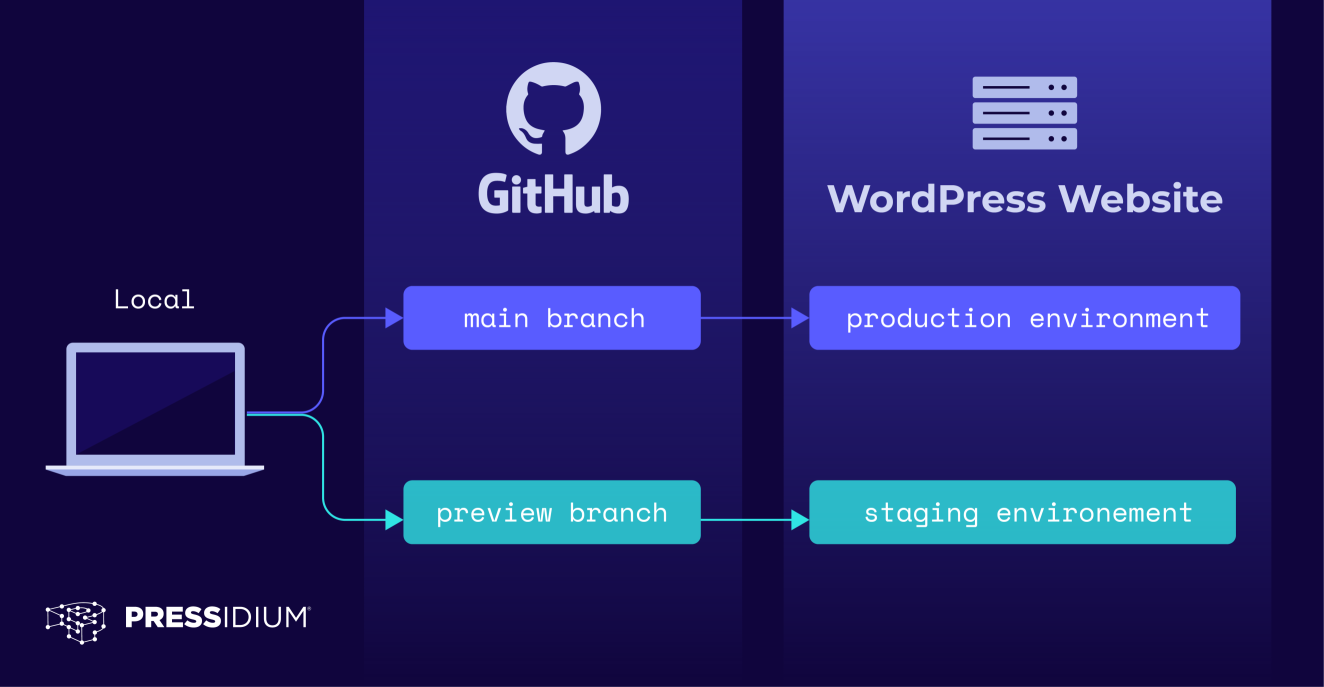
Using branches helps keep your work safe. Each branch holds different changes. This way, everyone can work without bumping into each other. It’s like having separate boxes for toys. You can play without mixing things up.
Main branch usually holds the finished work. New ideas go in feature branches. Later, they join the main branch. This keeps everything neat. It’s important to name branches clearly. This helps everyone know what’s inside each branch.
Merging Changes
Merging means putting things together. When changes are ready, they merge into the main branch. It’s like joining pieces of a puzzle. Everyone’s work fits together to make a complete picture.
Check changes before merging. This helps catch mistakes. Using tools like pull requests is helpful. They show what will change. Others can review and suggest improvements. This way, the final theme works well for everyone.
Managing Theme Versions
Tagging releases in Git helps keep track of theme versions. Tags are like bookmarks. They mark specific points in your theme’s history. Use simple names like “v1.0” or “v2.1”. This makes it easy to know what the tag means. Every time you make big changes, create a new tag. It’s a good way to organize your work. This helps others know which version is stable. Tags are also helpful for fixing bugs. You can quickly see which version needs fixing.
Sometimes, you need to go back to an older version. Reverting changes in Git is simple. First, find the version you need. Use the commit ID or tag name. Then, use Git commands to switch to that version. This helps if something breaks in your theme. You can always go back and fix the problem. It’s a safety net for your work. Make sure to save any important changes first. This way, you won’t lose anything important.
Deploying The Theme
Begin by pushing your theme files to a remote repository. This keeps your work safe and accessible. Use the git push command. Ensure you are logged into your Git account. Check if your repository is set up correctly. Confirm the branch name is right. After pushing, review your changes. Make sure everything is updated. This step is crucial for collaboration. It also helps in tracking changes over time.
Deploying to a live server makes your theme visible online. First, connect to your server using SSH. Navigate to the correct directory. Pull the latest changes from your repository. Use git pull. Ensure the server environment matches your local setup. Check PHP and database settings. Test your theme thoroughly. Look for any errors or missing elements. Fix any issues before final deployment. This ensures a smooth launch.

Credit: taylor.callsen.me
Advanced Git Techniques
Explore advanced Git techniques to build a WordPress theme efficiently. Manage branches to organize theme development. Utilize commits to track changes and collaborate seamlessly with your team.
Using Git Hooks
Git Hooks are scripts. They run on specific events in a Git repository. These scripts can help automate tasks. They make work easier. For example, a hook can check code before commits. It can also send alerts on pushes. Hooks save time. They ensure quality. Using them is smart.
Automating Workflows With Git
Automation with Git is powerful. It makes repeating tasks simple. Use Git to auto-merge branches. This reduces errors. Use it to run tests on new code. This ensures code quality. Git can also deploy code automatically. This means less manual work. It increases efficiency.
Troubleshooting Common Issues
Merge conflicts can be tricky. They happen when changes from different sources collide. To fix them, open the conflict file. Look for conflict markers. These markers show where the conflict is. Decide which changes to keep. Remove the conflict markers. Save the file. Then, run git add to mark the conflict as resolved. Finally, use git commit to save the changes.
Sometimes, commits go missing. This can feel scary. Use the git reflog command to find lost commits. The reflog shows all recent actions. Look for the commit you need. Note its hash. Use git checkout with the hash to recover it. This brings back the missing commit. Always backup your work to avoid losing important changes.
Frequently Asked Questions
What Is Git’s Role In WordPress Theme Development?
Git is essential for version control in WordPress theme development. It helps manage changes, collaborate efficiently, and track code history. By using Git, developers can easily revert changes, work on new features, and ensure a streamlined workflow. This approach enhances productivity and reduces errors in theme development.
How Do I Initialize A Git Repository For A Theme?
To initialize a Git repository, navigate to your theme directory. Open a terminal and type `git init`. This command sets up a new Git repository, enabling version control for your WordPress theme. It creates a `. git` folder, where Git stores all the information it needs.
Can Git Help With Team Collaboration On Themes?
Yes, Git significantly improves team collaboration on WordPress themes. It allows multiple developers to work on the same project without conflicts. By using branches, team members can develop features independently. Once complete, they can merge changes into the main branch, ensuring a smooth and organized workflow.
How Do I Commit Changes In Git?
To commit changes, first stage your files using `git add. `. Then, use `git commit -m “Your commit message”` to save changes. This process records your modifications in the Git repository. Providing a clear commit message helps in tracking the development history effectively.
Conclusion
Building a WordPress theme with Git makes development organized. It helps manage changes efficiently. Collaboration becomes easier for teams. Mistakes are less likely with version control. Git ensures a smooth workflow. It saves time and avoids errors. Beginners can learn quickly with Git.
Start with basic commands. Practice regularly to gain confidence. Follow best practices for clean code. Keep your repository updated. Explore more Git features as you progress. Your theme will be secure and well-structured. Enjoy creating your unique WordPress theme.


