
Are you ready to transform your WordPress site with a stunning and functional layout? The Gridzone theme offers a sleek design that can elevate your website’s aesthetic and usability.
But what if you’re wondering how to customize the left bar to better suit your needs? You’re in the right place. This guide will walk you through the simple steps to add items to the left bar in the Gridzone theme, ensuring your site not only captures attention but also enhances user experience.
By the end of this article, you’ll be equipped with the know-how to make your website more engaging and intuitive for your visitors. Let’s dive in and unlock the full potential of your WordPress site.
Credit: 3str.net
Gridzone Theme Basics
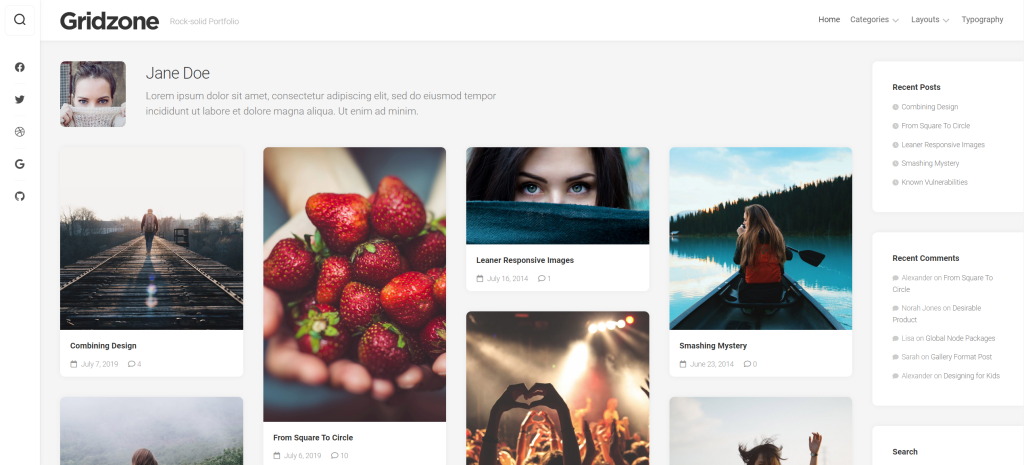
The Gridzone theme is simple and clean. It is perfect for blogs and websites. You can easily change the layout. The theme offers a responsive design. It looks good on phones and computers. There are many customization options. You can change colors, fonts, and more. The theme also supports widgets. Add them to your site for extra features. Another feature is the easy-to-use menu. It helps users navigate your site quickly.
First, login to your WordPress dashboard. Click on “Appearance” and then “Themes.” Next, click on “Add New.” In the search bar, type “Gridzone.” Find the theme and click “Install.” Wait for the installation to finish. Then, click “Activate” to use the theme. Now, your site will have the Gridzone look. You can start adding items to the left bar. This makes your site unique.
Customization Options
Explore customization with the WordPress Gridzone theme by adding items to the left bar. Enhance functionality by incorporating widgets, menus, or links, creating an intuitive navigation experience for users. Personalize your site’s layout with ease, making it both functional and visually appealing.
Theme Settings Overview
The Gridzone theme offers flexible settings. Users can change many things. The left bar is important for navigation. Add items like links, icons, or widgets. This helps users access content easily.
Settings are found in the WordPress dashboard. Navigate to the theme settings. Here, you can find options to customize the left bar. Choose what you want to display. This makes the site unique.
Personalizing The Layout
Personalizing the layout is easy with drag-and-drop features. Arrange items in the left bar. Move them where you like. It’s simple and quick. Adjust sizes or colors if needed. This improves the look.
Use widgets for more options. Widgets add functionality. They enhance the site’s usability. Explore different styles. Find what fits best for your site. This makes the site user-friendly.
Navigating The Left Bar
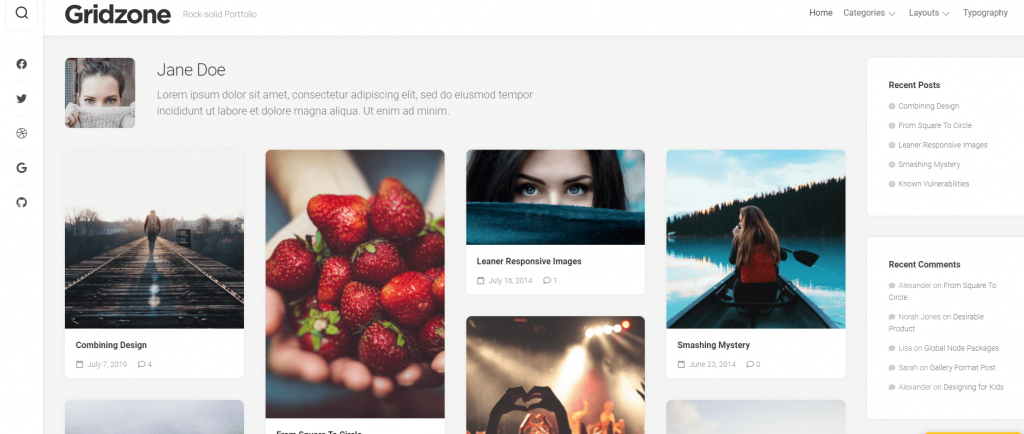
The left bar helps users find things easily. It keeps your site neat. Many important links and tools are here. Quick access to key areas makes navigation simple. Users can find what they need fast. This improves their experience on your site.
The left bar comes with some items already. These include home, about, and contact. You might also see a search bar. Each item helps users explore your site. Important pages are just a click away. This setup helps users know where to start.

Credit: sitenerdy.com
Adding New Items
Start by opening your WordPress dashboard. Look for the Appearance option on the left. Click on it to see more options. Find and click on Widgets. This is where you can add items to the left bar. You will see different sections and options. Each section can hold different widgets.
Decide what you want to add. There are many widgets available. Some show recent posts. Others display categories or tags. Choose the widgets that fit your site’s needs. Drag the widget to the left bar section. Drop it there to add it. You can also reorder widgets. Simply drag them to a new position.
Organizing Left Bar Items
The left bar in Gridzone is important. It holds widgets. You can move these widgets. Click on the widget. Drag it where you want. Place it in a new order. This makes your site look neat. Your readers will find things easily. They will be happy.
Some items are not needed. They make the left bar messy. Removing them is easy. Find the item you don’t need. Click on it. Choose the remove option. The item disappears. Your left bar looks better. It is clean now. Your site is easy to use.
Enhancing Functionality
Customize the WordPress Gridzone theme by adding items to the left bar. Navigate to the theme settings and select the left bar menu. Add links, widgets, or categories to enhance functionality and improve user navigation.
Using Plugins For Additional Features
Adding plugins can make your website better. Plugins give new tools and features. They help improve your site without much work. Choose plugins that fit your needs. Make sure they are compatible with the Gridzone theme. Always check for updates to keep plugins working well.
Tips For Optimizing User Experience
Keep your site simple and clean. A tidy layout helps users find things quickly. Use clear labels for menu items. Ensure text is easy to read. Fast loading pages make users happy. Large images can slow down a site. Compress images to make them smaller. Test your site on different devices. It should work on phones and tablets. Always think about your users. Make their visit pleasant and smooth.
Common Issues
Widget errors can confuse users. Some widgets may not show up. This happens if settings are wrong. Check widget settings first. Ensure they are enabled. Widgets must match theme requirements. Compatibility is crucial. Update plugins regularly. This fixes many errors. Outdated plugins cause problems. Check for theme updates. New versions fix bugs. Contact support if needed. They help with tough issues. Support teams are trained to assist.
Display problems are common. Items may not appear correctly. Check layout settings. Set the correct width and height. Adjust theme settings. This solves many issues. Check for missing items. Missing items confuse users. Ensure all plugins are active. Inactive plugins cause display issues. Update the theme when possible. Latest updates fix display bugs. Refresh the page. Sometimes it helps. Page refresh corrects display issues.
Best Practices
Enhance your WordPress Gridzone theme by easily adding items to the left bar. Navigate to the theme settings and select the left bar section. Customize this area with widgets, links, or menus to improve navigation and user experience on your website.
Maintaining Consistency
Consistency is key for a good website. Keep the colors and fonts the same. This helps users feel comfortable. They will know where things are. Use similar icons for similar actions. This makes navigation easy. Users will not get confused. The left bar should match the rest of the site. This keeps the look clean and neat. Always check that items fit well in the space. Avoid clutter. Use spaces wisely. Keep things organized. Users appreciate a tidy layout. They find what they need faster. This keeps them happy.
Ensuring Mobile Responsiveness
Mobile users are growing fast. Your site must work on all devices. Left bar items should resize well. This is important for small screens. Ensure text is readable. Buttons must be easy to click. Test the site on phones and tablets. Make sure it loads quickly. Mobile users want speed. Check if images adjust. They should fit the screen well. Avoid tiny text. Users will struggle to read it. Easy navigation keeps users on your site. They will return if it works smoothly. Mobile-friendly sites get more visitors.
Credit: themebeez.com
Frequently Asked Questions
How Do I Customize The Left Bar In Gridzone?
To customize the left bar in Gridzone, navigate to the WordPress dashboard. Go to Appearance > Widgets and find the left sidebar section. You can add, remove, or rearrange widgets to personalize your sidebar. Ensure you click “Save” to apply changes.
Can I Add Images To The Left Bar?
Yes, you can add images to the left bar. Use the Image widget found in the Widgets area of your dashboard. Simply drag the Image widget to the left sidebar section and upload your desired image. This enhances visual appeal and user engagement.
How Do I Reorder Items In The Left Bar?
Reordering items in the left bar is simple. Go to Appearance > Widgets from the WordPress dashboard. Drag and drop widgets within the left sidebar section to reorder them. Don’t forget to click “Save” to ensure your changes are applied.
Is It Possible To Add Custom Links?
Absolutely, you can add custom links to the left bar. Use the Custom HTML or Text widget to insert your desired links. Drag the widget to the left sidebar section and input your HTML code or text. This allows easy navigation for users.
Conclusion
Mastering the Gridzone theme’s left bar is simple. Follow the steps and customize your site easily. Just drag and drop items to the left bar area. Make your site engaging and user-friendly. With practice, you’ll personalize your site perfectly. Remember, patience and creativity are key.
Experiment with different layouts. Find what works best for your audience. Keep your design clean and organized. Your site will look professional and appealing. Enjoy the process of creating a unique website. Happy designing with Gridzone!


