
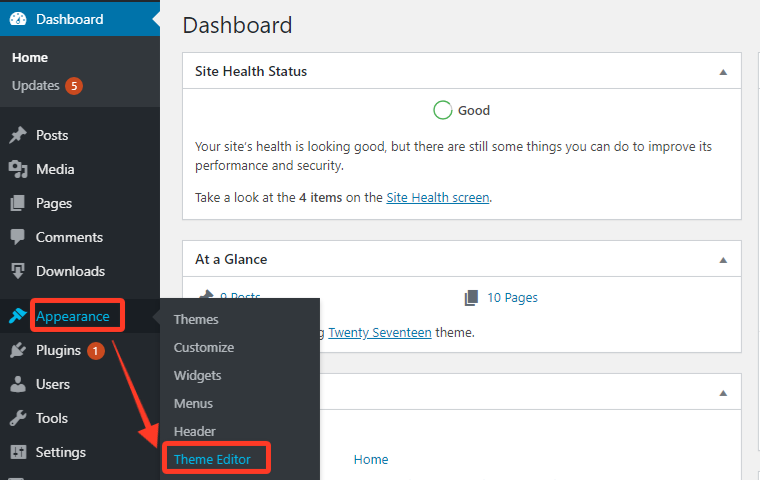
You’ve finally set up your WordPress site, and you’re eager to ensure its security and stability. But there’s a hidden risk lurking within your dashboard that many overlook — the Theme Editor.
While it might seem convenient to make quick changes to your theme’s code directly from your WordPress admin panel, this feature can expose your site to unnecessary risks. Imagine the horror of an accidental code mishap taking your entire site offline, or worse, a hacker exploiting this access point to wreak havoc.
Disabling the Theme Editor isn’t just a precaution; it’s a proactive step to safeguard your hard work. You’ll discover a simple yet essential method to disable the WordPress Theme Editor, empowering you with peace of mind and a more secure website. Don’t leave your site vulnerable — let’s delve into how you can protect it right away.
Credit: www.wpdownloadmanager.com
Reasons To Disable Theme Editor
The theme editor in WordPress is a useful tool. But it can be risky for your website. One wrong change might break your site. This can cause downtime and loss of visitors. Hackers can also use it to insert harmful code. This can lead to security breaches. Disabling the editor can reduce these risks. It keeps your site safe from accidental errors and threats.
Some users might not have enough coding skills. They might make mistakes that are hard to fix. Disabling the theme editor can prevent these issues. It encourages users to use safer methods. For example, child themes or custom plugins. These methods are more secure and reliable.
Risks Of Using Theme Editor
Editing themes directly in WordPress can lead to errors. Accidental changes might break your site. Disabling the theme editor helps safeguard against unwanted modifications, keeping your website stable and secure.
Security Vulnerabilities
Using the theme editor can lead to security risks. It allows direct access to code. Hackers might use this to insert malicious code. This can harm your website. Sensitive data could be stolen. It’s important to keep your site safe. Hackers are always looking for weak points. Always secure your site properly. Consider disabling the theme editor. This reduces the risk greatly.
Accidental Code Changes
Making changes in the theme editor is risky. Accidental changes can break your site. You might change something important. This could cause errors or even make your site unreachable. Fixing these errors can be hard. It might take a lot of time. Backup your site before any changes. Think twice before using the theme editor. It’s better to be safe than sorry.
Preparation Steps
Always create a backup before making changes. Backups keep your data safe. Use a plugin or do it manually. Save the backup to your computer. Make sure the backup includes everything. Files, database, everything! Check the backup to ensure it works. This step is very important. It avoids losing data.
First, log in to your hosting account. Use your username and password. Look for the control panel. It is usually called cPanel. Inside, find the file manager. This tool helps manage files. Open it to see your website files. Locate the wp-config.php file. This file is very important. You will need it for the next steps.
Credit: www.wpbeginner.com
Disable Via Wp-config.php
Find the wp-config.php file in your WordPress folder. This file is important. It has many settings for your site. Use a file manager or FTP to see it. Do not change other files. Only focus on this one.
Open the wp-config.php file. Add a special line of code. Put it before the line that says / That's all, stop editing! Happy blogging. /. The code is: define('DISALLOW_FILE_EDIT', true);. This line will stop the theme editor.
Go to your WordPress admin panel. Try to access the theme editor. It should not open now. If it opens, check the code again. Make sure you typed it right. Sometimes a small mistake can make it not work.
Disable Through Plugin
A plugin can help disable the theme editor in WordPress effortlessly. It safeguards your site by preventing unauthorized access to theme files. This method is ideal for beginners seeking a secure and simple solution.
Recommended Plugins
Many plugins can disable the theme editor. WP Hardening and WP Security are popular choices. They provide security features and are easy to use. Check their ratings before installing.
Installation And Setup
First, go to the plugins menu. Search for the plugin name. Click install to start the process. After installation, click setup to configure settings. Follow the easy steps to complete.
Activate And Confirm
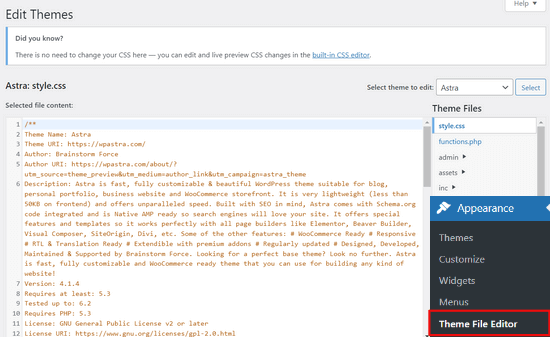
After setup, activate the plugin. Go to the settings page and confirm changes. Ensure the theme editor is disabled. Check the appearance menu. The editor option should not appear. If it does, recheck the settings.
Credit: www.wpbeginner.com
Alternative Methods
Edit the functions.php file in your theme. Add a small code snippet. This will disable the theme editor. Here is the code:
define('DISALLOW_FILE_EDIT', true); Use this code at the end of the file. Save changes after adding. This stops theme editing.
Change user roles to limit access. Admins can do this easily. Go to the user settings. Select a user and change their role. Remove edit_theme capability. This restricts theme editing. Only admins can change themes now. It keeps the website safe.
Troubleshooting Common Issues
Error messages can be frustrating. Sometimes, the theme editor shows errors. These errors stop you from editing themes. Common errors include “Cannot modify header” or “Syntax error.” Such errors often mean code problems. Check if a recent plugin causes this. Deactivate plugins one by one. Refresh the page each time. This helps find the problem. Fix the error once you find it.
Theme editor access might get blocked. To restore access, check the wp-config.php file. Open it using a file manager. Look for DISALLOW_FILE_EDIT. Set it to false like this: define('DISALLOW_FILE_EDIT', false);. Save the changes. Refresh your WordPress dashboard. The editor should be back now. If not, contact your host for help.
Best Practices For WordPress Security
Making backups is important. Backups keep your website safe. If something breaks, backups help you fix it. Store your backups in different places. This way, you will always have a copy. Backup your site often. Daily or weekly is best. Use plugins for easy backups. Some plugins can do it automatically. Backups give peace of mind.
Child themes are useful. They keep your changes safe. If the main theme updates, your changes stay. Create a child theme before editing. It is easy to make one. Many tutorials are available online. Child themes help in organizing. They make your site look neat. Always use a child theme.
Updates are crucial. They fix bugs and improve security. Check for updates often. Update themes and plugins regularly. Use the latest versions. This protects your site. Updates bring new features. They make your website better. Never skip an update.
Frequently Asked Questions
How Do I Disable WordPress Theme Editor?
To disable the WordPress theme editor, access your site’s wp-config. php file. Add the line `define(‘DISALLOW_FILE_EDIT’, true);` This prevents direct theme editing from the dashboard. It’s a security measure to protect your site from unauthorized changes.
Why Should I Disable Theme Editor In WordPress?
Disabling the theme editor enhances site security. It prevents unauthorized users from altering your theme files directly. This reduces the risk of potential hacking or accidental code changes. It’s a best practice for maintaining a secure WordPress environment.
Can Disabling Theme Editor Prevent Hacks?
Yes, disabling the theme editor can help prevent hacks. By restricting file editing access, it minimizes potential vulnerabilities. Hackers are less likely to inject malicious code without direct editor access. It’s an effective step in strengthening website security.
Is There A Plugin To Disable Theme Editor?
Yes, plugins like “Disable File Editor” can disable the theme editor. They offer a user-friendly way to enhance security. These plugins automate the process, ensuring your theme files remain protected without manual code edits.
Conclusion
Disabling the WordPress theme editor can boost your site’s security. It prevents unauthorized changes and protects sensitive code. Follow simple steps to disable it through your site’s settings. This action keeps your website safe from potential threats. Regularly check your site’s security settings for peace of mind.
You can manage themes without the editor, using other tools. Your website’s safety should always be a priority. Ensuring this protection guards against unwanted access. Make sure to secure your WordPress site today. Keep your content safe and maintain control effortlessly.


