
Are you looking to create a stunning website that captures attention right from the desktop? Harnessing the power of WordPress themes can be your secret weapon to a beautifully designed website that stands out.
Imagine being able to choose from thousands of themes to perfectly match your brand’s personality and aesthetic. With the right WordPress theme, you can transform a plain website into a dynamic digital experience without needing to be a tech wizard.
This guide will show you how to effectively use WordPress themes to enhance your website’s desktop appearance, making sure you captivate your audience from the very first glance. Ready to dive in and unlock the potential of your website? Let’s get started!
Choosing The Right Theme
Decide the goal of your website. Is it for a blog, shop, or portfolio? Each need a different theme. A blog needs a simple layout. A shop needs a storefront. A portfolio needs a gallery. Understand what you want to show. This helps in picking the best theme.
Many themes are available. Some are free, others cost money. Popular themes often have more features. They are updated more often. Look for themes with good reviews. This helps you find reliable options. Make sure the theme matches your style.
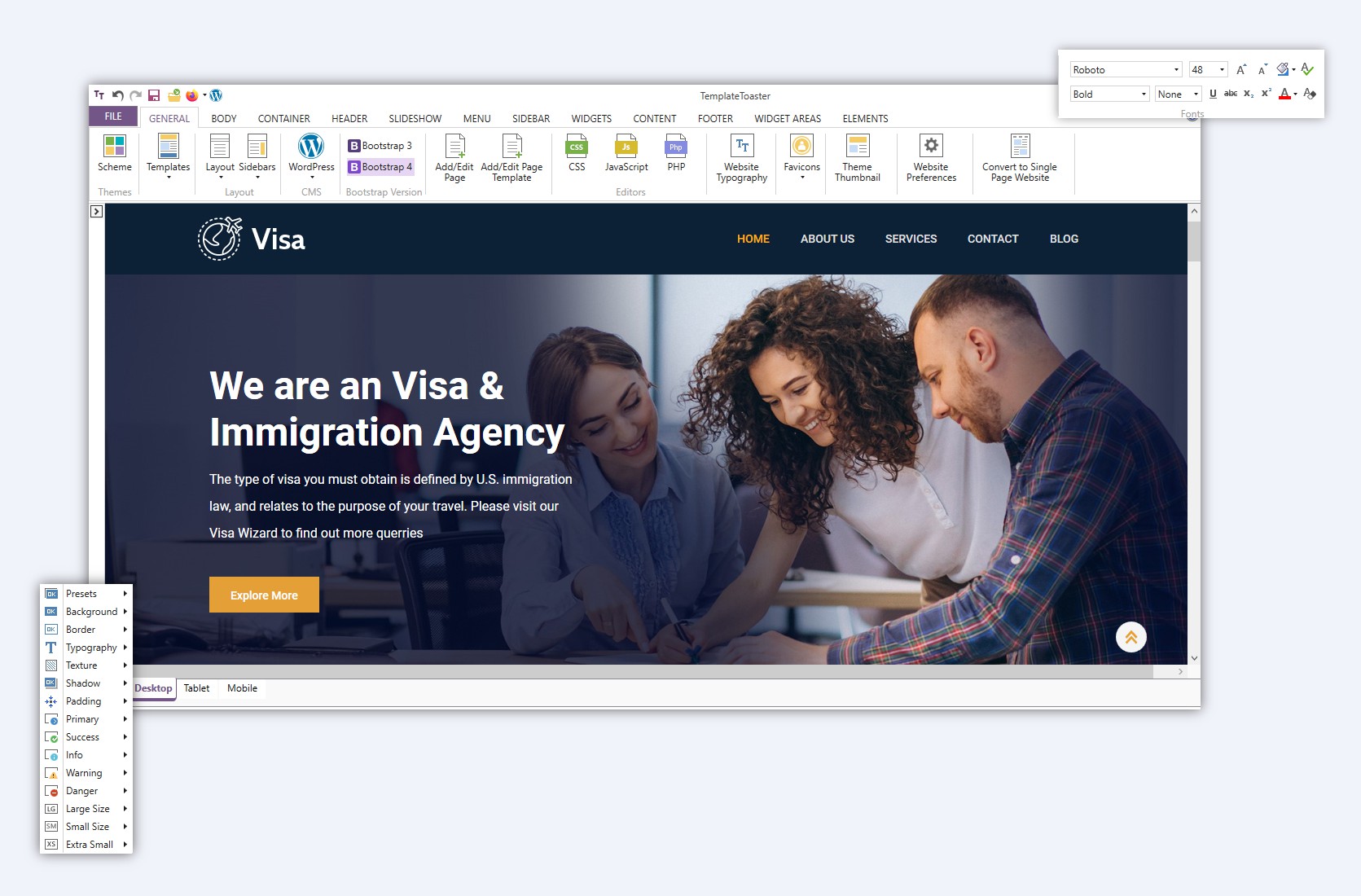
Look at the features of each theme. Does it have responsive design? This means it looks good on phones and desktops. Check if it is easy to customize. Can you change colors and fonts? Does it support plugins? Good themes offer these features.
Credit: templatetoaster.com
Installing A WordPress Theme
Access the dashboard by logging into your WordPress site. Find the Appearance section on the left. Click on Themes. You will see a list of themes available. Click on Add New to find more themes. Search for themes using the search bar. Click on Install for your chosen theme.
First, download the theme file to your computer. Go to the dashboard. Click on Appearance then Themes. Click on Add New and then Upload Theme. Choose the downloaded theme file. Click on Install Now. Wait for the installation to complete.
After installation, find the theme under Appearance. Click on Themes. Hover over the theme you installed. Click on Activate. Your site will now use this theme. Check your site for changes.
Customizing Your Theme
Explore the ease of customizing your website’s appearance with WordPress themes. These themes offer flexibility and a wide range of design options. Tailor your site’s look to match your brand without needing advanced coding skills.
Utilizing The Theme Customizer
The Theme Customizer is easy to use. It helps to change your site. You can change colors, fonts, and more. You see changes in real-time. This makes it simple to try different looks. Just a few clicks and your site looks new.
Adjusting Layout And Colors
Layouts decide where things go on your site. You can make pages look different. Pick colors that match your brand. Colors make your site look fresh and fun. Mix and match to see what you like best. It’s like painting a picture!
Incorporating Custom Widgets
Widgets add special features to your site. They make your site more fun. Add a calendar, a search box, or social media links. Widgets fit anywhere on your page. You can move them with ease. Play around with them to see what works.

Credit: jetpack.com
Optimizing For Desktop
Responsive design is key for a good website. Themes must fit all screen sizes. Some themes adjust automatically. Check how your theme looks on different devices. Make sure buttons and text are easy to see. A good theme makes everything clear. Users should have a good experience on every device.
Websites must work on all browsers. Test your site on Chrome, Firefox, and Safari. Each browser can show your site differently. Make sure images and text look good everywhere. Some features may not work on every browser. Fix any issues you find. Happy users will visit your site more.
Websites should load fast. A fast site keeps users happy. Choose a theme that is not too heavy. Compress images to make them smaller. Use plugins that help speed up your site. A slow site can drive users away. Keep your site quick and smooth for the best results.
Utilizing Plugins For Enhancement
Plugins make websites better. Choose plugins that boost performance. Some plugins increase security. Others help with SEO. Pick plugins that fit your site needs.
Plugins add new features. They can make your site faster. Some plugins help with design. Others improve user experience. Plugins can be a big help.
Check if plugins work with your theme. Not all plugins fit all themes. Compatibility is key. Some plugins can break your site. Always test plugins first.
Troubleshooting Common Issues
Theme conflicts can cause your website to behave oddly. Check your plugins first. Deactivate them one by one. This helps find the troublemaker. Sometimes, themes can clash with each other. Try using a different theme. This might fix the issue.
Display problems can be annoying. Check if your theme is updated. Outdated themes can cause problems. Also, clear your browser’s cache. This can solve many display issues. Ensure your images are the right size. Big images can break the layout.
Security is vital for your website. Keep your theme updated. Updates often fix security holes. Use strong passwords for your admin area. This prevents hackers from accessing your site. Always back up your site before making changes.
Credit: www.teamtweaks.com
Frequently Asked Questions
What Are WordPress Themes?
WordPress themes are pre-designed templates that alter the appearance of your website. They control layout, colors, and typography. Choosing the right theme enhances user experience and aligns with your brand’s identity. Explore the vast library of WordPress themes to find one that suits your website’s purpose and style.
How To Install A WordPress Theme?
Installing a WordPress theme is simple. Log into your WordPress dashboard, navigate to “Appearance,” then click “Themes. ” Search or upload a theme file, and click “Install. ” After installation, click “Activate” to apply the theme to your website. Always preview changes to ensure the theme fits your design needs.
Can I Customize WordPress Themes?
Yes, WordPress themes are customizable. Use the built-in Customizer tool to alter colors, fonts, and layout. Some themes offer advanced customization through page builders or custom CSS. Customizing themes helps tailor your website to your specific brand and improves user engagement.
Explore theme settings to maximize customization options.
Are Free WordPress Themes Reliable?
Free WordPress themes can be reliable if sourced from reputable providers. Check user reviews and ratings for insights into theme performance. Ensure themes are updated regularly to maintain security and compatibility. Free themes often offer limited features compared to premium ones, but can still effectively serve basic website needs.
Conclusion
WordPress themes simplify desktop website design. They offer diverse customization options. Even beginners can create stunning sites quickly. With the right theme, you ensure a professional look. Always choose themes that match your brand. Keep your audience in mind. Test your website’s appearance on various devices.
Regular updates maintain functionality and security. Exploring different themes can inspire creativity. Enjoy the process of designing your site. Make your online presence unique and engaging. Remember, a well-designed website attracts visitors. It keeps them coming back. Your website reflects your brand’s identity.
Choose your theme wisely.


