
Are you looking to give your WordPress site a fresh and unique look? One of the simplest ways to enhance your website’s design is by using Google Fonts.
Imagine having access to hundreds of stylish and professional fonts at your fingertips, ready to transform your content into something visually stunning. Sounds exciting, right? In this guide, you’ll discover the step-by-step process to seamlessly integrate Google Fonts into your WordPress child theme.
No complicated jargon, just straightforward instructions to make your site stand out. Whether you’re a seasoned developer or a curious beginner, this easy-to-follow tutorial is designed with you in mind. Ready to elevate your website’s typography and captivate your audience? Let’s dive in and unleash the potential of Google Fonts on your WordPress site!
Setting Up A Child Theme
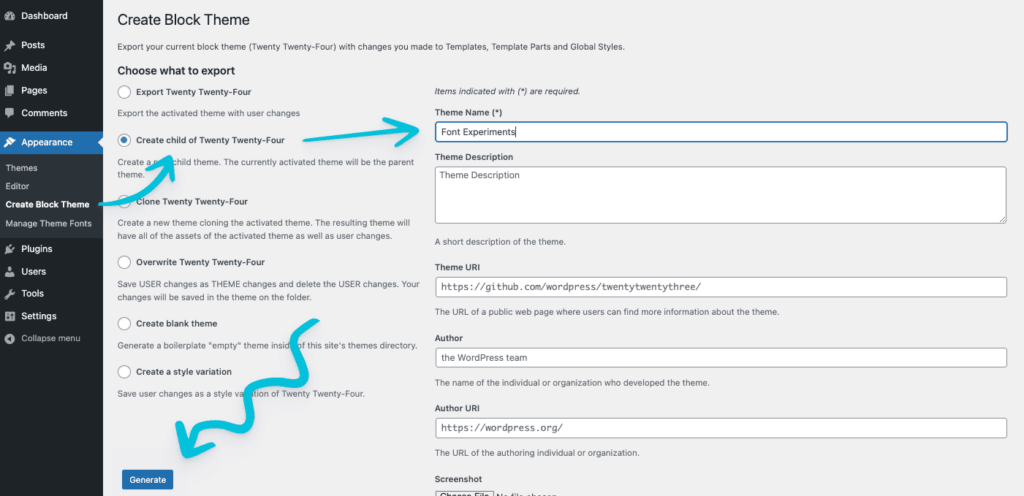
First, open your WordPress folder. Inside, find the wp-content folder. Then, locate the themes folder. Here, create a new folder for your child theme. Name it something like my-theme-child. This is your child theme’s home.
In your child theme folder, create a new file. Name it style.css. This file is important. It tells WordPress about your child theme. Add this code to your file:
        /
        Theme Name: My Theme Child
        Template: parent-theme-folder
        /
Create another file named functions.php in your child theme folder. This file is like a toolbox for your theme. Use it to add features. For Google Fonts, add this code:
        function my_theme_enqueue_styles() {
        wp_enqueue_style('parent-style', get_template_directory_uri() . '/style.css');
        wp_enqueue_style('google-fonts', 'https://fonts.googleapis.com/css?family=Roboto', false);
        }
        add_action('wp_enqueue_scripts', 'my_theme_enqueue_styles');
Credit: wpengine.com
Choosing Google Fonts
Google Fonts has many options. You can find different styles. Many fonts are free to use. You can see how they look. Just visit the Google Fonts website. There are fonts for all tastes. Some are simple. Some are fancy. You can try them before using. This helps in making a good choice.
Pick a font that matches your site style. Your font should be easy to read. Think about your audience. A simple font is best for young readers. Use bold for headings. Use regular for paragraphs. Choose a font size that is not too small. Make sure the font looks good on all devices. Test it on phones and computers.
Integrating Google Fonts
First, open your child theme’s stylesheet file. This file is usually named style.css. Next, visit Google Fonts and choose a font you like. Copy the @import code provided by Google. Paste this code at the top of your style.css file. This method is easy and quick. Make sure to save your changes. Check your website to see the new font.
The wp_enqueue_style function is another way. This method is more efficient. Open your functions.php file in the child theme. Add a new function to enqueue the Google Font. Use the wp_enqueue_style function inside it. Include the URL of the font from Google Fonts. Save your file after adding the code. Refresh your website to apply the changes.

Credit: www.youtube.com
Customizing Font Styles
To change font styles, use Google Fonts in your WordPress child theme. First, find a font on Google Fonts. Copy the provided link tag. Next, add it to your theme’s header file. This makes the font available on your site.
Now, assign the font to specific elements. Use CSS selectors to target them. For example, change the font of all headings. Use the h1, h2, h3 tags in your CSS. Set the font-family to your chosen Google Font. This ensures that the font is applied correctly.
Applying Fonts To Specific Elements
Select elements in your style.css file. Use CSS to apply fonts. Target elements like p for paragraphs. Or use h1 for headings. Add the font-family property. Assign your chosen Google Font. This changes the text style easily.
Adjusting Font Sizes And Weights
Size and weight of fonts can affect readability. Use CSS to adjust them. Increase font size for better visibility. Use the font-size property in your stylesheet. Set different sizes for different elements. Adjust font weight using the font-weight property. Choose bold for emphasis or light for a softer look. This enhances the overall design of your site.
Testing And Troubleshooting
Incorporating Google Fonts into a WordPress child theme enhances design flexibility. Start by adding the desired font link to the child theme’s header. php file. Next, use CSS to apply the font to specific elements in style. css. Test your changes to ensure everything displays correctly.
Verifying Font Display On Different Browsers
Check your font on multiple browsers. Chrome, Firefox, and Safari are popular choices. Each browser might show fonts differently. Look for changes in size and style. Ensure the font is clear and readable. Test on both desktop and mobile devices. Use browser developer tools for deeper inspection. They help find any loading issues. Adjust settings if fonts do not appear properly.
Resolving Common Font Integration Issues
Fonts sometimes do not load correctly. Check if the font files are in the right place. Verify the CSS links are correct. Ensure there are no typos in the code. Clear browser cache to see changes. Use online tools to detect errors. Fix missing or incorrect paths. Check for plugin conflicts. They might block fonts from showing. Update all plugins and themes regularly.
Optimizing Performance
Enhance your WordPress child theme by integrating Google Fonts efficiently. Add custom fonts via the functions. php file. Ensure faster page loading by selecting only necessary font weights and styles.
Minimizing Font Load Time
Faster websites make happy users. Use fewer fonts to keep speed up. Choose only the necessary font styles. Reduce font weights for quicker loading. Combine fonts in one request if possible. This makes the website load faster.
Always check the font file size. Large files slow down the site. Compress fonts if needed. Small files load quickly. Use tools to help with this. They make the job easier.
Using Local Hosting For Google Fonts
Local hosting helps keep your site fast. Download Google Fonts to your server. This reduces the number of external requests. Fewer requests mean better speed. This also improves privacy for users. Their data stays more secure.
Always update fonts on your server. Newer versions may load better. Check for updates often. Stay ahead and keep your site running smoothly.
Credit: www.cssigniter.com
Frequently Asked Questions
How To Add Google Fonts To WordPress Child Theme?
To add Google Fonts, first enqueue the font in your child theme’s functions. php file. Use the wp_enqueue_style function with the Google Fonts URL. Then, apply the font family in your CSS files. This method ensures your fonts load correctly and integrate seamlessly with your theme’s design.
Can I Use Multiple Google Fonts In Child Theme?
Yes, you can use multiple fonts. Enqueue each Google Font URL in the functions. php file. Ensure to use wp_enqueue_style function for each font separately. Apply different font families in your CSS as needed. This allows for diverse typography in your WordPress child theme.
What Is The Best Way To Load Google Fonts?
The best way is to enqueue Google Fonts in your child theme’s functions. php file. Use wp_enqueue_style function for efficient loading. This method is recommended for optimal performance and compatibility. It ensures your fonts load asynchronously and do not block your page rendering.
Why Use Google Fonts In WordPress Child Theme?
Google Fonts enhance your site’s typography. They offer vast font choices, improving design aesthetics. Using Google Fonts in a child theme ensures easy customization without affecting the parent theme. This approach maintains design consistency and allows you to update fonts without hassle.
Conclusion
Using Google Fonts in your WordPress child theme is simple. It enhances your website’s look with diverse typography. Follow the steps outlined for a seamless integration. Your site will look more professional and engaging. Easy-to-read fonts improve user experience. This can lead to more visitors staying longer.
Remember to choose fonts that match your site’s style. Consistency is key. Experiment with different fonts to see what works best. Enjoy the creative process and make your website shine. With these tips, customizing your site becomes an enjoyable task.
Happy designing!


