
Are you looking to add a fresh new look to your WordPress site but aren’t sure how to upload a theme using FTP? You’re in the right place.
Navigating the world of FTP (File Transfer Protocol) might seem daunting at first, but it’s a skill that can significantly enhance your website management capabilities. Imagine the freedom of customizing your site exactly the way you want, without relying solely on the WordPress dashboard.
In this guide, you’ll discover how to effortlessly upload a WordPress theme via FTP, empowering you to take full control of your website’s appearance. Whether you’re a beginner or just need a refresher, this step-by-step approach is designed to make the process as straightforward as possible. Let’s dive in and unlock the potential of your WordPress site!
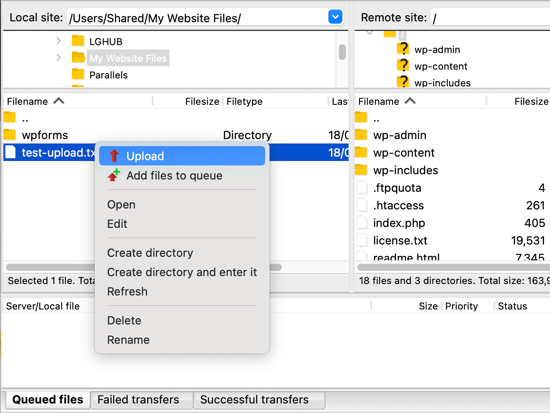
Credit: www.wpbeginner.com
What Is Ftp?
FTP stands for File Transfer Protocol. It helps move files from your computer to a server. Think of it as a bridge. It connects your computer to a website. It’s important for uploading and downloading files. Using FTP is easy with the right tools.
An FTP client is a tool you need. It helps you connect to a server. Popular FTP clients include FileZilla and Cyberduck. They are easy to use. Open the client, enter the server details, and connect. Once connected, you can transfer files. Drag and drop files to upload them.
Setting Up Ftp Access
First, pick an FTP client. Some popular choices are FileZilla, Cyberduck, or WinSCP. These programs help you connect to your website server. Choose one that works with your computer. Make sure it’s easy to use. Download and install it on your device.
Open your FTP client. Find the settings or preferences tab. Enter the FTP server address. This is usually your website’s domain name. Input your username and password. These are often given by your hosting provider. Set the port number to 21. This is common for FTP connections. Save the settings. Try connecting to your server. You should see your website files now.
Connecting To Your Server
Upload your WordPress theme easily using FTP. First, connect to your server with an FTP client. Then, drag and drop your theme files into the ‘wp-content/themes’ directory.
Finding Ftp Credentials
To upload your WordPress theme, you need FTP credentials. These are like your keys. They help you enter the server. You can find them in your hosting account. Look for a section called FTP accounts. There, you will see your username and password. Keep them safe. They are important.
Establishing A Connection
Use an FTP client. It’s a special program. Some popular ones are FileZilla and Cyberduck. Open the program. Enter your FTP credentials. You need to fill in the host too. This is usually your website address. Click connect. The program will try to link to the server. If everything is correct, you will see files on the screen. You are now connected!
Locating The Theme Directory
WordPress has many folders and files. The main folder is called the root directory. Inside, there’s a folder named wp-content. This is where themes live. Each theme has its own folder. Knowing this helps you find your theme.
Open your FTP client and connect to your website. Enter your FTP credentials. Once connected, look for the wp-content folder. Click on it. Then, open the themes folder. This is where you upload new themes. Remember the folder name. It matches the theme name. This is important for easy access.
Uploading The Theme
First, gather your WordPress theme files. Ensure they are in a compressed format, like .zip. This helps in easy uploading. Avoid uploading unnecessary files. Check for any extra folders or files that might cause errors. Keep the file structure clean and organized. This ensures smooth installation later. Make sure the theme is compatible with your WordPress version. Double-check the documentation provided by the theme developer.
Open your FTP client. Enter your FTP details. Connect to your server. Navigate to wp-content/themes directory. Drag your theme files into this folder. Wait for the upload to complete. Ensure all files are uploaded correctly. Check for any missing files or errors. Refresh your server view. Confirm theme files are visible. You are now ready to activate your theme in WordPress.
Credit: themedev.net
Activating The Theme
Accessing the WordPress Dashboard is very easy. First, open your web browser. Enter your website’s URL. Add “/wp-admin” at the end. Type in your username and password. Click the login button. Now you are in the WordPress Dashboard.
To enable the new theme, go to the left menu. Find and click on “Appearance”. Then select “Themes”. You will see the new theme there. Click “Activate” below the theme. The theme is now active on your website. Check your site to see the new look. It is that simple!
Troubleshooting Common Issues
Uploading a WordPress theme via FTP can solve many issues. Connect to your server using an FTP client. Transfer the theme files into the “wp-content/themes” directory.
Connection Problems
Connection issues often frustrate users. Ensure the FTP client settings are correct. Check the host name, username, and password. Verify these details with your web host. Sometimes, the port number needs adjusting. Use port 21 for standard FTP. For SFTP, use port 22. Double-check your internet connection. A stable connection is vital. Firewall settings can block FTP. Disable or adjust them. Ask your host provider for help if needed.
Theme Compatibility Errors
Theme errors occur when themes don’t fit. Ensure the theme supports your WordPress version. Some themes need specific plugins. Install these plugins for smooth operation. Check the theme’s documentation for requirements. Update WordPress and plugins regularly. Old versions may cause problems. Backup your site before changing themes. This saves your work if errors happen. Contact the theme developer for advice. They can guide you through issues.

Credit: visualmodo.com
Frequently Asked Questions
What Is Ftp In WordPress?
FTP, or File Transfer Protocol, is a method to upload files to your WordPress site. It allows you to transfer themes, plugins, and other files from your computer to the server. Using FTP, you can easily manage your site’s files without accessing the WordPress dashboard directly.
How Do I Upload A Theme Via Ftp?
To upload a theme via FTP, first connect to your server using an FTP client. Navigate to the wp-content/themes directory and upload the theme folder there. Once uploaded, activate the theme in your WordPress dashboard under Appearance > Themes. Ensure your theme files are complete and correctly structured.
Is Ftp Safe For Uploading Themes?
FTP is generally safe if you use secure connections like SFTP. Always ensure your FTP client is up-to-date, and use strong passwords for your server. Secure connections encrypt data, reducing the risk of interception. Regularly monitor your site for any changes or unauthorized access to ensure safety.
Can I Use Ftp Without Coding Skills?
Yes, you can use FTP without coding skills. FTP clients like FileZilla offer user-friendly interfaces for file management. Connect to your server using login credentials provided by your hosting provider. Navigate to directories easily and upload or download files with simple drag-and-drop actions.
Conclusion
Uploading a WordPress theme via FTP is simple. Follow each step carefully. This method ensures you have control over your site. It’s a reliable way to manage themes. Always back up your files before starting. It prevents losing important data.
Practice using FTP to gain confidence. The more you use it, the easier it becomes. Remember, patience is key. If stuck, refer back to guides or forums. With time, you’ll handle FTP like a pro. Keep learning and exploring new features.
Happy website building!


