
Unlocking the full potential of your WordPress site starts with a stunning, professional theme. You know that a great design can captivate your audience, enhance user experience, and boost your brand’s credibility.
But how do you upload these premium themes effortlessly? You might feel overwhelmed by the technical jargon or worried about making mistakes. Don’t worry; you’re not alone, and you’re in the right place. This guide will walk you through the process step-by-step, making it simple and stress-free.
Imagine having a website that not only looks amazing but also functions seamlessly. Ready to transform your site and impress your visitors? Let’s dive in and discover how easy it is to upload pro WordPress themes!

Credit: interactiveonline.com
Choosing The Right Theme
First, think about what you need. Do you want a blog? Or a store? List your goals. Make sure the theme fits them.
Search for themes online. Compare them. Look at reviews. Check ratings. See how many people use them. Pick a few you like.
Look at the features. Does it have a slider? Can you change colors? Is it easy to use? Check if it is mobile-friendly. Look for special features you need.
Credit: help.market.envato.com
Downloading The Theme
Buy your theme from a trusted website. Look for good reviews and ratings. Pay using secure methods. After buying, download the theme file. Save it in a safe location on your computer. Make sure you remember this location. It helps later when uploading the theme.
Ensure the theme is in ZIP format. WordPress needs themes in this format to upload. Check if the theme is compatible with your WordPress version. Old themes may not work well. Read the theme details for compatibility. Confirm it supports your WordPress setup. This avoids problems during upload.
Preparing For Upload
Always backup your website first. This keeps your data safe. Use a plugin to help. It’s easy and quick. Your website might break. A backup can fix it. Save the backup in a safe place. A computer or cloud is good. Keep it there until you need it.
A child theme is important. It keeps changes safe. The parent theme stays the same. Create a child theme before uploading. Use a plugin or make it by hand. Give it a name. This name should be unique. Add the correct files. Activate the child theme after installing. This protects your website.
Uploading The Theme Via WordPress Dashboard
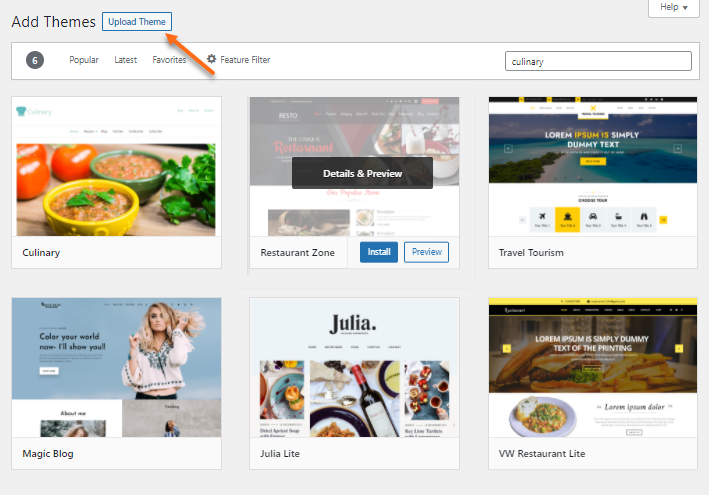
Navigate to the Appearance Section in your WordPress dashboard. Look on the left side. Click on Appearance, then select Themes. You will see a button that says Add New. Click it. Now, find the Upload Theme button at the top. Click on it.
Upload and Activate the Theme by choosing your theme file. It should be a .zip file. Click the Choose File button. Find your theme file, then click Install Now. Wait for the upload to complete. Once done, click Activate to use your new theme. Your theme is now live.
Uploading The Theme Via Ftp
First, open your FTP client. Enter your server details: username and password. These are usually given by your hosting provider. Press the connect button. Wait for the connection to establish. Check if you see your website files. If yes, you are connected.
Locate the theme folder in your FTP client. Usually found under wp-content/themes. Drag your theme files there. Ensure all files are copied. This might take a little time. After copying, check if files are complete. If yes, your theme is uploaded.
Customizing The Theme
Change the theme settings to fit your style. Look for the options under the customize menu. You can pick colors and fonts. Change the layout too. Make it wide or narrow. Add a logo or a header image. These changes make the site look unique. Easy steps for a fresh look.
Widgets give extra features. Add them to the sidebar or footer. Popular widgets include search bars and recent posts. Plugins add more power. Choose plugins for security or SEO. Install them from the plugins menu. Always check for updates. Keep your site safe and fast.
Testing And Troubleshooting
Always test your theme after uploading. Errors can cause problems. Check for any compatibility issues. Themes may not work with all plugins. This can cause your site to break.
Look at your website’s appearance. Make sure everything looks right. If you see any problems, fix them quickly. The goal is to keep your site running smoothly.
Performance affects user experience. Slow sites can lose visitors. Check your site’s loading speed. Make changes to improve it. Use tools to measure performance.
Remove unnecessary plugins and scripts. They can slow down your site. Keep your theme updated. Updates can fix bugs and improve speed.
Credit: www.hostgator.com
Keeping Themes Updated
Automatic updates help keep themes fresh. They protect sites from bugs. Activate this feature for peace of mind. It saves time and effort. Visit the WordPress dashboard. Find the themes section. Look for the update settings. Switch them on. Themes update on their own. No need to worry.
Stay alert for new theme versions. They often bring enhancements. Check theme developer websites. They post updates regularly. Follow forums or community pages. People share news on updates there. Use these channels to keep informed. Update manually if needed. It ensures themes run smoothly.
Frequently Asked Questions
How Do I Upload A WordPress Theme?
To upload a WordPress theme, navigate to your dashboard. Click on “Appearance,” then “Themes,” and select “Add New. ” Choose “Upload Theme,” select the theme file, and click “Install Now. ” After installation, activate the theme to use it on your site.
Can I Upload Themes Via Ftp?
Yes, you can upload themes via FTP. Connect to your server using an FTP client. Navigate to the “wp-content/themes” directory. Upload your theme folder there. Once uploaded, activate the theme from the WordPress dashboard under “Appearance. “
What File Format Should Themes Be In?
Themes should be in. zip format for uploading. WordPress requires themes to be compressed in a. zip file. Ensure the theme folder contains necessary files like style. css and functions. php before uploading.
Are Premium Themes Better Than Free Themes?
Premium themes often offer more features and customization options. They typically come with dedicated support and regular updates. However, free themes can be sufficient for basic needs and small projects, depending on your requirements.
Conclusion
Uploading pro WordPress themes can enhance your website’s look. Follow simple steps to make your site stand out. Start by choosing the right theme for your needs. Install it through your WordPress dashboard. Activate the theme to see changes instantly.
Customize your theme to match your brand. Add unique features and tweak design elements. Regularly update your theme for security and improvements. Always back up your website before changes. A well-chosen theme boosts your site’s appeal. Keep exploring new themes for fresh ideas.
Your website deserves a professional touch. Happy theme uploading!


