
Upgrading your WordPress theme can feel like a daunting task, especially if you’re doing it manually. But fear not!
You’re about to discover a straightforward approach that will make this process not only manageable but also empowering. Imagine having the ability to keep your website looking fresh and functioning at its best without relying on automated updates that can sometimes disrupt your carefully crafted design.
By learning how to manually upgrade your WordPress theme, you’re taking control of your site’s appearance and performance. This skill ensures that you have the latest features and security enhancements, all while preserving your customizations. So, are you ready to dive in and learn the simple steps that will keep your website ahead of the curve? Stick around, and you’ll see just how easy it is to give your theme the upgrade it deserves.
Credit: www.wpzoom.com
Backup Your Website
Backing up your database is very important. It keeps your data safe. Use a plugin to help. Plugins like UpdraftPlus are easy to use. They save your data in the cloud. Google Drive and Dropbox are good cloud options. Always check your backup files. Make sure they work fine.
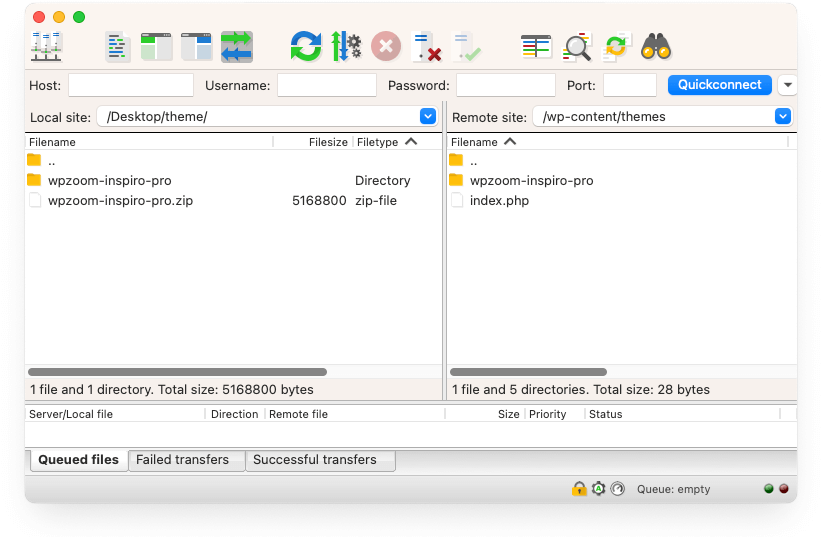
Backing up your files is important too. Files include themes and plugins. Use an FTP client for this. FileZilla is a popular FTP client. Connect to your website. Download the wp-content folder to your computer. This folder has all your themes and plugins. Save this backup in a safe place. It helps if anything goes wrong.
Download The New Theme Version
First, go to your theme provider’s website. This is where you got your theme. Use your login details to access your account. Once inside, find the latest version of your theme. Download this version to your computer.
After downloading, make sure to save the files in a safe place. It’s good to have a special folder for your themes. This helps keep them organized. Check that all files are downloaded. If any are missing, download again. Always have a backup of your current theme. This is very important if things go wrong.
Deactivate Current Theme
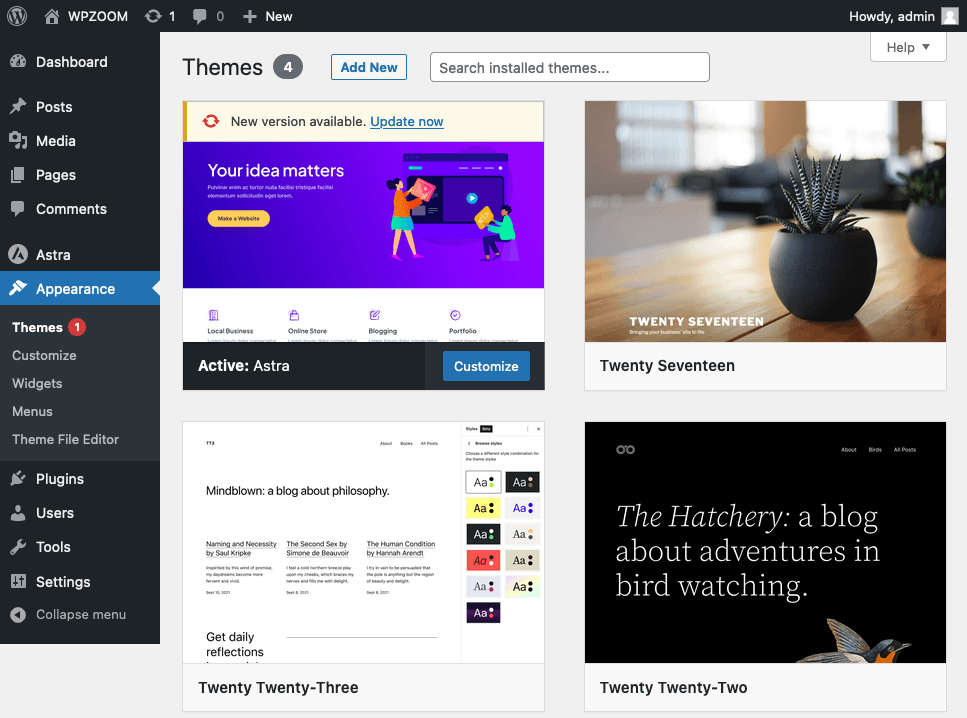
Deactivate the current theme easily. First, go to your WordPress dashboard. Find the Appearance tab on the left. Click on it. Then, click on Themes. A list of themes will appear. Choose a default theme like Twenty Twenty-Three. Click on Activate to switch. This ensures your site is safe during updates.
Check your site after switching themes. Make sure everything works well. Visit different pages. Check if links and images load. Ensure menus display correctly. This helps in catching errors early. Fix any issues you find. This keeps your site user-friendly.
Credit: www.wordfence.com
Upload The New Theme Version
Open your hosting dashboard. Find the File Manager icon. Click it to access your website files. Look for the wp-content folder. Inside, you will see the themes directory. This is where all theme files are stored.
Download the new theme version to your computer. Make sure to unzip the theme file. Select the old theme folder in the File Manager. Delete the old theme files. Now, upload the new theme files. Ensure all files are uploaded correctly. Check your website to see the updated theme.
Activate The Updated Theme
First, go to your WordPress dashboard. Find the Appearance menu. Click on it. Look for the Themes option. You will see all your available themes. Locate the newly updated theme. Make sure it is visible. Click Activate to use the theme.
Your site will now display the updated theme. Check if the design appears correctly. Ensure all features are working. Sometimes, updates can change settings. Verify that nothing is missing.
Select New Theme
Browse through different themes. Look for one that fits your site. Consider colors and style. Choose a theme that matches your content. Click to preview it first. Check if the layout looks good. Ensure it is compatible with your plugins.
Once satisfied, you can activate it. Remember to check the settings after activation. Make sure everything works smoothly. Test various pages for consistency.
Check Theme Settings
After activating, review the settings. Go to the Customize option. Adjust colors, fonts, and layout. Make sure your logo displays correctly. Check the header and footer. Ensure widgets are in place. Sometimes, updates can change positions.
Save changes when done. Refresh your site to see updates. Navigate through pages to ensure everything is fine. Fix any alignment issues promptly. A well-organized theme makes your site better.
Test Website Functionality
Check Frontend Display: Start by looking at the website’s homepage. Make sure everything looks good. Check all the pages. Ensure images and text load correctly. Navigate through menus. Confirm links are working fine. Check for broken links. Verify the layout is consistent. Make sure fonts are displaying properly. Ensure buttons are clickable.
Verify Plugin Compatibility: Open the plugins list. Look at each plugin. Check if they are up-to-date. Update if necessary. Ensure plugins work with the new theme. Test features provided by plugins. Make sure they function as expected. Check if any plugin causes errors. Disable problematic plugins if needed. Ensure plugins do not break the site.
Resolve Potential Issues
Identify common problems before upgrading your WordPress theme. This helps prevent future issues. Some themes may conflict with plugins. Others might not support certain features. Check if the theme is compatible with your current WordPress version. Review the theme’s documentation for any known issues. You can also search online forums for user experiences. This will provide insight into potential problems.
If problems arise, contact theme support for help. They can provide solutions or workarounds. Be ready to share details about your problem. Include the theme version and any error messages. Support teams often respond quickly. They aim to resolve your issue efficiently. If support is unavailable, consider seeking help from online communities. Many users share their experiences and solutions. This can be a valuable resource for resolving issues.
Credit: www.wpzoom.com
Clear Cache And Optimize
Clearing browser cache helps view the latest updates on your site. Open your browser settings. Find the option to clear cache. Usually, it’s under privacy or history settings. Click it. Choose to clear cached images and files. This action ensures your browser shows the newest theme version.
Optimizing the database is equally important. Begin by backing up your database. This step is crucial. Use a plugin like WP-Optimize. It helps clean unnecessary data. Things like post revisions and spam comments. This cleanup makes your site faster. A fast site offers a better user experience. Remember to optimize regularly.
Frequently Asked Questions
How Do I Manually Update A WordPress Theme?
To manually update, download the latest theme version from the developer. Then, use an FTP client to access your WordPress files. Replace the existing theme folder with the new one. Always back up your site first to prevent data loss.
What Should I Backup Before Updating Themes?
Always back up your entire site, including the database and theme files. This ensures you can restore your site if issues arise during the update. Use plugins like UpdraftPlus for easy backups. Regular backups safeguard your website data.
Why Update WordPress Themes Manually?
Manual updates provide more control over the update process. You can review changes and ensure compatibility with your site. It’s also essential when automatic updates fail or aren’t available. This method helps maintain a stable website environment.
Can Updating Themes Affect My Site’s Appearance?
Yes, updating can alter customizations if changes were made directly to the theme files. Always use a child theme for customizations. After updating, check your site’s appearance and functionality. This ensures everything remains consistent post-update.
Conclusion
Upgrading a WordPress theme manually can seem complex at first. Follow each step carefully to ensure success. Always back up your site before making changes. Double-check your theme compatibility with plugins. Keep track of customizations to avoid losing them. Consult the theme documentation for guidance.
Regular updates improve site performance and security. Manual updates give more control over your website’s appearance. Practice makes perfect, so don’t hesitate to try it yourself. You can enhance your WordPress site with patience and attention to detail. Enjoy the new look and feel of your upgraded theme!


