
Is your WordPress theme speaking a language that your audience doesn’t understand? Translation might be the key to unlocking a whole new world of engagement and growth for your site.
Imagine reaching a broader audience, enhancing user experience, and standing out in the global market. All this can be achieved by simply translating your WordPress theme with Poedit. You might feel overwhelmed just thinking about the technicalities involved, but fear not! You’re about to discover a simple, step-by-step guide that will make the process as easy as a few clicks.
This article is designed with you in mind—easy language, clear instructions, and practical tips to ensure you can effortlessly connect with your audience in their native tongue. Stay tuned and learn how to transform your website into a multilingual powerhouse!
Credit: translatepress.com
Choosing The Right Tools
Poedit is a popular tool for translating WordPress themes. It helps you create translation files quickly. This tool is easy to use and works well for beginners. You can translate themes into different languages with Poedit.
Ensure your computer meets the system requirements for Poedit. You need a Windows or Mac operating system. At least 1 GB of RAM is necessary. Enough disk space is required for installation. A stable internet connection is also important.
Credit: www.themeum.com
Setting Up Poedit
Poedit is a popular tool for translating WordPress themes. Start by downloading Poedit from its official website. Choose the version for your computer. Follow the installation steps. They are simple and quick. Once installed, open Poedit. It’s ready to use.
After installation, it’s important to configure the settings. Open Poedit and go to preferences. You will see options for languages. Choose your preferred language. Set the directory where files are saved. This helps in organizing work. Ensure Poedit is linked to your WordPress theme files. Check this in the settings menu. Now, Poedit is configured correctly.
Extracting Theme Files
First, find the theme folder on your computer. It’s often in the wp-content/themes directory. Inside, look for files with a .po or .pot extension. These files hold the text for translation. Use a file manager to browse and find them easily. Keep these files safe.
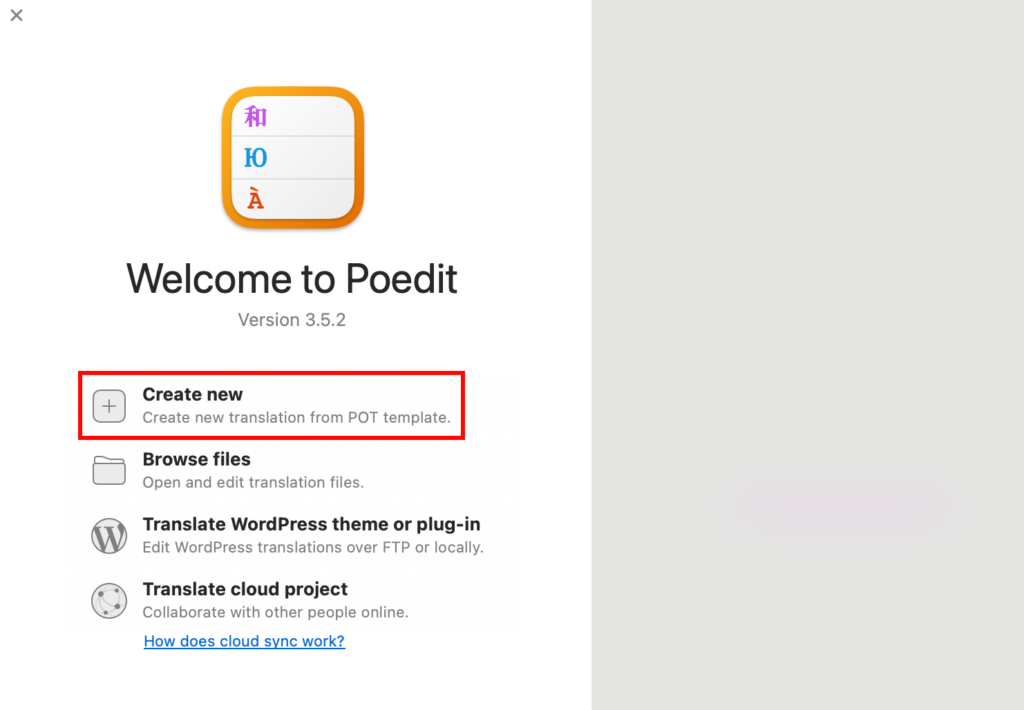
Open Poedit and click on Create new translation. Select the .po or .pot file you found. Poedit will show a list of text strings. Translate each string into your desired language. Save your work regularly to avoid losing progress. Once done, save the file with a language code, like en_US.po.
Creating A New Translation
First, open the Poedit software. Click on “Create New Translation”. This will start the process. Find the WordPress theme folder on your computer. Look for the .pot file. This file contains the theme’s text. Select the file to open it in Poedit. Now, you can see all the words used in the theme.
After opening the .pot file, choose the language you want. Pick your language from the list. A new .po file will be created. This file is for your translations. Type translations for each line you see. Save your work often. Use the “Save” button at the top. This way, you won’t lose your changes.
Translating Theme Strings
Use Poedit to easily translate WordPress theme strings. Start by opening the theme’s. pot file in Poedit. Translate the text strings and save your changes. This method ensures your theme is accessible in different languages.
Understanding Translation Strings
WordPress themes contain text called translation strings. These strings show messages on your site. Themes often have many strings. Each string needs a translation. Poedit helps with this task. It finds strings for you. You can see them in one place. This makes translating easier.
Editing And Saving Translations
Poedit lets you edit translations quickly. Select a string. Type your translation. Click save. Poedit stores your changes. It keeps translations safe. Mistakes can happen. Don’t worry. You can fix them later. Always check your work. Save often. This prevents losing translations. Saving creates new files. These files update your theme. They make your site multilingual. Visitors see text in their language. This enhances user experience.
Validating Translations
Translations need to be error-free for good understanding. Use Poedit to check your work. Poedit helps find mistakes like spelling errors. It also spots missing translations. Fix these errors to make your translations accurate.
Make sure translations work on WordPress. Upload the files to your theme. Check if the words look correct. Visit different pages to test every translation. Look for any broken text or strange characters. Fix anything wrong to ensure users see the correct language.
Updating Translations
Theme updates can bring new features. They may change existing words. It’s important to sync new strings. This keeps translations up-to-date. Use Poedit to scan for new strings. Open the .po file in Poedit. Click on “Update from POT File”. This finds new words in the theme. You can now translate these strings.
After a theme update, new strings may appear. Open your translation in Poedit. Go to “Catalog” and select “Update from POT File”. This will add new strings to your file. Translate these new words. Save changes to keep everything current. This ensures your site speaks the right language.
Credit: www.hostinger.com
Best Practices
Consistency is key in translations. Use the same terms for repeated words. This helps users understand easily. It makes reading smooth. Check all translations before using them. This ensures everything is uniform.
Use Poedit’s built-in tools to spot errors. They help find missing translations. Ensure all text is translated. This keeps the theme looking clean. Consistency builds trust with users.
Resources like glossaries are helpful. They give common translations. Use them to avoid mistakes. Online dictionaries are useful too. They provide meanings quickly. Check them when unsure.
Use translation memory in Poedit. This helps store translations. It speeds up the work. Saves time for future projects. Share these resources with your team. It keeps everyone on the same page.
Frequently Asked Questions
How Do I Start Translating A WordPress Theme With Poedit?
To start translating a WordPress theme with Poedit, first download and install Poedit. Open the theme’s. pot file in Poedit. Begin translating each string by entering the translation in the provided field. Save your translations as a. po file to apply them to your theme.
What Is The Role Of .pot Files In Translation?
. pot files act as templates for translations. They contain all translatable strings from your theme. By using these files in Poedit, you can create language-specific. po and. mo files. This process ensures your translations are applied accurately across the theme.
Can I Translate Plugins Using Poedit?
Yes, you can translate plugins using Poedit. The process is similar to translating themes. Locate the plugin’s. pot file, open it in Poedit, and translate the strings. Save the translations as. po and. mo files to apply them to your plugin.
How Do I Save Translations In Poedit?
In Poedit, save translations by clicking “File” and then “Save”. Ensure you save as a. po file. This file stores your translations, while Poedit automatically generates a. mo file. The. mo file is used by WordPress to apply translations.
Conclusion
Translating your WordPress theme with Poedit is straightforward. You can enhance your site’s accessibility. Start by downloading Poedit and opening your theme’s files. Follow simple steps to create translations. Save your changes and upload them to your site. Check how your theme appears in different languages.
This process boosts user engagement. Helps visitors understand your content better. You can make your site more welcoming. Language diversity attracts a broader audience. Remember, every step counts towards global reach. Keep your site friendly and inclusive. Enjoy the benefits of a multilingual WordPress site.


