
Are you tired of those pesky breadcrumbs cluttering your WordPress theme? You’re not alone.
Breadcrumbs can sometimes make your site look messy or confusing, especially if they’re not adding value to your navigation. Maybe they don’t fit your design or are simply unnecessary for your site’s structure. Whatever your reason, you’re in the right place to learn how to remove them efficiently.
We’ll guide you through simple steps to declutter your theme and enhance your site’s appearance. Imagine a cleaner, more streamlined website that keeps your visitors focused on what truly matters. Let’s dive into the details so you can transform your site with ease.
Credit: ultimateblocks.com
Understanding Breadcrumbs
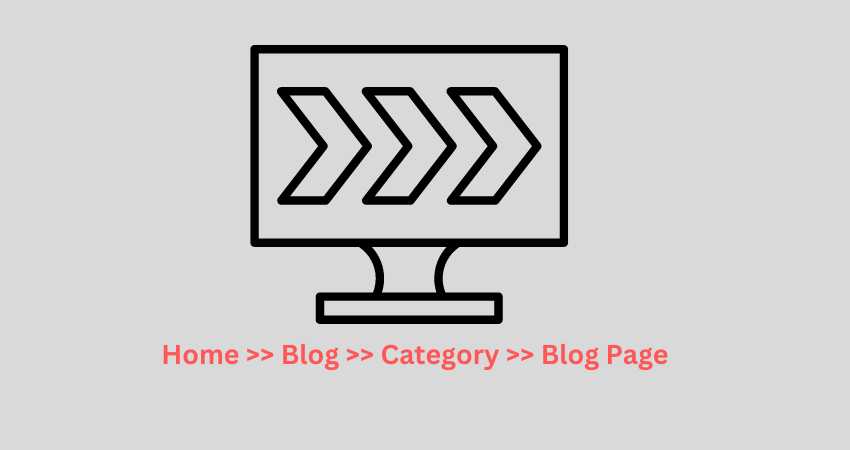
Breadcrumbs help users see the path on a website. They show the steps from the homepage to the current page. Breadcrumbs are like a map. They guide users and help them go back easily. Many WordPress themes have breadcrumbs by default. Not all websites need breadcrumbs. Some site owners prefer a cleaner look without them. Removing breadcrumbs can make the site look simpler.
Site owners can decide if they want breadcrumbs. Removing breadcrumbs is easy. Themes often have settings for this. If not, plugins can help remove them. Some themes require code changes. Always back up your site before making changes. This ensures you can restore it if needed. Themes and plugins vary. Check documentation for specific instructions.
Reasons To Remove Breadcrumbs
Sometimes, breadcrumbs can make a website look messy. They can clutter the page. They might confuse users. Some themes do not handle them well. Mobile users might find them hard to see. Removing breadcrumbs can make a page look clean. It helps the main content stand out. Your site might load faster without them. This can make users happy.
SEO might not always need breadcrumbs. If the design is simple, they might not help much. Many websites do fine without them. It is important to decide based on your site’s needs. Not every site will benefit from breadcrumbs. Think about your audience. What do they need? What makes their visit better?
Locate Breadcrumbs In Your Theme
First, open your WordPress dashboard. Go to Appearance and then Editor. Find the Theme Files on the right side. Look for header.php or single.php. These files often have breadcrumbs. Use the search feature to find the term “breadcrumb”. It’s important to search carefully. Breadcrumbs may be in a plugin. Check the functions.php file too. This file sometimes controls breadcrumbs.
Breadcrumbs can also be in a plugin. Visit the plugin settings in the dashboard. Disable the breadcrumb option if available. Some themes have breadcrumb settings. Check the theme options area. This might help you turn off breadcrumbs easily.
Using Theme Customizer
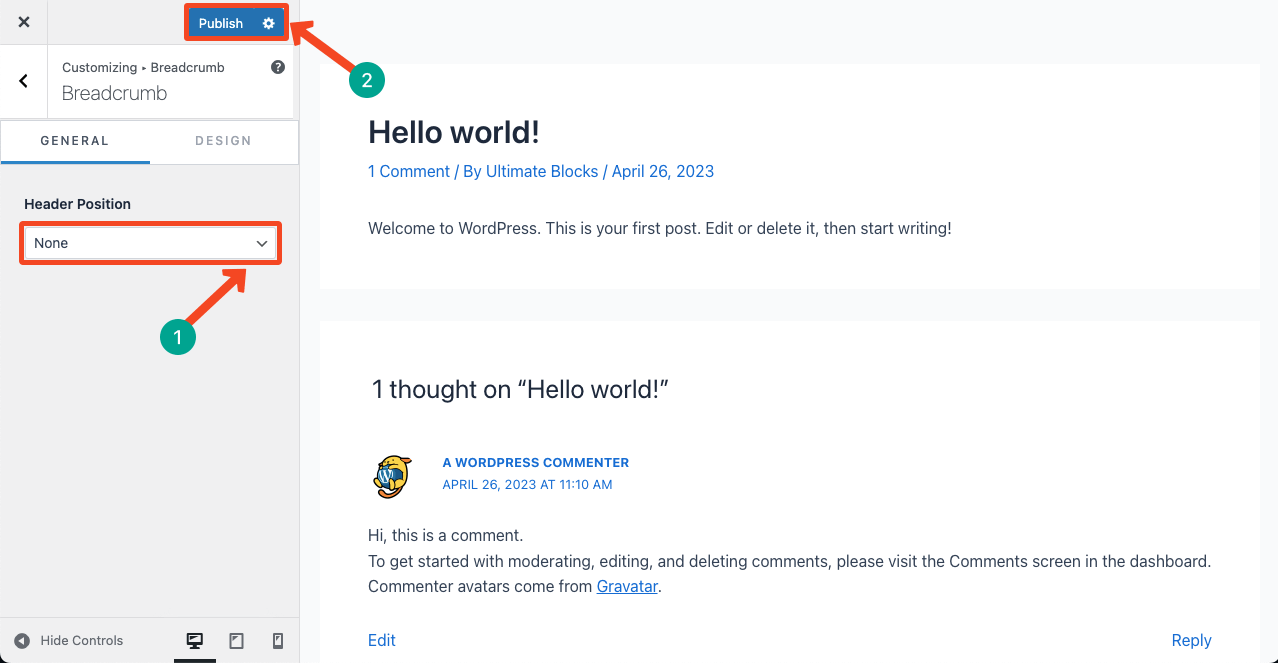
Start by logging into your WordPress dashboard. Look for the “Appearance” option on the left sidebar. Click on it, then select “Customize”. This opens the theme customizer. Here, you can change many parts of your site. It’s like your website’s control room. Easy and straightforward.
Within the customizer, find the breadcrumb settings. This might be under “Header” or “Navigation”. It depends on your theme. Look for a checkbox or switch. It might say “Show Breadcrumbs”. Simply uncheck or turn off this option. Breadcrumbs will no longer appear on your site. Remember to click “Save” or “Publish”. Your changes will be live.
Editing Theme Files
To remove breadcrumbs in WordPress themes, access the theme editor. Locate the breadcrumb code in the theme files. Delete or comment out the specific breadcrumb lines, then save changes.
Identifying The Right Files
First, open the WordPress dashboard. Find the Appearance section. Click on Theme Editor. Look for PHP files where breadcrumbs might be coded. Usually, it’s in header.php or functions.php. Check the template files too. Breadcrumbs code can be hidden in single.php or page.php. Be careful while choosing files. Incorrect changes can break the website.
Removing Breadcrumbs Code
Open the identified file. Search for breadcrumb code. It might look like breadcrumb() or similar. Delete or comment out this code. Save changes. Refresh your website. Check if breadcrumbs are gone. If still visible, check other files. Code might be in multiple places. Always backup before making changes. Mistakes can cause issues.
Using A Child Theme
Start by making a new folder for the child theme. Name it wisely. Inside this folder, create a style.css file. This file tells WordPress about your child theme. Write basic information inside. Include the parent theme name. Add a functions.php file next. This helps to enqueue styles and scripts. Copy necessary template files from the parent theme. Modify them as needed. Make sure the child theme is active. Check the changes on your site.
Find the breadcrumb code in the template files. This code is usually in header.php or single.php. Remove or comment out this code carefully. Look for functions related to breadcrumbs. They might be in functions.php. Disable these functions if needed. Ensure you save the changes. Refresh your site to see updates. Breadcrumbs should be gone now.
Plugins For Breadcrumb Removal
Removing breadcrumbs in a WordPress theme can be simplified using specific plugins. These tools help deactivate breadcrumbs effortlessly, enhancing website design. Explore plugins designed for breadcrumb removal to streamline your site layout efficiently.
Popular Breadcrumb Plugins
Many WordPress users prefer plugins to remove breadcrumbs. Yoast SEO is a popular choice. It’s known for its simplicity. Breadcrumb NavXT offers customizable options. It integrates smoothly with most themes. SEOPress is another good option. It provides easy breadcrumb control.
Configuring Plugin Settings
Each plugin has settings to explore. Open the plugin’s settings page in your WordPress dashboard. Look for the breadcrumb settings section. You may find a toggle to turn off breadcrumbs. Some plugins offer advanced settings. These include display options and design choices. Always save changes after adjusting settings.
Checking For Theme Updates
Theme updates can change how your website looks. These updates often improve security and add new features. But, they might also affect your customizations. It’s important to check if an update is available. Visit your WordPress dashboard to find this information. Always back up your website before updating. This helps protect your work and custom settings.
Impact Of Updates On Customizations
Updates may overwrite your changes. Custom code or styles could be lost. This can be frustrating if you’ve spent time on edits. WordPress themes sometimes reset to default settings. Understand what will change after an update. Save your custom code separately. This way, you can easily restore your work.
Reapplying Changes After Update
Reapply changes carefully. Use saved code or custom files. Keep a record of your edits for easy reference. Follow the same steps you used initially. Check everything to ensure it works correctly. Look at the design and functions. Confirm that nothing is broken or missing. This ensures your website looks as planned. Repeat the process if needed.
Backup And Restore
Always start with a backup. It’s a smart move. Backups keep your data safe. Use a plugin like UpdraftPlus. It helps you save your site. You can store backups in the cloud. Services like Google Drive or Dropbox work well. Always check your backups. Make sure they work.
Sometimes things go wrong. You might need to restore. Go to your backup plugin. Find the restore option. Follow the steps. It’s usually easy. Choose the right backup file. Click restore. Wait for it to finish. Your site should be back. Always check your site after restoring.
Credit: www.flawlessthemes.com
Credit: www.sktthemes.org
Frequently Asked Questions
How Do I Disable Breadcrumbs In WordPress?
To disable breadcrumbs in WordPress, navigate to your theme’s settings. Look for the breadcrumb section and turn it off. Alternatively, use a plugin like Yoast SEO. It allows you to easily disable or customize breadcrumbs on your site. Always check your theme’s documentation for specific instructions.
Can I Remove Breadcrumbs Using Css?
Yes, you can remove breadcrumbs using CSS. Simply add `display: none;` to the breadcrumb class in your theme’s stylesheet. This will hide breadcrumbs from view. Ensure you know the specific class name used by your theme for breadcrumbs. This method is non-destructive and easily reversible.
What Plugin Helps In Removing Breadcrumbs?
Yoast SEO plugin helps in removing breadcrumbs. It offers a feature to disable breadcrumbs under the “Search Appearance” settings. Navigate to the “Breadcrumbs” tab and toggle the option off. This provides a straightforward way to manage breadcrumbs without altering theme files.
Are Breadcrumbs Important For Seo?
Yes, breadcrumbs are important for SEO. They improve site navigation and provide search engines with site structure insights. Breadcrumbs enhance user experience by helping users understand their location on your site. However, if not needed, removing them won’t significantly impact SEO.
Conclusion
Removing breadcrumbs from your WordPress theme is simple. Follow the steps shared above. Adjust settings or use plugins. Customize code if needed. Test changes to ensure your site looks good. Visitors will appreciate a cleaner layout. Breadcrumbs can clutter your design.
Removing them improves navigation and user experience. Stay updated on theme changes. Regularly check for new options. Keep learning about WordPress features. Your site’s appearance matters. Small tweaks make a big difference. Enhance your website by making smart design choices.
Keep your audience in mind. A smooth user journey is key.


