
Are you tired of seeing the “Theme Colormag by Themegrill Powered by WordPress” footer on your website? You’re not alone.
Many WordPress users feel that the default footer message doesn’t align with their brand or site aesthetics. Removing it can make your site look more professional and tailored to your needs. But how exactly do you go about removing this persistent message without messing up your website’s functionality?
In this guide, you’ll discover a straightforward, step-by-step process to effortlessly remove the footer credit from your WordPress site. By the end of this article, you’ll have a cleaner, more personalized website that truly represents you and your unique style. Curious to find out how? Read on to unlock the full potential of your website’s design.

Credit: www.youtube.com
Understanding Colormag Theme By Themegrill
Colormag is a popular theme for WordPress sites. It is designed by Themegrill. Many people like it for its clean design and easy setup. It is great for news and magazine sites. Users can customize it without much trouble. The theme provides many options to change colors and fonts. It also supports widgets and plugins. But some users may find the footer credit distracting. This is the “Powered by WordPress” text. It is possible to remove this text. There are simple steps to do so. Always make sure to backup your site first. This keeps your data safe.
Reasons To Remove Colormag Branding
The Colormag theme often shows unwanted branding. This can distract visitors. Your site looks less professional. Removing branding gives a cleaner look. It makes your site unique. Branding removal helps in site customization. It allows for a personal touch. User experience improves without extra logos. Faster load times are possible. Visitors stay longer on clean sites. Branding sometimes slows down pages. Removing it speeds up your site. SEO benefits from a neat site. It helps in getting better rankings. You have control over your site’s look. This enhances the site’s identity. A clear site always attracts more visitors. Users trust clean designs more. It builds trust and credibility.
Accessing WordPress Dashboard
First, open your web browser. Type in your website’s URL. Then add /wp-admin to it. Press enter. You will see the login screen. Enter your username. Then, enter your password. Click the Log In button. Now you are in the dashboard. This is where you manage your site. You can change settings and themes here. Find the menu on the left side. It shows different options. Click on Appearance. This is where you change themes. You can also add new ones. To remove a theme, find the one you don’t want. Click on it. Then, look for the Delete button. Click it to remove the theme. Remember to save changes. Now the theme is gone. Your site looks different.

Credit: www.npae.net
Locating Colormag Theme Settings
Find the dashboard on your WordPress site. Look at the left side menu. Click on Appearance. A menu will open. Then, select Themes. Here, you will see all your themes. Spot the Colormag theme.
Click on Customize under the Colormag theme. The customization options will show up. Scroll to find Theme Settings. These settings allow changes. Look for Footer Settings.
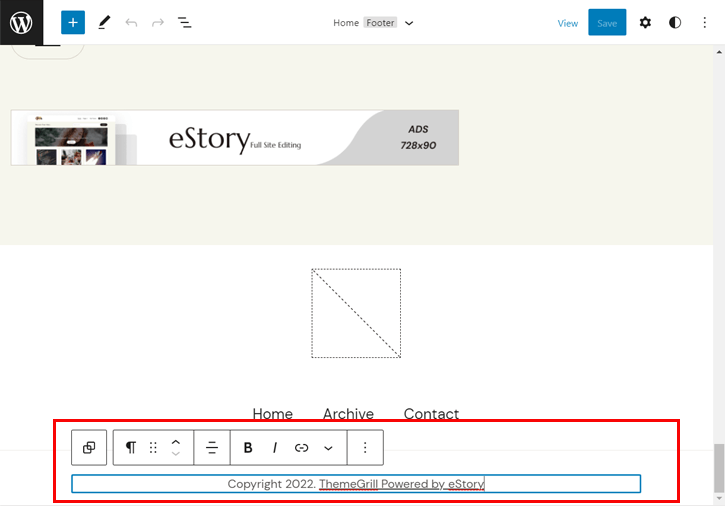
In Footer Settings, find the text that says, “Powered by Themegrill.” You can edit or remove this text. Save your changes by clicking Publish. This removes the unwanted text.
Removing Footer Credit Manually
Editing the footer credit can be simple. Access the WordPress dashboard. Navigate to Appearance and select Theme Editor. Locate the footer.php file. This file holds the footer details. Look for the credit line in the code. It often starts with . Carefully delete or change the text. Ensure you don’t erase important code. This avoids errors on your site. Save changes before exiting. Refresh your site to see updates.
Backup your files before any edits. This prevents loss of data. Mistakes can lead to serious problems. Always check your edits. Use simple text for your footer. Keep it neat and clear. Users appreciate clean and readable footers.
Using Custom Css For Footer Credit
To remove the footer credit, add some custom CSS to your theme. Go to the WordPress dashboard. Navigate to Appearance and click on Customize. Find the Additional CSS option in the menu.
Paste this code: footer.site-info { display: none; }. This hides the credit line. Save your changes. Now, the footer credit is gone. Make sure to check your site. See if the change worked.
This method is simple and effective. There’s no need for extra plugins. Keep your website clean and professional. Make sure your content shines.
Employing A Child Theme
Easily customize your site by creating a child theme for WordPress. This helps remove the “Colormag by Themegrill” footer. Enhances your site’s look without altering the original theme files.
Benefits Of A Child Theme
A child theme keeps your changes safe. Updates won’t break your site. Original theme updates stay secure. Child themes let you tweak styles. You can add or remove features too. All without touching the main theme. This is smart and safe.
Steps To Create A Child Theme
First, make a folder for your child theme. Choose a simple name. Next, add a style.css file. It tells WordPress about your theme. Also, add a functions.php file. This file lets you add features. Copy the main theme’s files if needed. Now, activate your child theme. Your changes are now safe.
Exploring Plugins For Footer Removal
Many plugins can help remove unwanted footer text. Some plugins are easy to use. Others might need more steps. A few popular plugins are Remove Footer Credit, WP Footer Delete, and Footer Credit Removal. These plugins are trusted by users. They work well with WordPress themes.
Start by finding the plugin in the WordPress Plugin Library. Click on the install button. After installing, activate the plugin. Go to the plugin settings. Follow the steps to remove the footer text. The process is usually quick. Check your website to see the changes. Feel free to ask for help if needed.
Testing Site After Removal
Easily remove the Colormag theme by Themegrill from your WordPress site. Access the WordPress dashboard, navigate to “Appearance,” then “Themes,” and activate a different theme. This change ensures a fresh look and removes the “powered by” message from your site.
Checking For Errors
Errors can appear after removing a theme. Look for broken links or missing images. Fixing these errors is important. Check all pages and posts. Use a tool for checking website errors. Make sure everything works as it should.
Ensuring Responsive Design
Responsive design means the site looks good on all devices. Test the site on phones and tablets. Adjust design elements if needed. Check menus and images for proper display. Responsive sites make users happy. Happy users stay longer on the site. Use online tools for testing responsiveness.
Alternative Themes To Consider
Finding a new theme can be fun. Astra is very popular. It is fast and easy to use. Many people love its clean look. OceanWP is another great choice. It works well for many types of sites. You can try different designs with it. GeneratePress is also worth a look. It is light and very flexible. People like its simple style. Neve has many features. It is good for beginners. You can change many things with it. Hestia offers a modern look. It suits business websites well. Each theme has special features. You can pick one that fits your needs.
Maintaining Theme Customizations
Keep your theme updated. This helps with security and performance. Regular updates fix bugs and add new features. Always check for updates in your WordPress dashboard. Updating is easy. Click the update button when you see it. This keeps your theme running smoothly.
Always have a backup. Backups keep your data safe. Use a plugin for this. Backups can save time if something goes wrong. They are very important. Store backups in a safe place. This can be the cloud or an external drive. Having a backup plan is smart. It protects your website from loss.
Credit: themegrill.com
Frequently Asked Questions
How Can I Remove The “powered By WordPress”?
To remove the “Powered by WordPress,” access your theme’s footer. php file. Locate the code responsible for the credit line and delete it. Save your changes. Alternatively, use a custom CSS plugin to hide the text with CSS code. Always back up your site before making changes.
Is It Safe To Modify Theme Files?
Modifying theme files can be risky without caution. Always back up your website before making changes. Use a child theme to ensure updates don’t overwrite customizations. Consider consulting a professional if unsure. This ensures your site’s stability and security while preserving custom modifications.
Can I Use A Plugin To Remove Footer Credit?
Yes, you can use a plugin to remove footer credits. Plugins like “Remove Footer Credit” or “WP Custom Footer” allow customization without code editing. Simply install the plugin, follow the instructions, and customize the footer text. This method is user-friendly and preserves theme updates.
Does Removing Footer Credit Affect Seo?
Removing the footer credit typically doesn’t affect SEO directly. However, ensure that removing credits doesn’t disrupt the site’s structure or functionality. Focus on maintaining site speed and user experience. Always test changes on a staging site to monitor any potential impact on SEO performance.
Conclusion
Removing the Colormag theme is simple and beneficial. It helps improve your site’s performance. Follow the steps to ensure a smooth transition. Your WordPress site will look fresh and professional. Remember, customization is key to success. Don’t hesitate to explore new themes.
They offer unique features and styles. Keep your site updated for better user experience. Regular updates enhance security and functionality. A well-maintained site attracts more visitors. Take control of your WordPress site today. Enjoy the freedom of customizing your online presence.
Your site deserves the best look and feel.


