
Are you tired of those pesky ads cluttering your WordPress theme? They can be distracting, slow down your site, and even drive away visitors.
You want a clean, professional look that keeps readers engaged, right? Imagine your website, sleek and ad-free, offering a seamless experience that not only attracts but retains your audience. You’ll discover simple, effective ways to remove ads from your WordPress theme.
We’re here to guide you through the process, ensuring your site looks as polished and professional as you envision. Keep reading to unlock the secrets to a cleaner, more appealing website!

Credit: worldpressit.com
Understanding The Importance Of Removing Ads
Ads can slow down your website. They make loading times longer. This frustrates visitors. A slow site can lose visitors quickly. People like fast websites. Fast websites keep visitors happy. Ads can also distract from your content. Your content is the main focus. Ads take attention away. Your website looks cleaner without ads. A clean website is more professional. It builds trust with visitors. Trust brings more visitors back. Removing ads can improve user experience. A better experience means happy users. Happy users share your site. This can increase traffic naturally. More traffic means more success.
Credit: wptavern.com
Identifying Ad Sources In WordPress
Some themes have ads hidden inside. These ads can slow down your site. They might also annoy visitors. Check theme settings for ad codes. Look in theme files like header.php or footer.php. You might find ad scripts there. Removing these can help speed up your site.
Plugins can add ads without you knowing. Some plugins are free but show ads. Go to your WordPress plugins page. Deactivate plugins one by one. See if ads disappear. It’s a smart way to find the plugin causing ads. Always check reviews before installing new plugins.
Ad scripts from third parties can sneak in. They might be in widgets or custom code. Check widgets for unwanted scripts. Also, check custom code sections. Removing these scripts can make your site cleaner. Always backup your site before removing codes.
Backup Your WordPress Site
Plugins help save your website data. They are easy to use. Backup plugins store your site’s content. They keep it safe. Popular plugins include UpdraftPlus and BackWPup. These plugins work automatically. They save time and effort. Choose a plugin that fits your needs. Always keep your backups up to date.
Manual backups are another way. First, download all files via FTP. Use software like FileZilla. Then, export your database. Use phpMyAdmin for this step. Always store these backups safely. Keep them on an external drive. Repeat this process often. This ensures nothing is lost.
Removing Ads From The Theme Code
Deleting ads from a WordPress theme involves editing the theme code. Access the theme files via the WordPress dashboard or FTP. Locate and remove ad-related code, often found in the header, footer, or sidebar files.
Accessing Theme Files
First, open your WordPress dashboard. Go to Appearance, then Theme Editor. Find the theme files on the right side. You may see files named header.php or footer.php. Click to access them. Look for code related to ads. It might start with Ad Code or similar. Be careful while searching. Avoid deleting useful code.
Editing Html And Php Files
Locate the ad code in the file. You might see it inside tags. Remove or comment out the code. Use to comment. Save changes after editing. Check for errors before proceeding. Errors can break the theme.
Testing Changes Safely
Refresh the website to see changes. Ads should be gone. If the site looks broken, undo changes. Use a backup to restore the site. Test on a local environment first. Ensure everything works fine. Making changes safely is important. Always keep a backup.
Disabling Ad-generating Plugins
Start by logging into your WordPress dashboard. Go to the plugins section. Look for plugins that might add ads. Common ad plugins have names with “ads” or “advertisement”. Read the plugin descriptions. This helps to identify ad functions. Keep a list of these ad plugins. Check if these plugins are active or inactive.
Find the ad plugin in your list. Click on “Deactivate” to stop it. This removes ads from your site. Want to remove it fully? Click “Delete” next. This will free up space and improve speed. Always make a backup before deleting. It keeps your data safe.
Implementing Ad Blockers
WordPress plugins can help remove ads. Many plugins are free. Popular choices include AdBlocker Ultimate and AdSanity. Install the plugin from the WordPress dashboard. After installation, activate it. Some plugins offer extra features. Explore settings to customize ad blocking.
Browser extensions can block ads too. Adblock Plus is a common extension. Install it from the browser’s extension store. Once installed, enable it in the browser. Check settings for more options. Extensions can block ads across the web. This includes WordPress sites.
Switching To An Ad-free Theme
First, find a theme that suits your needs. Many themes are available. Some are free; others cost money. Look for themes without ads. Ensure they are compatible with your WordPress version. Check reviews. Good reviews mean happy users. Avoid themes with bad reviews.
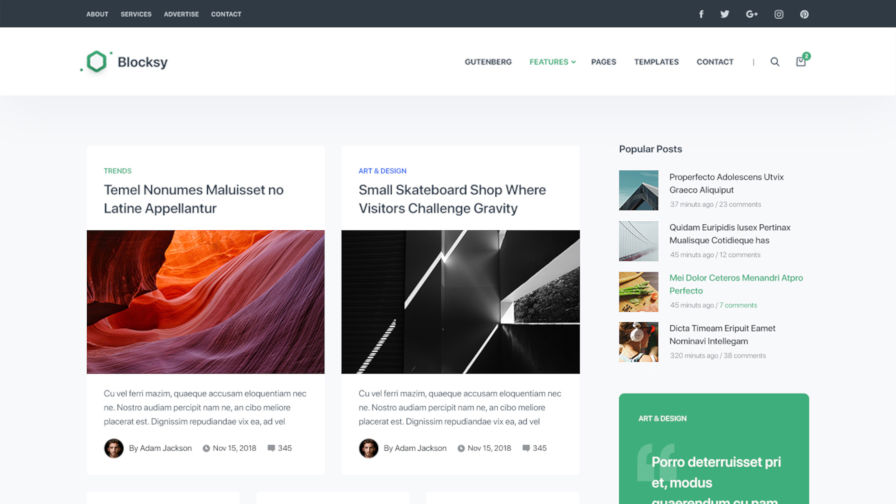
Begin by logging into your WordPress dashboard. Go to the Appearance section. Click on Themes. Press the Add New button. Search for your chosen theme. Click Install to add it. Once installed, click Activate. This makes the new theme live. Your site now has no ads. Enjoy a cleaner look.

Credit: catchthemes.com
Testing The Website For Ad Removal
Ads might show differently on devices. Check on a phone and a computer. Look for hidden ads. They might appear in different spots. Use a tablet too. Each device can show ads in new ways. Make sure all ads are gone. Test each page carefully.
Ad detection tools can help find hidden ads. These tools show ads you might miss. They can be found online. Some are free to use. They help make sure the site is clean. Use them to double-check your work. They save time and effort.
Maintaining An Ad-free WordPress Site
Regular checks keep your site clean. Spot ads that sneak in. Check all pages. Find hidden ad codes. Remove them quickly. Look at comments and widgets. Ads can hide there too. Ask a friend to review your site. They might see ads you miss. Use ad-blocking tools to test your site. Make sure everything stays clear. Regular audits help keep your site ad-free.
Themes and plugins change often. Updates may add ads. Check the update notes. See if they mention ads. Keep a backup before updating. This helps if ads appear. Try updates on a test site first. See how it affects your site. Delete unused plugins. They may cause problems. Stay updated, but keep your site ad-free.
Frequently Asked Questions
How Can I Block Ads On WordPress Themes?
To block ads on WordPress themes, use ad-blocking plugins. Popular options include AdBlock, WP AdBlock, and Advanced Ads. These plugins allow customization and easy removal of unwanted ads, ensuring a cleaner website appearance. Always test plugins for compatibility and effectiveness to avoid disrupting site functionality.
Are Ad-blocking Plugins Safe For WordPress?
Yes, ad-blocking plugins are generally safe for WordPress. Choose reputable plugins with good reviews to ensure safety. Regularly update plugins to maintain security. Backup your site before installing new plugins to prevent data loss. Testing plugins on staging sites can also help verify their safety and compatibility.
Do I Need Coding Skills To Remove Ads?
No, coding skills are not needed to remove ads. Use ad-blocking plugins designed for non-tech users. These plugins offer user-friendly interfaces and settings. Follow plugin documentation for guidance. If you prefer manual removal, basic HTML knowledge might help, but plugins are easier for most users.
Can Removing Ads Affect My Site’s Revenue?
Yes, removing ads can affect site revenue. Ads are often a primary income source for websites. Consider alternative monetization strategies like sponsored content or affiliate marketing. Evaluate your site’s financial goals before removing ads to ensure sustainability. Balancing user experience and revenue is crucial.
Conclusion
Removing ads from your WordPress theme is simple with a few steps. First, identify the source of the ads in your theme. Use theme settings or plugins to manage ad placements. If needed, edit the theme code directly. Always back up your site before making changes.
This ensures a smooth process. Removing ads improves user experience. Visitors enjoy a cleaner site. A cleaner site can boost your content visibility. Regularly check your site for new ads. Stay informed about theme updates. This keeps your site ad-free and user-friendly.


