
Struggling to clean up your WordPress site after testing themes? You’re not alone.
Many website owners face the clutter of unwanted Theme Unit Test Data, which can slow down your site and confuse your visitors. If your site feels bogged down by leftover test posts, pages, and other elements, it’s time to take action.
Imagine how refreshing it would be to have a neat and tidy WordPress dashboard, free from unnecessary clutter. In this guide, we’ll walk you through the simple steps to remove Theme Unit Test Data. You’ll learn how to declutter your site quickly and efficiently, so you can focus on what truly matters – creating engaging content for your audience. Ready to dive in and give your site the clean-up it deserves? Let’s get started!
What Is Theme Unit Test Data?
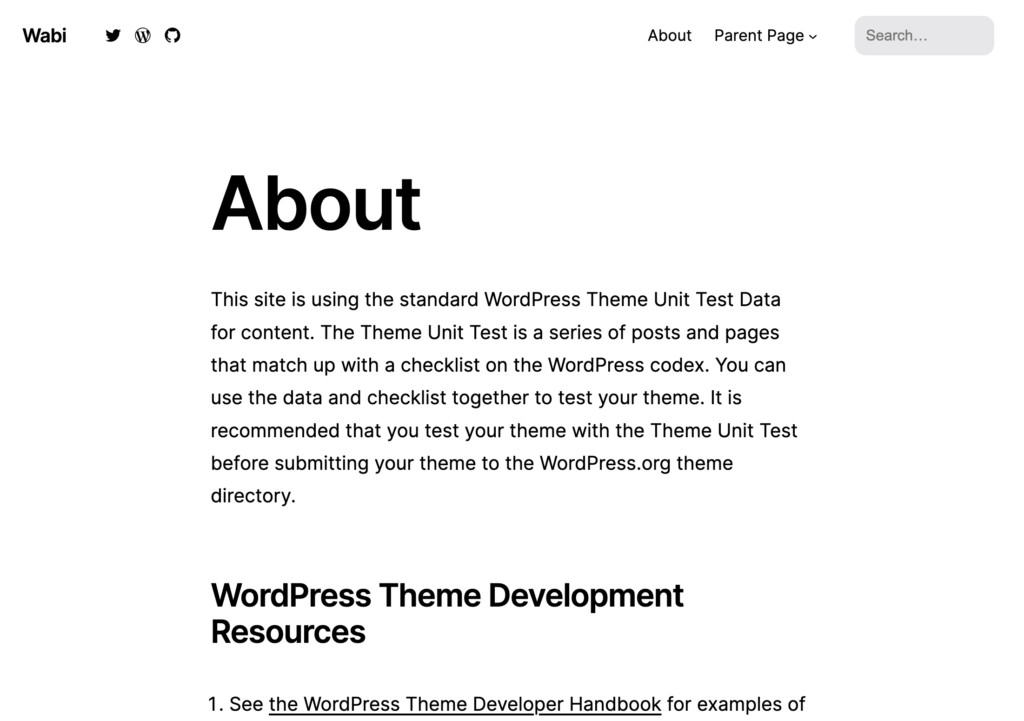
Theme Unit Test Data is like a practice kit for WordPress. It helps in testing different themes. It comes with dummy posts, images, and comments. This data checks how a theme looks and works. Designers use it to make sure themes are good. It helps in finding issues in design.
But after testing, this data can be a mess. It may clutter your site. Removing it makes your site clean again. It is important to know how to remove it. This keeps your WordPress running smoothly.
Reasons To Remove Test Data
Test data can make your website look messy. It often clutters your WordPress site with unwanted content. This can confuse visitors and slow down your website. Removing test data makes your site look clean and professional. It helps in improving website performance. A clean site is easier to manage. Removing test data is essential for a smooth user experience. It ensures your site’s speed and reliability. Test data can also affect SEO negatively. Search engines may see it as irrelevant content. This can hurt your site’s ranking. So, it is important to remove it. A tidy site is also easier to navigate. This makes visitors happy and encourages them to stay longer.
Backing Up Your Website
Backing up is crucial before changes. It keeps your data safe. Problems can happen anytime. A backup saves time and stress. Use plugins like UpdraftPlus or BackupBuddy. They are easy to set up. Store backups in different places. Local storage and cloud services are options. Check backups regularly. Ensure they work well. This makes recovery smooth. Backup your database and files. Both are important. Backups protect your work and effort.
Credit: fluentforms.com
Using WordPress Dashboard
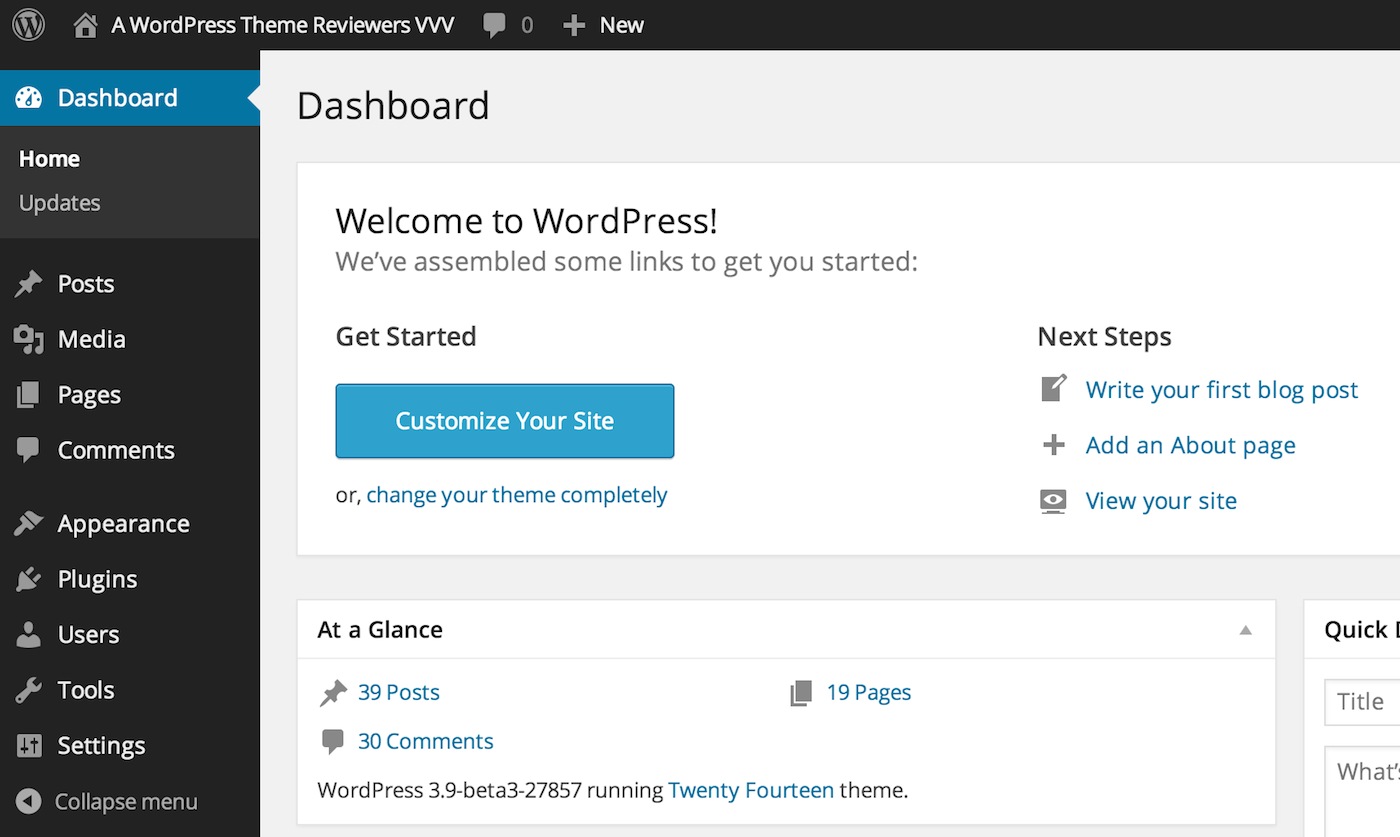
First, open your web browser. Type your WordPress site URL. Add “/wp-admin” at the end. Press enter. You will see a login page. Enter your username and password. Now, you are in the WordPress Dashboard. This area helps you manage your site.
Look for pages and posts that seem out of place. These are often test data. They might have unusual titles. Check categories and tags too. Some test data can be there. Keep an eye out for strange comments. They might be test comments. Use the Dashboard to spot these quickly.
Utilizing Plugins For Removal
Easily remove Theme Unit Test Data from WordPress by using plugins. These tools help clean your site quickly. Keep your website organized and running smoothly.
Recommended Plugins
Some plugins can help remove theme unit test data. WP Reset is a popular choice. Another option is Advanced Database Cleaner. Data Eraser also works well. These plugins are easy to use. They save time and effort. They keep your site clean.
Installation And Setup
First, find the plugin in the WordPress plugin store. Click “Install Now.” Wait for the installation to finish. Then click “Activate.” Follow the setup instructions. Each plugin has its own setup steps. Most are simple and quick. Check settings before running. This ensures no important data is lost.
Executing The Removal
Open the plugin dashboard. Look for the data removal option. Select “Theme Unit Test Data.” Click “Remove” or “Delete.” Wait for the process to complete. Check your site afterward. Ensure all test data is gone. This keeps your site tidy. Repeat if needed.
Credit: wptavern.com
Manual Deletion Process
Start by logging into your WordPress dashboard. Go to the Pages section. Click on each page you want to delete. Select Trash to remove them. Do the same with Posts. Check if any posts need removal. Send them to Trash too. This will keep your site clean.
Head over to the Media Library next. Choose the files you want gone. Use the Bulk Select option for many files. Click Delete Permanently to remove them. This frees up space on your site. Always ensure you don’t need these files again.
Widgets and menus need attention too. Go to the Appearance section. Navigate to Widgets. Remove any that are not needed. Then, check the Menus section. Delete any extra links or menus. This helps in making your site tidy and organized.
Verifying Data Removal
Deleting Theme Unit Test data from WordPress improves your site’s performance. Navigate to your WordPress dashboard. Use a plugin or manual method to remove unwanted test data for a cleaner database. Ensuring data removal enhances security and speeds up your website.
Checking Website Appearance
Ensure the website looks normal after removing the theme test data. Check images, text, and links. Make sure everything is in its place. If anything looks odd, check the settings. Sometimes, themes change settings. Verify that the layout is correct.
Ensuring Database Cleanliness
After data removal, inspect the WordPress database. Use tools like phpMyAdmin. Look for unwanted entries. Clean up tables if needed. Make sure there are no extra rows or columns. Check for errors in the database. A clean database keeps your site fast.
Credit: github.com
Preventing Future Data Clutter
Easily remove Theme Unit Test Data from WordPress by navigating to your dashboard. Select the specific data and delete it. This keeps your site clutter-free, ensuring optimal performance and organization.
Setting Up A Staging Environment
A staging environment helps keep your website clean. It is a copy of your site. Use it to test changes before going live. This avoids unwanted data on your main site. Install plugins here first. Check if they work well. If all is good, apply to your live site. This practice keeps your site tidy. Regular checks prevent data clutter. Be careful with every update.
Regular Maintenance Tips
Maintenance is key to a clean site. Check for unused themes and plugins. Remove them if not needed. Keep your database clean. Use tools to clear junk files. Regularly update plugins and themes. This ensures they work smoothly. Back up your site often. This saves data if something goes wrong. Always monitor for errors. Fix them quickly to avoid clutter.
Frequently Asked Questions
What Is Theme Unit Test Data In WordPress?
Theme Unit Test Data is a set of sample content used to test WordPress themes. It includes posts, pages, comments, and other elements. Developers use it to ensure themes display content correctly. Removing this data can clean up your WordPress site and optimize its performance.
Why Remove Theme Unit Test Data?
Removing Theme Unit Test Data is essential for maintaining a clean WordPress environment. It prevents clutter and helps improve site performance. Keeping unnecessary test data can confuse users and affect your site’s SEO. Deleting it ensures your site only contains relevant and useful content.
How Can I Delete Theme Unit Test Data?
To delete Theme Unit Test Data, first, identify the test content in your WordPress dashboard. You can manually delete posts, pages, and comments. Alternatively, use plugins like “WP Reset” or “Advanced Database Cleaner” to automate the process. Ensure you backup your site before making any changes.
Are Plugins Available For Data Removal?
Yes, several plugins can help you remove Theme Unit Test Data efficiently. “WP Reset” and “Advanced Database Cleaner” are popular choices. They automate the cleanup process, saving time and effort. Always backup your site before using any plugin to avoid accidental data loss.
Conclusion
Removing theme unit test data helps keep your WordPress clean. It improves site performance and reduces clutter. Follow the steps outlined in this guide for a smooth process. Regular maintenance of your site ensures optimal functionality. This task may seem small, but it enhances user experience.
A tidy site also boosts your credibility. Take time to keep your WordPress environment organized. It pays off in the long run. Happy blogging and keep your site fresh. Your audience will thank you for it.


