
Are you feeling frustrated with your current WordPress theme? Maybe it’s not functioning as it should, or you’re just craving a fresh look for your website.
Whatever the reason, reinstalling your WordPress theme might be the perfect solution. But, the thought of making changes to your website can be daunting, right? Don’t worry, you’re not alone. Many website owners hesitate to dive into theme reinstallation due to fear of losing data or breaking their site.
But what if I told you that reinstalling your WordPress theme can be simple and stress-free? In this guide, you’ll discover how to smoothly reinstall your WordPress theme without losing any of your valuable content. Imagine having a website that looks and performs exactly how you want it to. Intrigued? Let’s get started, and you’ll soon see how easy it can be to give your site the refresh it deserves.
Backup Your Website
Use the WordPress dashboard to export content. This keeps your posts and pages safe. It is crucial before making changes. Go to Tools then Export. Choose All Content. Click Download Export File. Save this file on your computer.
Get your theme files from your site. Go to Appearance then Themes. Find your active theme. Click Theme Details. Press Download to save the theme. Keep this file secure. It helps in restoring your site.
Your database holds important data. Use a plugin like UpdraftPlus. Go to Settings then UpdraftPlus Backups. Click Backup Now. Follow the steps to complete the backup. Store the backup in a safe place. Your site’s data is now safe.
Deactivate Current Theme
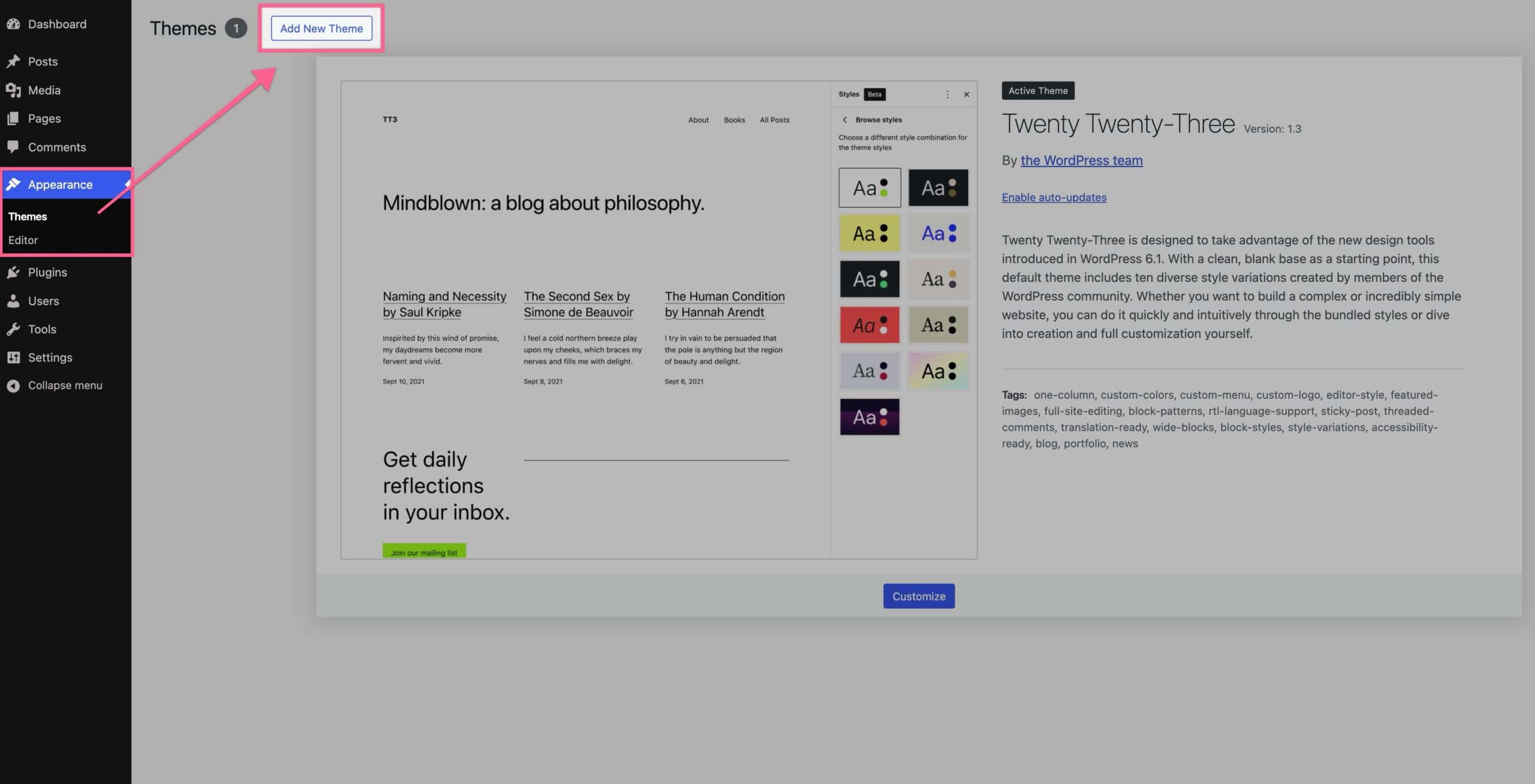
First, go to your WordPress dashboard. Look for the Appearance menu. Click on Themes. You will see a list of themes. Find the default theme. This could be Twenty Twenty-One or another theme. Click Activate. Now, your current theme is deactivated. This step is very important. It helps avoid problems later.
After switching the theme, clear your site’s cache. Cached files might show the old theme. Go to your caching plugin. You might use WP Super Cache or W3 Total Cache. Look for the option to clear cache. Click it. Now, your site will load the new theme. Clearing the cache also speeds up your website. It makes sure everyone sees the changes.
Delete Existing Theme
Access Themes via Dashboard is the first step to delete your theme. Log into your WordPress dashboard. Look for the Appearance menu. Click on Themes. You will see a list of installed themes. The active theme will be highlighted. Do not delete the active theme. Choose another theme to activate first. This way, the active theme can be deleted safely.
Remove Theme Files is the next step. Navigate to the theme you want to remove. Click on the theme to open its details. You will see the Delete button at the bottom. Click on it to remove theme files. This action will delete all theme files permanently. Ensure the theme is not active before deletion. This prevents breaking your site.

Credit: jetpack.com
Download New Theme Version
Check your theme provider’s website for updates. It’s important to ensure you have the latest version. This helps keep your site secure. Also, new features might be available. Before downloading, confirm your theme is compatible with your WordPress version. This prevents errors and keeps your site running smoothly.
Once compatibility is confirmed, download the latest files. Save them in a safe place on your computer. This makes it easy to find them later. Keeping backups is always a good idea. It ensures you can recover quickly if something goes wrong.
Install New Theme
Uploading theme files is simple. First, go to the WordPress dashboard. Click on ‘Appearance’, then ‘Themes’. Find the ‘Add New’ button at the top. Click it. Choose ‘Upload Theme’ from the options. Select the theme ZIP file from your computer. Click ‘Install Now’. Wait a few moments. The theme will upload.
After uploading, you need to activate the theme. Click on ‘Appearance’ again. You will see the new theme listed. Hover over it. Click ‘Activate’. Your new theme is now live. Visit your site to see the changes. Sometimes, you may need to set up theme options. Check theme settings for customization. Enjoy your new look!
Restore Website Content
First, locate your backup files. These files contain your website’s content. Use the WordPress Importer tool. Find it in the dashboard. Click on “Tools” and then “Import”. Choose the correct file. Click “Upload”. Wait for the process to complete. Check your site. See if everything looks right.
Your theme might have unique settings. These settings can be colors or fonts. Reapply them manually. Go to “Appearance” and then “Customize”. Change settings to match your previous design. Use your backup for reference. Remember to save changes. Refresh your site. Check if it looks how you want.
Test Your Website
Make sure all buttons work. Click each button. Test links to see if they open. Every form should submit correctly. Check if images load well. Navigation menus should open the right pages. Try different devices. Does everything still work?
Look at the website layout. Is it the same as before? Check colors. Are they right? Text should be easy to read. Images must fit perfectly. No parts should overlap. Make sure the site looks good on phones. Is it clear and neat?
Credit: www.kadencewp.com
Troubleshoot Common Issues
Themes sometimes conflict with plugins. Check if plugins are up to date. Disable plugins one by one. See if the theme works better. Plugins can cause many issues. Always ensure they are compatible with your theme. If a plugin is causing trouble, search for alternatives. Some themes need specific versions. Always read theme documentation for guidance. Software updates can also impact compatibility. Try rolling back updates if issues arise. Regular checks prevent many problems.
Sometimes elements vanish after reinstallation. Ensure all theme files are present. Missing files can cause display issues. Check your theme folder for completeness. Reinstalling may fix missing parts. Use a backup to restore if needed. Backups protect your work from unexpected problems. Regularly save your site to avoid loss. Always verify your content after reinstallation. Look for missing images or text. Restoring from a backup helps recover lost elements. Regular site checks ensure everything works smoothly.
Optimize Performance
Reinstalling your WordPress theme can boost site performance. First, deactivate the current theme from the dashboard. Then, delete it before uploading the fresh version. Ensure you backup your site to avoid data loss during the process.
Enable Caching
Caching helps your site load faster. It stores copies of pages. This means visitors get the page quickly. You can use plugins like W3 Total Cache or WP Super Cache. These plugins are easy to set up. They improve speed without much effort. A fast site keeps visitors happy and engaged.
Minimize Load Times
Large images slow down websites. Use smaller images for a faster site. Tools like TinyPNG can help compress images. Also, reduce the number of plugins. Each plugin adds to load time. Only keep the ones you need. Fast load times make users stay longer. This is good for your site.
Credit: www.wpzoom.com
Frequently Asked Questions
How Do I Backup My WordPress Theme?
Backing up your WordPress theme is crucial before reinstalling. Use a plugin like UpdraftPlus or manually download theme files via FTP. Save these files to a secure location. This ensures you can restore your site quickly if something goes wrong during the reinstallation process.
What Are The Steps To Reinstall A Theme?
Reinstalling a WordPress theme involves several steps. First, deactivate the current theme under Appearance > Themes. Next, delete the theme and download the latest version. Finally, upload and activate the new theme via WordPress dashboard. This ensures your site runs smoothly with the updated design.
Will Reinstalling Affect My Website’s Content?
Reinstalling a WordPress theme typically doesn’t affect your website’s content. Themes control appearance, not content. However, customizations may be lost. Always backup your site before proceeding. Widgets, menus, and settings might need reconfiguration after reinstallation to ensure they display correctly.
How Can I Troubleshoot Theme Issues Post-reinstallation?
If you face issues after reinstalling, clear your browser cache first. Check for plugin conflicts by disabling all plugins and reactivating them one by one. Review theme documentation for any specific configuration steps. Contact theme support if issues persist for further guidance and solutions.
Conclusion
Reinstalling your WordPress theme is simple with these steps. First, back up your site. Then, deactivate the current theme. Next, install your new theme. Check everything works smoothly. Troubleshoot if needed. Use these steps to keep your site fresh. Regular updates help improve performance.
Ensure your site stays secure and appealing. Keep learning about WordPress for better results. Practice makes perfect. Enjoy a well-functioning website. Happy blogging!


