
Are you feeling overwhelmed by the modifications you’ve made to your WordPress theme? Perhaps things aren’t looking quite right, or maybe you just want a fresh start.
Resetting your WordPress theme to its default settings can be a game-changer. It offers you a clean slate without the hassle of manually undoing each change. In this guide, you’ll discover how easy it is to reset your WordPress theme and reclaim the simplicity and functionality you originally loved.
Stay with us, and you’ll soon feel more confident and in control of your WordPress site. Ready to dive in and make your website shine again? Let’s get started!

Credit: wordpress.com
Why Resetting Themes Is Important
Resetting themes can make your website run better. It fixes bugs and issues. Sometimes themes get messy with time. This can slow your site down. Fresh start helps improve performance.
Old settings might not work with new updates. This can cause problems. A reset brings all settings back to default. This makes everything work well together.
Resetting a theme also cleans up the design. It removes unwanted changes. This gives a neat and tidy look. Your website will be easy to use. And easy to understand.
Credit: blog.hubspot.com
Backup Your Website
Exporting content is very important. It saves your posts, pages, and media files. Go to Tools and click on Export. Choose what you want to export. Press the Download Export File button. Your content is now safe on your computer. Keep this file safe. It’s your website’s backup.
Theme customizations need to be saved too. Open the Customizer tool. Look for the Export/Import option. Export your settings. These settings are your theme’s style. Save this file carefully. You can import it later. This makes restoring your theme easy. Always have a backup of your customizations.
Methods To Reset Themes
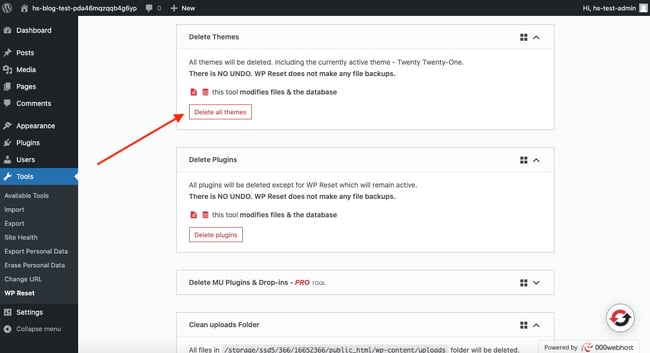
Plugins are a simple way to reset WordPress themes. WP Reset is a popular choice. It helps reset themes quickly. You just need a few clicks. Always back up your site first. Mistakes can happen. Plugins make things easy and fast.
Another method is using the WordPress Customizer. Access it through your dashboard. Look for the reset option. This tool helps you make changes and reset themes. It is a built-in feature. No need for extra software.
For those who like coding, use FTP. Access your theme files directly. Change the files back to default. This is for advanced users. Mistakes here can be hard to fix.
Using A Plugin
Resetting WordPress themes to default is simple with plugins. Quickly restore original settings without technical hassle. Ensure a clean slate for redesign or troubleshooting.
Recommended Plugins
Plugins can help reset WordPress themes. They make the process simple. Some popular plugins include WP Reset and Advanced WordPress Reset. These plugins are easy to use. They work well with most themes. Remember to backup your data. This is important before using any plugin. Backing up helps keep your data safe.
Step-by-step Plugin Guide
First, install a reset plugin. Go to the WordPress dashboard. Click on Plugins. Then, click Add New. Search for your chosen plugin. Click Install and then Activate. Open the plugin settings. Follow the instructions to reset your theme. Always check your site after resetting. Make sure everything works well. This ensures your site is still functional.
Manual Reset Via Dashboard
First, open your WordPress dashboard. You will see many options here. Click on Appearance. Then, select Themes. This lets you manage your site themes. You can change or reset them.
Accessing Theme Settings
Now, locate the theme you use. Click on Customize. This opens the theme settings. You can adjust or reset options here. Find the Reset button. It may be inside a menu. Click it to restore default settings.
Default Theme Activation
Sometimes, resetting isn’t enough. You might need to activate the default theme. Go back to the Themes page. Look for the default WordPress theme. It usually has a simple name. Click Activate to set it as your current theme. Your site will now use the default settings.
Database Reset Approach
The database holds all your website’s data. This includes posts, pages, and settings. Each theme has unique settings stored in the database. Resetting this will erase those custom changes. It will return to default settings. This is like starting fresh. Make sure to backup your data before resetting. Losing data can be bad. A backup keeps it safe.
First, log into your WordPress dashboard. Next, find and install a reset plugin. Popular ones are WP Reset or Advanced WordPress Reset. Activate the plugin from the plugins menu. Go to its settings and choose reset options. Click the reset button to start. This will clear custom theme changes. Your theme will go back to default. Always review settings after resetting.
Post-reset Considerations
Restoring WordPress themes to their default state helps fix design issues and improve website performance. Use built-in settings or plugins for a quick reset. Backup your content to avoid losing important data during the process.
Reinstalling Plugins
After resetting your theme, reinstall important plugins immediately. Plugins help your site work better. Check which plugins you need first. Some plugins may not be needed anymore. Download plugins from the official source. This keeps your site safe from harmful software. Regularly update plugins to ensure good performance.
Restoring Custom Settings
Some settings might be lost after a reset. Restore your custom settings carefully. Use backups to bring back old settings. Check each setting before restoring. Adjust settings to match the new theme. This helps your site look nice and work smoothly. Save time by noting important changes. Keep a list of settings you often change. This speeds up restoring next time.
Common Issues And Fixes
Struggling with WordPress themes resetting? This guide helps restore themes to default settings, solving common issues easily. Follow simple steps to bring back the original appearance and functionality without hassle.
Theme Compatibility Problems
Many themes don’t work with all plugins. This is a compatibility issue. It can make your site look strange. Deactivating plugins often fixes this. Try one plugin at a time. Switch themes to see if the issue persists. Some themes need updates. Always check for theme updates. Keeping themes updated solves many problems. Contact theme support if issues remain.
Troubleshooting Display Errors
Display errors make sites hard to read. Clear cache to solve some errors. This removes old data. Check your theme settings. Wrong settings cause display issues. Reset theme settings to default. Use a backup before resetting. Some errors need custom code fixing. Hire a developer if custom code is needed. Be careful with theme changes. Always test changes.

Credit: www.youtube.com
Frequently Asked Questions
How Do I Reset My WordPress Theme?
To reset your WordPress theme, navigate to “Appearance” in your dashboard. Select “Themes,” then activate the default theme. You may also use plugins like “WP Reset” for a comprehensive reset. Always back up your site before proceeding to avoid data loss.
Can I Reset WordPress Without Losing Data?
Yes, it’s possible to reset WordPress without losing data. Use a reliable backup plugin to save your site data. Plugins like “WP Reset” allow you to selectively reset themes while preserving content. Always ensure a backup before initiating any reset process.
Why Reset WordPress Themes To Default?
Resetting themes to default can resolve design issues and improve performance. It ensures compatibility with new updates and removes unnecessary customizations. A default theme reset can also help troubleshoot plugin conflicts and optimize your site’s speed and functionality.
Is Resetting WordPress Theme Safe?
Resetting a WordPress theme is generally safe if done correctly. Backup your site beforehand to prevent data loss. Use reputable plugins like “WP Reset” for secure theme resets. Follow instructions carefully to avoid complications during the process.
Conclusion
Resetting WordPress themes can seem tricky at first. Yet, with the right steps, it becomes simple. Always back up your data before making changes. This ensures no loss of important files. Follow the steps, and your theme resets to default effortlessly.
Keep your WordPress experience smooth and stress-free. Regular maintenance helps your site run better. Stay patient and practice often. Your skills grow with time and effort. Happy blogging!


