
Are you feeling stuck with that pesky copyright info at the bottom of your WordPress theme? You’re not alone.
Many WordPress users find themselves puzzled by how to remove or change it. While it might seem like a minor detail, that little line of text can sometimes feel like it’s holding your website back from looking truly professional and uniquely yours.
Don’t worry; you’re about to discover how to take full control and make your site reflect your brand effortlessly. Imagine the freedom and satisfaction of having a website that’s 100% aligned with your vision—right down to the footer. Stick around, and you’ll learn simple, effective steps to remove copyright info from your WordPress theme. Let’s dive into this quick and rewarding tweak for your site!
Credit: mekshq.com
Understanding Copyright In WordPress Themes
Copyright info shows who made the theme. It’s like a name tag. You can find it at the bottom of the page. It tells users about the creator. This info is important for credit. It shows respect for the creator’s work. Sometimes, people want to change it. They want their site to look different.
Changing copyright info can be tricky. You must check the theme’s rules. Some themes say you can change it. Others say you can’t. Not following the rules is illegal. You could face problems. It is important to read the terms. Know what you can do and what you can’t.
People remove copyright info for many reasons. They want their site to look clean. Some want their brand to stand out. Others want a more personal touch. For businesses, it looks more professional. It can make the site look unique. But always remember the rules.
Backup Your WordPress Site
Backing up your site is very important. It keeps your data safe. If something goes wrong, you can restore it. This will save you from losing important information. No one likes losing their hard work. Regular backups make sure your website is secure.
Many tools can help with backups. Plugins like UpdraftPlus and BackWPup are popular. They are easy to use. Some tools are free, others need payment. Choose the one that fits your needs. Always pick a tool with good reviews.
- Install a backup plugin.
- Open the plugin settings.
- Pick where to save backups.
- Set a schedule for backups.
- Start the backup process.
- Check if the backup is complete.
Use Customizer For Simple Themes
Begin by logging into your WordPress dashboard. Find the Appearance tab on the left side. Click on it, then select Customize. This opens the theme customizer. The customizer lets you change many parts of your site.
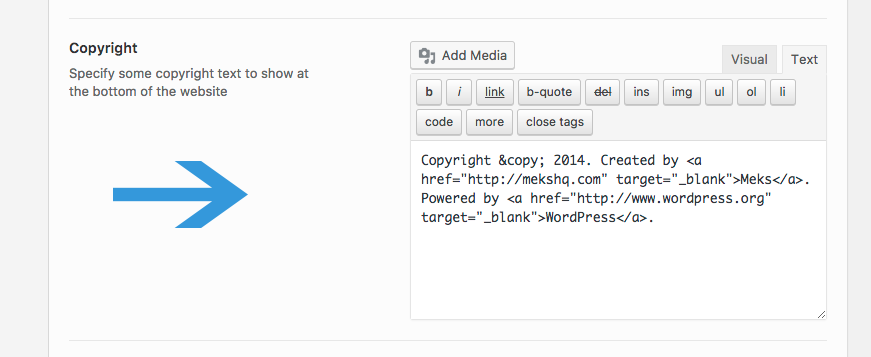
In the customizer, look for Footer Options or Site Info. Click on it. You will see a text box. This box shows the current footer text. Edit the text here to remove or change the copyright info.
After editing, look for a Publish or Save button. Click it to save your changes. Now, check your site. The copyright info should be gone or changed as you wanted.
Credit: mekshq.com
Modify Theme’s Footer File
To remove copyright info from a WordPress theme, edit the theme’s footer file. Access the file via the WordPress dashboard or FTP. Locate the copyright line and delete or customize it to fit your needs.
Locating Footer File
Go to the WordPress dashboard. Click on Appearance. Then, select Theme Editor. Find the footer.php file. It’s usually on the right side. This file contains the copyright information.
Editing Code Safely
Before editing, make a backup of the file. Use a child theme if possible. Open the footer.php file. Look for the copyright line. Change the text as needed. Be careful with the code. Small changes can cause errors.
Testing Changes
Save the changes made in footer.php. Visit your website to check. Make sure the changes appear correctly. Clear the browser cache if needed. If something is wrong, use the backup. Restore the original file to fix errors.
Child Theme Method
A child theme is safe and easy. First, create a folder for your child theme. Use a simple name. Inside, add a style.css file. Write a small note in the file. Mention the parent theme name. Create a functions.php file too. This helps the child theme work with the parent theme.
Find the footer.php in the parent theme. Copy it to your child theme folder. Edit this file. Remove or change the copyright info. Save the changes. Your child theme will now use this new footer. Old info is gone.
Child themes keep changes safe. Parent theme updates won’t affect your edits. This is smart. Child themes are also easy to manage. They help avoid errors. Your site stays clean. It’s less work in the future.

Credit: www.businessbloomer.com
Using Plugins To Remove Copyright
Plugins make tasks easy. Some plugins help remove copyright info. Choose popular plugins. Popular plugins are more reliable. They often have good reviews. Look for plugins with a high number of downloads. This shows trust in the plugin. Some recommended plugins are “Remove Footer Credit”, “WP Footer”, and “Header Footer Code Manager”.
First, go to the WordPress dashboard. Find the “Plugins” section. Click “Add New”. Search for the chosen plugin. Once found, click “Install”. After installation, click “Activate”. Now, the plugin is ready to use. Follow the steps carefully. This ensures a smooth setup process.
Access the plugin settings from the dashboard. Look for a section named after the plugin. Open it to adjust settings. Check the options available. Some plugins need a code snippet. Others require simple checkboxes. Follow instructions provided by the plugin. Save changes once done. Now, check your site. The copyright info should be gone.
Considerations For Theme Updates
Theme updates can change how your site looks. They might add new features or fix old problems. But these updates could remove custom changes. Changes like removing copyright info. So, be careful when updating.
Impact Of Theme Updates
Updates might overwrite your changes. This means your work could be lost. Always check what the update includes. Read the update notes. See if any changes affect your site.
Maintaining Custom Changes
Keep a backup of your theme. This is important. If something goes wrong, you can restore your changes. Use a child theme. This helps keep your changes safe during updates.
Using Version Control
Version control tracks changes in your theme. It helps you see what has changed. You can go back to an old version if needed. Tools like Git are helpful. They save every change you make.
Frequently Asked Questions
How Can I Remove Copyright From WordPress Theme?
To remove copyright info, you need to edit the footer. php file in your theme’s folder. Locate the line containing the copyright text and delete or modify it as needed. Always backup the original file before making changes to prevent errors or loss of data.
Is It Legal To Remove Theme Copyright?
Removing copyright info may violate the theme’s license agreement. Check the theme’s licensing terms to ensure compliance. Some themes allow customization, while others might require you to keep the copyright intact. Always consider legal implications before modifying copyrighted content.
Can I Use A Plugin To Remove Copyright?
Yes, plugins like “Remove Footer Credit” can help remove copyright info without altering theme files. These plugins provide a user-friendly interface to manage footer credits. However, ensure the plugin is compatible with your theme version to avoid conflicts or malfunctions.
What Risks Are Involved In Removing Copyright?
Removing copyright can lead to legal issues or loss of support from theme developers. It might also affect theme updates and functionality. Always review the theme’s licensing agreement and consider potential consequences before proceeding with any modifications.
Conclusion
Removing copyright info from a WordPress theme can be simple. Follow the steps shared in this guide. Customize your site easily and make it truly yours. Remember, always back up your site before making changes. This ensures safety and peace of mind.
If you face issues, seek expert help. It’s okay to ask. Personalizing your website helps it stand out. Your unique touch is important. Hopefully, this blog helps you understand the process better. Enjoy creating a site that reflects your style and vision.
Happy editing!


