
Imagine transforming your WordPress site from ordinary to extraordinary with just a few clicks. You’re not just changing colors and fonts; you’re crafting a unique experience that resonates with your audience.
A custom theme is your secret weapon for standing out and making a lasting impression. But how do you get started? You might feel overwhelmed by the idea of coding or fear making a mistake. Don’t worry; we’ve got you covered.
This guide will walk you through the process step-by-step, making it simple and stress-free. Discover how you can effortlessly put a custom theme on your WordPress site, elevating your brand and captivating your visitors. Ready to unleash your site’s full potential? Let’s dive in!
Choosing The Right Theme
Many themes are free. Some are paid. Free themes are good for beginners. Paid themes have more features. They offer better support. Free themes might have limited options. Paid themes often look more professional. Think about your needs. Choose what fits your budget. Free or paid, both can be good.
Think about what your site needs. Is it a blog? Or a store? Different sites need different themes. Blog themes focus on writing. Store themes help with selling. Choose a theme that helps your site. Make a list of features you need. This will help you pick the right theme.
Make sure the theme works with your tools. Some themes do not fit all plugins. Check compatibility before you install. Look at reviews. See if people like the theme. Test the theme on different devices. A good theme looks nice everywhere. Make sure it fits with your WordPress version.
Credit: blog.templatetoaster.com
Downloading A Custom Theme
Finding Reliable Sources is important for WordPress themes. Use trusted websites. Some sites may harm your computer. Search for popular theme sites. Read user reviews. Users share their experiences. This helps find good themes.
Understanding Theme Formats is key. Themes come in different formats. ZIP files are common. WordPress accepts ZIP files. Check if the theme is compatible. Some themes may not work. Theme details will show compatibility.
Installing A Custom Theme
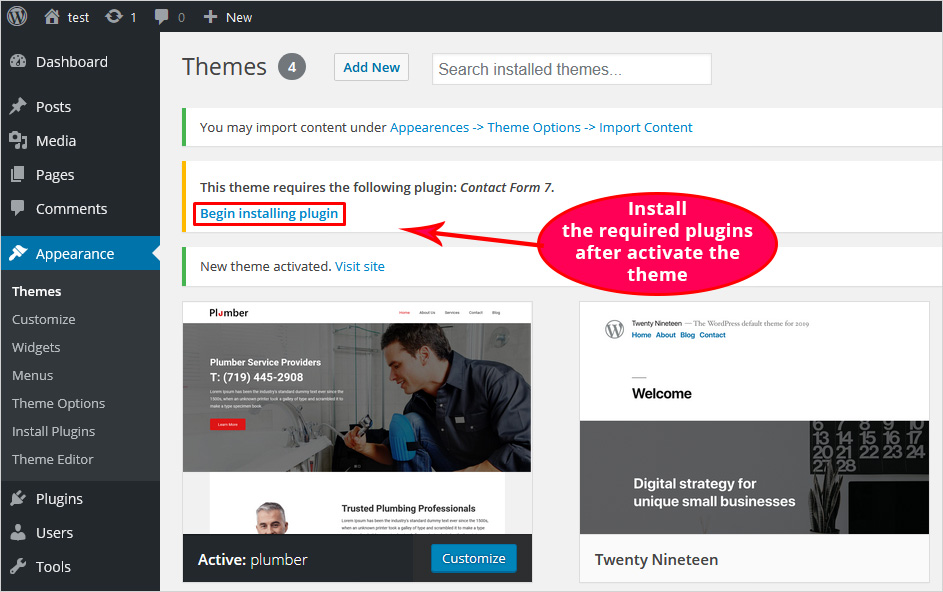
Open your WordPress Dashboard. Click on Appearance, then Themes. Find the Add New button. This lets you upload a theme from your computer. Click on Upload Theme. Select the theme file from your device. It should be a .zip file. Press Install Now. Wait for the process to finish. Activate the theme by clicking Activate. Your new theme is ready to use. Check if everything looks okay.
Use an FTP client like FileZilla. Connect to your site server. Find the wp-content folder. Open the themes folder inside it. Drag your theme folder from your computer into this folder. Do not unzip the files first. Wait for the upload to finish. Go back to your WordPress Dashboard. Click on Appearance, then Themes. Your new theme will appear here. Click Activate to use it. Now your site has the new design.
Activating The Theme
First, log into your WordPress dashboard. Look for the Appearance menu on the left. Click on it. You will see a new menu. This menu has many options.
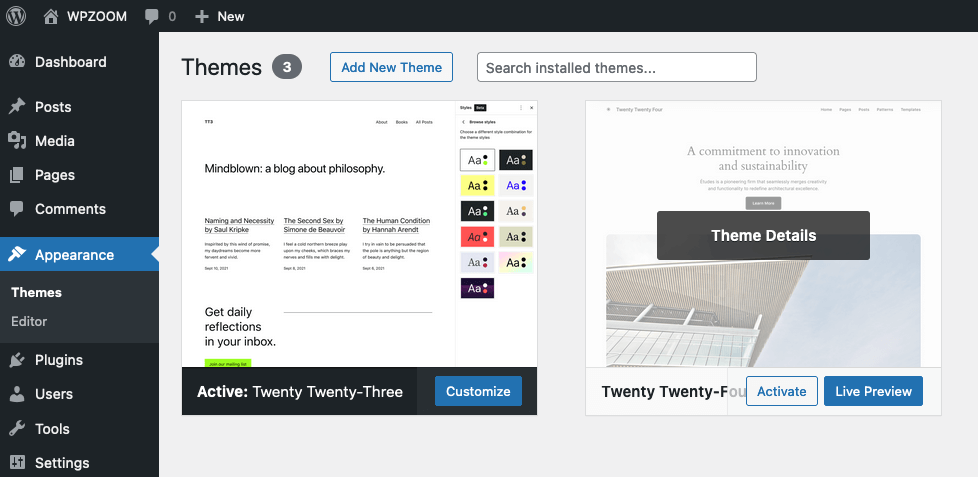
Find the Themes option. Click on it. A new page will open. This page shows all your themes. You can see active and inactive themes here.
To set a theme, hover over it. You will see a button. The button says Activate. Click it to make the theme active.
The new theme is now live. Check your website. See the changes. Make sure it looks good. You can change the theme anytime.
Customizing Theme Settings
Explore customizing theme settings to give your WordPress site a unique look. Easily upload and activate your chosen theme. Adjust colors, fonts, and layouts to match your style. Enhance user experience with personalized design elements. Create a visually appealing website effortlessly.
Utilizing The Theme Customizer
The Theme Customizer is a handy tool. It lets you change your site’s look. You can find it in the Appearance menu. Use it to change colors and fonts. You can also upload a logo. Make sure it fits your brand. Preview changes before saving them. This helps you see how your site looks. It’s easy and fun to use.
Adjusting Layout And Design
You can change the layout and design of your theme. Choose from different templates. There are options for headers and footers. You can move sections around. This helps in making your site unique. Try different designs to see what you like. You can always change it back. Make sure your site is easy to read. A clean design is best.
Adding Custom Widgets
Custom widgets add fun features to your site. They can show your latest posts or social media feeds. Go to the Widgets section in the Appearance menu. Drag and drop widgets to your sidebar. You can also add them to your footer. Each widget has its own settings. Adjust them to fit your needs. Widgets make your site more interactive.
Testing Theme Functionality
All devices should display your theme well. Test it on phones, tablets, and computers. The theme must adjust to different screen sizes. Poor responsiveness can make users leave your site. Use tools to see how your site looks on each device. This ensures a better user experience.
Your theme should work in all browsers. Check it on Chrome, Firefox, Safari, and Edge. Some themes look different in each browser. Test to make sure everything is correct. Users use many different browsers. This helps everyone see your site as you want.
Site speed is very important. Slow sites lose visitors fast. Use tools to measure your site’s speed. Make sure images and scripts don’t slow it down. A fast site keeps users happy. It also helps with search rankings. Always aim for quick loading times.
Troubleshooting Common Issues
Installation errors often occur during theme setup. First, check the theme’s compatibility with your WordPress version. Make sure the theme files are complete before uploading. Sometimes, themes need specific PHP settings. Verify these settings in your hosting panel. If the theme is too large, try uploading it via FTP. This can bypass file size limits.
Display issues can be frustrating. Start by clearing your browser cache. This can resolve many minor glitches. Check your site’s layout on different devices. Ensure your theme is responsive. Use WordPress Customizer to tweak settings. Sometimes, simple changes solve display problems. Review any custom CSS added. Incorrect code can affect your site’s look.
Plugins can clash with themes. Deactivate all plugins first. Reactivate them one by one. This helps identify the problematic plugin. Always update plugins to their latest versions. Outdated plugins often cause issues. Review the plugin’s documentation. Some plugins need special settings with certain themes. If conflicts persist, consider alternative plugins.
Credit: www.wpzoom.com
Backing Up Your Theme
Backup plugins keep your theme safe. They are easy to use. Many plugins are free. They save your theme automatically. Choose a trusted plugin. Read user reviews. Some popular ones are UpdraftPlus and BackWPup. Install the plugin on WordPress. Click on the backup button. Your theme will be safe in minutes. You can restore it anytime. Always update your plugin. This keeps it working well.
Manual backup needs more work. First, log into your website. Go to the file manager. Find the wp-content folder. Inside, locate the themes folder. Copy this folder to your computer. This is your backup. Keep this copy safe. If you lose your theme, use this copy. Upload it back to the file manager. Your theme will be restored. Manual backup takes time. But it’s a good skill to learn.

Credit: www.linkedin.com
Frequently Asked Questions
How Do I Upload A Custom Theme To WordPress?
To upload a custom theme, navigate to your WordPress dashboard. Go to “Appearance” and then “Themes. ” Click on “Add New” and then “Upload Theme. ” Choose your theme file, usually in. zip format, and click “Install Now. ” Finally, activate the theme to apply it to your site.
Can I Customize A WordPress Theme Without Coding?
Yes, you can customize a WordPress theme without coding. Use the WordPress Customizer under “Appearance” in your dashboard. It offers options to change colors, fonts, and more. Many themes also come with built-in settings for easy customization without any coding knowledge.
What Is The Best Site To Find WordPress Themes?
The best site to find WordPress themes is the WordPress. org theme directory. It offers thousands of free themes. For premium themes, sites like ThemeForest, Elegant Themes, and StudioPress are popular choices. These platforms provide a wide range of themes with varying features and designs.
How Can I Preview A WordPress Theme Before Activating It?
You can preview a WordPress theme by using the “Live Preview” option. Go to “Appearance” and “Themes” in your dashboard. Hover over the theme you want to preview and click on “Live Preview. ” This allows you to see how the theme looks without activating it.
Conclusion
Creating a custom theme on WordPress is simple. Follow each step carefully. This enhances your site’s look and functionality. Your website gains a personal touch. It stands out from the rest. Updating themes keeps your site fresh. This attracts more visitors.
Always back up your website first. This prevents data loss. Explore WordPress’s vast resources. They offer plenty of customization options. Don’t hesitate to experiment. Find what best suits your brand. Enjoy the process of designing. Your unique theme will reflect your style.
Happy customizing!


