
Are you ready to give your WordPress site a fresh, eye-catching look? The Fox Theme might be just what you need to stand out in the crowded online world.
With its sleek design and user-friendly features, this theme can transform your site into a vibrant digital space that captures your audience’s attention. But how do you go about installing it without getting lost in technical jargon? You’re in the right place.
In this guide, we’ll walk you through each step of the installation process, making it simple and stress-free. By the end of this article, you’ll have your Fox Theme up and running, ready to impress your visitors and elevate your brand. Ready to dive in? Let’s get started!
Prerequisites
WordPress Installation is a must before adding any theme. You need to have a basic setup. Ensure your WordPress is working fine. Check if you can open your website. This means your WordPress is installed correctly.
Next, you need access to the Admin Dashboard. This is where you manage your site. Log in using your username and password. Once logged in, you will see the dashboard. Here, you can add new themes. It’s easy to find the theme section. Look for ‘Appearance’ and click on ‘Themes’. That’s where new themes can be installed.

Credit: www.facebook.com
Downloading The Fox Theme
Visit the official website of the Fox theme. Find the download button. Click on it to get the theme. Save the file on your computer. Remember the location where you save it. You will need it later.
Sometimes, themes are on other websites. Use a trusted source to download. Search for “Fox Theme WordPress”. Pick a site you trust. Download the theme from there. Ensure the file is the latest version. Check the file size and name. They should match the official one.
Uploading The Theme
Log into your WordPress dashboard. Go to the Appearance section. Click on Themes. Find the Add New button and click it. Choose Upload Theme at the top. Select your theme file from your computer. Hit Install Now. After installation, click Activate. Your theme is ready.
First, access your FTP client. Connect to your server. Locate the wp-content/themes folder. Upload your theme folder here. Open your WordPress dashboard. Go to Appearance and find Themes. Activate your theme from this list. Now, it’s live.
Activating The Theme
First, go to your WordPress dashboard. Look for the Appearance tab. Click on it. Then, select Themes. You will see a list of themes. Find the Fox Theme in the list. If you don’t see it, use the search bar. Click on the Activate button. Your theme is now active.
Visit your website after activation. Look at the layout and design. Everything should look neat. Click on different pages. They should open smoothly. Check the menu and links. Make sure they work properly. If something looks odd, go back to the dashboard. Adjust settings under the Customize tab. This helps fix small issues.
Customizing The Fox Theme
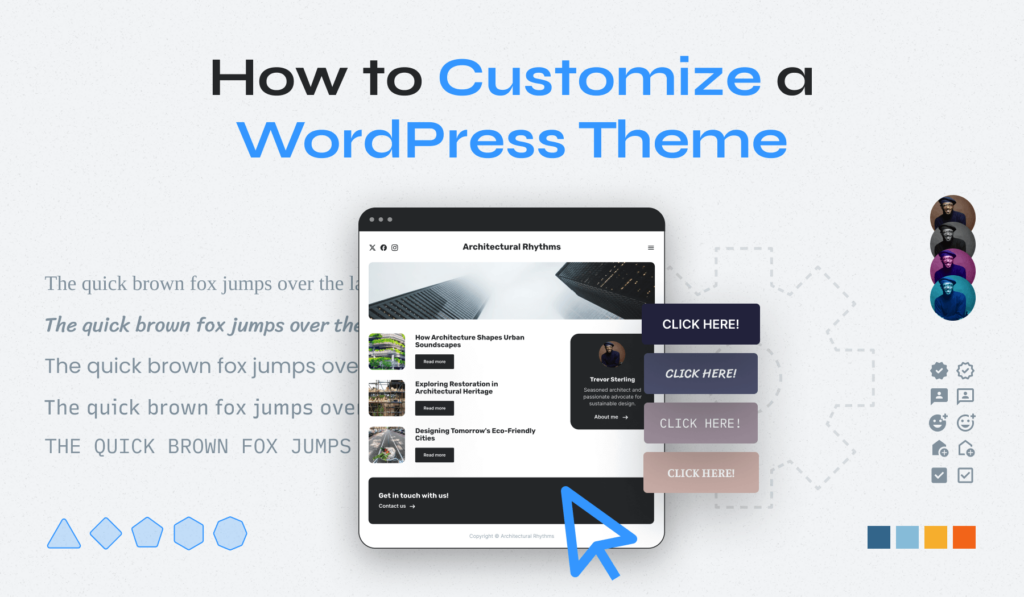
The Theme Options Panel is easy to use. It helps you change settings quickly. You can adjust colors, fonts, and layouts. The panel makes your website unique. Explore the options for a better look. Want a new style? The panel is your friend. It offers many choices. It’s perfect for beginners.
Custom Widgets add special features to your site. They are simple to set up. You can add social media links, recent posts, and more. Widgets help keep your site tidy. They make your content easy to find. Use them for better navigation. They are flexible and useful. Perfect for all WordPress users.
Troubleshooting Common Issues
Installing the Fox Theme in WordPress can present some common issues. Users may encounter challenges with theme activation or plugin compatibility. Ensuring updated WordPress and plugins often resolves these problems quickly.
Installation Errors
Installation can fail. Make sure the theme file is not corrupted. Always download it from the official site. Check your WordPress version. It must be compatible with the theme. Sometimes plugins can cause trouble. Deactivate them and try installing the theme again.
Compatibility Problems
Not all themes work with every plugin. Some plugins might cause issues. Test your site after installing the theme. If something breaks, the theme might be the issue. Ensure your hosting server meets the theme requirements. Contact support if problems persist.
Additional Resources
Explore detailed guides and tutorials to help install the Fox Theme on WordPress. Find step-by-step instructions, video tutorials, and troubleshooting tips for a seamless setup. Access community forums and expert advice to enhance your WordPress experience.
Support Forums
Support forums offer help for theme-related issues. You can ask questions and find answers from experts and users. These forums are free to join. Many users share their experiences and solutions. It’s a great place to learn new tips. Find solutions to common problems quickly.
Tutorials And Guides
Many tutorials teach how to use Fox Theme effectively. Step-by-step guides make learning easy. Videos show how to customize settings. Written guides explain features clearly. Guides help with installation and setup. You can follow along at your own pace. Many resources are available online. They are free to access anytime.
Credit: www.wpzoom.com

Credit: www.oceantheme.org
Frequently Asked Questions
What Is The Fox Theme In WordPress?
The Fox Theme is a popular WordPress theme known for its versatility and ease of customization. It offers a range of features suitable for blogs, magazines, and e-commerce sites. Users appreciate its responsive design, which ensures an optimal viewing experience on various devices, enhancing user engagement and satisfaction.
How Do I Install The Fox Theme?
To install the Fox Theme, log in to your WordPress dashboard. Navigate to “Appearance” and click “Themes. ” Select “Add New” and search for “Fox Theme. ” Click “Install” and then “Activate” to apply the theme. Ensure your WordPress is updated for compatibility with the latest theme features.
Can I Customize The Fox Theme Easily?
Yes, the Fox Theme offers extensive customization options. Use the WordPress Customizer to change colors, fonts, and layout settings. It provides various pre-built templates and widgets to personalize your site. This flexibility allows users to tailor their website design to meet specific branding and functional needs efficiently.
Does The Fox Theme Support Plugins?
The Fox Theme supports a wide range of WordPress plugins. It is compatible with popular plugins like WooCommerce, Elementor, and Yoast SEO. This compatibility ensures you can enhance your website’s functionality, improve SEO, and provide a seamless user experience without technical difficulties.
Conclusion
Installing the Fox Theme in WordPress is quite simple. First, download the theme from a trusted source. Then, log into your WordPress dashboard. Navigate to “Appearance” and select “Themes. ” Click “Add New” and choose “Upload Theme. ” Select your file and hit “Install Now.
” Once installed, activate the theme. Customize it to fit your needs. Explore its features and adjust settings. The Fox Theme enhances your site’s look. Make sure to check compatibility with plugins. Regular updates keep it running smoothly. Enjoy your new design.
Your website now looks more appealing.


