
Are you ready to transform your WordPress site into a masterpiece of creativity and elegance? The Lyrical theme is your canvas, and understanding how to craft pages within it can elevate your website to new heights.
Imagine a space where your content flows seamlessly, capturing your audience’s attention with its beauty and clarity. This is not just about making pages; it’s about creating an experience for your visitors. Whether you’re a seasoned WordPress user or a beginner, this guide will simplify the process and unleash your site’s potential.
Dive in, and let’s explore how you can make your website truly sing with the Lyrical theme.

Credit: travelblogging101.com
Installation Of Lyrical Theme
First, go to the WordPress dashboard. Click on Appearance, then Themes. Select Add New to find the Lyrical theme. You can search for it in the search bar. Click on Install to download it to your site. After downloading, click Upload Theme if you have a zip file. Choose the file and click Install Now. Wait for the installation to complete.
After installation, find the theme in your themes list. Click Activate to use it. The theme will now be live on your site. You can start customizing it. The Lyrical theme is ready for your content.
Customizing Theme Settings
Colors make your page look nice. Choose colors that fit your theme. Use the color picker tool. It’s easy and fun. Fonts are important too. Pick a font that is easy to read. Change the size if needed. Make sure it looks good on all devices. This way, everyone can enjoy reading. Bold important words. This helps them stand out. Play around with different styles. You can always change them later.
Headers are at the top of the page. Footers are at the bottom. They help organize your site. Add your logo in the header. It makes your brand visible. Put contact information in the footer. People need to find you easily. Add links to social media. Keep it simple and neat. Use widgets if you like. They offer extra features. Remember, headers and footers should be clear and clean.
Creating Pages
To add a new page, go to your dashboard. Find the Pages option and click on Add New. A blank page will open. Enter a title at the top. Write your content in the big box below. You can add images and links too. On the right, find the Publish button. Click it to make your page live.
Templates help your page look good. Find the Page Attributes box on the right. Click the Template dropdown menu. Choose a template you like. Each template is different. Some have sidebars, others don’t. Try different ones to see what fits. Save your choice by clicking Publish.

Credit: www.bluchic.com
Designing Page Layouts
With the Lyrical theme, creating beautiful pages is simple. Use blocks and widgets to design your page. Drag and drop blocks to add text, images, or videos. Each block has its own settings. Adjust them to fit your needs. Widgets add extra features like calendars or contact forms. Try different combinations. See what looks best.
Well-organized content makes a page easy to read. Use headings to separate topics. This helps visitors find information fast. Keep paragraphs short. Use bullet points to list items. This breaks down information into easy bites. Remember, less is more. Too much text can be confusing. Balance text with images for a pleasant look.
Incorporating Media
Use the WordPress editor to add images. Click the “Add Media” button. Choose an image from your library. You can also upload a new one. Adjust the size and position. Videos can be added similarly. Copy the video URL. Paste it in the editor. The video will appear on the page. Remember, media makes your page more engaging.
Audio adds depth to your page. Go to the editor and click “Add Media”. Choose a file from your library. Or upload a new audio file. Position it on the page. You can also use a URL. Paste it in the “Embed” section. Audio files should be clear. This helps users enjoy their visit.
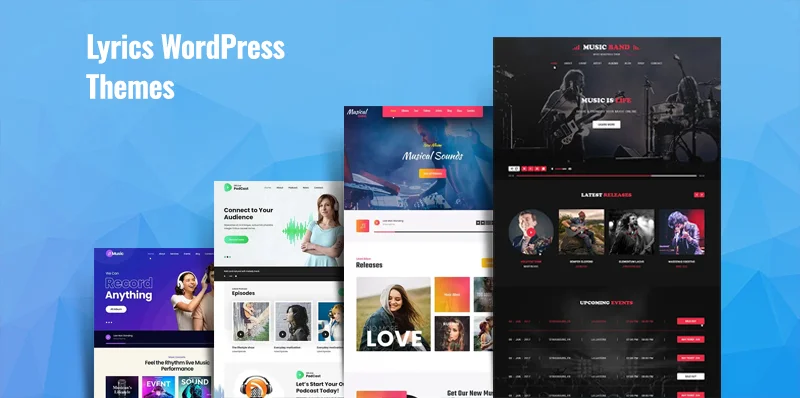
Credit: www.sktthemes.org
Optimizing For Seo
SEO plugins make your website better. They help with keywords. Keywords are words people search. You can use plugins like Yoast or All in One SEO. They are easy to use. These plugins show you what to fix. They give tips on improving your content. It’s simple to make your site good for search engines. Good SEO brings more visitors.
Page speed is very important. Fast pages keep visitors happy. Use plugins to speed up your site. Plugins like WP Super Cache or W3 Total Cache help. They make your site load quicker. You can also optimize images. Smaller images load faster. A fast site is good for SEO. More people will stay on your site.
Testing And Previewing Pages
Web pages should work well on all devices. Responsiveness means pages look good on phones, tablets, and computers. Test your pages on different screens. Make sure buttons and menus are easy to use. Images should fit the screen size. Text should be readable. If something looks wrong, fix it. Use tools to check how pages look. Always try different devices. This helps find problems early. A good page is easy to use everywhere.
Content should be clear and simple. Check for spelling mistakes. Make sure sentences are easy to understand. Words should be simple. Use short sentences. Keep paragraphs small. Bold important words. This helps readers find key points quickly. Pictures should match the text. Videos should be clear. Content should make sense. Always read your page out loud. This helps find mistakes. Readers should enjoy reading your page.
Publishing Pages
Pages in the Lyrical Theme can be published in a few clicks. First, open the WordPress dashboard. Click on “Pages” and select “Add New.” After writing your content, find the “Publish” button. Press it to make your page live.
Setting Visibility Options
Visibility options are easy to find. Before publishing, look for the “Visibility” section. Choose between Public, Private, or Password Protected. Public means everyone can see the page. Private is for you and site admins. Password Protected requires a key to view.
Scheduling Publication
Scheduling is simple. Instead of publishing right away, select the “Publish Immediately” button. A calendar will appear. Pick a date and time for your page to go live. This helps in planning your content release. Make sure the timezone is correct.
Frequently Asked Questions
How To Create A New Page In Lyrical Theme?
To create a new page, log into your WordPress dashboard. Navigate to ‘Pages’ and click ‘Add New’. Choose the ‘Lyrical’ template from the page attributes section. Add your content, customize settings, and publish. This process makes adding new pages simple and efficient in the Lyrical theme.
Can I Customize Page Layouts In Lyrical Theme?
Yes, you can customize layouts in the Lyrical Theme. Use the WordPress Customizer to adjust layout settings. Navigate to ‘Appearance’ and then ‘Customize’. Here, you can modify headers, footers, and sidebars. This flexibility allows you to create a unique look for your site.
How Do I Add A Menu To Lyrical Theme Pages?
Adding a menu is straightforward. Go to ‘Appearance’ and select ‘Menus’. Click ‘Create a New Menu’. Add your desired pages and organize them. Assign the menu to a theme location, such as the header. Save changes to see your menu on Lyrical Theme pages.
Does Lyrical Theme Support Responsive Design?
Yes, Lyrical Theme is fully responsive. It adjusts seamlessly across various devices and screen sizes. This ensures that your pages look great on desktops, tablets, and smartphones. Responsive design enhances user experience and improves your site’s SEO performance.
Conclusion
Creating pages with the Lyrical Theme in WordPress is simple. Follow the steps to design engaging content. Start with a clear plan for your pages. Choose colors and fonts that fit your brand. Add images that enhance your message. Remember to optimize for mobile devices.
Keep your layout clean and easy to navigate. Regularly update your pages to keep them fresh. Use plugins to add extra features. With these tips, your WordPress site will stand out. Enjoy crafting beautiful pages that captivate your audience. Happy building!


