
Are you struggling to make your WordPress theme support plugins effectively? You’re not alone.
Many WordPress users find themselves in a bind when their chosen theme doesn’t quite mesh with the plugins they want to use. This can be frustrating, especially when plugins are essential for enhancing your website’s functionality and user experience. But don’t worry, there’s a solution at your fingertips.
In this guide, you’ll discover simple, actionable steps to ensure your theme and plugins work in perfect harmony. By the end of this article, you’ll be equipped with the knowledge to customize your theme to support any plugin, unlocking your site’s full potential. Ready to transform your website into a seamless powerhouse? Let’s dive in!
Understanding Theme Compatibility
Ensure your theme supports WordPress plugins by checking compatibility. Update the theme regularly. Test plugins in a staging environment. Make necessary adjustments to the code if needed. Consult documentation or forums for specific guidance. This helps in smooth integration, enhancing website functionality.
Identifying Plugin Requirements
Plugins need certain things to work. First, check what plugins need. This includes checking plugin files. Look at the plugin’s readme.txt file. It often lists requirements. Also, visit the plugin’s website. There, you can find more details. Knowing these helps you plan better.
Assessing Theme Limitations
Themes might not support all plugins. Check if your theme has limits. Look for conflicts in the code. Also, see if the theme supports shortcodes and widgets. Test how it handles different layouts. Sometimes, themes slow down with many plugins. This affects site speed. So, be careful with plugin numbers. Check theme updates too. They might fix issues or add features. Understanding these helps in making right choices.

Credit: wordpress.com
Preparing The Theme
A child theme helps you keep changes safe. It’s very important. It uses the parent theme’s files. You can add your own files. This way, updates won’t break your work. First, create a new folder. Name it with the theme name and “-child”. Inside, make a style.css file. Write details like theme name and template. Then, make a functions.php file. Add code to link parent theme styles. Now, activate your child theme. Go to WordPress admin. Select your new child theme. It’s ready to use!
Backing up files is essential. Keep your work safe. Copy theme files to your computer. Use FTP or file manager. Save them in a folder. Name it “theme backup”. Do this before making changes. This keeps your site working. If something goes wrong, you can use these files. Regular backups are smart. Protect your hard work.
Integrating Plugin Features
WordPress uses hooks and filters to interact with plugins. These tools help themes and plugins talk. Hooks let you add code without changing the main files. Filters change data before it shows on your site.
There are two types of hooks: action hooks and filter hooks. Action hooks let you add your own functions. Filter hooks let you change the data. Use them wisely for smooth plugin integration.
Adding custom code makes your theme more flexible. It allows you to add special features. Always use a child theme. This keeps your changes safe when the theme updates.
You can add code in the functions.php file. This file is where you put your custom functions. Test your code first. This ensures it works well with your theme and plugins.
Testing Plugin Support
Running Compatibility Checks is crucial for your theme. Start by checking plugin documentation. Many plugins offer guidance for compatibility. Look for any specific requirements. Sometimes, plugins need special settings. Make sure to follow these instructions. Install the plugin on a test site first. This helps avoid real site problems. Check the plugin’s features. Ensure they work as expected. Test each function separately. This ensures thorough compatibility checks. Don’t forget to check for error messages. They can show plugin conflicts.
Troubleshooting Common Issues is often necessary. Start by identifying the issue. Is it a display problem? Or is a feature not working? Then, look for error logs. They can give important clues. Sometimes, plugins conflict with each other. Disable other plugins one by one. This helps find the conflicting plugin. Update your theme and plugins regularly. Many issues are fixed with updates. Contact the plugin support team if needed. They can offer expert advice.
Optimizing Performance
Boost your WordPress theme’s functionality by ensuring it supports plugins effectively. Check theme documentation for plugin compatibility options. Adjust theme files or use child themes to integrate necessary plugin support.
Minimizing Resource Usage
Themes should use fewer resources for better speed. Big files can slow sites. Use smaller images and simple designs. Avoid too many animations. They can make sites lag. Less code means faster loading. Cut down on extra plugins. Each plugin uses some resources. Choose only needed plugins. This helps in saving memory.
Improving Load Times
Fast load times make users happy. Optimize images so they load quick. Use tools to compress files. They become smaller and load faster. Caching helps save data for quick access. Choose themes that support caching. This cuts down wait time. Test your site with speed tools. They show what needs fixing. Regular updates can keep themes fast.
Ensuring Security
Regular Updates and Maintenance keep your WordPress site safe. Plugins and themes often have updates. These updates fix bugs and security issues. Check for updates often. Set a schedule for updates. This makes sure your site runs smoothly. Outdated plugins are risky. They can let hackers in. Always update them to the latest version.
Implementing Security Best Practices is important. Use strong passwords for your site. A mix of letters, numbers, and symbols works best. Change passwords regularly. Limit login attempts to stop hackers. Use security plugins to add extra protection. They can block bad traffic and scan for malware. Keep your site and data safe by following these steps.
Enhancing User Experience
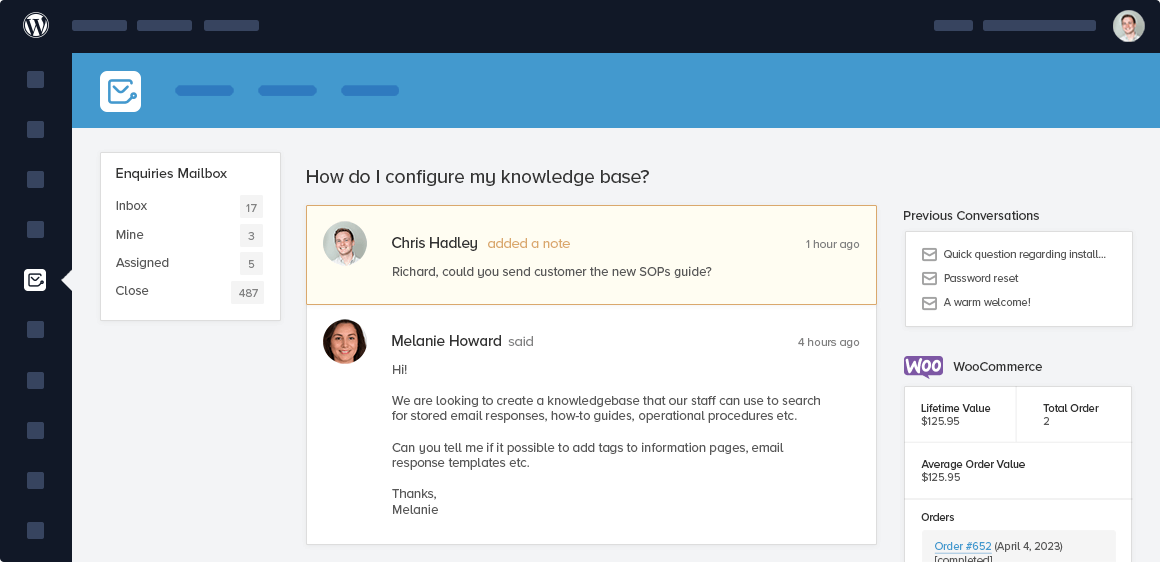
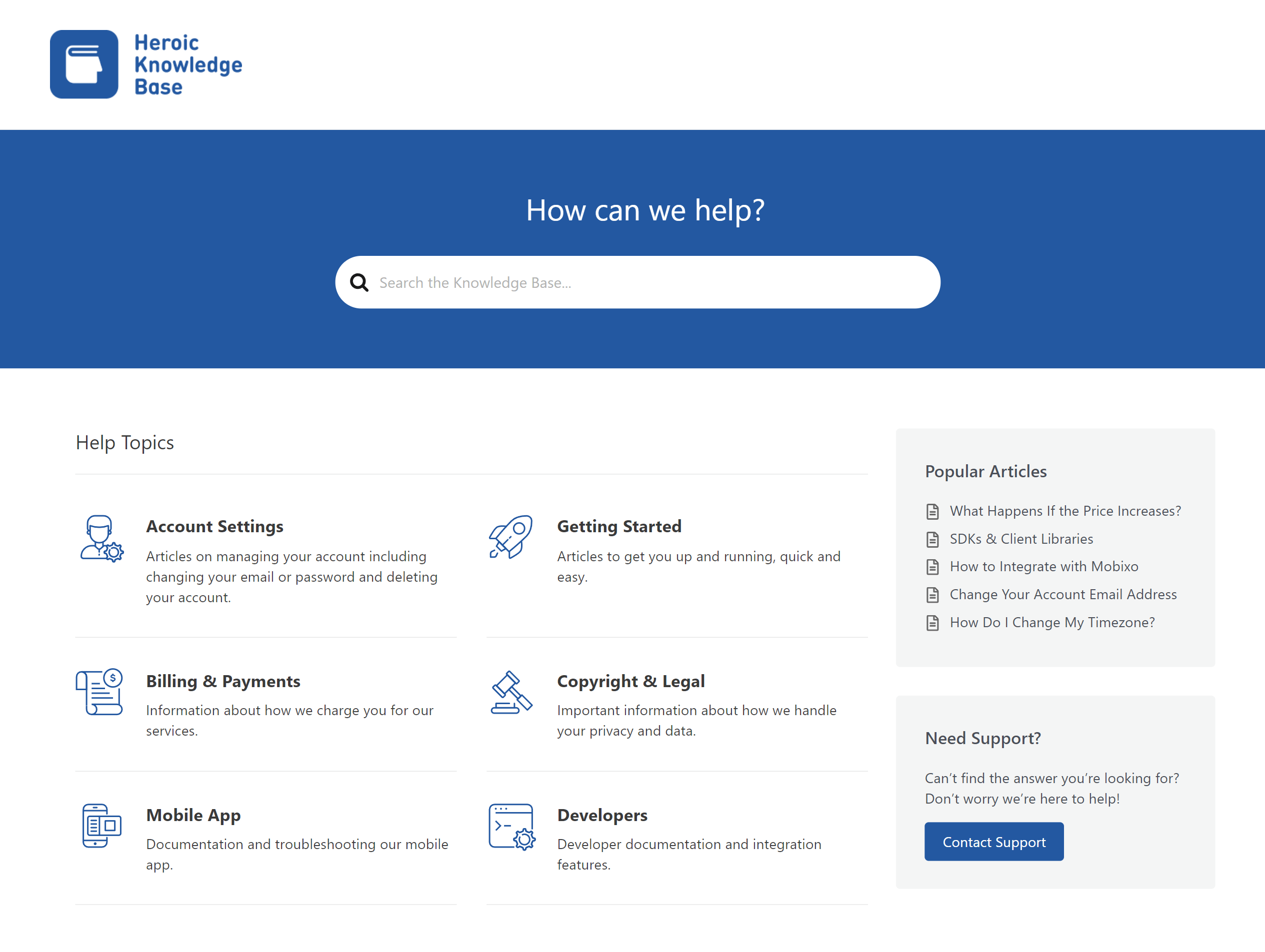
A good theme supports plugins well. These plugins help to customize the user interface. Users enjoy a smooth experience. Colors and fonts are easy to change. It’s important to keep the design clean. Simple designs make users happy. They find what they need quickly. This helps them stay longer on your site.
Easy navigation is key for users. Clear menus guide them. Plugins add useful tools. They help create simple paths. Users reach their goals fast. Avoid too many steps. Fewer steps mean less confusion. More visitors will like your site. They may return again and again.
Credit: herothemes.com
Credit: herothemes.com
Frequently Asked Questions
How Do I Make My Theme Compatible With Plugins?
To make your theme compatible, ensure it follows WordPress coding standards. Use hooks and filters to allow plugin integration. Avoid hardcoding plugin functionality into your theme. Test the theme with popular plugins to ensure compatibility. Regular updates and documentation also help maintain compatibility over time.
Can Any Theme Support WordPress Plugins?
Most themes can support plugins, but compatibility varies. Themes built with WordPress best practices are more likely to support plugins effectively. Check theme documentation for compatibility notes. Custom-built themes may require adjustments to work with certain plugins. Always test plugins on a staging site first.
Why Do Plugins Not Work With My Theme?
Plugins may not work if your theme lacks necessary hooks or filters. Conflicts can also arise from outdated theme code. Ensure your theme follows WordPress coding standards. Update both theme and plugins regularly. Check error logs for specific issues and consult documentation for troubleshooting tips.
How Do I Troubleshoot Plugin-theme Conflicts?
Start by deactivating all plugins and reactivating them one-by-one to identify conflicts. Ensure both theme and plugins are updated. Check error logs for specific issues. Consult theme and plugin documentation for compatibility notes. Consider seeking help from WordPress forums or professional developers if needed.
Conclusion
Making your WordPress theme support plugins enhances your site’s flexibility. It allows easier customization and improves functionality. With simple adjustments, you can integrate various plugins seamlessly. This boosts user experience and site efficiency. Remember to test plugin compatibility regularly. Keep your theme updated for optimal performance.
Utilize community forums for guidance and support. Ensure your theme remains lightweight and efficient. A well-supported theme attracts more visitors and increases engagement. Embrace the power of plugins to enrich your WordPress journey. Enjoy a smoother, more versatile website experience.
Keep exploring and learning.


