
Are you frustrated with your WordPress sidebar taking up too much space or feeling cramped in your beautifully designed theme? You’re not alone.
Many WordPress users struggle with getting the sidebar width just right, and it can be a real headache. But don’t worry—fixing sidebar width in your WordPress theme is easier than you think. Imagine having a perfectly balanced layout that enhances your site’s aesthetic and improves user experience.
In this guide, you’ll discover simple, step-by-step solutions to adjust your sidebar to the perfect width. Whether you’re a beginner or a seasoned WordPress user, you’ll find this guide helpful, engaging, and easy to follow. Ready to transform your website’s look and feel? Let’s dive in!
Identifying Sidebar Width Issues
Themes can affect sidebar size. Some themes may not fit well with all screens. This can cause sidebar width issues. Plugin conflicts can also change sidebar width. Sometimes, plugins add extra content to the sidebar.
User settings can change sidebar width too. Incorrect settings may cause the sidebar to look strange. Always check theme settings for sidebar options.
Text can get cut off. Sidebar might look too wide or too thin. This can make reading hard. Users may find it hard to click buttons.
Content can overlap. Sidebar may block main content. This can confuse readers. Always ensure your sidebar fits the screen.
Adjusting Sidebar Width Via Theme Settings
First, log in to your WordPress dashboard. Find the Appearance tab on the left. Click it, then select Customize. The Theme Customizer will open. Here, you can change many things about your site.
Look for the Layout or Sidebar section. Click on it to see sidebar settings. Find the width option. You can change the width using a slider or entering a number. Make sure your sidebar is not too wide or too narrow. Click Publish to save changes.
Using Custom Css For Sidebar Adjustments
Adjusting sidebar width in a WordPress theme can enhance your site’s layout. By using custom CSS, you can easily control sidebar dimensions. This simple tweak offers a tailored appearance, improving user experience.
Locating The Custom Css Editor
To change the sidebar width, open your WordPress dashboard. Go to Appearance and click on Customize. Find the Additional CSS section. This is where you add your custom CSS code. It’s safe and won’t change your theme files. Ensure you save your changes after adding the code.
Writing Css Code For Sidebar Width
In the CSS editor, type the code to adjust width. Use this example:
.sidebar {
  width: 300px;
}
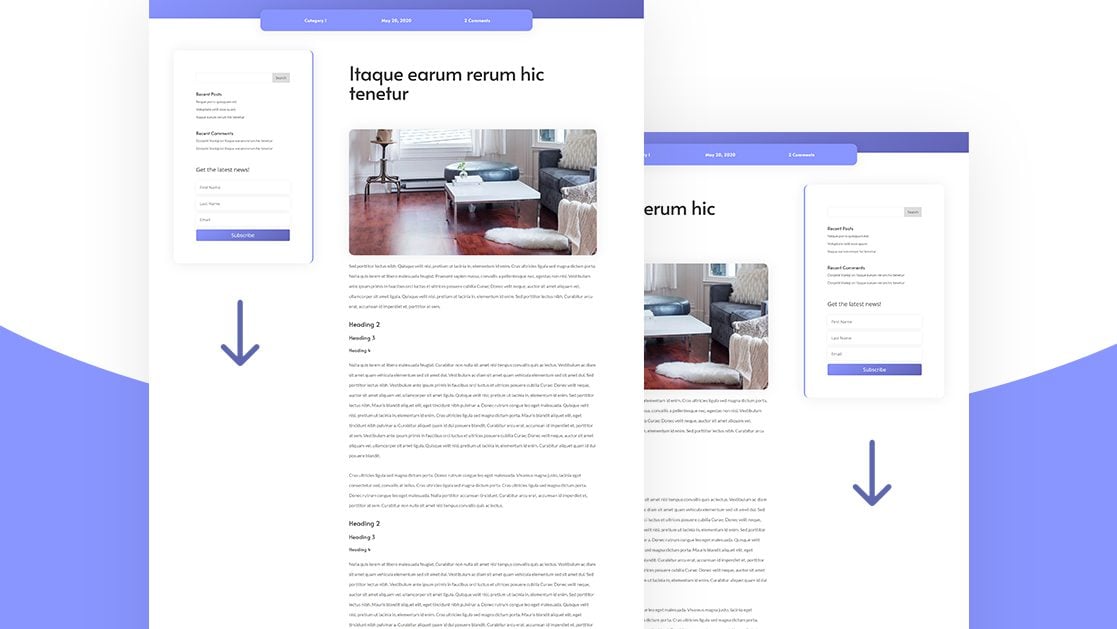
Change 300px to your desired width. Make sure to preview before saving. Check if the width looks good on your site. Adjust as needed until satisfied. Remember, small changes can make a big impact. Always keep your site responsive.
Credit: www.elegantthemes.com
Editing Theme Files For Sidebar Width
First, go to your WordPress dashboard. Find the Appearance tab. Click on Theme Editor. This opens the theme files. Be careful here. You don’t want to break your site. Make sure to create a backup. Always a safe step.
Look for the sidebar.php file. Edit the file with care. Change the width settings. Often found in style.css. Look for width properties. Change as needed. Adjust values to fit your design. Save changes when done. Refresh your site to check. See if the sidebar looks right. Sometimes changes need tweaks. Check again if needed. Ensure the sidebar is balanced.
Utilizing Plugins For Sidebar Control
Some plugins help control the sidebar. Custom Sidebars is one option. It lets you create unique sidebars. Content Aware Sidebars is another. It allows different sidebars for different pages. Widget Options offers extra features. You can hide widgets on certain pages.
Go to your dashboard. Click on Plugins. Then choose Add New. Type the plugin name in the search bar. Click Install Now. After that, click Activate. Go to the plugin settings. Adjust the settings as needed. Save changes before you exit.
Testing And Troubleshooting Changes
Check the sidebar width after changes. Open your website. Look at the sidebar. Does it look right? Make sure it fits well. It should not be too wide. It should not be too narrow. Compare with the main content area. Both should look balanced.
Sometimes, the sidebar may not change. This can be frustrating. Clear your browser cache. Refresh the page. If the problem persists, check the theme settings. Ensure you saved the changes. Another issue is sidebar overlap. It can cover the main content. Adjust the sidebar width. Make sure it fits within the layout. Use custom CSS if needed. These steps can help fix sidebar issues.
Best Practices For Sidebar Customization
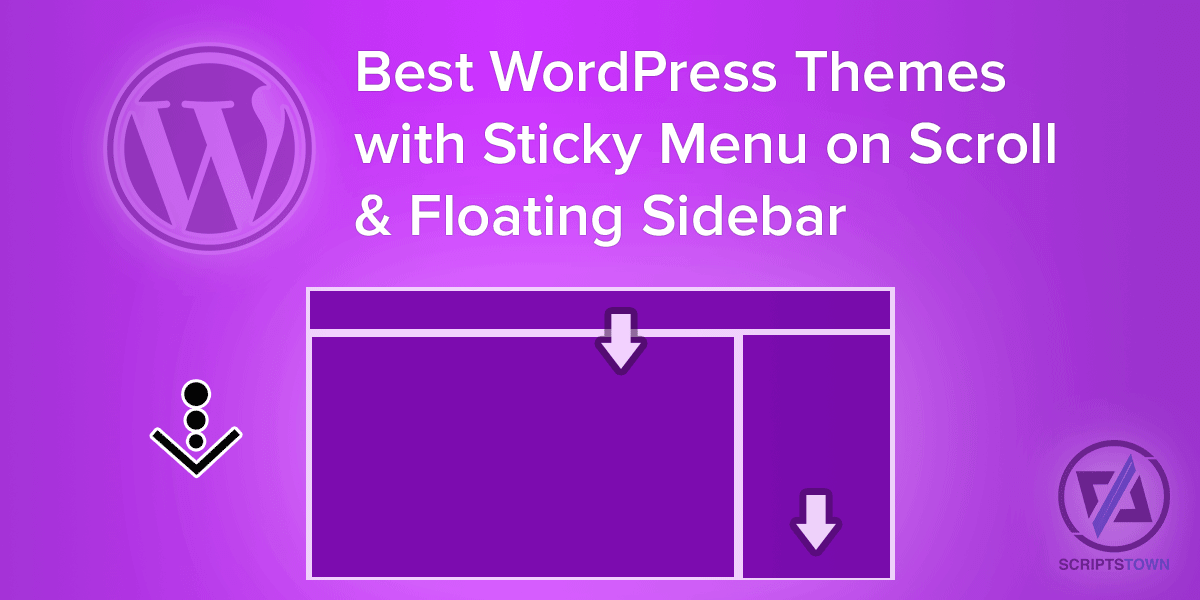
Responsive design makes your sidebar fit on all devices. Use percentages for width. This keeps it flexible. Avoid fixed widths. Fixed widths may break design on small screens. Test on different devices. See how it looks on phones and tablets. Adjust as needed. Check your theme settings. Some themes offer responsive options. Enable them for better results.
Consistency means your sidebar matches the theme style. Use colors from your theme. Pick fonts that match your site. This keeps everything looking neat. Align text and images properly. Messy alignment looks bad. Follow theme layout guidelines. These help your sidebar fit well. Consistent sidebars make your site look professional.

Credit: www.greengeeks.com
Credit: scriptstown.com
Frequently Asked Questions
How Do I Adjust Sidebar Width In WordPress?
To adjust sidebar width, go to Appearance > Customize in your WordPress dashboard. Navigate to the Additional CSS section. Add custom CSS code to modify the sidebar width. Ensure you check the theme documentation for specific instructions, as different themes may require unique CSS adjustments for optimal results.
Why Is My WordPress Sidebar Not Resizing?
Your sidebar may not resize due to conflicting CSS or theme settings. Check for any custom CSS overrides. Verify theme options for sidebar settings. Clear your cache and refresh the page to see changes. If issues persist, consult your theme’s support or documentation for guidance.
Can I Use A Plugin To Change Sidebar Width?
Yes, plugins like Elementor or SiteOrigin offer easy sidebar customization. These plugins provide drag-and-drop interfaces to adjust sidebar width without coding. Ensure your chosen plugin is compatible with your theme. Always back up your site before making significant changes to avoid data loss.
What Is The Ideal Sidebar Width?
The ideal sidebar width depends on your theme and content. Generally, a width between 250-350 pixels works well. This range ensures a balanced layout and readability. Consider your site’s design aesthetics and user experience when choosing the appropriate sidebar width.
Conclusion
Fixing the sidebar width is essential for a neat design. It improves the user experience and enhances your site’s look. Adjusting settings is simple and effective. Choose a method that suits your skills and theme. Quick CSS tweaks work wonders.
Plugins offer more options if you’re less tech-savvy. Test changes to ensure compatibility across devices. A well-sized sidebar helps with content visibility. It keeps visitors engaged and on-site longer. Regular updates and checks ensure everything runs smoothly. Follow these steps for a tidy, professional appearance.
Happy customizing!


