
Are you ready to give your WordPress site a fresh new look? You don’t need to be a tech wizard to make it happen.
With just a few clicks, you can download and install a stunning theme right from your WordPress dashboard. It’s as simple as choosing a design that reflects your brand and personality. Imagine the excitement of seeing your website transform into a visually appealing and user-friendly platform that captivates your audience.
This guide will walk you through every step, ensuring you feel confident and empowered to make your website shine. Whether you’re a beginner or just looking for a refresher, stick around. You’ll be amazed at how easy it is to elevate your site’s appearance in no time.
Accessing The Dashboard
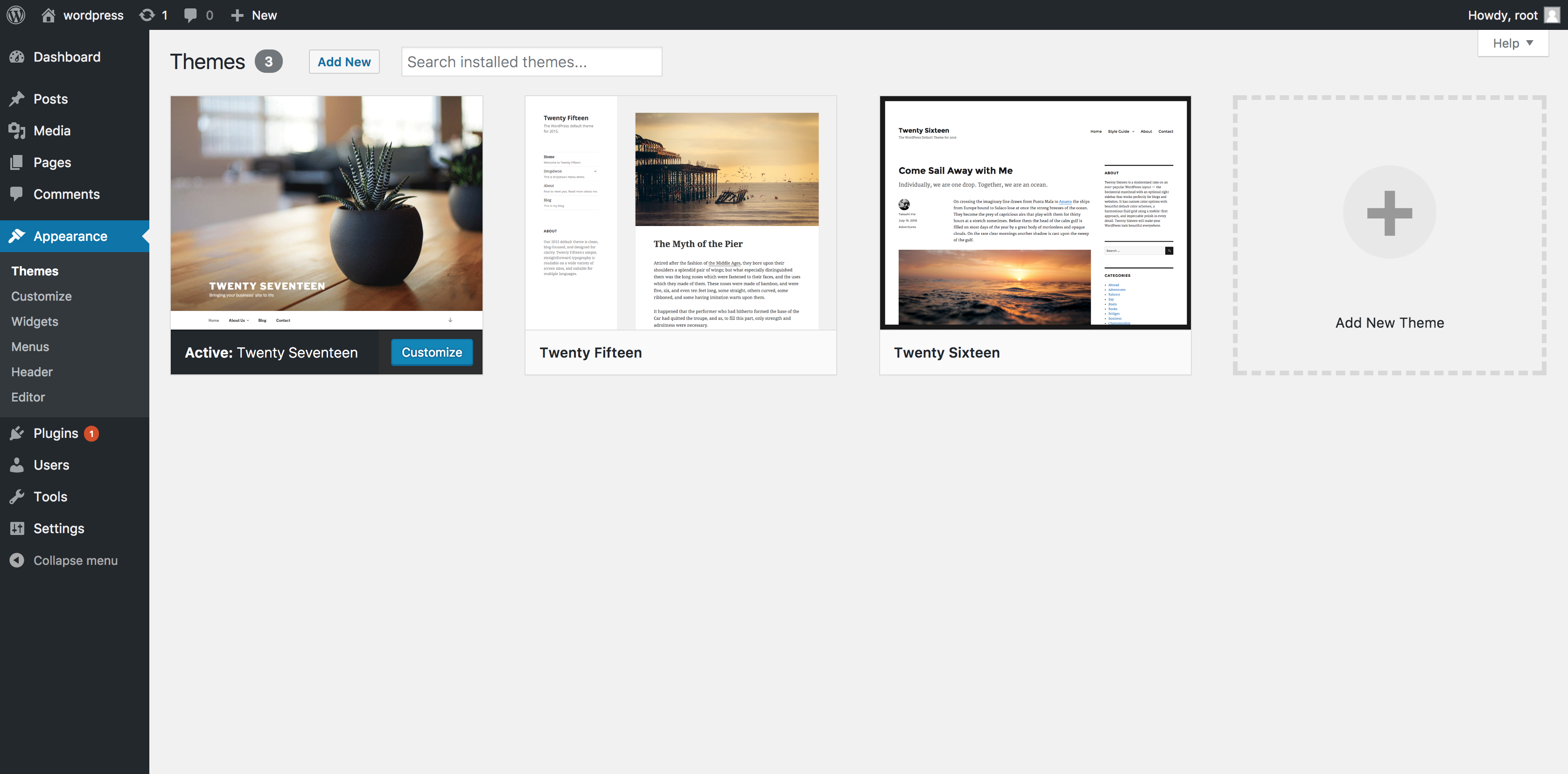
Open your browser and type your website’s URL. Add /wp-admin at the end. Press enter. You will see the login screen. Enter your username and password. Click the login button. Now you are inside the dashboard. Look at the left side menu. Find the Appearance option. Click on it. A new menu appears. Choose Themes. You will see a list of themes. These are already installed. For new themes, click the Add New button. Search for themes in the search bar. You can also filter by features. Once you find a theme, click Install. Wait for the process. After installation, click Activate. Now the theme is live on your site.
Credit: www.namecheap.com
Navigating To Themes
Begin by logging into your WordPress Dashboard. Look at the left-hand menu. Find the word “Appearance”. Click on it. A list will drop down. Select “Themes” from this list. This page shows current themes. It also shows other available themes. Browse through this selection.
To add a new theme, look for the “Add New” button. It’s usually at the top of the page. Click it to explore more themes. You can use filters to narrow your search. Options like featured, popular, and latest are available.
Once you find a theme you like, hover over it. Click on the “Install” button. Wait for it to install. After installation, click “Activate” to use your new theme. Now, your theme is ready.
Exploring Theme Options
Featured themes are picked by WordPress experts. They are popular and often updated. These themes are stylish and easy to use. Beginners will find them helpful. Featured themes have good ratings. They work well on many websites.
Popular themes are loved by many users. They are downloaded often. These themes have great designs. People trust these themes. They are tested and reliable. Popular themes have many reviews. They are safe to use.
Latest themes are new and fresh. They have modern designs. Developers update them frequently. These themes follow the latest trends. They offer new features. Users enjoy trying new themes. Latest themes give your site a new look.
Favorites are themes you like. Save them for later use. They are easy to access. Favorites make theme searching simple. Mark the themes you love. You can find them quickly. Keep your best themes handy.

Credit: wordpress.org
Searching For Themes
Start by logging into your WordPress dashboard. Find the “Appearance” tab on the left. Click on it. A new menu will appear. Select the “Themes” option. This will open the theme page. Here, you can see all the themes installed. Look for the “Add New” button at the top. Click it to explore more themes. Use the search bar to find themes. Type in a theme name or style. Results will show below. Scroll through the options. Each theme has a preview button. Click to see how it looks. Like a theme? Click on the “Install” button. Wait a few seconds. Your theme is now installed. Ready to be activated.
Previewing Themes
Click on a theme to see how it looks. This is called previewing. You can see colors, layout, and style. Check if it matches your taste. Do this before installing. You might find the perfect fit. Try different themes to compare.
Use the preview button to see it live. This shows how your site will appear. It’s like testing clothes before buying. Make sure everything looks nice. If you like it, you can install it. If not, choose another one.
Installing A Theme
First, go to your WordPress dashboard. Find the Appearance menu on the left. Click on it. A new menu will open. Click on Themes. Now, you can see the installed themes. To add a new theme, click on the Add New button at the top. You will see many themes here. Use the search bar to find your desired theme.
Click on the theme you like. Then click the Install button. WordPress will now download and install it. Once installed, click the Activate button. Your new theme is now active. It’s easy and quick. Enjoy your new design!
Activating The Theme
After you download a theme, it needs activation. This step makes your theme visible. Go to the WordPress dashboard. Find the “Appearance” tab. Click on “Themes”. You will see your downloaded theme here. Hover over the theme. A button labeled “Activate” will appear. Click this button to activate your theme. Your new theme is now live on your site.
It is important to check your site. Make sure everything looks good. Check if all features work well. Sometimes small adjustments are needed. Themes can change the look of your site a lot. Choose carefully and make sure it suits your style.
Customizing Your Theme
Change the colors and fonts to match your style. Use the theme settings to adjust these elements. You can pick different layouts for your pages. Choose a layout that fits your content. Remember, settings can change how your site looks.
Make small design changes with ease. Adjust the header and footer designs. You can choose different backgrounds or images. Add custom CSS for more design options. These adjustments make your theme unique.
Widgets add special features to your site. Place widgets in the sidebar or footer. You can add a calendar, search bar, or social media links. Widgets make your site fun and useful. They help visitors navigate easily.
Troubleshooting Common Issues
Downloading and installing a theme from the WordPress dashboard can sometimes be confusing. Navigate to ‘Appearance’, select ‘Themes’, and choose ‘Add New’ to explore options. Ensure your theme is compatible with your version to avoid installation issues.
Installation Errors
Sometimes themes won’t install correctly. This can be very frustrating. Make sure your theme file is not corrupted. Check if the theme is compatible with your WordPress version. Download the theme again if necessary. Double-check the file format; it should be a .zip file. Contact theme support for help if you’re stuck.
Compatibility Problems
After installing, some themes clash with plugins. This can cause issues. Always check if your plugins are compatible with the new theme. Update all plugins before installing a theme. Some older plugins might not work. Try deactivating them one by one to find the problem.
Performance Issues
New themes can slow down your site. This can be annoying for visitors. Check if the theme is optimized for speed. Use tools like GTmetrix for testing. Remove any unnecessary plugins. These can also slow things down. Choose a theme known for good performance.

Credit: wpfactory.com
Frequently Asked Questions
How Do I Access The WordPress Dashboard?
To access the WordPress dashboard, log into your WordPress site using your admin credentials. Once logged in, you’ll be directed to the dashboard. It’s the control center for your website, allowing you to manage themes, plugins, and content.
Where Can I Find WordPress Themes?
You can find WordPress themes in the official WordPress theme repository. Access it via your dashboard by navigating to Appearance > Themes. You can also explore third-party theme marketplaces for more options. Always ensure the theme is compatible with your WordPress version.
How Do I Install A Theme In WordPress?
To install a theme in WordPress, go to Appearance > Themes in your dashboard. Click on “Add New” and search for your desired theme. Click “Install,” then “Activate” to apply the theme. Ensure the theme meets your site’s requirements and is regularly updated.
Can I Upload A Custom Theme To WordPress?
Yes, you can upload a custom theme to WordPress. Navigate to Appearance > Themes in your dashboard, then click “Add New. ” Select “Upload Theme,” choose your file, and click “Install Now. ” After installation, activate the theme to apply it to your site.
Conclusion
You can now easily download and install themes using the WordPress dashboard. This process is quick and simple for beginners. With just a few clicks, your website can have a fresh look. Themes offer a great way to change your site’s appearance.
Remember to choose a theme that fits your brand. Explore different options before deciding. Enjoy customizing your website with ease. Now, you are ready to impress your visitors with a stunning design. Happy theming!


