
Are you looking to customize your WordPress site without the risk of losing your changes during updates? Creating a WordPress theme child is your solution.
It’s a simple yet powerful way to tailor your website’s design and functionality while keeping the original theme intact. Imagine having the freedom to tweak your site’s aesthetics and features, knowing that your hard work won’t vanish with the next theme update.
This guide will walk you through the process, step by step, ensuring you can enhance your site with confidence. Ready to unlock the potential of your WordPress theme? Let’s dive in and see how you can take control.
What Is A Child Theme?
A child theme is a small theme that looks like the main theme. It uses the main theme’s features. But it can have its own style and changes. This helps keep changes safe. Updates to the main theme will not affect the child theme.
Creating a child theme is easy. First, make a new folder in the themes directory. Name it after the main theme. Add “-child” at the end. Inside, make a style.css file. This file tells WordPress it’s a child theme. You also need a functions.php file. It helps add extra features.
Make sure to link the child theme to the main theme. This way, it can use all its features. Use a child theme to change styles without worry.
Benefits Of Using A Child Theme
Using a child theme helps keep your site safe. You can update the parent theme easily. No need to worry about losing changes. Your site remains customized and unique. You can also experiment with new features. Mistakes won’t affect the main theme. This gives you a safe space to learn. A child theme protects your hard work. It makes sure your site stays stable and works well. You can also add new designs and styles. These will not be lost when the parent theme updates. This makes your site flexible and adaptable. Using a child theme is a smart choice for customization.
Prerequisites For Creating A Child Theme
A good text editor is necessary for coding. Tools like Notepad++ or Sublime Text work well. They help you edit and save your files. A file manager is also important. FTP clients such as FileZilla can connect to your server. You need them to upload and manage your theme files.
Basic HTML and CSS knowledge is vital. These skills help you style your theme. Understanding PHP is useful too. PHP powers WordPress themes. Having a grasp of how it works helps in customization. Knowing how to navigate WordPress Admin is crucial. It’s where you’ll activate your child theme. You should be familiar with its settings and features.
Setting Up Your Development Environment
First, download the WordPress package from the official site. Save it on your computer. Unzip the file to get the WordPress folder. This folder contains all the files you need.
Next, you need a local server on your computer. Install software like XAMPP or MAMP. These tools will help run WordPress locally. Open the software and start the server.
Go to the htdocs folder in the server software. Create a new folder for your project. Name it anything you like. Copy all WordPress files into this new folder. This is where your site will live.
Open a web browser. Type “localhost/your-folder-name” in the address bar. Follow the setup steps. Now, WordPress is ready to use.
Creating The Child Theme Directory
Start by opening your WordPress folder. Find the themes folder inside it. Create a new folder here. Name it child-theme or anything you like. This folder is your child theme directory. The name should be easy to remember. It helps later.
Copy the style.css file from the parent theme. Paste it into the child theme folder. Edit the file with any text editor. Change the template name to match the parent theme. This step links the child theme to the parent theme.
Adding The Style.css File
A child theme needs a proper file structure. Start with a folder. Name it after the parent theme. Inside, add a file named style.css. This file is important. It tells WordPress about the child theme. Make sure you have the right folder and file. A wrong name can cause errors. Always check twice.
In the style.css file, add some basic code. This code tells WordPress about your child theme. Use this template:
/
 Theme Name: Your Child Theme Name
 Template: Parent Theme Name
/
Replace Your Child Theme Name with your theme’s name. Replace Parent Theme Name with the parent theme’s folder name. This is how WordPress connects the themes.
Configuring The Functions.php File
Configuring the functions. php file is crucial for creating a WordPress theme child. This file lets you add custom functions and modify existing ones without altering the parent theme’s code.
Purpose Of Functions.php
The functions.php file is very important. It helps add features to your child theme. This file acts like a plugin. It lets you write custom code for special functions.
Every function you write will affect your theme. You can add code for extra widgets. Or maybe add a new menu. You can make your theme do new things. This makes your site unique. The functions.php file is very flexible. It gives you control over your theme’s behavior. Always be careful while editing this file.
Essential Code
| Code | Purpose |
|---|---|
<?php |
Starts the PHP script |
function my_theme_scripts() {} |
Adds custom scripts |
add_action('wp_enqueue_scripts', 'my_theme_scripts'); |
Links functions to WordPress |
These lines are basic but useful. They help load scripts needed for your theme. Using essential code ensures your site runs smoothly. Test your code to avoid errors.
Credit: www.cloudways.com
Enqueuing Stylesheets And Scripts
Use enqueue functions for styles. This way, you keep order in your code. First, load the parent theme’s styles. Use the wp_enqueue_style function. It links the parent CSS file. Next, load the child theme’s styles. Use the same function again. This time, link the child CSS file. Make sure it loads after the parent style. This way, child styles override parent ones.
Scripts need special care. First, load the parent theme’s scripts. Use wp_enqueue_script. Link the script file properly. Then, add your child theme’s scripts. Use the same function again. Ensure they load after the parent’s scripts. This way, your scripts work right. Always check dependencies. Make sure scripts depend on the right files. This prevents errors in your site.
Customizing Your Child Theme
Copy the original template files to your child theme folder. Change the files as you need. This keeps the changes separate from the main theme. Always keep the file names the same. This allows WordPress to use your changes. You can adjust page layouts or add new features. Make sure to test changes often. This helps catch errors early. Be careful with code. Small mistakes can break your site. Use a code editor to help spot errors.
Create a new style.css file in your child theme. Add your CSS changes here. This file is for changing colors, fonts, and spacing. Use simple CSS rules to change your site’s look. Test each change on different devices. Ensure everything looks good everywhere. Keep your CSS organized. Group similar styles together. This makes future changes easier. Avoid using too many complex rules. Stick to basic styles for best results.
Credit: www.wpbeginner.com
Testing And Activating The Child Theme
Start by checking the appearance of your theme. Ensure it looks correct. Check if the design matches the parent theme. Look for any missing elements or distorted images. Test the navigation. Click links and see if they work. Review the loading speed. Make sure it loads quickly. Check for any error messages. Fix them if they appear.
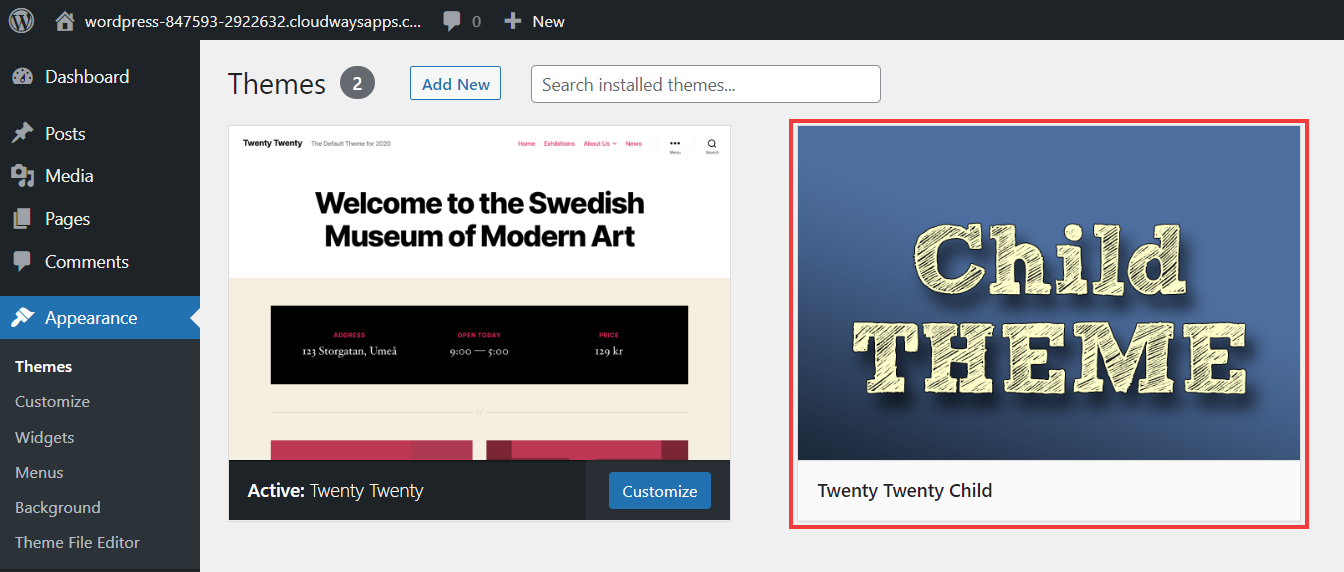
Go to your WordPress dashboard. Find the “Appearance” menu. Click on “Themes”. You will see your child theme listed. Click “Activate” next to the child theme name. Visit your site to ensure it appears correctly. If the site looks wrong, recheck your files. Ensure that the style.css and functions.php are correct. Adjust them if needed. Once done, your child theme is active and ready to use.
Troubleshooting Common Issues
Creating a WordPress theme child involves copying styles and functions from the parent theme. Ensure the child theme’s folder contains a style. css and functions. php file. This setup allows easy customization without altering the original theme, preserving updates and enhancements.
Error Messages
Seeing error messages can be frustrating. Check your code for typos first. A missing semicolon or bracket can cause problems. Review the functions.php file carefully. Ensure all paths are correct. A wrong path can trigger errors. Enable WordPress debugging mode. It shows more details about errors. This helps in identifying the issue. Make sure all plugins are up to date. An outdated plugin might cause conflicts. Deactivate plugins one by one to spot the culprit.
Debugging Tips
Always back up your files before making changes. This prevents data loss. Use debugging plugins for extra help. They can identify issues quickly. Check the WordPress support forum for similar issues. Others may have faced the same problem. Keep your WordPress updated. New versions fix old bugs. Inspect your theme’s code for outdated functions. Replace them with modern ones. These steps can help solve many common problems.
Credit: www.cloudways.com
Frequently Asked Questions
What Is A WordPress Child Theme?
A WordPress child theme is a theme that inherits functionality from a parent theme. It’s used to customize and modify an existing theme without altering the original files. This method ensures updates to the parent theme don’t overwrite customizations, maintaining the integrity of your design.
Why Use A Child Theme In WordPress?
Using a child theme allows safe customization of your WordPress site. It preserves changes even when the parent theme updates. This way, you can experiment with new designs and functionalities without risking the core theme. It’s an efficient way to enhance your site while maintaining stability.
How To Create A WordPress Child Theme?
To create a child theme, make a new folder in the themes directory. Add a style. css and functions. php file. In style. css, use the template tag to link the parent theme. Then, enqueue the parent theme’s styles in functions.
php. Activate the child theme through the WordPress dashboard.
Can I Customize A Child Theme?
Yes, you can customize a child theme extensively. Modify styles, add new functions, or override existing ones. It allows you to experiment without altering the parent theme. This flexibility helps in tailoring your website’s appearance and functionality to your specific needs while keeping the core theme intact.
Conclusion
Creating a WordPress child theme is straightforward. It protects your customizations. Your original theme stays untouched. Begin by making a new folder. Name it wisely. Add a style. css file. Include essential code snippets. Activate your child theme in WordPress.
Now, you can safely customize. Change styles or add features. Your site remains secure during updates. Understanding child themes boosts your flexibility. It enhances your website’s design. You gain control without risking your main theme. Enjoy a personalized site. Experiment freely with new ideas.
Your WordPress journey becomes more creative and rewarding.


