
Are you looking to enhance your WordPress site by adding some custom JavaScript? Whether you’re aiming to improve user interaction, boost functionality, or simply want to add a personal touch, understanding how to insert JavaScript code into your WordPress theme is essential.
You might feel a bit overwhelmed or unsure about where to start, but don’t worry—you’re not alone. Many WordPress users like you are eager to learn these skills to make their websites more dynamic and engaging. Imagine the satisfaction of seeing your site transform with just a few lines of code.
This guide is designed to empower you with simple, step-by-step instructions that will help you achieve just that. By the end of this article, you’ll feel confident in integrating JavaScript into your WordPress theme, enhancing your site’s capabilities and user experience. So, are you ready to unlock new possibilities for your website? Let’s dive in!
Basics Of Javascript In WordPress
JavaScript makes websites fun and interactive. It adds cool effects like moving images. Buttons become lively with JavaScript. It helps in checking forms too. Animations and slideshows need JavaScript to work. It makes the web pages feel alive.
JavaScript helps WordPress themes look modern. It adds dynamic features easily. You can create pop-ups and alerts. Menus can drop down smoothly. JavaScript can load content without refreshing the page. This makes websites faster. It’s a handy tool for making sites engaging.

Credit: webdesign.tutsplus.com
Methods To Add Javascript
Use the WordPress Admin Dashboard to add JavaScript easily. Go to Appearance and click on Customize. Choose Additional CSS or Additional JavaScript. Paste your code there. Save changes and preview your site. Easy and quick.
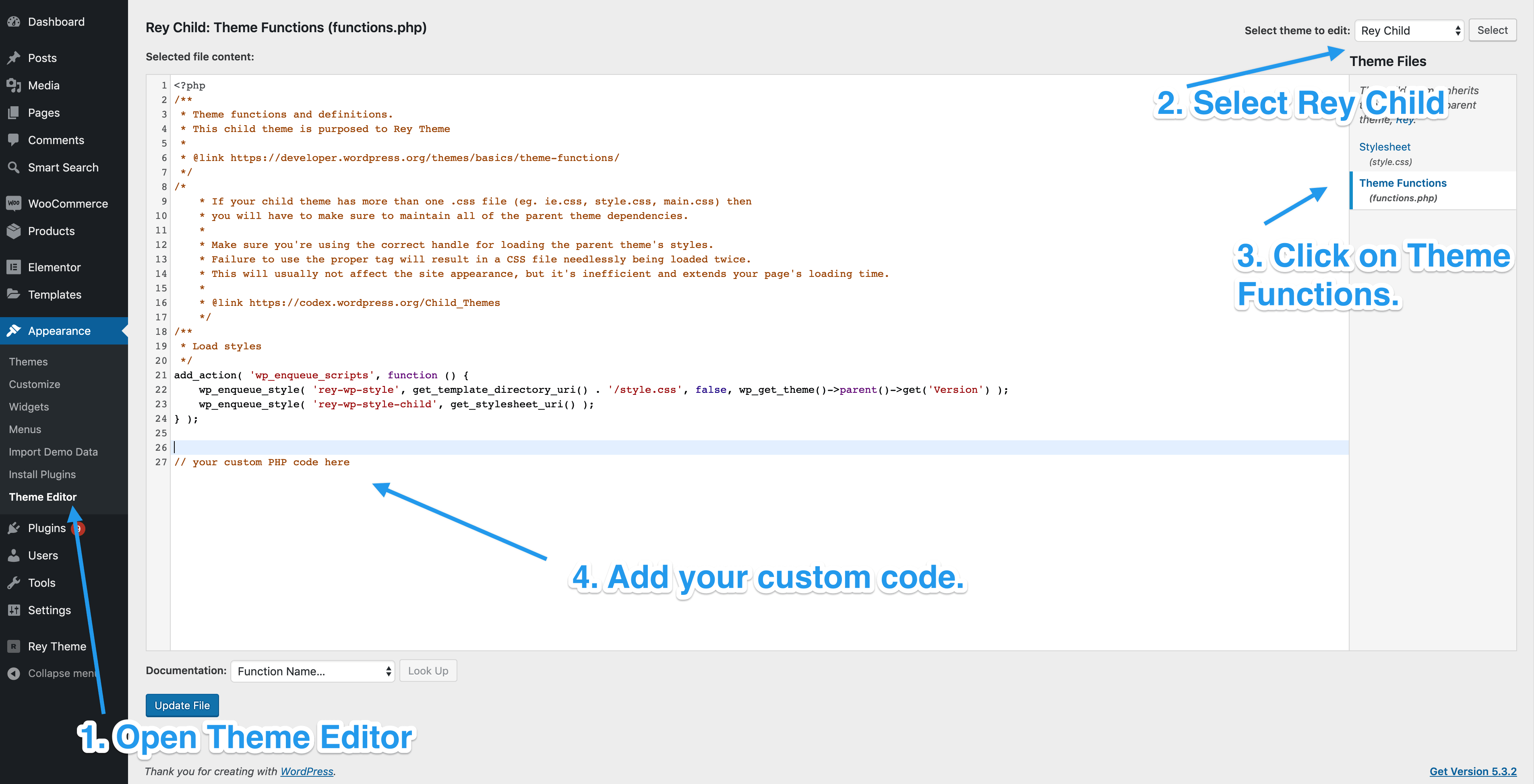
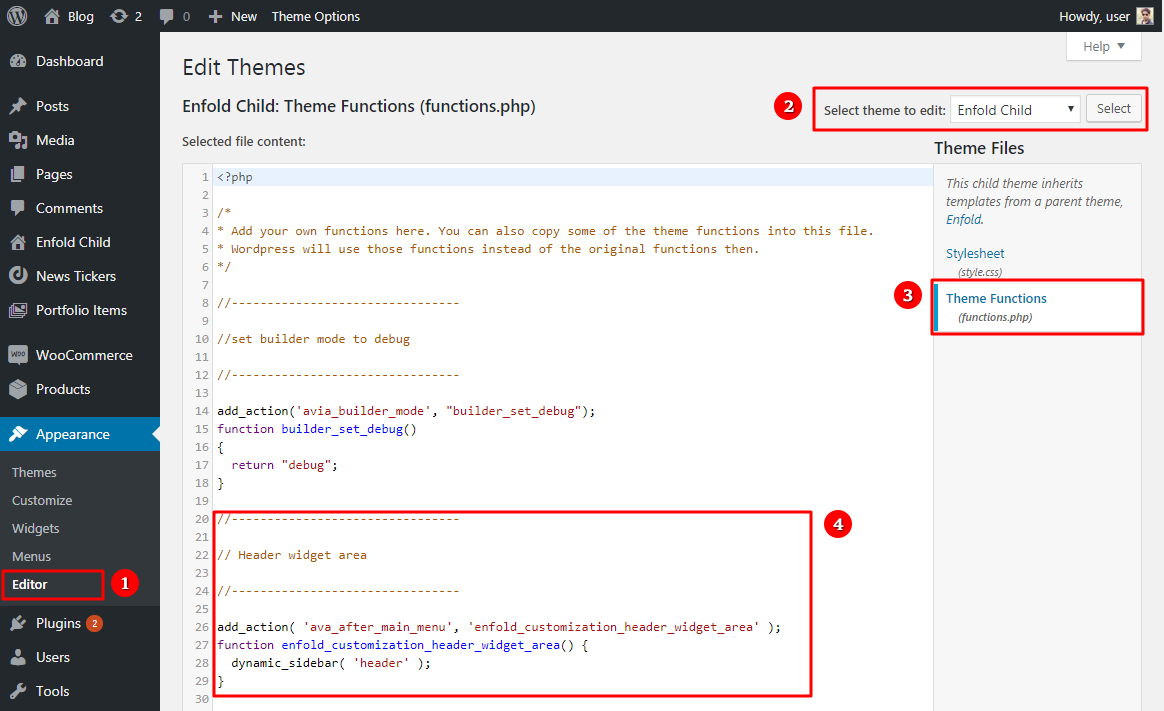
Directly edit theme files to add JavaScript. Open WordPress Admin and select Appearance. Click on Theme Editor. Choose the functions.php file. Paste your JavaScript code within it. Save changes carefully. Backup files first.
Plugins help add JavaScript without coding. Install a plugin like Insert Headers and Footers. Go to Settings and select it. Paste JavaScript in header or footer sections. Save settings and check your site. Easy for beginners.
Enqueue Scripts Properly
Adding JavaScript to WordPress is easy. Use wp_enqueue_script to add scripts. This function helps keep things neat. It places scripts in the right order. You won’t have to worry about files loading wrong. Just give your script a name. Then provide the file path. WordPress will handle the rest. It’s a simple way to manage scripts. Everyone should use it.
Script conflicts can cause problems. Use wp_enqueue_script to avoid them. This function checks if a script is already loaded. If it is, WordPress won’t load it again. This keeps your site running smoothly. It also helps with site speed. Fast websites are better for users. Remember to check script dependencies. They help scripts work together.
Adding Javascript Via Functions.php
First, find the functions.php file in your WordPress theme. This file is inside your theme’s folder. Access it using a file manager or FTP. Be careful while editing. A small error can break your site. Always back up files before changes.
You can add custom JavaScript in this file. Use the wp_enqueue_script function. This ensures scripts load correctly. Here is a simple example:
            function add_custom_js() {

              wp_enqueue_script('custom-script', get_template_directory_uri() . '/js/custom.js', array(), '1.0', true);

            }

            add_action('wp_enqueue_scripts', 'add_custom_js');
The above code loads a script named custom.js. It’s located in the /js folder of your theme.
Using The Customizer
To begin, locate the WordPress Dashboard. Find the Appearance tab. Click on Customizer. The customizer lets you change your site’s look. Feel free to explore its features. It’s simple and fun. The Customizer helps you make quick changes. You can see them live. No need to worry about mistakes. You can always go back. Remember, changes only save when you click Publish.
Adding JavaScript code is easy. Find the Additional CSS section. It’s under the Customizer menu. Click it. Now, add your JavaScript code between tags. Make sure your code is correct. Errors can affect your site. Always test your code before saving. You can preview changes live. This helps catch mistakes. Once happy, click Publish. Now your code is live.
Leveraging Child Themes
First, make a new folder for the child theme. Name it after your theme. Create a new style.css file inside this folder. Add the following lines in the file:
/
 Theme Name:   Your Theme Child
 Template:     parent-theme-folder
/
The Template line should match the parent theme’s folder name. This file tells WordPress about your child theme.
Next, add a functions.php file in the child theme folder. Use this file to load your JavaScript file. Add the code below:
function child_theme_js() {
    wp_enqueue_script('child-theme-js', get_stylesheet_directory_uri() . '/js/your-script.js', array('jquery'), null, true);
}
add_action('wp_enqueue_scripts', 'child_theme_js');
This code will add your JavaScript file. Place your JavaScript in a folder named js inside the child theme. This way, you can safely add custom JS to your theme.
Utilizing Javascript Plugins
Adding JavaScript plugins to your WordPress theme can enhance its functionality. These plugins offer diverse features, making your website dynamic. Popular JavaScript plugins include sliders, galleries, and forms. They bring interactive elements to your site. Plugins like Slick Slider, Lightbox, and Contact Form 7 are widely used. They are easy to integrate and customize. Choose plugins based on your site’s needs. Ensure they are compatible with your WordPress version.
Popular Javascript Plugins
Several JavaScript plugins are favored by developers. Slick Slider is perfect for image carousels. Lightbox displays images in a modal window. Contact Form 7 is ideal for creating forms. Each plugin has unique features. Explore their functionalities. Pick what suits your project best. Plugins enhance user experience. They make sites engaging and interactive. Ensure your plugin choice aligns with your theme.
Configuring Plugins For Custom Needs
Customizing plugins allows for personalized site features. Configuration settings vary among plugins. Access settings through the WordPress dashboard. Adjust options like colors, sizes, and animations. Set parameters to match your theme’s design. Plugin documentation offers guidance. Follow instructions carefully. Custom settings improve site appearance. Tailor plugins to fit your audience. Ensure the settings enhance your site’s usability.
Common Mistakes To Avoid
Avoid placing JavaScript code directly in theme files, as it can complicate updates. Use a child theme or enqueue scripts properly. This method ensures efficient code management and site performance.
Overwriting Core Files
Overwriting WordPress core files is a risky move. Changes can break the site. Updates may undo custom scripts. Developers should use child themes. Child themes keep changes safe. They do not affect core files. Always test changes in a safe environment. Backing up files is smart. Mistakes can happen easily. This helps restore original files.
Ignoring Script Dependencies
Ignoring script dependencies causes problems. Scripts may not work. Errors can pop up. Scripts depend on other files. These files must load first. WordPress has a system for this. Use wp_enqueue_script() properly. Ensure all dependencies are included. Check documentation. It lists required dependencies. This keeps scripts running smoothly.
Testing And Debugging
Developer tools in browsers help find JavaScript errors. Open your browser and press F12. This opens the developer tools. Check the console tab for any error messages. These messages show where the error is. This helps in fixing it.
After spotting an error, you need to fix it. Look at the error message. It tells the line number and the problem. Go to your code and find that line. Correct the mistake. Save your changes and refresh the page. Check the console again. See if the error is gone.
Testing is key. Always test your code after changes. This ensures everything works well. Debugging takes time. Be patient and check every detail. With practice, it becomes easier.
Credit: support.reytheme.com
Best Practices For Javascript
Integrating JavaScript into your WordPress theme enhances functionality. Simply enqueue scripts in the functions. php file. This method ensures organized code and improves website performance.
Optimizing Performance
Adding JavaScript to a WordPress theme needs care. Fast loading is important. Use asynchronous scripts to speed up pages. Place scripts at the bottom of the page. This helps the page load first. Avoid big scripts. They slow down sites. Minify JavaScript files. This makes them smaller. Smaller files load faster. Use content delivery networks (CDNs) for common libraries. CDNs serve these files quickly.
Ensuring Compatibility
Check browser compatibility for JavaScript code. Not all browsers work the same. Some scripts break on older browsers. Test your JavaScript in different browsers. Use tools like cross-browser testing services. Keep JavaScript libraries updated. Old libraries may have bugs. They may not work well with new browsers. Consider using polyfills. They help make newer features work on old browsers. Ensure your code is clean and simple. This helps it run smoothly everywhere.
Credit: kriesi.at
Frequently Asked Questions
How Do I Add Custom Js To WordPress Theme?
To add custom JS to your WordPress theme, use the functions. php file. Enqueue the script using `wp_enqueue_script()` function. Ensure the script path is correct and relative to your theme directory. Avoid directly editing theme files to ensure updates don’t overwrite your changes.
Can I Use Plugins For Adding Js Code?
Yes, you can use plugins to add JS code in WordPress. Plugins like “Insert Headers and Footers” allow easy code insertion without file modification. This method keeps your changes safe during theme updates, ensuring your custom scripts remain intact and functional.
Why Use Child Theme For Js Code?
Using a child theme for JS code prevents losing changes during theme updates. It allows customization without editing the parent theme directly. This approach keeps your modifications organized and ensures compatibility, enhancing the theme’s functionality safely.
What Precautions Should I Take When Adding Js?
Ensure your JS code is error-free and compatible with WordPress. Test thoroughly to avoid conflicts with existing scripts. Use version control to track changes. Backup your theme before making modifications to prevent data loss or functionality issues.
Conclusion
Adding JavaScript to your WordPress theme enhances functionality. It’s straightforward and rewarding. Follow the steps carefully to ensure smooth integration. Ensure compatibility with your theme and plugins. Test your code for errors before going live. Custom scripts can enrich user experience.
Make your website dynamic and interactive. Keep your scripts organized for easy updates. Regularly check for conflicts with other plugins. A well-coded site boosts performance and user satisfaction. Dive in and make your WordPress site shine. Your site’s potential grows with every line of code.
Happy coding!


