
You’re looking to tweak your WordPress site, aren’t you? You want it to stand out, reflect your unique style, and perhaps add a dash of personality.
But there’s a hiccup—messing with the main theme’s code can be risky. That’s where a child theme steps in, a safe haven for your customizations. By learning how to add custom CSS to a WordPress child theme, you unlock a world of possibilities, all without the fear of losing your changes during theme updates.
Imagine the satisfaction of having a site that’s not just functional, but truly yours. Curious to see how easy it can be? Let’s dive into the process and empower your WordPress journey.
Understanding Child Themes
Child themes help keep changes safe. They let you change styles without harming the main theme. This ensures updates won’t erase your customizations. The main theme stays untouched. It works like a solid base. You build on it with the child theme. This makes your site unique and keeps it stable. Easy to fix if something goes wrong.
Child themes provide many advantages. They keep your custom code separate. This means updates don’t overwrite your changes. It’s easier to learn and experiment. Mistakes won’t break the main theme. You can easily switch back to the original if needed. They also enhance site flexibility. You can add or remove features with ease.
Credit: www.elegantthemes.com
Setting Up A Child Theme
First, create a new folder in your WordPress theme directory. Name it anything you like. It should be easy to remember. This folder is your child theme directory. Inside, create a file named style.css. This file will hold your custom CSS styles. It helps your site look unique.
Open the style.css file in a text editor. Add some code at the top. Write your theme name, author, and description. This information is important. It tells WordPress about your theme. After that, you can add your custom CSS code. These styles will change the look of your site. Use easy styles that make your site better. Save the file when done. Your child theme is ready to use.
Adding Custom Css
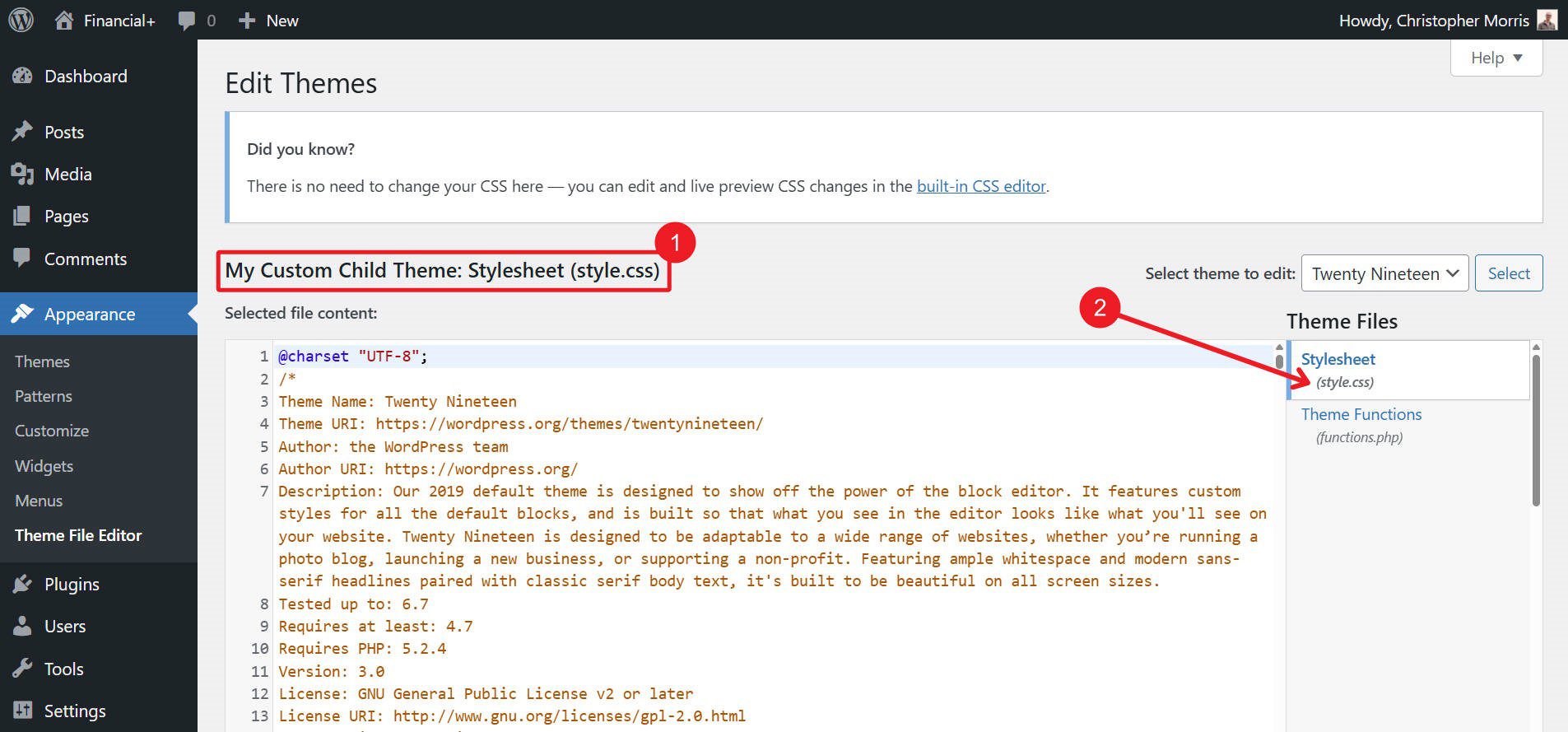
Open your WordPress dashboard and navigate to Appearance > Theme Editor. Find the style.css file in the child theme section. This file holds all your custom styles. Scroll to the bottom of the file and enter your custom CSS code. Remember to save changes after adding your code. This method is simple and effective for basic styling needs.
Go to Appearance > Customize in the dashboard. Choose the Additional CSS section. A box will appear for your custom CSS. Type your styles here. See changes live on your site preview. This method is great for seeing instant results. Save your changes by clicking Publish. It’s a user-friendly way to add styles without code files.

Credit: wpastra.com
Using Additional Tools
Enhance your WordPress child theme by adding custom CSS effortlessly. Use a file editor to access your theme’s CSS file. Make changes and save to see instant updates on your website’s appearance.
Installing A Custom Css Plugin
Adding a Custom CSS Plugin to WordPress is easy. First, go to the WordPress dashboard. Click on Plugins and then Add New. In the search bar, type “Custom CSS“. You will see many options. Choose one that suits your needs. Click Install, then Activate. The plugin is now ready to use. You can find it under Appearance or Tools.
Using plugins is simple. They help you add CSS without coding. You don’t need to edit theme files. Just write your CSS in the plugin. It makes changes to your site easy and fast. Plugins are safe. They keep your main theme files untouched. This means less risk of errors. Enjoy more control with less hassle.
Benefits Of Css Plugins
CSS plugins offer many benefits. They make styling your site easy. You don’t need to be a developer. Just add your CSS and see changes. Plugins are user-friendly. They help keep your site organized. No need to worry about updates. Your changes stay after theme updates. Plugins are flexible. You can switch themes without losing styles. They save time and effort. Get creative with your site design.
Testing And Troubleshooting
Easily enhance your WordPress site by adding custom CSS to a child theme. This approach preserves your changes during theme updates. Troubleshooting is simplified, ensuring a smooth customization process.
Checking Css Changes
After adding custom CSS, refresh the page. Look for the changes. Are the styles visible? If not, clear the browser cache. This helps in loading updated CSS. Use browser tools to inspect elements. Ensure the right CSS is applied. Compare the style with the original theme. Check for any missing properties. Verify the child theme is active. Sometimes, changes are not visible if the parent theme is active. Try using different browsers. This ensures compatibility across platforms.
Common Issues And Fixes
Changes not showing? Check for syntax errors in your CSS code. A missing semicolon can break the style. If fonts are not displaying, verify the font path. Ensure links are correct. For color issues, check the hex codes. Sometimes, CSS conflicts with the parent theme. Use the !important tag sparingly. It can override styles. Check if plugins are causing conflicts. Disable them temporarily. See if styles appear. Always backup before making changes. This prevents loss of original settings.

Credit: jetpack.com
Best Practices
Customizing WordPress child themes with CSS enhances website design without altering the parent theme. Access the child theme’s style. css file via WordPress Admin, then add personalized CSS code to refine appearance. This approach ensures updates don’t overwrite customizations, maintaining a consistent, tailored site look.
Organizing Css Code
Keeping code organized helps everyone. Group related styles together. Use comments to explain sections. It helps when you have to find something. Use a consistent naming convention. This makes it easier to understand. Avoid long lines of code. Break them into smaller parts. Use indentation for nested styles. It makes the code look neat. Remove unused styles. They clutter the file. Update the file regularly. This keeps it clean and efficient.
Keeping Code Maintainable
Use clear and simple styles. Avoid complex rules. They make code hard to read. Write code that is easy to change. This saves time later. Check the code often for errors. Fix them quickly. Use a CSS validator tool. It helps find mistakes. Test changes before saving. It ensures everything works. Keep a backup of the old code. It’s useful if something breaks. Document changes you make. It helps others understand your work.
Frequently Asked Questions
What Is A WordPress Child Theme?
A WordPress child theme allows you to modify a parent theme without altering its core files. This ensures updates won’t affect your customizations. It’s essential for maintaining theme updates and custom styles. Child themes are crucial for anyone looking to personalize their WordPress site safely.
Why Add Custom Css To A Child Theme?
Adding custom CSS to a child theme allows you to tailor your site’s appearance. It ensures your styles persist after theme updates. This method is safe and efficient, providing flexibility to enhance design elements. Custom CSS gives you control over your site’s look and feel.
How Do I Edit Css In WordPress?
To edit CSS, access your WordPress dashboard. Navigate to Appearance > Theme Editor. Choose your child theme’s style. css file. Add your custom CSS code, then save changes. Alternatively, use the Customizer for real-time editing under Appearance > Customize > Additional CSS.
Can I Use Plugins For Custom Css?
Yes, plugins like Simple Custom CSS or Custom CSS Manager offer easy CSS additions. They provide user-friendly interfaces for adding styles without touching theme files. Using plugins ensures your customizations are safe during updates. Plugins are ideal for beginners needing straightforward CSS management.
Conclusion
Custom CSS enhances your WordPress child theme. It makes your site unique. Start small, experiment, and learn as you go. Use tools like Inspect Element to simplify the process. Always check your changes on various devices. This ensures a responsive design.
Keep your CSS code organized. Comment your edits for future reference. Regularly update your child theme. This prevents issues during WordPress updates. Enjoy the creative control custom CSS offers. Your site will stand out. A little effort goes a long way.
Happy coding!


