
Are you struggling to customize the sidebar in your WordPress X Theme? You’re not alone.
Many WordPress users find themselves puzzled by this seemingly simple task. But don’t worry! In this guide, you’ll discover a straightforward method to edit your sidebar, allowing you to enhance your website’s functionality and improve user experience. Imagine a sidebar that not only looks good but also works seamlessly with your content, making your site more engaging and user-friendly.
By the end of this article, you’ll have the confidence and knowledge to tailor your sidebar exactly how you envision it. Ready to transform your website? Keep reading to unlock the secrets of mastering the WordPress X Theme sidebar!
Credit: help.privy.com
Understanding The X Theme
The X Theme is popular for its flexibility and design options. It offers many layout choices for users. The theme includes pre-built templates which save time. Users can easily customize these templates. The integration with page builders is smooth. This feature allows users to create unique pages without coding. The X Theme also supports a wide range of plugins. This enhances the functionality of your site.
Using X Theme brings many advantages. One major benefit is its user-friendly interface. This makes it easy for beginners. The theme provides responsive design. Your website will look good on all devices. It also offers regular updates for better security. Another benefit is the active community support. Users can get help from other users. This makes solving problems easier.
Accessing The WordPress Dashboard
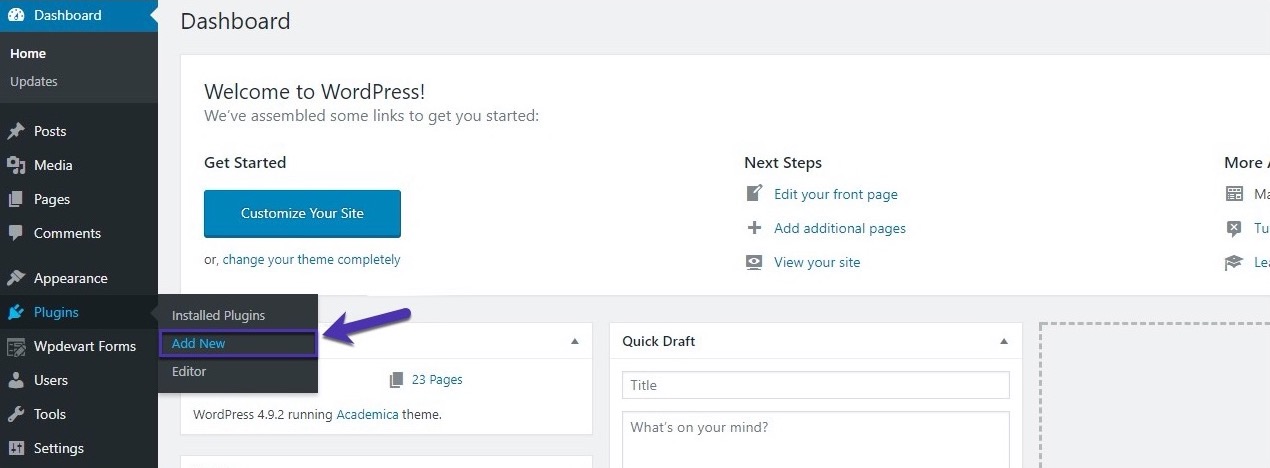
Open your web browser. Type your website URL. Add /wp-admin at the end. Enter your username and password. Click the Log In button. You will see the WordPress dashboard.
The dashboard is the first screen you see. It shows useful information. You can see your site’s statistics. Manage posts and pages from here. Find the sidebar on the left. Click on different sections to explore. The dashboard is where you control your site. Keep it organized and clean. It helps you manage easily.
Locating The Sidebar Settings
The sidebar settings are in the Appearance section. Go to your WordPress dashboard. Click on Appearance. You will see many options. Look for Customize. This is where you can edit your site. The sidebar settings might be there. Check for any Sidebar menu. This helps you change how your sidebar looks. Sometimes, themes have unique sidebar settings. Always explore the theme settings. You might find hidden options. Remember to save changes after editing. Saving keeps your settings in place.
Widgets add features to your sidebar. The Widget area is in the dashboard. Click on Appearance. Find the Widgets option. This opens the widget area. Drag and drop widgets here. Arrange them as you like. Each widget has settings. Click on a widget to adjust. Ensure you hit save after changes. Saving updates your sidebar instantly. Some themes offer extra widgets. Explore all options available. Widgets make your sidebar useful. Use them wisely for the best look.
Customizing The Sidebar
Adding widgets is easy. Go to the widget section. Choose a new widget from the list. Drag it to the sidebar. Drop it in the right spot. You can add a text widget. Or choose a picture widget. Widgets make your sidebar fun. They add more things to see.
Removing is simple. Find the widget you don’t want. Click on it. Select remove or delete. It will disappear. Removing keeps your sidebar clean. It helps to show only the needed things.
Reordering is important. You can move widgets up or down. Drag the widget to a new spot. Drop it where you want. This helps in showing important things first. Order gives structure to your sidebar.
Advanced Sidebar Editing
Custom CSS can change the look of the sidebar. It lets you add colors, borders, and fonts. To use CSS, you need to write code. Put the code in the sidebar settings. You can use the WordPress Customizer for this. It makes changes easy to see. Make sure your code is correct. Wrong code can mess up your site. Check your work before saving. Always save a copy of your original code.
Using Shortcodes can add new features. They let you add buttons, lists, or forms. Shortcodes are small bits of code. You put them in the sidebar settings. Many plugins offer shortcodes. Choose the right shortcode for your need. Test the shortcode to see if it works. Fix any errors you find. Shortcodes make the sidebar more useful.
Saving And Previewing Changes
Click the save button to store your changes. It’s important to save often. This ensures you don’t lose your work. If you make a mistake, you can always revert to an earlier version. Saving creates a backup. This helps in fixing errors later.
Use the preview option to see your sidebar. This helps you check how it looks on the site. Sometimes, things might not appear as expected. Previewing lets you spot issues early. If something seems off, you can make changes. Then preview again. It’s a good habit to preview before going live.
Troubleshooting Common Issues
Editing the sidebar in WordPress X Theme can be tricky. Access the Appearance menu, then Widgets to customize. Drag and drop elements to edit your sidebar easily.
Widgets Not Displaying
Widgets might not show up because of theme settings. Check if the sidebar is active. Go to your WordPress dashboard. Click on Appearance and then Widgets. See if the widgets are in the right spot.
Sometimes, a plugin can cause problems. Disable plugins one by one. See if the sidebar appears. This helps find the problem plugin. After finding, update or remove it.
Layout Problems
Sidebars may not fit well. Themes can have layout settings. Go to Appearance and then Customize. Look for layout options. Change the width or position.
Check if custom CSS is causing issues. Go to Appearance and then Customize. Click on Additional CSS. Remove any CSS that looks wrong. See if this fixes the layout.

Credit: pagecrafter.com

Credit: pagecrafter.com
Frequently Asked Questions
How Do I Access The X Theme Sidebar Settings?
To access the sidebar settings in X Theme, navigate to your WordPress dashboard. Select “Appearance” and then “Widgets” to customize your sidebar. This allows you to add, remove, or modify widgets, enhancing your site’s functionality and appearance to better suit your needs.
Can I Customize The Sidebar Widgets In X Theme?
Yes, you can customize sidebar widgets in X Theme. Simply access the “Widgets” section under “Appearance” in your dashboard. Here, you can add new widgets, rearrange their order, or remove ones you don’t need. This customization helps you tailor your site’s sidebar to fit your content and design preferences.
What Are The Steps To Edit Sidebar Content?
To edit sidebar content in X Theme, go to “Appearance” then “Widgets” in your WordPress dashboard. Select the desired widget to modify its content. You can also add new widgets or remove existing ones. This process allows you to ensure your sidebar reflects your site’s purpose effectively.
Can I Change Sidebar Layout In X Theme?
Yes, you can change the sidebar layout in X Theme. Head to “Customizer” under “Appearance” in your dashboard. From there, choose “Layout” options to adjust sidebar positioning or remove it entirely. This flexibility helps you design your website to match your preferred layout and user experience.
Conclusion
Editing the sidebar in WordPress X Theme is simple and effective. It enhances your site’s functionality and appearance. Follow steps carefully to achieve the best results. Customize widgets to fit your needs. Keep your audience engaged with relevant content. Remember to save changes after editing.
Regular updates keep your sidebar fresh and dynamic. This process can improve user experience significantly. Happy editing! Enjoy a well-organized and appealing WordPress site. Your visitors will appreciate the effort. Keep exploring new customization options. Stay creative and innovative with your designs.


