
Are you diving into the world of WordPress and feeling a bit overwhelmed about where your plugins actually go? You’re not alone.
Understanding the ins and outs of WordPress can be tricky, especially when it comes to managing plugins. But don’t worry, we’ve got you covered. Knowing the exact folder where your WordPress plugins get installed is crucial for effective site management, troubleshooting, and even enhancing your website’s performance.
In this guide, we’ll demystify the WordPress file structure and pinpoint exactly where those essential plugins reside. Stick around, and by the end, you’ll have a clear grasp of your website’s architecture, empowering you to navigate and optimize your WordPress site with confidence.
WordPress Plugin Directory
WordPress plugins are stored in a special place. This place is called the wp-content/plugins folder. When a plugin is installed, it goes directly into this folder. This folder is part of your WordPress site’s files.
The wp-content/plugins folder holds all plugin files. Each plugin has its own folder inside. These folders contain the plugin’s code and settings. To find your plugins, look inside the wp-content folder. You will see the plugins folder there.
Plugin updates also happen here. New files replace old ones. Remember, this folder is important. Keep it safe and secure. Only trusted plugins should be installed here. This keeps your site running smoothly.
Standard Installation Path
WordPress stores many files in the wp-content folder. This folder holds themes, plugins, and uploads. People often check here for changes. Every site uses this folder. It is important for WordPress to work well.
Plugins go into the plugins subfolder. This folder is inside wp-content. Each plugin has its own folder here. These plugins add new features to sites. They make WordPress more fun and useful. Always check the plugins folder for updates. It keeps your site safe and fresh.
Locating Installed Plugins
The WordPress dashboard is the place to find plugins. First, log into your WordPress account. You will see a menu on the left. Click on “Plugins” in this menu. The installed plugins will appear here. Each plugin shows its name and version. You can also see its status, active or inactive. This dashboard helps you manage plugins easily. If you want to add or remove plugins, do it here. This is a simple way to handle your site plugins.
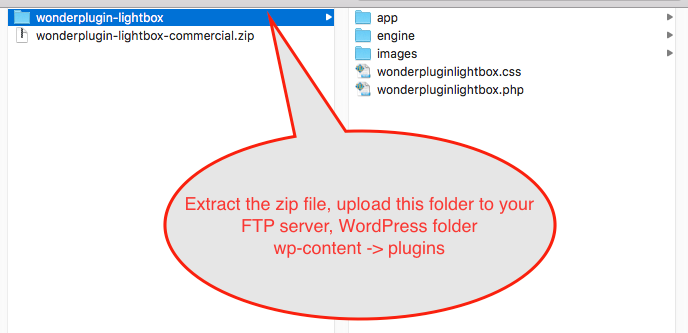
Sometimes, plugins are found in the file manager. Access your site files with FTP or hosting account. Find the “wp-content” folder. Inside, you will see the “plugins” folder. All installed plugins are here. This method shows plugin files directly. It helps if you need to fix or backup plugins. Be careful when changing files here. Always save a copy before editing. This keeps your site safe.
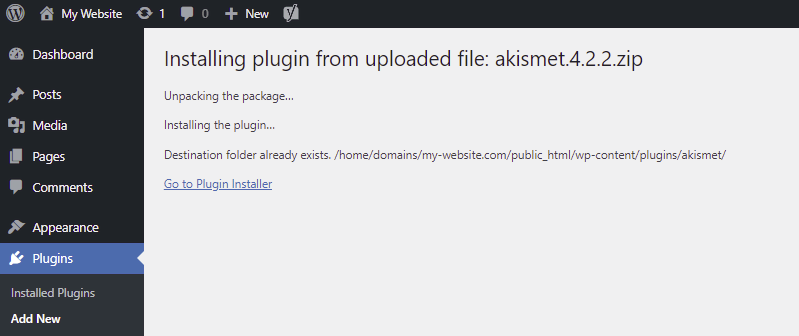
Credit: www.hostinger.com
Custom Plugin Installations
Custom paths help organize plugins better. You can set a special folder. This keeps your plugins tidy. Use the right settings. Find the correct path in WordPress. This helps WordPress know where plugins are. A wrong path can cause trouble. Always check the path twice.
Security considerations are very important. Plugins can have risks. A custom path can improve safety. It hides plugins from hackers. Always update your plugins. Update WordPress too. This keeps everything secure. Use strong passwords. Protect your website from bad people. Safety first!
Managing Plugin Files
Plugins live in a special folder inside WordPress. This folder is called wp-content/plugins. Every plugin has its own folder here. Activating a plugin makes it work on your site. You can activate or deactivate plugins in your dashboard. Find them under the Plugins menu. Click the buttons to turn them on or off. Easy as pie. Make sure to only activate plugins you need. Too many plugins can slow down your site. Choose wisely. Your site’s speed matters.
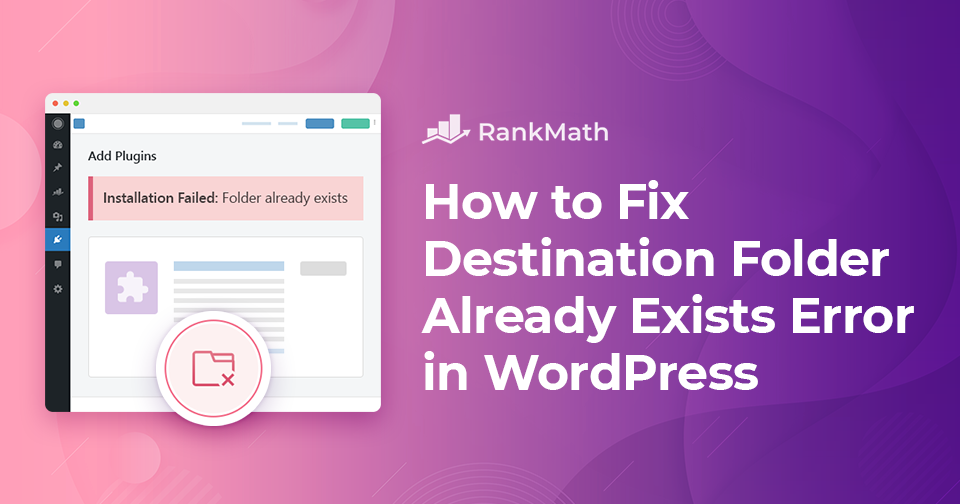
Sometimes you need to remove plugins. Go to the wp-content/plugins folder. Find the plugin you want gone. Delete its folder. This removes the plugin from your site. Be careful! Removing plugins can affect your site’s functions. Check what the plugin does before deleting. Some plugins have data that needs saving. Back up your site. Safe removal keeps your site working well. Always have a backup plan. Don’t lose important settings or data.
Credit: rankmath.com
Best Practices For Plugin Management
Keeping plugins updated is very important. Updates fix bugs and improve security. Always check for new updates. Use the WordPress dashboard to see available updates. Updated plugins work better with WordPress. This helps keep your site safe and fast. Many updates also bring new features. These features can help improve your site. Regular updates are very simple. Yet, they are key for a healthy site.
Backups save copies of your site. If something goes wrong, you can restore it. Use a reliable backup plugin. This ensures you have recent site copies. Store backups in a safe place. Options include cloud storage or external drives. Schedule backups to run regularly. Weekly backups are a good choice. Always test your backups. Make sure they work. This way, your site is never lost.
Credit: www.wonderplugin.com
Frequently Asked Questions
Where Do WordPress Plugins Get Installed?
WordPress plugins are installed in the `wp-content/plugins` directory. This is the default folder where all plugin files reside. Each plugin has its own folder within this directory. It contains all the necessary files for the plugin to function properly on your WordPress site.
How Can I Access WordPress Plugin Files?
Access WordPress plugin files via FTP or your hosting file manager. Navigate to the `wp-content/plugins` directory. Here, you’ll find folders for each installed plugin. Access these folders to modify plugin files or troubleshoot issues.
Can I Change The WordPress Plugins Folder?
Changing the WordPress plugins folder is not recommended. It can cause issues with plugin functionality. WordPress expects plugins in the default `wp-content/plugins` directory. Modifying this structure may lead to compatibility problems with themes and other plugins.
Why Aren’t My WordPress Plugins Installing?
If plugins aren’t installing, check folder permissions and available disk space. Ensure the `wp-content/plugins` directory has correct permissions. Insufficient disk space can also prevent plugin installation. Verify your hosting plan’s storage limits and clear unnecessary files if needed.
Conclusion
Plugins live in the “wp-content/plugins” folder on WordPress. This folder is crucial. It keeps all plugin files organized. Easy access for updates and management. Always check this folder for new plugins. Ensures smooth website performance. Deleting unwanted plugins? Visit this folder first.
Keeps your site clean. Regularly update your plugins here. Enhances security and functionality. Understanding this folder saves time. Makes troubleshooting easier. Remember, organized plugins lead to a better site. Happy managing your WordPress plugins!


