
Are you struggling to update WooCommerce templates in your WordPress theme? You’re not alone.
Many WordPress users find this task daunting, but it doesn’t have to be. Imagine being able to seamlessly update your online store without a hitch. This guide is here to help you do just that. Updating WooCommerce templates is crucial for maintaining your site’s functionality and ensuring an optimal shopping experience for your customers.
Outdated templates can lead to compatibility issues and may even affect your site’s performance. But the process is easier than you might think, and with the right steps, you can have your WooCommerce templates updated in no time. By the end of this article, you’ll feel confident in managing these updates yourself. So, if you’re ready to enhance your website’s efficiency and keep your store running smoothly, keep reading. You’ll discover easy-to-follow instructions that will empower you to tackle this task like a pro. Let’s dive in and simplify the way you handle WooCommerce template updates!
Importance Of Updating Woocommerce Templates
Updating WooCommerce templates is very important. Old templates can cause problems. They might not work well with new plugins. This could break your site. A broken site is bad for business. Customers could leave. Sales might drop. Keeping templates updated helps avoid this.
New updates often fix bugs. Bugs can cause errors. Errors confuse customers. They might not complete purchases. Updates also bring new features. New features can help your store. They can improve user experience. This makes shopping easy. Happy customers come back. Updating templates is like cleaning your store. It keeps everything tidy and fresh.
Credit: quadlayers.com
Identifying Outdated Templates
WooCommerce templates are stored in your theme’s folder. Look inside the woocommerce folder. Sometimes, templates hide inside other folders. Check carefully. Use FTP software to find these files. Be sure to look in the wp-content directory. Template files often end with .php. They control how your shop pages look. Find the right file to update your shop.
WooCommerce tells you when templates are outdated. Look for warnings in your WordPress dashboard. These warnings show in the Status section. They mention the template’s version number. Old templates can cause problems. They might not work with new features. Always update templates to the latest version. This keeps your shop running smoothly. Follow WooCommerce’s advice for updates.
Preparing For Template Updates
Always back up your theme before making changes. This ensures your work is safe. Use a plugin or a manual download. Save the theme files on your computer. This is your safety net. If something goes wrong, you can restore the backup. It’s like keeping a spare key for your house.
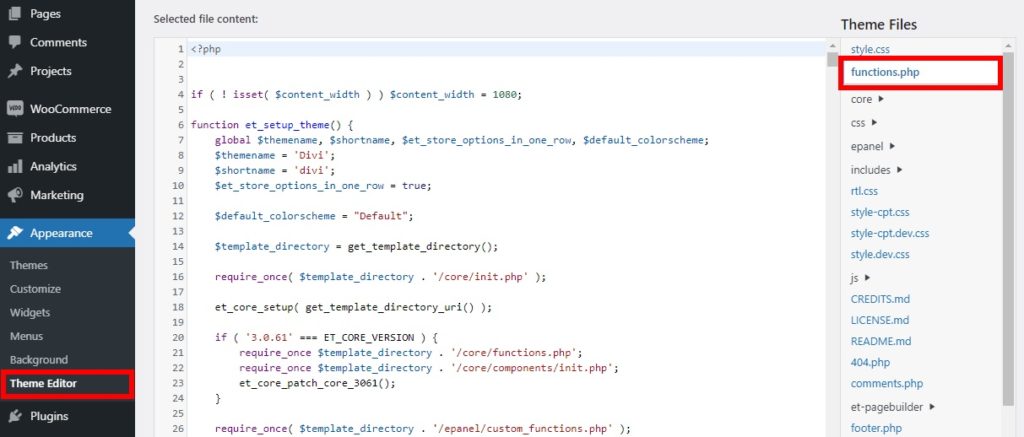
A child theme helps you keep changes safe. It uses the main theme but lets you change things. First, create a new folder in your themes directory. Name it after your theme with “-child” at the end. Add a style.css and functions.php file. In style.css, add a line: Template: parent-theme-name. This tells WordPress your child theme uses the main theme. Now, your changes won’t be lost with updates.
Updating Woocommerce Templates
WooCommerce templates help design your online store. To update them, copy template files. First, find the WooCommerce plugin folder. Look for the templates you need. Next, copy these templates to your theme folder. Make sure to keep the folder structure the same. This helps WooCommerce find the files easily. Updating templates makes your store look fresh. It also helps keep features working well.
Modifying template files needs care. First, make a backup of your files. This helps if something goes wrong. Use a child theme for changes. A child theme protects your work during updates. Use a code editor to change files. Always check your changes on a test site first. This helps avoid mistakes on your live store. Keep your changes simple and clear. This makes your site easy to update later.
Testing Updated Templates
Ensuring compatibility is key when updating WooCommerce templates. Check if the new templates fit with your WordPress theme. Look for any errors or conflicts in functionality. This ensures your site runs smoothly. Testing helps prevent issues before they affect users.
Use a staging site for testing. This keeps your main site safe. Try out all features. See if they work as expected. This helps catch problems early. Updated templates should match your theme’s style. If not, you might need adjustments.
Checking for styling issues is crucial. Updated templates can affect your site’s look. Review your site’s appearance. Make sure the design stays consistent. Look for any misalignments or broken layouts. These can confuse visitors. Fix any styling problems quickly.
Troubleshooting Common Issues
Updating WooCommerce templates in WordPress themes often involves navigating through theme files. Identify outdated templates first. Then, replace them with the latest versions from WooCommerce.
Handling Deprecated Functions
In WooCommerce, functions get old. These are called deprecated functions. Sometimes, these old functions cause errors. Check your theme files. Look for any function that WooCommerce no longer uses. Replace them with the new functions from the WooCommerce documentation. This can fix many problems.
Resolving Template Path Errors
Template path errors happen often. WooCommerce can’t find the template file. First, check the file path. The path must be correct in the theme. Next, update the WooCommerce plugin. Sometimes, just updating fixes the issue. Use the latest versions to avoid errors.
Best Practices For Future Updates
Keep your WooCommerce templates up-to-date. Check regularly for the latest updates. This ensures compatibility with new features. Use a schedule to remind you. A monthly check is a good start. Your site will run better with updated templates. It can prevent errors and improve security.
Always document the changes you make. Write down each change clearly. This helps if you face problems later. A simple notebook can work. List the date and details of each change. This record will save time. It makes it easy to track what you’ve done. Always keep this document safe.

Credit: www.templatemonster.com
Credit: developer.woocommerce.com
Frequently Asked Questions
How To Find Woocommerce Template Files?
To locate WooCommerce template files, navigate to your WordPress theme folder. Look for the ‘woocommerce’ subdirectory. Inside, you’ll find various template files. These files control the layout and design of your WooCommerce pages. Always back up files before making any changes to avoid potential issues.
Can I Update Woocommerce Templates Safely?
Yes, updating WooCommerce templates safely is possible. Use a child theme to make modifications. This ensures changes won’t be lost during updates. Regularly check for compatibility with the latest WooCommerce version. Keeping backups is crucial to avoid losing customizations during updates.
What Tools Help In Updating Templates?
Several tools assist in updating WooCommerce templates. File managers like FTP clients help access and modify files directly. Text editors are useful for editing code, enhancing precision. Additionally, plugins can automate some updates, ensuring templates are up-to-date without manual intervention.
Why Update Woocommerce Templates Regularly?
Updating WooCommerce templates regularly ensures compatibility with new features. It enhances security by fixing vulnerabilities. Regular updates improve performance and prevent conflicts with other plugins. Keeping templates current ensures your store runs smoothly and benefits from the latest WooCommerce improvements.
Conclusion
Updating WooCommerce templates in WordPress themes is crucial. It ensures compatibility and smooth functionality. Follow the steps carefully for best results. Regular updates enhance user experience. They keep your site secure and efficient. Spend time to understand the process. It will save you trouble later.
Always back up your files before making changes. This prevents data loss. Stay updated with WooCommerce versions. This helps maintain your site’s performance. Remember, small efforts lead to big benefits. Keep learning and improving your website skills. Your site visitors will appreciate it.
Enjoy a seamless WooCommerce experience!


