
Are you looking to enhance your WordPress website without losing your custom tweaks? Updating a child theme might be your perfect solution.
Imagine having the freedom to update your theme without fear of losing all your hard work. It’s not just a dream; it’s entirely possible with a child theme. By the end of this post, you’ll be equipped with the know-how to seamlessly update your child theme, ensuring your site remains fresh and functional.
Stick around, and you’ll discover the step-by-step process that even beginners can follow effortlessly. Ready to take control of your website’s future? Let’s dive in!
Importance Of Child Themes
Child themes keep your main theme safe. Updates can change things you like. Your design stays the same with a child theme. Customizations are easy and safe. Themes get updates for new features. Changes in the main theme won’t affect your site.
Security is important for websites. Hackers can harm sites with old themes. A child theme helps keep your site secure. Developers use child themes to test new ideas. This way, your site won’t break.
Make sure your website looks good. Keep it fast and safe. Use a child theme. It’s a good choice for everyone.
Preparing For The Update
Backing Up the Child Theme is very important. Copy the child theme folder. Save it on your computer. This keeps your work safe. Also back up the database. You can use a plugin for this. Backups help if things go wrong. Always have a backup before changes.
Reviewing Current Customizations helps you keep track. Note down all changes made. Check the functions file. Look at styles and templates. This helps you remember what was changed. Make sure to list everything carefully. Review helps you know what to save during updates.
Updating The Parent Theme
Before updating, check if the child theme is compatible with the new parent theme. Visit the theme’s website or contact the developer for this information. This helps avoid any problems after updating. Some themes may have changes that affect child themes. Always ensure both themes work well together.
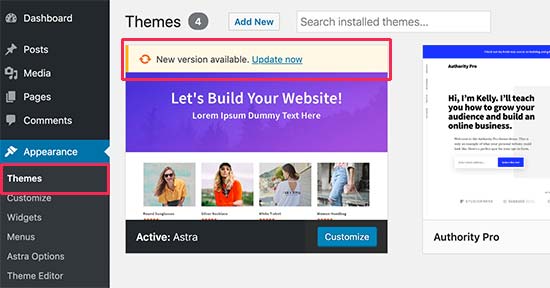
Backup your site before updating. This saves all data in case of errors. Use a reliable backup plugin or your hosting service’s backup feature. After backing up, proceed to update the parent theme. Go to the WordPress dashboard. Navigate to Appearance > Themes. Click on the update button if available. Check your site after updating to see if everything works fine.
Modifying The Child Theme
Always back up your website before changes. This keeps your work safe. Next, access your theme files. Use a File Manager or FTP client for this. Locate the child theme folder. Make edits to the style.css or functions.php files. Save your changes. Refresh your site to see the results. Sometimes, you need to clear the cache. This helps display the new changes. If something looks wrong, you can restore your backup.
Custom styles are important for your site’s look. Keep them updated to match new updates. Add your styles in the style.css file. Use comments to remember changes. This helps if you update the theme again. Always test your site after making changes. This ensures everything works well. If a style breaks, check your code for mistakes. Fixing errors keeps your site looking good.
Testing The Updated Theme
Verifying functionality is key after updating a child theme. Check every feature. Ensure links work correctly. Test contact forms. Make sure images load. Try different browsers. Confirm all buttons function. Review user accounts. Validate email notifications. If anything breaks, troubleshoot promptly.
Checking design consistency is equally important. Compare new design with old. Look at font styles and colors. Inspect layout and spacing. Ensure logos display correctly. Scroll through pages. Check mobile view. Confirm responsive design. If you spot changes, adjust settings. Keep the design consistent.
Credit: www.wpbeginner.com
Troubleshooting Common Issues
Styles can clash after updates. This often happens with CSS changes. Check your child theme’s stylesheet. Make sure it’s loading after the parent theme. This helps avoid conflicts. Use the inspect tool in your browser. It helps see which styles are active. Make adjustments as needed. Double-check for duplicate CSS rules. They can cause confusion.
Sometimes features stop working. This can be due to outdated functions. Check your theme’s functions.php file. Ensure all functions are compatible with the new update. If a feature breaks, look for plugin conflicts. Deactivate plugins one by one. See if the feature returns. This helps find the problem. Make sure all plugins are up to date. This ensures smooth operation.
Best Practices For Future Updates
Updating a WordPress child theme ensures your customizations stay intact. Always back up your site first. Then, update the parent theme and check compatibility. Adjust any custom styles or functions as needed. This keeps your site running smoothly and up-to-date.
Regular Backups
Creating backups is important. It keeps your data safe. Regular backups help avoid loss. You can restore your site if problems occur. Use plugins for easy backups. Store backups in different places. Use cloud storage for extra safety. Check backups often to ensure they work.
Documenting Changes
Documenting changes is vital for keeping track. Write down each update. Note what was changed and why. Use a simple log file. This helps if errors happen. You can review the changes easily. Share the document with your team. It helps everyone stay informed. Good documentation saves time.
Credit: elementor.com
Credit: www.wpbeginner.com
Frequently Asked Questions
What Is A WordPress Child Theme?
A WordPress child theme is a sub-theme that inherits styles and functions from a parent theme. It allows you to modify designs without altering the parent theme’s core files, ensuring updates won’t overwrite your customizations. Child themes are ideal for maintaining site aesthetics while keeping up with theme updates.
Why Update A WordPress Child Theme?
Updating a WordPress child theme ensures compatibility with the latest parent theme and WordPress version. It enhances security, fixes bugs, and may introduce new features. Regular updates help maintain optimal performance and safeguard your site from vulnerabilities associated with outdated themes.
How To Safely Update A Child Theme?
To safely update a child theme, back up your site first. Check the parent theme’s changelog for major updates. Use FTP or a child theme plugin to make changes. Test the update on a staging site to ensure everything works before applying it to the live site.
Can Child Theme Updates Affect Customizations?
Child theme updates can affect customizations if not done correctly. Always back up your site before updating. Use a staging environment to test changes. Avoid editing core theme files directly. Stick to custom CSS and functions in the child theme to preserve customizations.
Conclusion
Updating a child theme in WordPress is straightforward with the right steps. Always back up your files before making changes. Use an FTP client for easier access to your theme files. Customize your child theme carefully, ensuring all changes meet your design needs.
Regular updates keep your site secure and functional. Follow these steps, and your WordPress site will run smoothly. Remember, practice makes perfect. Keep experimenting with your child theme for better results. Happy updating!


