
Have you ever stumbled upon a beautifully designed WordPress site and wondered, “What theme are they using?” You’re not alone.
The curiosity about the underlying design can be as captivating as the content itself. Knowing the theme can unlock design inspiration for your own website, bringing you one step closer to the perfect look and feel. This guide is crafted just for you, unraveling the mystery of discovering what WordPress theme a website is using.
Imagine harnessing that design magic for your own site, enhancing your brand’s appeal with proven aesthetics. Dive in to learn how you can effortlessly identify a WordPress theme and start transforming your website today.
Identifying The Theme Via Page Source
Open any web page you like. Right-click on the page. Choose “View Page Source” from the menu. A new window will show up. This window has the HTML code of the page. You can see many lines of text here.
Look for a line with “/wp-content/themes/”. This line has the theme name. The name comes after the word “themes.” This tells you which theme is used. For example, “/wp-content/themes/theme-name/style.css”. The part “theme-name” is the theme.
Using Online Tools
Discovering the WordPress theme in use on a website can be simple with online tools. These tools help identify the theme by analyzing the website’s code and design elements. Understanding the theme can provide insights into the site’s design and functionality.
Benefits Of Online Theme Detectors
Online theme detectors are easy to use. They help you find out what theme is on a site. You just enter a website URL. The detector scans the site quickly. It shows the theme name in seconds. This saves you a lot of time.
These tools are helpful for beginners. You don’t need to know coding. They are mostly free. Some detectors even give extra info. They might show plugins used. This makes them very useful.
Popular Theme Detection Tools
| Tool Name | Features |
|---|---|
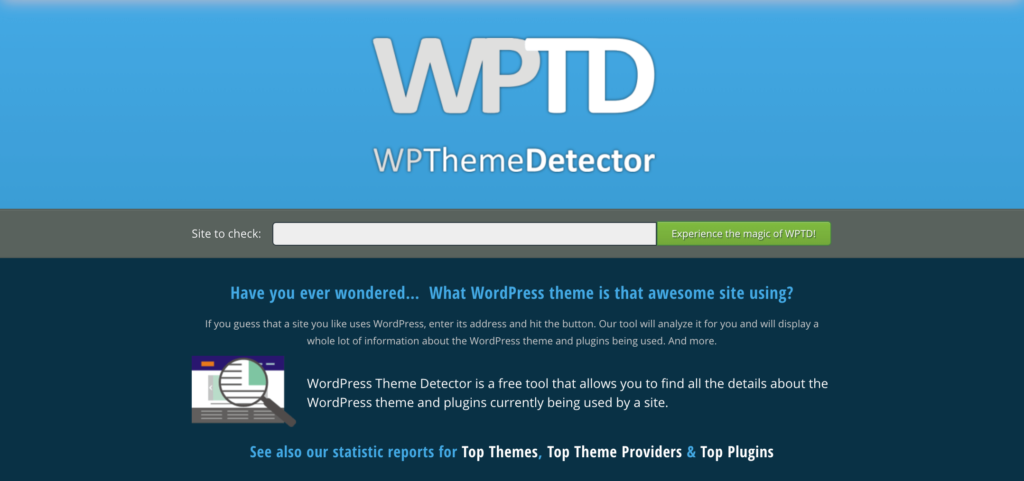
| WPThemeDetector | Detects theme and plugins |
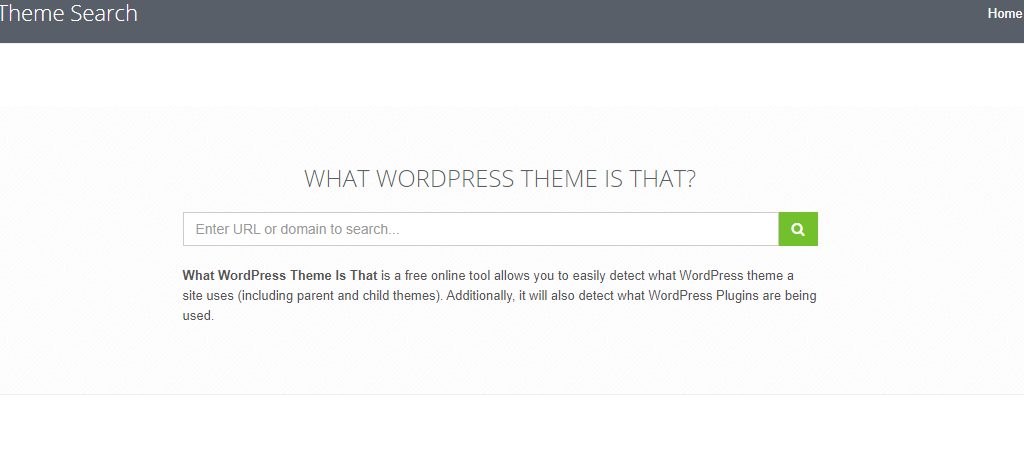
| What WordPress Theme Is That | Shows theme and child theme |
| ScanWP | Offers theme and plugin details |
Checking The Website’s Footer
Common Theme Credits often appear in the footer. Look at the bottom of the page. You may see words like “Powered by” or “Theme by.” These words can tell the theme name. Sometimes, theme creators put their name here. This is a good clue.
Recognizing Theme Names can be easy. The name might be in the footer too. If you see a name, search it online. It can show you the theme. Many websites use popular themes. These themes are often easy to find.
Credit: www.greengeeks.com
Inspecting Theme Files
Discovering the theme used on a WordPress site involves inspecting theme files. Access the website’s source code by right-clicking and selecting “View Page Source. ” Search for “wp-content/themes” to identify the theme folder name. This simple method helps recognize the active theme effortlessly.
Accessing The Theme Editor
The Theme Editor is a tool in WordPress. It helps in editing theme files. First, log into your WordPress dashboard. Go to Appearance and click on Theme Editor. A warning may pop up. It tells you to be careful. Editing files can break your site. Proceed with caution. On the right, you will see a list of files. These are your theme files. You can click on any file to view its code. But remember, any changes you make are permanent.
Identifying Theme Details
Theme details help you know more about your theme. Check the style.css file. It contains important information. Look for lines at the top. They tell the theme’s name and version. Other details like author and description might be there too. This information is useful for updates and support. Always note these details for future reference.
Utilizing Browser Extensions
Wappalyzer is a popular tool. It helps find website technology. It shows what theme a site uses. Another great choice is BuiltWith. It provides detailed tech info. It also reveals themes in use. Theme Detector is a specialized tool. It focuses only on WordPress themes. It is easy to use.
First, install a browser extension. Open the website you want to check. Click on the extension icon. Look for the theme name. It appears in the extension window. Repeat for other sites if needed. Extensions make theme finding simple. They save time and effort.
Credit: torquemag.io
Exploring The WordPress Dashboard
Admin access is needed to see the theme in WordPress. Log in to the admin area first. Only users with admin rights can find this information.
Once inside, navigate to “Appearance” in the sidebar menu. Click on it. A list will appear. The active theme will be displayed at the top. This section shows the name and version of the theme.
Knowing the theme helps in making design changes. If you cannot find the theme, ask the site administrator. They will provide the details.
Contacting The Site Owner
Crafting a polite inquiry is key. Begin with a friendly greeting. Ask about the theme politely. Respect their privacy. Don’t forget to thank them for their time. A gentle approach works best. People respond well to kindness.
Understanding theme sharing policies can be tricky. Some sites don’t share themes. Others might offer guidance. Respect their rules. Always check their policies first. Each site is different. Follow their guidelines carefully.
Credit: www.hostitsmart.com
Frequently Asked Questions
How Can I Find The Active WordPress Theme?
To find the active WordPress theme, navigate to the dashboard. Go to “Appearance” and then “Themes. ” The active theme is displayed at the top. Alternatively, view the page source and search for “wp-content/themes” to identify the theme name in the URL.
Is There A Plugin To Identify WordPress Themes?
Yes, you can use plugins like “What WordPress Theme Is That” to identify themes. These plugins scan the site and provide detailed information about the active theme. They can also reveal theme features and parent themes if applicable.
Can I Tell The Theme From The Page Source?
Yes, you can identify the theme from the page source. Right-click on the webpage and select “View Page Source. ” Search for “wp-content/themes” to find the theme name within the URLs. This method is quick and effective for theme identification.
Are Theme Detectors Reliable For WordPress Sites?
Theme detectors are generally reliable for WordPress sites. They analyze site elements to identify the active theme accurately. However, results may vary if the site uses custom themes or has masked identifiers. Always cross-check results for accuracy.
Conclusion
Identifying a WordPress theme is simple and beneficial. You can enhance your site’s design knowledge by understanding the theme. Use browser tools to inspect site elements. Online tools are also available for theme detection. Knowing the theme helps in customization and learning.
It aids in maintaining a consistent brand look. Keep exploring and experimenting with themes. This knowledge boosts your WordPress skills. You become more confident in managing your site. So, start identifying themes today. Enhance your web design journey.


