
Are you tired of seeing the same old fonts on every website? Imagine giving your WordPress site a unique touch with custom web fonts that reflect your brand’s personality.
It’s like giving your website its own voice, making it stand out in a sea of sameness. Hosting custom web fonts on WordPress might sound complicated, but it’s actually simpler than you think. By learning how to host custom web fonts, you’ll not only enhance your site’s aesthetic appeal but also improve user experience, making visitors more likely to stay and explore.
This guide will walk you through the process, step by step, ensuring that your website doesn’t just speak to your audience but captivates them. Ready to give your WordPress site a font makeover that will leave a lasting impression? Let’s dive in!
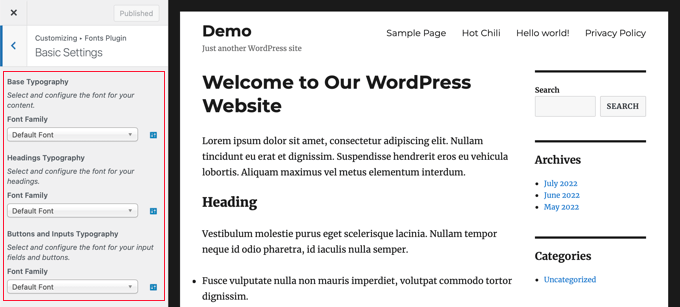
Credit: www.wpbeginner.com
Benefits Of Hosting Custom Web Fonts
Custom web fonts make your site unique. They create a special look. Your visitors will notice. Also, these fonts can make words easier to read. This is very important. Everyone likes a clear website.
Hosting fonts can speed up your site. Faster sites keep users happy. They visit more often. This is good for your site. Another benefit is control. You can control how the font looks. You decide what is best.
Hosting fonts helps with offline access too. Your site can work offline. This is a great advantage. People can view your pages anytime. Even without the internet.
Credit: fr.wordpress.org
Choosing The Right Font Format
WOFF and WOFF2 are popular font formats. They are widely used on web pages. These formats compress font data. This makes them fast to load. Web pages can display fonts quickly. WOFF2 is newer and offers better compression. It saves more space and loads even faster. Choose WOFF2 for modern websites.
EOT was made for Internet Explorer. It is old but still works. TTF is common and versatile. Many devices support it. TTF is easy to use but can be large. It may slow down web pages. Choose TTF for simple use. EOT is good for older browsers.
SVG fonts are unique. They can be scaled easily. This means they look good at any size. They are not widely supported. Use SVG fonts for special designs. Ensure the browser supports them. SVG fonts are creative but may not be practical for all sites.
Preparing Your Font Files
Font smoothing makes letters look clear and neat. Different browsers have unique ways. Some use anti-aliasing to soften edges. Others use sub-pixel rendering. This makes letters sharper. Experiment with settings. Find what looks best on screens.
Licensing is very important. Make sure you have the right to use the font. Read the license terms carefully. Some fonts are free. Others need payment. Check if you can host the font on your website. If not, you might have to link to a server. Always respect the rules. This avoids legal problems.
Uploading Fonts To WordPress
Uploading fonts is easy with the Media Library. First, go to your WordPress dashboard. Click on Media, then Add New. Select the font file from your computer. Once uploaded, copy the file URL. You will need this URL later. Now, open your theme’s style.css file. Use the @font-face rule to add the font. Paste the URL you copied. Save your changes. Now, your font is ready to use on your site.
Use FTP for a different upload method. Connect to your server with an FTP client. Navigate to the wp-content folder. Find the themes directory. Open the folder of your active theme. Create a new folder named fonts. Upload your font files here. Edit the style.css file of your theme. Add the @font-face rule with the correct path. Save your changes. Your custom font is now available.
Linking Fonts In Css
Hosting custom web fonts in WordPress involves linking fonts using CSS. Start by uploading font files to your server. Then, use the @font-face rule in CSS to define the font’s properties, ensuring seamless integration with your website’s design.
Font-face Declaration
The font-face declaration is vital for custom web fonts. It helps the browser find your font files. You start with @font-face. Next, name your font with font-family. This helps you call it later. Then, you give the source URL of the font. Use src for this. This is where your font lives online. Finally, set the font format. Use format() for this. It tells the browser the file type. Common types are woff and ttf.
Defining Font Styles
Defining font styles makes text look good. Use font-family to call your custom font. Set the font size with font-size. This makes text big or small. Choose font weight with font-weight. It makes text bold or light. Use font-style for italic text. This adds slant to words. These settings make your website unique.
Ensuring Cross-browser Compatibility
Some browsers may not support your custom font. Always use CSS fallbacks. These fallbacks ensure your text still looks good. Add a list of backup fonts. Start with your custom font. Then, add common fonts like Arial or Times. The browser will use the first font it supports. This way, your site stays looking great for everyone.
Test your fonts on different devices. Use phones, tablets, and computers. Every device might show fonts differently. Make sure your text is readable. Check both Android and iOS devices. Different systems have different font handling. This ensures a smooth user experience for all visitors.
Optimizing Font Performance
Fast font loading is important for websites. Use font-display: swap. This helps show text quickly. Text is shown with a fallback font. The custom font loads later. This makes pages look good fast. Use preload for key fonts. This tells the browser to load fonts early. It helps in quick display. Lazy loading can save time too. Load fonts only when needed. This helps improve performance.
Smaller font files help pages load fast. Use only needed font styles. Avoid extra styles and weights. Subset fonts by keeping only needed characters. This reduces size. Compress font files to make them smaller. Use WOFF2 format. It is smaller and faster. Try font compression tools. They help reduce file size. This makes websites faster and better.
Troubleshooting Common Issues
Hosting custom web fonts in WordPress often involves uploading font files to the server. Adjust the CSS to point to these files. Check file permissions to ensure fonts load correctly.
Font Display Problems
Fonts not showing can be frustrating. First, check your file path. Ensure it’s correct. Sometimes, small mistakes cause big problems. Next, look at the font formats. Use compatible formats like WOFF and WOFF2. These work well in most browsers. Also, check your CSS. Make sure the font-family is right. Always spell it correctly. Finally, clear your cache. Old files can hide changes. Refresh and see if the font appears.
Resolving Mime Type Errors
MIME type errors can stop fonts. Check your server settings first. Ensure the server recognizes font types. Use correct MIME types like font/woff or font/woff2. This tells the browser what files are. Make sure file extensions match the font type. Also, update your server. Sometimes, updates fix errors. Lastly, review your browser console. Look for error messages there. They can guide you to the problem.

Credit: wordpress.org
Frequently Asked Questions
How Do I Host A Font Locally In WordPress?
Download the font files and upload them to your WordPress ‘wp-content’ folder. Add CSS code in your theme’s stylesheet to define the font-face. Update the CSS to use the new font. Clear your site’s cache to ensure the new font loads properly.
Can You Upload Your Own Font To WordPress?
Yes, you can upload custom fonts to WordPress using plugins like “Use Any Font” or “Custom Fonts. ” These plugins allow easy font integration and customization, enhancing your site’s design. Ensure the font file is compatible and legally available for use.
Follow plugin instructions for seamless installation.
How Do I Host A Web Font?
Choose a font, download it, and upload to your server. Use CSS @font-face to link the font. Ensure proper file formats like WOFF, TTF, and EOT for compatibility. Test across browsers and optimize loading speed for improved user experience.
How To Add Custom Font In WordPress Without Plugins?
To add custom fonts in WordPress without plugins, upload font files to your theme’s directory. Edit the style. css file in your child theme. Use @font-face CSS rule to define font properties. Finally, apply the new font to elements using CSS.
This method ensures seamless integration and faster loading.
Conclusion
Custom web fonts enhance your site’s appearance. Hosting them on WordPress is straightforward. Follow the steps for easy integration. Upload your fonts and edit the CSS. Test the changes to see the new look. Custom fonts create a unique style.
Make your site stand out and improve readability. Remember to choose fonts that fit your brand. Keep them optimized for fast loading. Enjoy the new design and better user experience. With these tips, your site will look polished and professional.
Happy styling!


