
Are you ready to transform your WordPress site into something truly unique? Customizing a theme might sound like a daunting task, especially if you’re not a tech wizard.
But don’t worry—you’re not alone. Many WordPress users want their website to stand out, and the good news is that you can achieve this without getting lost in a sea of complex codes. Imagine your website as a blank canvas.
With just a few tweaks, you can add splashes of color, incorporate your personal style, and make it resonate with your brand’s identity. This isn’t just about aesthetics; it’s about creating an experience that captures your audience’s attention and keeps them coming back. As you delve into this guide, you’ll discover simple yet effective ways to customize your WordPress theme, making it both functional and visually appealing. So, why settle for a generic look when you can have a website that truly reflects your vision? Dive in, and let’s unlock the potential of your WordPress site together.
Credit: kinsta.com
Choosing The Right Theme
Picking a WordPress theme requires some thought. First, think about the purpose of your website. Is it a blog, a store, or a portfolio? Next, consider the design style. Do you want it clean or colorful? Check if the theme is responsive. This means it works well on phones and tablets. Don’t forget to look at reviews. They tell you if others like the theme. Finally, ensure the theme is SEO-friendly. This helps your site rank better on search engines. Keep these points in mind for a great choice.
| Theme Name | Features |
|---|---|
| Divi | Drag-and-drop builder, customizable |
| Astra | Lightweight, fast, responsive |
| OceanWP | Flexible, e-commerce ready |
| Neve | Mobile-friendly, easy setup |
Installing A Theme
First, download your theme’s ZIP file from a trusted source. Next, log in to your WordPress dashboard. Find the Appearance menu and click on Themes. Choose Add New and then Upload Theme. Select the ZIP file from your computer. Click Install Now. Once installed, activate the theme. Now, your new theme is ready. Enjoy the new look on your website!
Open your WordPress dashboard. Go to the Appearance section and click on Themes. Choose the Add New button. Here, browse the available themes. Use filters to find the perfect one. Once you find it, click Install. After installing, activate the theme. Your site will now have a fresh design!
Customizing Theme Settings
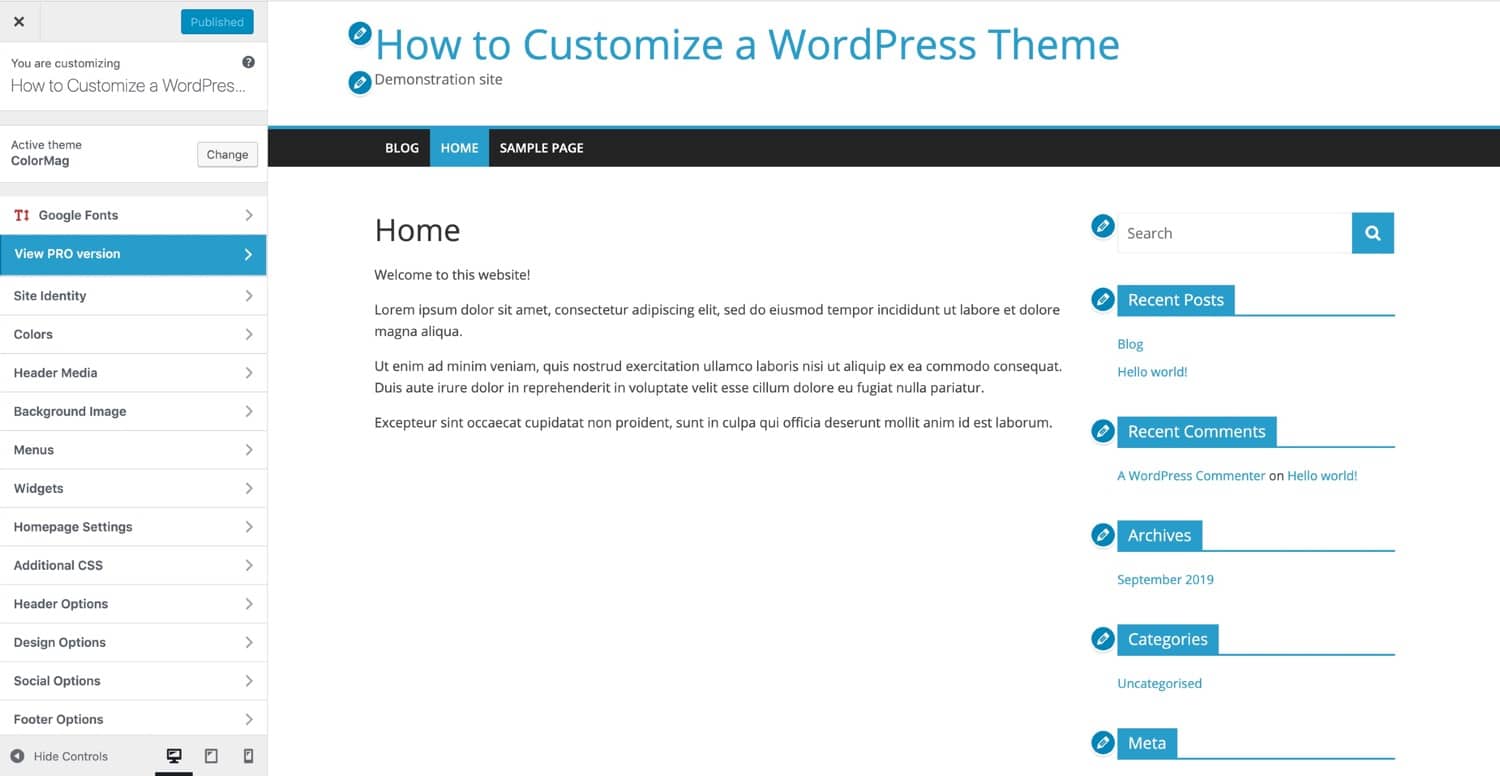
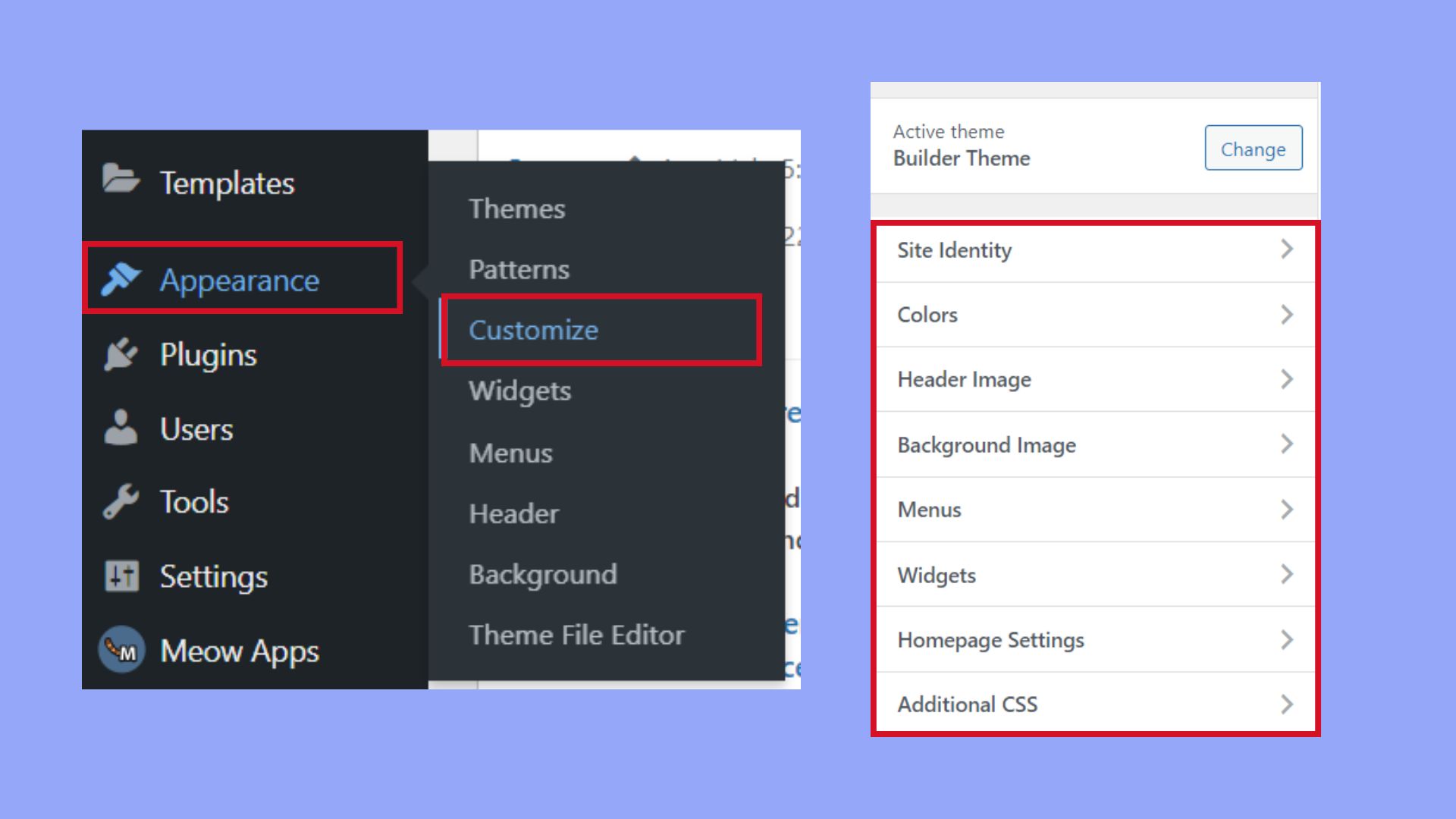
The Customizer Tool in WordPress is very helpful. It lets you change your site’s look easily. You can find it in the WordPress dashboard. Click on “Appearance” and then “Customize”. Here, you can adjust colors, fonts, and even the logo. Changes happen in real-time, so you see them right away. This tool is easy for everyone. No coding skills needed. Just click and change.
Themes often come with special options. These let you tweak parts of your site. You might find settings for headers, footers, and sidebars. Options can vary by theme. Always check what your theme offers. Use these features to make your site unique. It’s like giving your site a new outfit. Take time to explore and set up what you like. Your site will look better for it.

Credit: kinsta.com
Editing Theme Code
Explore how to customize a WordPress theme by editing its code. Gain control over design and functionality. Adjust fonts, colors, and layouts to suit your brand’s style effortlessly.
Understanding Php Files
PHP files control how your website works. They make things happen. These files are like instructions for your website. Changing them changes how things look and work. Be careful. Mistakes can break your site. Always keep a backup. This saves you from trouble if things go wrong. Use a child theme. It keeps your changes safe during updates.
Modifying Css Styles
CSS styles define how your site looks. They change colors, fonts, and more. Use CSS to make your site unique. Add your own styles. This makes your site look special. Always test your changes. Make sure they work on all devices. Check on phones, tablets, and computers. Use browser tools to see your CSS changes live. This helps you spot mistakes quickly.
Using Child Themes
Creating a child theme is easy. First, make a new folder. Name it after your theme with “-child” at the end. Inside this folder, create a file called style.css. This file will hold your theme’s styles.
Next, create another file called functions.php. This file lets you add features. It works with the main theme. In style.css, write a few lines to show it’s a child theme. You will also need to link it to the main theme.
Lastly, upload the child theme folder to your WordPress. Go to the Appearance tab and activate your child theme. Now you can customize safely.
Child themes protect your custom changes. Updates to the main theme won’t erase your work. They help keep your site looking fresh. You can also try new styles without risk. This makes editing easy and stress-free.
Adding Custom Widgets And Plugins
Plugins add new features to your WordPress site. Choose plugins that fit your needs. Some plugins help with SEO and others make your site look better. Check reviews before you add them. This helps find the best ones. Too many plugins can slow your site down. So, pick only what is important.
Widgets let you add extra things to your site. These can be menus, search bars, or social media links. Go to the widget area in your dashboard. Drag and drop the widgets you want. Arrange them to match your theme. You can also add custom HTML widgets. This gives you more control. Test your site after adding widgets. Make sure everything works well.
Testing Your Customizations
Cross-Device Compatibility ensures your theme looks good everywhere. Use different devices like phones, tablets, and computers to check. Make sure images and text display correctly. Buttons should work on all screens. Test in portrait and landscape modes. Use tools like BrowserStack for more testing. This helps find problems early. Fixing them makes your theme better.
Performance Optimization is key for a fast website. Speed matters for users and search engines. Check load times using tools like GTmetrix. Compress images to make them smaller. Use fewer plugins to keep your site quick. Minify CSS and JavaScript files. This reduces file size and boosts speed. A fast site keeps visitors happy and improves SEO.
Backing Up And Restoring Themes
Saving your WordPress theme is very important. Always make a copy before changes. Use plugins like UpdraftPlus or BackupBuddy. These plugins help save your theme easily. You can also manually copy the theme folder. Keep this copy on your computer. This helps if something goes wrong. Always have a plan for your backups. Store copies in different places. For example, on a hard drive or cloud storage. This keeps your work safe.
Restoring a theme is simple with the right tools. Use your backup to bring your theme back. If you use a plugin, follow its steps. Most plugins have guides to help you. You can also manually replace the theme folder. Use FTP to upload your saved theme folder. This will return your site to the last saved state. Remember, always check your site after restoring. Make sure everything works fine.
Credit: 10web.io
Frequently Asked Questions
How To Customize A Theme In WordPress?
To customize a WordPress theme, navigate to Appearance > Customize. Use the options available to modify colors, fonts, and layouts. Install a child theme for advanced changes. Employ custom CSS for specific styling needs. Always preview changes before saving.
Why Can’t I Customize My WordPress Theme?
Your WordPress theme might lack customization options due to restrictions or outdated code. Check theme settings or consider using a child theme. Upgrading to a premium theme or using plugins can also enhance customization capabilities. Make sure your WordPress version is up-to-date for the latest features.
Are WordPress Themes Fully Customizable?
WordPress themes are largely customizable. Users can modify layouts, colors, fonts, and more using theme settings. Advanced customization often requires coding skills or plugins. Some themes offer drag-and-drop builders for easier changes. Always check theme documentation for customization options before choosing.
Where Is Theme Customizer In WordPress?
Access the WordPress theme customizer under “Appearance” in the admin dashboard. Click “Customize” to modify your theme settings. This tool allows you to adjust site appearance, menus, widgets, and more. Tailor your website design effortlessly with user-friendly options.
Conclusion
Customizing a WordPress theme gives your site a unique look. You can change colors, fonts, and layouts. Use the WordPress Customizer for easy adjustments. Plugins offer more options for design tweaks. Don’t forget to backup your site before making changes.
Always preview your edits before publishing them. This way, you ensure everything looks right. Explore different settings to understand what works best. With practice, customizing becomes easier and fun. A personalized theme helps your site stand out. Enjoy the process and make your website truly yours.
Happy customizing!


