
Are you ready to unleash your creativity and give your WordPress site a unique look? Creating your own WordPress theme is the perfect way to stand out and make your website truly yours.
You might think it’s a daunting task, but with the right guidance, you can do it—even without being a coding wizard. Imagine having a site that reflects your style and vision, something that no one else has. You’ll discover a step-by-step guide on how to create a WordPress theme.
You’ll learn the essentials without getting lost in technical jargon. Ready to dive in and transform your website? Let’s get started!
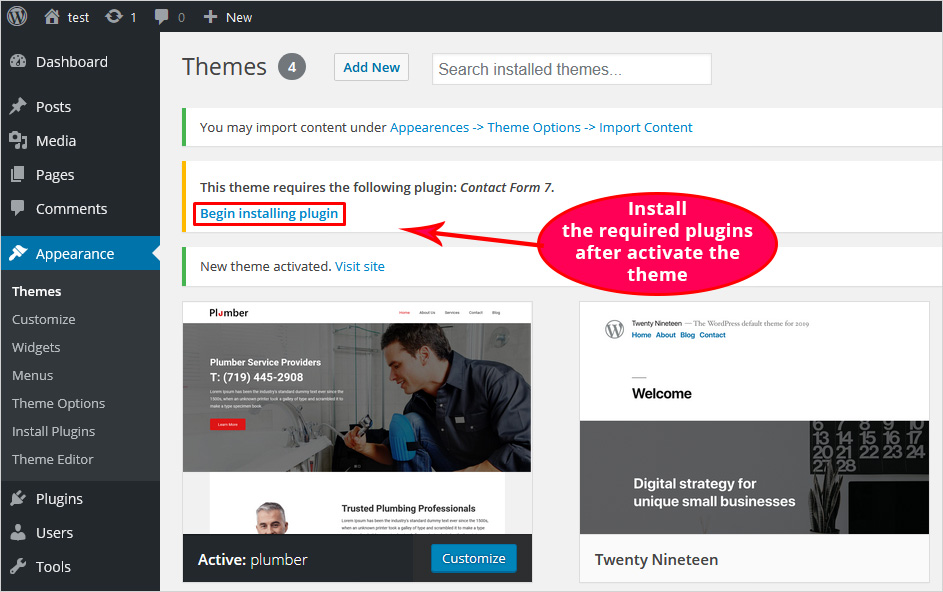
Credit: blog.templatetoaster.com
WordPress Theme Basics
Every WordPress theme has a unique structure. It usually contains several files. The main file is style.css. This file holds the theme’s design details. Another key file is index.php. This one displays the content on your site. These files work together to create your site’s appearance.
Important parts include the header, footer, and sidebar. The header appears at the top of the page. It often shows the site title. The footer is at the bottom. It might display copyright info. The sidebar is often on the side. It can show widgets or links. These parts are vital for site layout.
Setting Up Your Development Environment
To create a WordPress theme, install a local server environment. Tools like XAMPP and MAMP help. These tools run WordPress on your computer. No need for a live server. Also, use a code editor. Editors like Visual Studio Code and Sublime Text are popular. They make coding easier with features like syntax highlighting. A browser is important too. Test your theme on different browsers. This ensures it works well everywhere.
Some plugins are very useful. Install Debug Bar for debugging help. It shows errors and warnings. Theme Check is another useful one. It checks if your theme follows WordPress standards. Monster Widget is good for testing. It adds all default widgets to your sidebar. This helps in seeing how widgets look in your theme. These plugins make theme development smoother and better.
Creating A Theme Folder
Choose a clear name for your theme folder. Use lowercase letters. Stick to simple words. Avoid spaces. Use hyphens for separation. This helps in easy identification. Example: “my-awesome-theme”.
Create a new folder on your computer. Name it using the conventions. Open the folder. Inside, make two files. First, “style.css” for styling. Second, “index.php” for structure. These are essential. They form the base of your theme. Ensure both files are empty. This is the starting point.
Building The Style.css File
The style.css file starts with a special header. This header holds important details. You must include the theme’s name, author, and version. These details help identify your theme. The header is read by WordPress. It must be placed at the top. This is crucial for theme activation. Without it, the theme won’t work.
Base styles set the foundation of your theme. You need to define body, headings, and links. Choose a font that is easy to read. Set colors that are pleasant to the eyes. Ensure consistency across elements. Use padding and margins to keep things organized. These styles create a clean look. They make your site look professional.
Developing The Index.php File
Basic Structure: Every theme needs an index.php file. It is the main file. First, open a text editor. Create a new file named index.php. Write the opening PHP tag: <?php. Add HTML structure below. Use , , and tags. This is the basic setup. Now, save the file. Your theme has the first file.
Content Loop: The content loop is vital. It shows posts on the site. Inside the body tag, use a WordPress loop. Start with php if ( have_posts() ) : while ( have_posts() ) : the_post(); ?. This checks for posts. Use php the_content(); ? to display content. Close the loop with php endwhile; endif; ?. This completes the loop. Now, posts appear on your site.
Adding Functions With Functions.php
The functions.php file helps add special features to a theme. It can enable features like custom headers and custom backgrounds. You can also add post thumbnails or featured images. These features make your theme look unique and interesting. The file acts like a plugin. It is loaded automatically when your theme is active.
You can add your own functions in the functions.php file. They can change how the theme works. For example, you can add a function to change the footer text. Another function can create shortcodes for special content. Custom functions let you personalize your theme. They offer flexibility and fun. Just be careful when editing this file. A small mistake can cause big problems.
Template Files And Hierarchy
WordPress themes rely on template files to display content. These files decide how your site looks. The most common files are index.php, header.php, and footer.php. Each file has a specific job. For example, header.php shows the top part of your site. Footer.php shows the bottom part.
Every theme needs an index.php file. Without it, the theme won’t work. These files help create a consistent look across your site. This makes your site feel whole. When editing, use simple tools. This keeps your theme easy to read.
WordPress uses a template hierarchy to decide which file to use. This is a set order. If a file is missing, WordPress uses another. For example, if single.php is not there, it uses index.php. This order helps when themes get complex. Understanding this order is key. It helps in making changes.
The hierarchy starts with the most specific file. Then it goes to the general ones. This keeps your site working well. Knowing this order saves time. It helps in fixing problems quickly.
Enqueuing Styles And Scripts
In WordPress theme creation, enqueuing styles and scripts ensures proper loading of CSS and JavaScript files. This process prevents conflicts and enhances site performance. Organize code efficiently by using functions like `wp_enqueue_style()` and `wp_enqueue_script()`.
Adding Css Files
To add CSS files, you need to use a special function. This function is called wp_enqueue_style. It helps to load your CSS files the right way. First, create a function in your theme’s functions.php file. Inside this function, use wp_enqueue_style to add your CSS file. You can give your file a name. Also, you need to tell the function where the file is located. Usually, CSS files are in a folder named css.
Here is a simple example:
function my_theme_enqueue_styles() {
    wp_enqueue_style('my-style', get_template_directory_uri() . '/css/style.css');
}
add_action('wp_enqueue_scripts', 'my_theme_enqueue_styles');
Including Javascript
JavaScript files are added using wp_enqueue_script. This function works like wp_enqueue_style. First, create a new function in functions.php. Use wp_enqueue_script inside it. Name your script and tell the function where to find it. Scripts are usually in a folder named js.
Here’s a simple example:
function my_theme_enqueue_scripts() {
    wp_enqueue_script('my-script', get_template_directory_uri() . '/js/script.js', array(), false, true);
}
add_action('wp_enqueue_scripts', 'my_theme_enqueue_scripts');
Remember to always use these functions. They help keep your theme organized.
Creating Custom Page Templates
Each template has a specific structure. Start with a header. Then add the main body. End with a footer. Templates use PHP and HTML tags. These tags help build the page. Use comments to keep code organized. Comments explain what each part does. This helps others understand the code.
Assign templates to pages. Go to the page editor. Look on the right side. Find the template dropdown. Choose the template you want. Click the update button to save. Templates change how a page looks. Each page can have a different template. This makes your site unique. Easy to change and update.
Customizing The Theme With Widgets
Widgets enhance your WordPress theme by adding functionality and style. Drag and drop widgets into widget-ready areas. Customize layouts and features with ease, transforming your site’s appearance and user experience.
Registering Widgets
Widgets are small blocks that add functions. They help make a theme special. To begin, you must register widgets in the theme. This happens in the functions.php file. Add a code to create widget areas. These areas hold your widgets. Each widget area has a name. It also has a description. This helps you know where widgets go. Code carefully to avoid mistakes. Save changes when done.
Placing Widgets
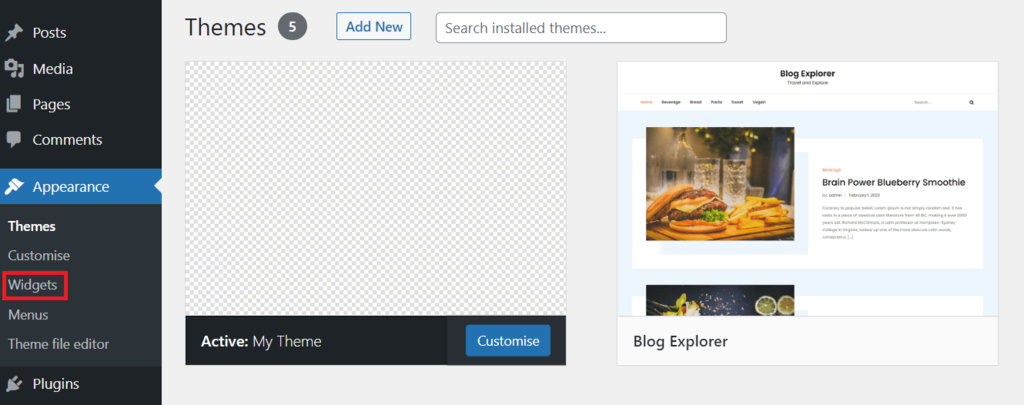
After registering, place widgets in the theme. Go to the WordPress dashboard. Find the Appearance section. Click on Widgets. Drag and drop your widgets into the areas. Each area is like a box. Put the right widget in the right box. You can use as many widgets as needed. Arrange them to fit your theme style. Check your site to see the changes. Adjust if necessary.
Testing And Debugging
Creating a WordPress theme involves testing and debugging to ensure functionality. Identify and fix errors using built-in tools. Efficient testing enhances user experience and theme performance.
Common Errors
Errors are common while creating a WordPress theme. Syntax errors often occur due to missing semicolons. Function errors happen if a function is not defined. Missing files can break the theme, causing a blank screen. CSS issues affect the look of the theme. JavaScript errors can stop interactive features from working. Always double-check your code. Ensure all files are in the right place. Keep your code clean and organized.
Debugging Tools
Debugging tools help find and fix errors. WP_DEBUG is a WordPress tool that shows errors on your screen. Set WP_DEBUG_LOG to true to save errors in a log file. Use Query Monitor to check database queries and hooks. PHP error logs help find PHP problems. Browser developer tools are great for CSS and JavaScript errors. They show errors in real time. These tools make theme development easier and faster.
Preparing For Theme Launch
Crafting a WordPress theme involves designing layout, selecting color schemes, and coding HTML, CSS, and PHP. Testing the theme ensures compatibility and smooth functionality across devices. After refining the design, upload your theme to WordPress for others to enjoy.
Cross-browser Compatibility
Make sure your theme works on all browsers. Test on Chrome, Firefox, Safari, and Edge. Use tools like BrowserStack for testing. Fix any layout issues you find. Check fonts and colors are the same. Ensure buttons and links work everywhere. This makes sure every user has a good experience. Keep your theme consistent across all browsers.
Performance Optimization
A fast theme is important. Compress images to make them smaller. Use plugins like WP Super Cache. Minify CSS and JavaScript files. This reduces load time. Make sure your code is clean. Remove any unused code. This helps your theme load quicker. Always test your theme speed with tools like GTmetrix. Fast themes keep visitors happy and engaged.
Submitting To The WordPress Repository
Creating a WordPress theme is fun. But following guidelines is key. Themes must be secure and easy to use. They need to work well on all devices. Code must be clean. Use simple and clear code comments. Check for errors. Fix them before submission. Themes must have a GPL license. This is important. It allows users to share and change the theme.
The approval process starts after submission. Reviewers check your theme. They look for errors. They test for bugs. The theme must pass these checks. If it fails, fix issues and resubmit. Once approved, your theme is live. Users can now download it. This is a proud moment. Your work is now shared with the world.
Credit: www.hostinger.com
Credit: www.wpzoom.com
Frequently Asked Questions
How Do I Create My Own Theme In WordPress?
To create a WordPress theme, set up a development environment. Build essential files like style. css and index. php. Use HTML, CSS, PHP for design and functionality. Test the theme using WordPress Theme Unit Test data. Optimize for SEO, responsiveness, and accessibility.
Which Theme Builder Is Best For WordPress?
Elementor is often regarded as the best theme builder for WordPress. It offers user-friendly customization and a wide range of features. Its drag-and-drop interface makes designing easy for beginners and experts alike. With numerous templates and widgets, Elementor enhances website functionality and design.
Can You Create Your Own Template In WordPress?
Yes, you can create your own template in WordPress. Use PHP, HTML, CSS, and JavaScript. Customize using the WordPress theme hierarchy. Ensure it meets WordPress coding standards for compatibility.
How Do I Manually Add A Theme To WordPress?
Download the theme’s ZIP file. Log into your WordPress dashboard. Navigate to “Appearance” then “Themes. ” Click “Add New” and “Upload Theme. ” Choose the ZIP file, then click “Install Now. ” Activate the theme once installed. Ensure the theme is compatible with your WordPress version before proceeding.
Conclusion
Creating a WordPress theme is rewarding. It lets you shape your site. Start small and build your skills. Use WordPress resources for guidance. Experiment with code, design, and features. Customize to match your brand. Stay patient and enjoy the process.
Your theme reflects your creativity. Share your work with the community. Seek feedback to improve. Remember, practice makes perfect. Keep learning and evolving. Your site will stand out. Happy theme building!


